Moving
With the  icon in the Drawing Tools toolbar you move elements.
- in the pattern
- in Color Arrangements
- in Module Arrangements
- in modules.
In the toolbar, you select the desired option:
_____________
Move an element in the Color Arrangement Editor:
- A Color Arrangement is opened in the Color Arrangement Editor.
- 1
- Click the icon in the Drawing tools toolbar.
- or -
Press the M key. - 2
- Select the
 option.
 - 3
- Click the desired element in the processing area.
- 4
- Move the cursor with the mouse button pressed to the top in the column.
- 5
- Release the mouse button on the yellow bar.
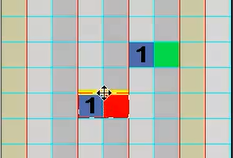
- The selected element will be moved to an additional row.
You can also release the mouse button in the yellow selection frame of an existing cell.