Symbol View (Shape)
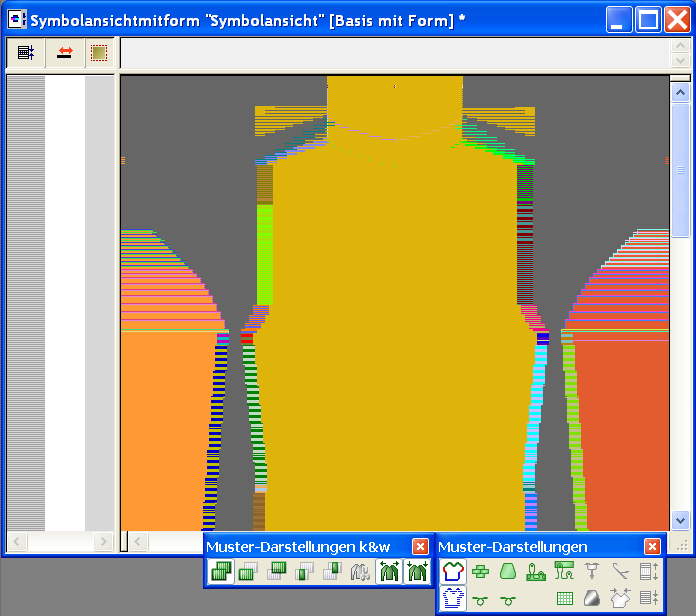
The Symbol View (Basic with Shape) is a special mode of the symbol view for the graphic entry and display of the shape (elements within shape and outside shape) and its shape attributes for fully fashion and k&w patterns.
The starting points of the modules, which have been inserted as selection in the shape view, will be displayed with a triangle.
On the left side, the window has control columns with the row numbering and the row data.
You open the Symbol view [shape] with the function, in the menu.
You expand the Symbol View after cutting out the shape with the symbols  and
and  in the Pattern Presentations toolbar to the Symbol View (Basic with Shape).
The Symbol View (Basic with Shape) works with the Fabric View and the Technical View interactively after expanding the modules. Changes are displayed immediately in all windows.
The following information is present in the title bar:
- Symbol View (Basic with Shape)
- Pattern name
- Pattern size with the display of the pattern width x pattern height (pattern rows/technical rows)
- Machine and machine gauge
- * is shown when the edited pattern has not yet been saved.
You will find the name of the shape file in the / menu and in the Shape attributes dialog box.
With k&w patterns in the shape view before cutting out:
An additional symbol appears at the cursor and displays the area in which the cursor is located: In the sleeve, body or collar; right or left.
The k&w Arrangement will be selected with the F5 key in the Modules toolbar.
A shape can also be saved separately from the pattern as a separate file. The open file is shown in an identical window, but with the name Symbol view [shape].
Navigating in the Symbol View (Basic with Shape):
If the cursor is located within the view, the display is scrolled in the direction of the cursor by pressing the space bar. The position displayed will be set in all the other views by pressing the x key. The edge color to which the cursor is pointing is selected in the table with the F6 key.
Copying in the Symbol View (Basic with Shape):
If a selected area in the shape is copied in the view, the module echo of the selection is displayed and the module symbol appears at the cursor. If the selection is greater than the displayed section on the screen, no module echo is displayed during copying. Only the module symbol appears on the mouse pointer.