New step module
With this dialog, you generate a step module, for example, for binding-off.
The dialog box is opened by the function in the menu.
The step module consists of a maximum of three individual modules above each other. The starting module is inserted in the bottom row, the repetition module in the middle row and the end module in the top row. Only modules with one single pattern row are permissible.
You can position the modules in the dialog box diagonally from left to right or diagonally from right to left. If you have inserted a starting or end module, the direction is fixed. The locations in the dialog box where modules may still be inserted are specified in the dialog box. The following picture appears at the positions at which no module can be inserted:
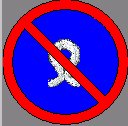
Make the following settings in this dialog box:
|
Element |
Meaning |
|---|---|
|
Left column |
Step module from left to right: Step module from right to left: |
|
Middle column |
Step module from left to right: Step module from right to left: |
|
Right column |
Step module from left to right: Step module from right to left: |
|
Bottom row |
Vertical distance from the first technical row of the starting module to the first technical row of the first repetition module. |
|
Middle row |
Vertical distance from the first technical row of the repetition modules in a column. |
|
Top row |
Vertical distance from the first technical row of the starting module to the first technical row of the end module. |


When drawing in with this module, all individual modules in one pattern row consisting of consecutive technical rows are drawn in. The direction specified in the dialog box is observed here. It is irrelevant from which side you begin the selection.
The context menu of the dialog box:
|
Function |
Meaning |
|---|---|
|
|
Remove the module from the container. |
|
|
Open the module to edit it. |
|
|
Select the module in the Module Explorer of Database. |
Buttons in the dialog box:
|
Button |
|
|---|---|
|
OK |
Close the dialog box and save the changed module. |
|
Cancel |
Close dialog box without saving. |