Filled neckline, hole, opening with markings
In the shape editor you can define a Neckline, a Hole and an Opening in such a way that they are not cut-out by the processing step . Only a marking is inserted that results from the narrowing.
Procedure:
- The shape is opened in the shape editor.
- 1
- Select the neckline element
- 2
- Select under
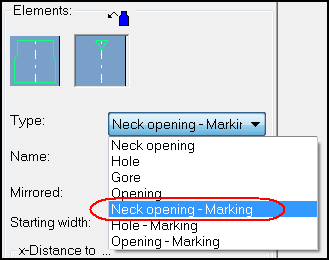
- 3
- Make further shape settings
- 4
- Save Shape
- 5
- Cut-out shape
- The symbols
 and
and  were entered:
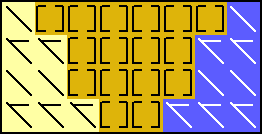
- 1
- Expand pattern
- Narrowing markings were entered:
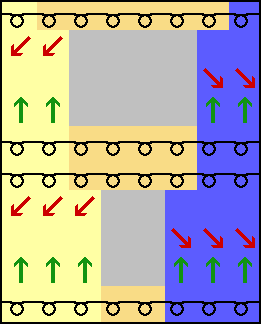
Further possible applications:
Using the symbols and it is possible to draw-in a shape edge within a pattern. Both symbols can be used for it:
Example:
If the symbol is selected additionally to the edge color, the symbol is simultaneously positioned starting on the left side when drawing with this edge color. The behavior is similar to the left shape edge. The same applies correspondingly for the symbol . However, no different symbols will be used in the pattern.
When narrowing with a stepping larger than value 1, automatic floats are used to avoid double stitches.