Pattern Colors
The M1plus main program has a Pattern Colors toolbar, which you can position on the screen as desired. You can display or hide them with the function in the menu. A check appears in front of the function if the toolbar is activated.
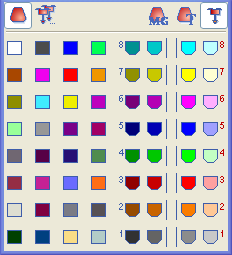
I. Selection of a color:
- 1
- Click on the desired color with the left mouse button.
- The selected color is shown as a pressed symbol.
II. Switch off colors:
The selection of another color automatically deactivates the previously selected color.
- 1
- Click on the symbol of the selected color with the left mouse button.
- Now no color is selected.
III. Change the colors by, for example, generating a color palette with the colors of the season:
- The color to be changed is selected.
- 1
- Click on any color in the toolbar with the right mouse button.
- The context menu appears.
- 2
- Select the function from the context menu with the left mouse button.
- The Colors dialog box appears, for selecting or defining a new color
With the function from the context menu, three consecutive number with a maximum of three digits are searched for in the paste buffer. These are interpreted as RGB value sand allocated to the current color.
IV. Get color from the paste buffer:
The RGB values must have been copied to the paste buffer with another program.
- A color is selected in the toolbar.
- There are RGB values in the paste buffer.
- 1
- Click on any color in the toolbar with the right mouse button.
- The context menu appears.
- 2
- Select the function from the context menu with the left mouse button.
- The color selected in the toolbar contains the RGB values from the paste buffer.
Several Color palettes are available to you in the context menu of the toolbar. With these you can quickly display the pattern in different colors.
If a jacquard area is located within the pattern and you move the mouse pointer over this area, then the colors of the jacquard in the toolbar are also shown with a J.