Multiple Find and Replace
You can start several searching procedures in the Find and Replace dialog box at once.
- You can save this combination in a list (*.m1rx) and reopen it in other patterns.
- You can combine (
 ) and (
  ) as desired in one list.
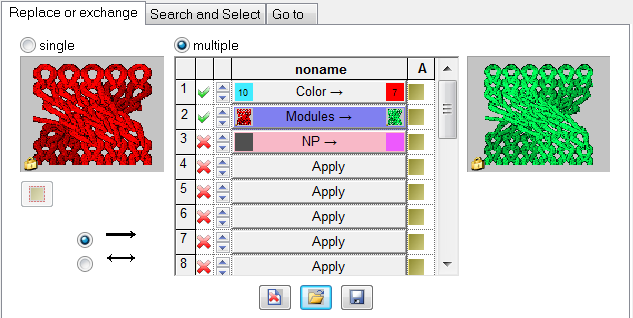
Make the following settings in this list:
|
Element |
Meaning | ||
|---|---|---|---|
|
|
Name of the list | ||
|
1. Column |
Consecutive numbering of entries | ||
|
2. Column |
Status of the entry | ||
|
|
The entry is active | ||
|
|
The entry is not active | ||
|
3. Column |
Arrow keys for sorting the entries | ||
|
4. Column |
Summary of the searching procedure | ||
|
|
Icon at the left |
Search object | |
|
Apply |
Name of the search object | ||
|
|
Color code of an active entry | ||
|
|
Color code of an unallowed or impossible search object | ||
|
Arrow |
|
Replace left search object. | |
|
|
Exchange the left search object with the right search object. | ||
|
Icon at the right |
Replacing object | ||
|
Context Menu |
1) Functions for moving or deleting the entry or for inserting a new entry (empty row). 2) Functions for changing the settings (On / Off, Replace / Exchange, Search area) for all the entries. | ||
|
5. Column (A) |
Search Area | ||
|
|
In Entire Pattern | ||
|
|
In the Selected Area | ||
|
Buttons below the list | |||
|
|
|
Delete the active list. | |
|
|
|
Save active list. | |
|
|
|
Call up the Open dialog box in order to load a saved replace list (*.m1rx). | |



 to the top or to the bottom.


