Save
|
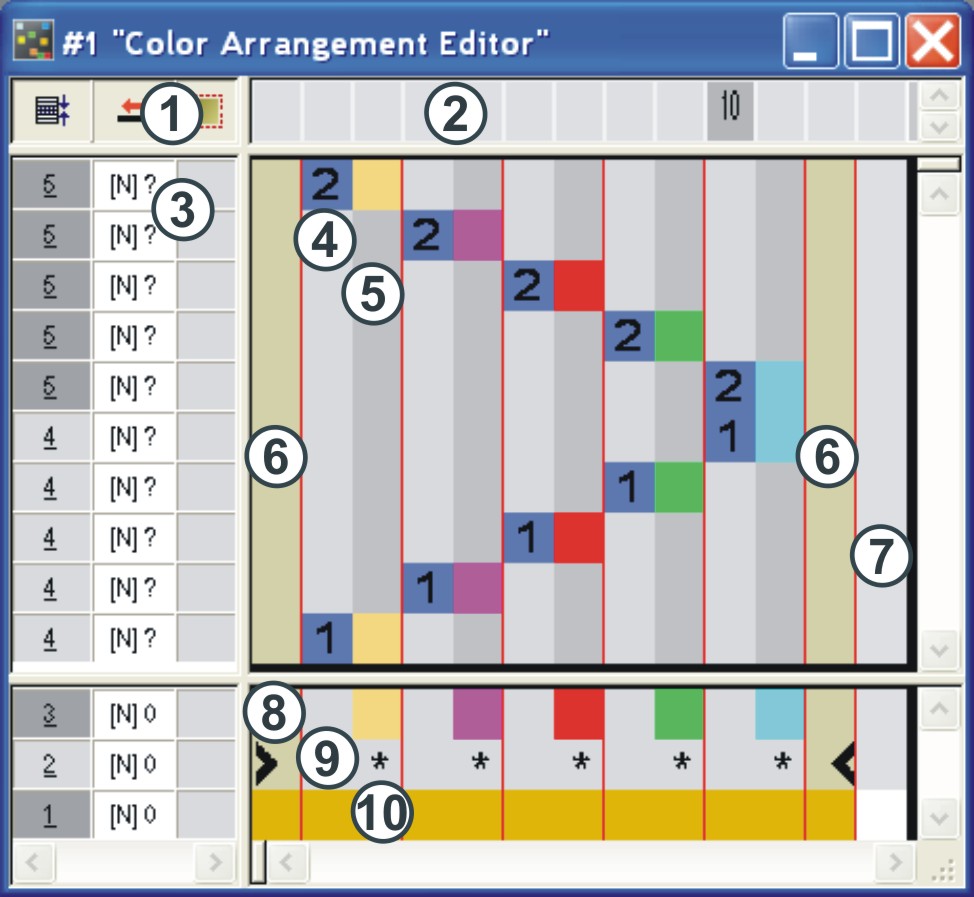
1 |
Header of the control columns |
2 |
Column bar | ||
|
3 |
Row bar with control columns |
|
| ||
|
4 - 7 |
Processing Area |
8 - 10 |
Search Area | ||
|
4 |
Reference column in the processing area |
8 |
Row of search colors | ||
|
5 |
Color column with color segment |
9 |
Functions of the search colors | ||
|
6 |
Shape column (Fully Fashion) |
10 |
Row of one or more search colors for shape parts | ||
|
7 |
Column for repetitions | ||||
Call-up the Color Arrangement Editor:
- 1
- Create a selection in the symbol view of the pattern and call-up the / function in the menu
- or -
Create a selection in the symbol view of the pattern and click on the symbol in the Standard toolbar.
- or -
Run the / function in the menu of the M1plus main program.
- or -
Run the function in the context menu of a selected Color Arrangement in the Module Explorer.
- or -
Double-click on the selected Color Arrangement in the Module toolbar of the M1plus main program.
- or -
Double-click on the selected Color Arrangement in the Module Explorer.
The  symbol of the Drawing Tools toolbar is used to edit the Color Arrangement.
The buttons in the prompt :
|
Button |
Function |
|---|---|
|
Yes |
Save the Color Arrangement. |
|
No |
Close the Color Arrangement Editor without saving. |
|
Cancel |
Open the Color Arrangement Editor. |