Transparent areas in the module
A module can contain transparent areas. When drawing with this module, the pattern is not overwritten by the needle pairs with the transparent areas. In addition, the module is inserted meshed. This means that modules that are positioned next to each other with the line function or by drawing with the mouse button held down overlap as far as possible due to the transparent areas. In the module echo the meshing is visible.
Example:
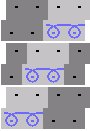
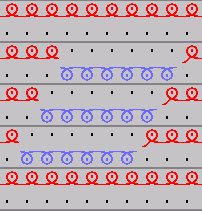
If no transparent areas were present in the module, then the entire rectangular area would be positioned each time.
Generate transparent areas in the module:
- The Module Editor must be open.
- 1
- Select the area which is to be transparent and click the Delete contents
 icon from the toolbar.
- or -
Select the Transparent position in module icon from the toolbar and draw in the areas which shall be transparent.
- The selected area becomes transparent. Transparent areas are shown with a dark gray background.
Transparent areas are also generated when a non-rectangular module is generated from the pattern.
Transparent areas exist only in modules, not in pattern.
If you want to delete an area within the module, then use the No needle action  icon from the toolbar.