Helpers for Input
Depending on the active input field appears:
- the numeric keyboard
- the alpha-numeric keyboard (for comments)
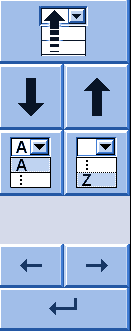
- the input helper for list fields
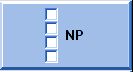
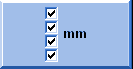
- The input help for NP measure units
|
|
Explanation |
|---|---|
|
|
Switch on the virtual keyboard |
|
|
Switch off virtual keyboard |


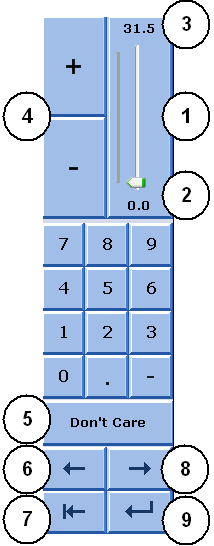
The numeric keyboard
|
|
|
Explanation |
|---|---|---|
|
|
1 |
Slider |
|
2 |
Shows the maximum value of the selected field | |
|
3 |
Shows the minimum value of the selected field | |
|
4 |
Increase or decrease the value by one step | |
|
5 |
Apply value from the previous row
| |
|
6 |
Move cursor: one field to the left | |
|
7 |
Delete the number to the left of the cursor | |
|
8 |
Move cursor: one field to the right | |
|
9 |
Confirm input. The cursor jumps to the next field. |
 :
:
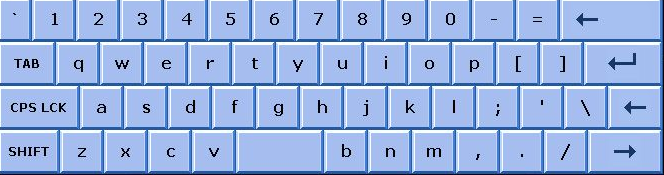
The alpha-numeric keyboard
|
Key |
Function | |
|---|---|---|
|
| ||
|
|
TAB |
Jump to the next field. |
|
|
CPS LCK |
Switch over between capitals and small letters, the setting of numbers or special characters is maintained |
|
|
SHIFT |
Switch over between capitals and small letters, and between numbers and special characters |
|
|
BACKSPACE |
Move the cursor by one step to the left and delete the character there |
|
|
ENTER |
Confirm input |
|
|
LEFT |
Move the cursor by one step to left |
|
|
RIGHT |
Move the cursor by one step to right |




The input helper for list fields
|
Element |
Function | |
|---|---|---|
|
|
|
Fold open selection field |
|
|
Fold closed selection field | |
|
|
Move cursor: one line upwards | |
|
|
Move cursor: one line downwards | |
|
|
Move cursor: one character to left | |
|
|
Move cursor: one character to the right | |
|
|
Move cursor: to first input of selection field | |
|
|
Move cursor: to last input of selection field | |
|
|
Confirm input | |


The input help for NP measure units
|
Element |
Function |
|---|---|
|
|
Switch all values to NP |
|
|
Switch all values to millimeters |
|
|
Switch a single value to mm |
|
|
Switch a single value to NP |


The Input Helper for Yarn Carriers (YLC tab)
|
Element |
Function |
|---|---|
|
|
Enter yarn carrier specification |
|
|
Delete entry |
|
|
Move cursor: one character to left |
|
|
Move cursor: one character to the right |
|
|
Confirm input |