Modules
The M1plus main program has a Modules toolbar, which you can position on the screen as desired. You can display or hide them with the function in the / menu. A check appears in front of the function if the toolbar is activated.
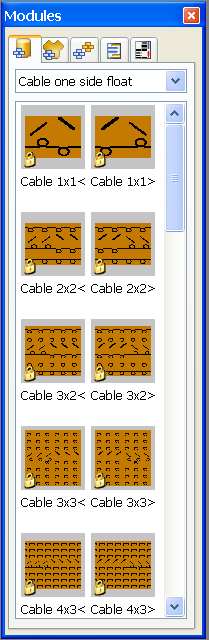
The module groups with the modules of the open pattern can be selected in a list field.
The module links within the selected subgroup appear in the toolbar.
If you hold the mouse pointer on the picture, the size of the module appears in addition to the module name.
A module is selected by clicking on it with the left mouse button.
The selection is deselected again when the module is clicked on again.
A selected module will be highlighted and displayed enlarged at the bottom of the module bar.
Double-clicking it opens a module for editing in the Module editor.
The properties of a module are displayed with Alt and a double-click.
You can select and delete several modules in the Module toolbar:
- Pull a rectangle with the left mouse button pressed over the modules.
- You can add further modules with the CTRL button and click on left mouse button.
- Via the key combination Ctrl+A (selects all modules of the opened module group).
- Select one module with the left mouse button and an additional module with the Shift key and the left mouse button. With it you select all the modules within the selection.
In the Modules toolbar you switch to the different tabs using the symbols.
|
|
Tab |
Meaning |
|---|---|---|
|
|
Modules of Database |
Modules from the M1plus module database
|
|
|
local modules and pattern elements |
Modules and pattern elements from the active pattern |
|
|
Local Module Arrangements |
Module Arrangements from the active pattern |
|
|
Local Color Arrangements |
Color Arrangements from the active pattern |
|
|
Local k&w Arrangements |
k&w Arrangements from the active pattern |


