Yarn field table in the Yarn Field Allocation dialog box
Structure and columns of the yarn field table
Table header:
- 1st row: all the symbols for identification of the table columns
- 2nd row: Default settings for the respective column (settings from globalparameters.mdv)
The default settings are used for all Yarn fields without specifications.

|
No. | Icon | Function | Meaning |
|---|---|---|---|
Knit-in section | |||
1 |
| Starting Direction | Definition of the knitting direction for the first row of a color field |
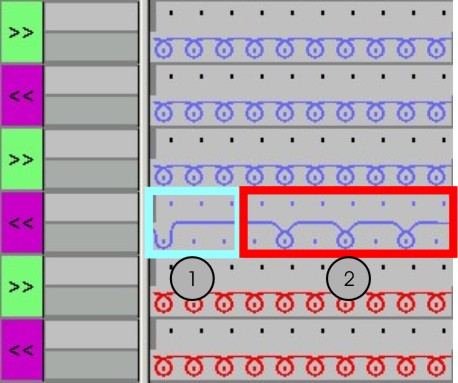
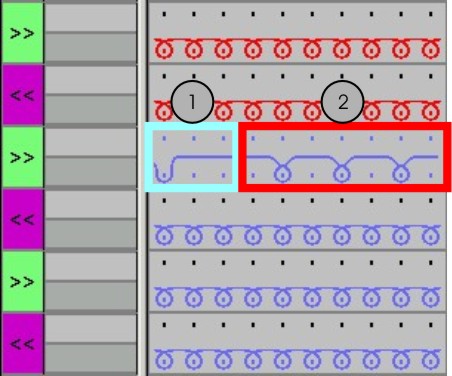
| Module for Knitting-in | Definition of the knitting mode for the knit-in row (2)
| |
| Prioritize Knitting-in | Specify the order of knitting in of the yarn carriers with simultaneously starting yarn fields
| |
| Row-offset for Knitting-in | Knitting-in of the yarn carrier by x rows before the beginning of the yarn field
| |
| Binding or Knot at the Start | Definition of the knitting mode for the binding at the yarn field border when knitting-in (1) | |
| Column-offset for Knitting-in with a Knot | Move the position of a knot (module) when knitting-in by x columns to the left or right | |
Knitting out section | |||
2 |
| Direction of Knitting-out | Definition of the knit-out direction of a yarn carrier at the end of a yarn field |
| Module for Knitting-out | Definition of the knitting mode for the knit-out row (2)
| |
| Prioritize Knitting-out | Specify the order of knitting out of the yarn carriers with simultaneously ending yarn fields | |
| Row-offset for Knitting-out | Knitting-out of the yarn carrier by x rows after the end of the yarn field
| |
| Binding or knot at the end | Definition of the knitting mode for the binding at the yarn field border when knitting-out (1) | |
| Column-offset for Knitting-out with a Knot | Move the position of a knot (module) when knitting-out by x columns to the left or right | |
Section Binding | |||
3 |
| Intarsia Binding at the Left | Definition of a binding or no binding at the left border of the yarn field |
| Intarsia Binding at the Right | Definition of a binding or no binding at the right border of the yarn field | |
| Direction of the Intarsia Binding at the Left | Specification for inserting the module Binding at the left yarn field border depending on the carriage direction
| |
| Direction of the Intarsia Binding at the Right | Specification for inserting the module Binding at the right yarn field border depending on the carriage direction
| |
| Module for Intarsia Binding at the Left | Definition of the knitting mode for the binding at the left yarn field border | |
| Module for Intarsia Binding at the Right | Definition of the knitting mode for the binding at the right yarn field border | |
Section Intarsia Border Processing | |||
4 |
| Allowed Stepping for Border Processing at the Left | Maximum number of needles when widening at the left yarn field border without automatic border processing.
|
| Allowed Stepping for Border Processing at the Right | Maximum number of needles when widening at the right yarn field border without automatic border processing.
| |
| Module for Border Processing at the Left | Definition of the knitting mode for the border processing (feeding) in case of large widenings (stepping) of the yarn field
| |
| Module for Border Processing at the Right | Definition of the knitting mode for the border processing (feeding) in case of large widenings (stepping) of the yarn field
| |
Section Border fixation | |||
5 |
| Module for border fixation at the left | Selecting the desired module for border fixation at the left fabric selvedge
|
| Module for border fixation at the right | Selecting the desired module for border fixation at the right fabric selvedge | |
| |||
| Number of rows between border fixations | Setting of the distance between border fixations | |
Miscellaneous section | |||
6 |
| Clamp Yarn Carrier | Specification for the yarn carrier, when it is to be clamped and cut after knitting its yarn field. |
| Open clamp after ... | Specification for the yarn carrier, after how many pattern rows the yarn can be released from the clamp. | |
| SEN Edge and Waiting Position | Specifications for positioning the yarn carrier during the knitting
| |
| Allocate Yarn Carrier to one System | Selection of a knitting system for the selected yarn field
| |


 : Allocation of any desired modules with Drag & Drop possible.




 control column to avoid the insertion.


Additional columns for pattern creation with M1plus version 5.2 and previous:
|
Symbol | Function | Meaning |
|---|---|---|
| Yarn carrier correction left not swiveled (Ka) | Yarn carrier correction at the left yarn field border for normal yarn carriers and un-swiveled Intarsia yarn carriers |
| Yarn carrier correction right not swiveled (Kb) | Yarn carrier correction at the right yarn field border for normal yarn carriers and un-swiveled Intarsia yarn carriers |
| Yarn carrier correction left swiveled (K<I>a) | Yarn carrier correction at the left yarn field border for normal yarn carriers and swiveled Intarsia yarn carriers |
| Yarn carrier correction right swiveled (K<I>b) | Yarn carrier correction at the right yarn field border for normal yarn carriers and swiveled Intarsia yarn carriers |


Change the sorting of the columns:
You can change the sorting of all columns.
In the table header of the desired column click on the symbol for the identification of the column and the arrangement will be changed. The arrangement will be changed again by clicking once more.