Allocate and display knitting layers / column layers
I. Change the allocation of the knitting layer L1 / L0:
- in the symbol view (pattern)
- in the module editor
- The control column knitting layer is displayed.
- 1
- Place the cursor in the control column.
- 2
- Call up the context menu with the right mouse button.
- 3
- Select the desired knitting layer in the menu.
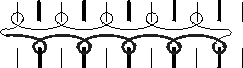
- Knitting layer L1 (back)
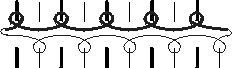
- Knitting layer L0 (front)
- 4
- Left-click in the pattern rows to be modified.
- The selected layer is entered in the pattern row.
II. Remove / newly set the k&w column layer in a module:
When inserting a k&w module (1x1 technique), the information of the column layer is required to be able to correctly draw-in this, based on the knitting layer L0 / L1 and the corresponding column layer.
Behavior when inserting a module with set k&w column layer:
- Insert the modules in layer L0:
With modules of the layer L0, the knitting instruction is always in an even column layer
Result: The module can only be inserted in the column that corresponds to the layer L0. - Insert the modules in layer L1:
With modules of the layer L1, the knitting instruction is always in a odd column layer
Result: The module can only be inserted in the column that corresponds to the layer L1.
When inserting a module in the pattern, the cursor jumps to the corresponding column layer.
Behavior when inserting a module with removed k&w column layer:
- Insert the modules in layer L0.
Result: The module can be inserted in every column. - Insert the modules in layer L1.
Result: The module can be inserted in every column.
When inserting a module in the pattern, the cursor does not jump to the corresponding column layer.
Example:
With modules for k&w patterning for the machine type CMS xxx-T, the k&w column layer is removed, as the knitting will take place with all needles.
Remove the k&w column layer in a module:
With a newly generated k&w module, the column layer is set automatically.
- Module is opened in the Module Editor.
- 1
- Select Remove via the / menu.
- The information of the k&w column layer is removed in the module.
- 2
- Close the Module Editor with
 .
.
- The module is saved without the information of the column layers.
Newly set the k&w column layer in a module:
- Module is opened in the Module Editor.
- 1
- Select Set Newly via the / menu.
- The information of the k&w column layer is newly set in the module.
- 2
- Close the Module Editor with .
- The module is saved with the information of the column layers.
III. k&w layers / highlight columns:
For a better recognition of the k&w layers and columns, they can be highlighted.
- In the symbol view (pattern)
- In the module editor
- 1
- Call-up the context menu with the right mouse button in the corresponding window for this purpose.
- 2
- Select the menu.
- The layers / columns are displayed shaded.
IV. Presentation of the knitting layers:
- in the symbol view (pattern)
- in the module editor
|
Symbol |
Property | |
|---|---|---|
|
|
All layers |
Presentation of the front L0 and the back L1 layer. |
|
|
Knitting layer L0 |
Presentation of the layer L0 with all needles (1x1 technique) |
|
|
Knitting layer L1 |
Presentation of the layer L1 with all needles (1x1 technique) |
|
|
Display the columns of the knitting layer L0 only |
Presentation of the knitting needles of the front layer L0. |
|
|
Display the columns of the knitting layer L1 only |
Presentation of the knitting needles of the back layer L1 |


