Positioning and presentation
Positioning Shape Parts
- The shape parts can be positioned on the basic pattern independently.
- After positioning the structure / the motif is transfered from the basic pattern to a new location.

- 1
- Activate the
 and select a shape part with the left mouse button.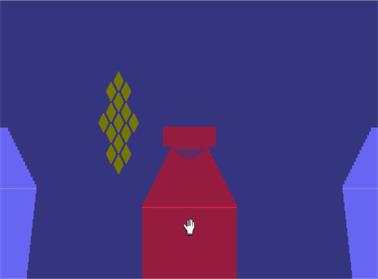
- 2
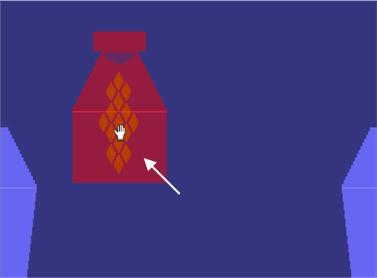
- Hold down the left mouse button moving the selected shape part to the desired position.
- 3
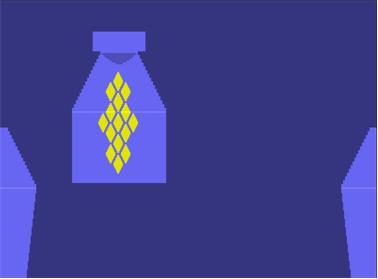
- After positioning click the left mouse button outside the selected shape part to cancel the selection.
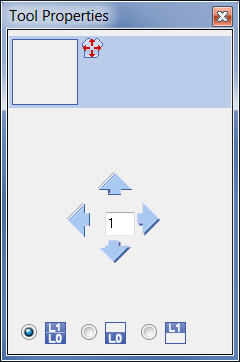
More Tool properties for Toggle Move Shape
- 4
- Multiple selection of shape parts with the key combination Ctrl + left mouse button
- 5
- Moving the selected shape via the Arrow keys of the keyboard.
- 6
- Layer selection in the Tool properties dialog box before moving.
|
Symbol |
Function |
|---|---|
|
|
Input of a number (factor): Moving the selected element with each click on a direction arrow by the factor entered |
|
|
Moving both layers Front layer (L0) and back layer (L1) |
|
|
Moving only the Front layer (L0) |
|
|
Moving only the Back layer (L1) |


Pattern k&w presentation
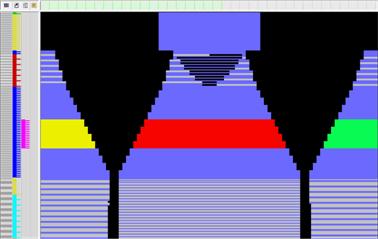
- With the the shape is presented in the cut-out state.
- The pattern rows of the sleeve and the body are in the right position to each other.
- All needed knitting sequences are generated in the shape.
- This enables the allocation of Color and Module Arrangements.
- A row accurate drawing of structures / motives between the different shape parts.
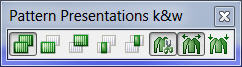
|
Symbol |
Function | |
|---|---|---|
|
|
Display pattern cut-out
|
Presentation of the shape: cut-out with structure and color
: Allocation of Color Arrangements and Module Arrangements possible. Drawing-in structures and motifs |
|
|
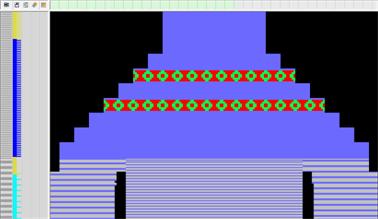
Display Pattern Folded in
|
Presentation of the shape: with folded-in sleeves
: Allocation of Color Arrangements and Module Arrangements possible. Drawing-in structures and motifs via the edges shape of sleeve and body. |
|
|
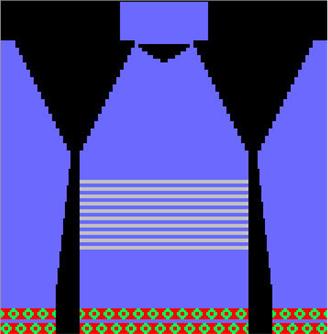
Display pattern collapsed
|
Presentation of the shape: without suspending
: Compressed presentation for simplified drawing-in of structures and motifs in the area of suspending rows.
No allocation of Color and Module Arrangements possible |