Presentation in the Shape View
I. Change presentation in shape preview:
- The shape with k&w Arrangements is located on the pattern after Open and Position Shape....
- 1
- Call up the shape view with the
 button.
- The shape with the determined k&w Arrangements in 1x1 presentation is displayed.
- 2
- Select the desired view and knitting layer in the Pattern Presentations k&wdialog box of the toolbar:
|
|
Property | |
|---|---|---|
|
|
All layers |
Presentation of the front L0 and the back L1 layer. |
|
|
Knitting layer L0 |
Presentation of the layer L0 with all needles (1x1 technique) |
|
|
Knitting layer L1 |
Presentation of the layer L1 with all needles (1x1 technique) |
|
|
Display the columns of the knitting layer L0 only |
Presentation of the knitting needles of the front layer L0. |
|
|
Display the columns of the knitting layer L1 only |
Presentation of the knitting needles of the back layer L1 |
|
| ||
|
|
Display Pattern Cut-out |
k&w preview only possible in the state of pattern Result:
|
|
|
Display Pattern Folded out |
Presentation of the shape with shape attributes (narrowing, fade-out, aligning symbols) and sleeves folded out.
|
|
|
Display Pattern Collapsed |
Presentation of the shape with shape attributes without the Suspend symbols.
|


 : Allocate CA and MA.

II. Presentation of the k&w Arrangements in the control column of the shape view:
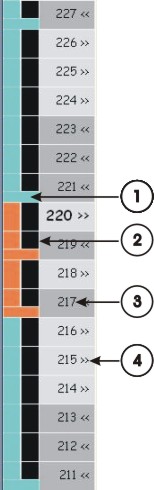
|
No. |
Meaning |
|---|---|
|
1 |
The k&w Arrangements will be presented with different colors.
|
|
2 |
The Color Arrangements will be presented with different colors.
|
|
3 |
Pattern rows with numbering |
|
4 |
Carriage direction of the k&w Arrangements |
III. Context menu in the control column of the shape view:
- 1
- Place the cursor on the desired pattern row.
- or -
Create row selection. - 2
- Call up the context menu with the right mouse button.
- 3
- Make the desired changes.
|
Selection |
Function |
|---|---|
|
Carriage direction to the left Carriage direction to the right |
Carriage direction can be modified |
|
Reverse carriage direction |
The carriage direction is reversed |
|
Allocate a Color Arrangement from the k&w Arrangement |
A Color Arrangement is generated from k&w Arrangement. |
|
Undetermined |
The allocated CA is removed |
|
List with allocated CAs |
The allocated CAs with the corresponding color are listed |
IV. Presentation of the shape part color in the shape view:
- The processing step
 has to be performed for presenting the shape part colors.
- 1
- Deactivate
 .
. - 2
- Activate the presentation of the shape part colors with or
 .
.