Shape tools in the shape view
I. Cursor presentation in the different shape parts:
When positioning the cursor in the different shape parts, the graphic presentation of the cursor is changed.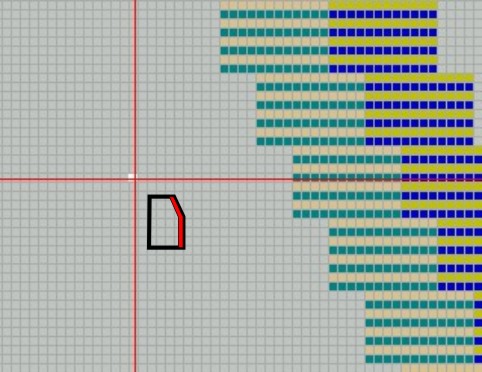
II. The Shape Attributes toolbar:


|
|
Name |
Properties and function |
|---|---|---|
|
|
Outside shape |
During processing step After processing step |
|
|
Shape part color |
Locate shape edge to be moved and press and hold down LMB. |
|
|
Shape edge |
|
|
|
Markings |
Selection from list and / or direct allocation of shape marking colors. During processing step After processing step |
|
|
Gore |
Non-knitting areas (suspension) can be changed into gore areas. |
|
|
Narrowing |
Change the narrowing width.
Shift + LMB: Unequal narrowing actions are set to the cursor position. |
|
|
Fade out |
Change fade-out width.
Shift + LMB: Unequal fade-out widths are set to the cursor position. |
|
|
Separation |
During processing step After processing step |
|
|
Binding-off |
Change binding-off width.
Shift + LMB: Unequal link-off widths are set to the cursor position. |
|
|
Stitch length change |
Use different stitch lengths on shape edge (PTS) |
|
|
Aligning within Shape Part to the Left |
During processing step After processing step Enter symbols within a shape. |
|
|
Aligning within Shape Part to the Right |
During processing step After processing step Enter symbols within a shape. |
|
|
Aligning outside Shape Part to the Left |
During processing step After processing step Enter the symbols outside of a shape part. |
|
|
Aligning outside Shape Part to the Right |
During processing step After processing step Enter the symbols outside of a shape part |
|
|
Suspension downward |
Non-knitting rows above the sleeve body connection. During processing step After processing step Enter symbols within and above the sleeve body connection of a shape part |
|
|
Suspension upwards |
Non-knitting rows below the sleeve body connection. During processing step After processing step Enter symbols within and below the sleeve body connection of a shape part |
|
|
k&w suspend |
Non-knitting areas (gore) can be changed into suspending areas. No binding is inserted in the suspending areas during the processing step Expanding. With the LMB pressed, move the cursor or click in the field with the LMB to fill the area.
|
|
|
k&w Separation of layers |
Use at the shape selvedge to avoid a connection between the layers. Move the cursor
Example: Sleeve opening for tank top / waistcoat or remaining narrowing. |
|
|
Multi-step narrowing |
Set markings for multi-step narrowing selecting different cover widths.
Example: Fair Isle technique |
|
|
Remove single shape attributes |
Shape Attributes = Narrowing, gore, fade-out, etc. can be deleted separately. |
|
|
Remove all shape attributes |
Delete shape attributes together. |
|
|
Move lines |
Moving knitting rows within areas with suspension.
Move the cursor
|
|
|
Selection |
Generating a selection for copying steps. Move the cursor Additional possibility: Open the dialog box with the ENTER key before inserting:
|
|
|
Fixed step 1 |
Changing the step width. Define the end position with the LMB on the starting position and by moving the cursor.
Possibility: |
|
Fixed step 2 | ||
|
Fixed step 3 | ||
|
Fixed step 4 | ||
|
Fixed step 5 | ||
|
Fixed step 6 | ||
|
|
Automatic step with copied area. |
Change stepping with copied area.
|
|
|
Use on both sides |
Changes are also carried out on the opposite shape edge.
|
 : Symbol not active.
 : Symbol active.
 to specify the row selection.
 .
. : The area on the right of the symbol will be moved to the left.
 .
. : Only during the processing step
  or insert mirrored
  the selection hanging on the cursor.
 . The other selection options can be activated / deactivated as desired.
- Simultaneous selection of several shape attributes is possible e.g.:
- Fade out and narrowing
- Fade out and link off
- With the F6 key, the edge color can be picked up.
- Pick up the k&w Arrangement existing at the cursor position with the F5 key.