Knitting layers
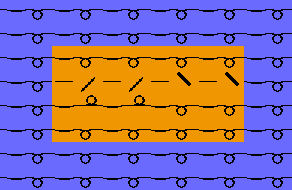
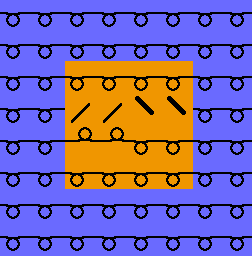
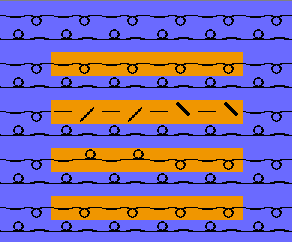
The k&w basic pattern is already generated in 1x1 technique with both knitting layers L0 and L1.
Allocation of the knitting layers
- Knitting layer L1 (back)
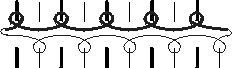
- Knitting layer L0 (front)
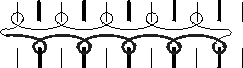
Symbol View
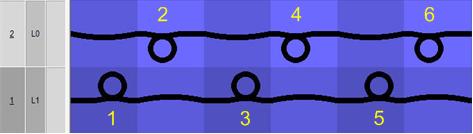
- Starting with the knitting layer L1 and then knitting layer L0
- Needle allocation for layer L1 on odd-numbered needle number
- Needle allocation for layer L0 on even-numbered needle number
- Floats with automatic transfer for distributing both knitting layers.
Toggle the Knitting Layers control column
- 1
- In the Control columns main bar call-up the context menu with the right mouse button.
- 2
- Select the
 Knitting layer symbol in the selection list.
- The Knitting layers control column is inserted and marks the layers with L1 and L0.
Highlight k&w layers / columns:
For a better recognition of the k&w layers and columns, they can be highlighted:
- 1
- For this call-up the context menu with the right mouse button in the Symbol or Technical view.
- 2
- Select the menu.
- The layers / columns are displayed shaded.
Presentation of the knitting layers:
The presentation of the knitting layers can be set according to the requirement.
|
Symbol |
Property | |
|---|---|---|
|
|
All layers |
Presentation of the front L0 and the back L1 layer. |
|
|
Knitting layer L0 |
Presentation of the layer L0 with all needles (1x1 technique) |
|
|
Knitting layer L1 |
Presentation of the layer L1 with all needles (1x1 technique) |
|
|
Display the columns of the knitting layer L0 only |
Presentation of the knitting needles of the front layer L0. |
|
|
Display the columns of the knitting layer L1 only |
Presentation of the knitting needles of the back layer L1 |


Generate pattern design:
- 1
- Select the desired presentation of the knitting layers in the symbol view.
|
Symbol |
Setting |
Presentation |
|---|---|---|
|
|
Presentation of all needles (columns) of layer L0 |
|
|
|
Presentation of the knitting needles (columns) of layer L0 |
|
|
|
Presentation of front and back layers |
|