Create the shape in the M1plus Shape Editor
I. Generate a shape:
- 1
- Call up the M1plus Shape Editor dialog box via the / menu.
- The dialog box will be opened.
- 2
- Open an existing shape via the / menu.
- or -
Click .
.
Example: D:\Stoll\M1plus\Version\Form\5_Top-Vorderteil.shv - 3
- Convert the *.shv shape into the *.shp format via the / menu.
- 4
- Change basic element.
Basic element Front:
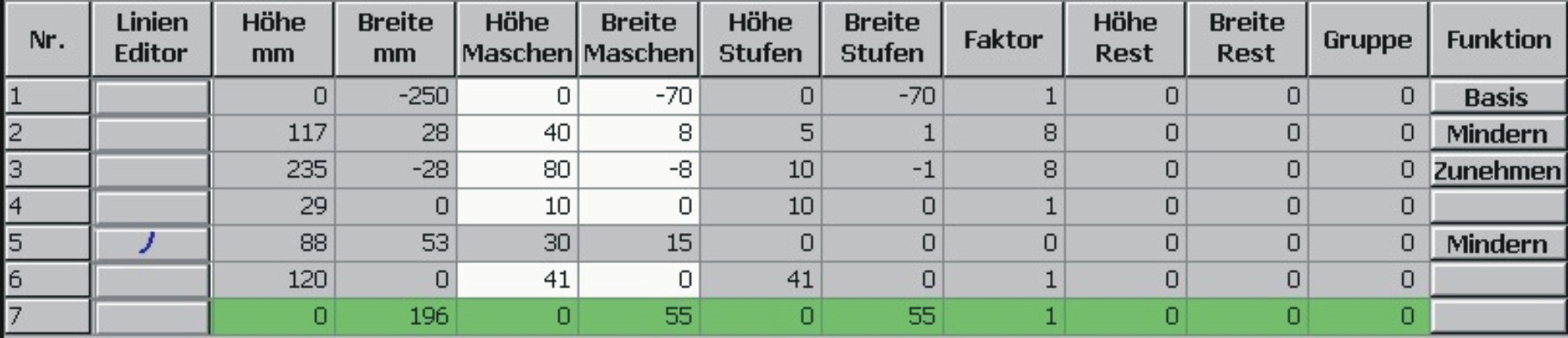
- 5
- Change the neck opening element.
Element Neck opening:

- 6
- Allocate the fade-out and narrowing attributes to the edges of the elements in the Function column.
|
Knitting Mode |
Narrowing |
Binding-off |
Fading-out | |
|---|---|---|---|---|
|
|
Width: |
Stepping: |
Method: |
|
|
Jacquard float (single jersey) |
As desired |
1-3 stitches |
BO-SJ-01 |
|
|
Jacquard stripe (double jersey) |
1 Stitch |
1 Stitch |
BO-DJ-01 | |
|
Jacquard twill (double jersey) | ||||
|
Jacquard net (double jersey) | ||||
 : You can deactivate the fading-out in the Symbol View via the
 - 7
- Save the shape via the / or menu.
- The shape will be saved in the shp format.
- 8
- Close the Shape Editor with
 .
.