ShapeSizer: Make settings and close dialog box.
|
No. |
Function | |
|---|---|---|
|
1 |
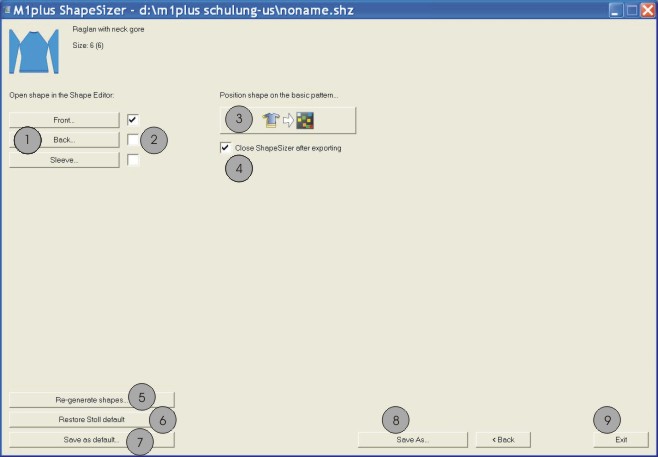
Open the shape elements of the size selected in the size table in the shape editor. | |
|
2 |
Select the shape element front, back or sleeve to create a new pattern. | |
|
3 |
Opening a new pattern with the shape element selected under (2). | |
|
4 |
|
The ShapeSizer will be closed after exporting the shape element. |
|
|
The ShapeSizer will not be closed after exporting the shape element. | |
|
5 |
The shape files changed in the shape editor (*.shp) will be deleted and new shape files (*.shp) will be generated based on the data from the shz file.
| |
|
6 |
Own defaults (defaultuser files) are deleted from the directory and the defaultform file is used. | |
|
7 |
Save attribute changes as own default defaultuser_xxx .shp. | |
|
8 |
Save size table as *.shz file. | |
|
9 |
Close the ShapeSizer. | |


 : The shape editor is opened by the ShapeSizer.
- 1
- Select the desired element under (2).
- 2
- Activate the (4) checkbox.
- The ShapeSizer dialog box will be closed after exporting the shape.
- 3
- Click the
 button.
- The selected shape element will be placed on the active pattern.
- or -
The New Pattern dialog box appears.