Create the shape in the M1plus Shape Editor
I. Generate shape:
- 1
- Call up the M1plus Shape Editor dialog box via the / menu.
- 2
- Open an existing shape via the / menu.
- or -
Open an existing shape by .
.
Example: D:\ Stoll \ M1plus \ x.xx.xxx \ Form \ 2_set-in-front-v-neck-38.shv.
- or -
Create a new shape by .
. - 3
- Convert the *.shv shape into the *.shp format via the / menu.
- 4
- Modify the basic element and the element for the neck opening:
Basic element Front:
Basic element Front-left |
|---|
The total width of the shape should be divisable by 4 (module with of the 2x2 rib). The result of the division has to be even numbered. Example: Total width 144 divided by 4 = 36 |
|
|

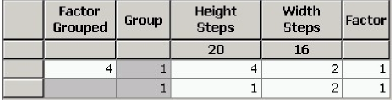
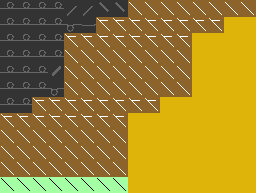
Element Neck opening:
V-neck element |
|---|
|
|

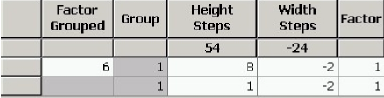
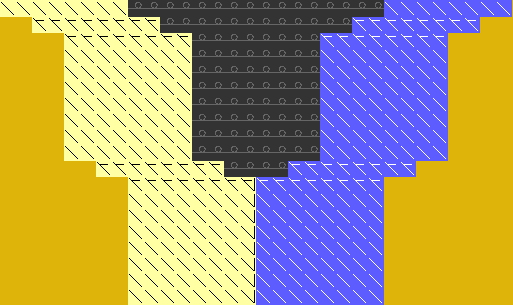
Attributes | |
|---|---|
Fading-out |
Modules from the Module Explorer of Database |
Fading-out Width | Undefined |
Method of narrowing |
|
Narrowing Width | = Fade-out width |
- 5
- Save the shape via the / or menu.
- The shape will be saved in the shp format.
- 6
- Exit the M1plus Shape Editor by
 .
.