Create the shape in the M1plus Shape Editor
I. Generate shape:
- 1
- Call up the M1plus Shape Editor dialog box via the / menu.
- The dialog box is opened.
- 2
- Open an existing shape via the / menu.
- or -
Click .
.
Example: D:\ Stoll \ M1plus \ x.xx.xxx \ Form \ 2_set-in-front-v-neck-38.shv
- or -
Create a new shape by .
. - 3
- Convert the *.shv shape into the *.shp format via the / menu.
- 4
- Modify the basic element and the element for the neck opening:
Basic element Front:
Basic element Front-left | |
|---|---|
The total width of the shape should be divisible by 4. Add two stitches to this total width. | |
| |
|
|

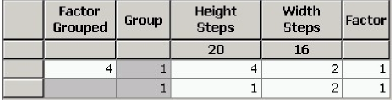
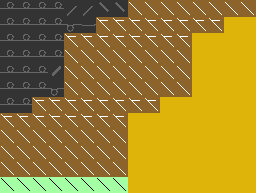
Element Neck opening:
V-neck element | |
|---|---|
| |
|
|

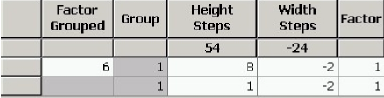
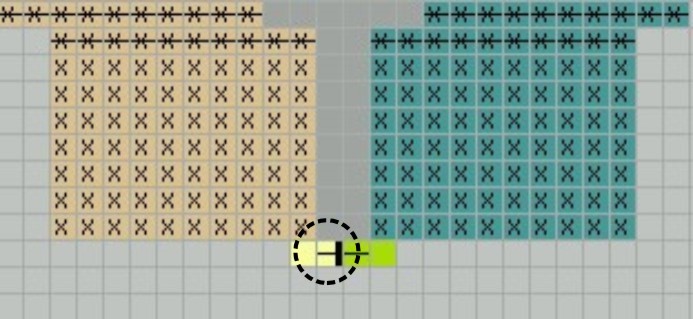
Attributes | ||
|---|---|---|
Fading-out | Left Margin Right side in the V-neck | Right Margin left side in the V-neck |
|
| |
Fading-out Width | As desired | |
Narrowing methods |
| |
Narrowing Width | = Fade-out width | |
- 5
- Save the shape via the / or menu.
- The shape will be saved in the shp format.
- 6
- Exit the M1plus Shape Editor by
 .
.