Shapewizard: Docking points for raglan
The shape elements are connected by knitting at the docking points.
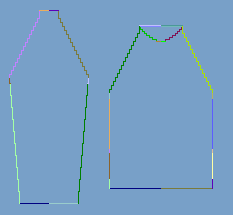
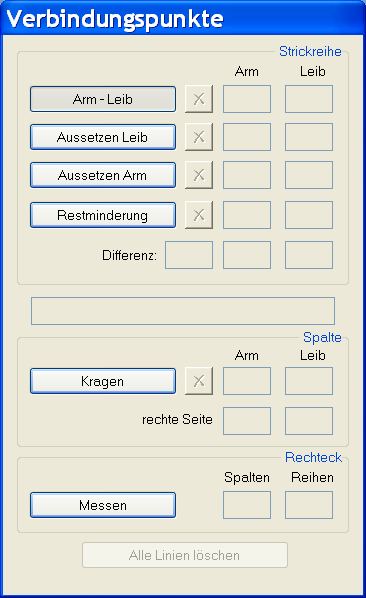
I. Open the graphical shape display in order to define the docking points:
- 1
- Open the Shape View and the Docking Points dialog box with
 in the toolbar of the Shapewizard.
|
Element |
Function |
|---|---|
|
Sleeve - body |
Set the docking point sleeve - body. |
|
Suspend body |
Set the docking point Suspend body. |
|
Suspend sleeve |
Set the docking point Suspend sleeve. |
|
Remaining Narrowing |
Set the docking point Remaining Narrowing. |
|
|
The difference of rows will be displayed when setting the connecting lines. |
|
|
If the cursor is placed in the graphical presentation of the shape display after determining the knitting cycles, then the name of the respective knitting cycle is shown. |
|
Collar |
Set the docking point Collar. |
|
Measuring |
You can messure a distance within a shape element with the Measuring button and the left mouse button pressed. |
|
Delete all lines |
Delets all specified docking points. |
II. Define the docking point for sleeve-body:
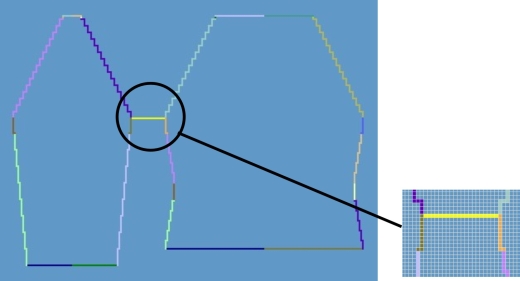
The docking points form a connection line between sleeve and body and determine the first continuous knitting row after the sleeve-body connection.
- 1
- Click in the pattern with the left mouse button and hold it.
- 2
- Move the cursor in the element to be connected and specify the end position of the connection, then release the left mouse button.
- 3
- Change the position by a manual entry in the Docking Points dialog box in order to correct a docking point.
- or -
Press to delete a connection.
Press the Ctrl key while specifying the docking points, in order to jump with the cursor automatically to the nearest edge start or edge end.
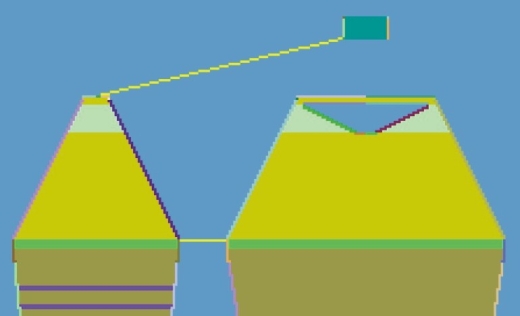
III. Generate a k&w shape for raglan with neck gore:
- 1
- Press Determine k&w Arrangements.
|
Key |
Function |
|---|---|
|
Determine k&w Arrangements |
By pressing the Determine k&w Arrangements button, the shapes are checked and the sequences required for technical processing are determined. |
|
Initialize |
The determined k&w Arrangements are deleted and the shapes are reloaded. |
- 2
- Save the shape as kaw file after editing.
/ menu
- or -
- 3
- Exit the Shapewizard.