Lay on k&w shape and position it
I. Lay the generated k&w shape onto the basic pattern:
- 1
- Call up the dialog box with the / menu.
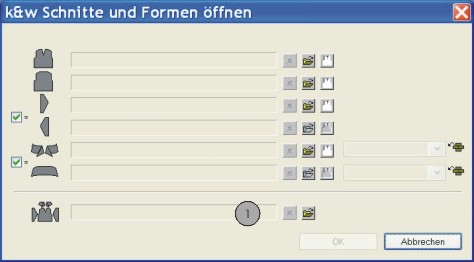
- 2
- Load the shape with the .kaw extention via
 (1).
(1). - 3
- Confirm the entry with OK.
- The shape elements will be layed on the basic motif of the Symbol View [Basic].
II. Position the shape:
- The shape with k&w Arrangements lies on the basic pattern after Open k&w shapes.
- 1
- Select the
 drawing tool.
Tool Properties toolbar:
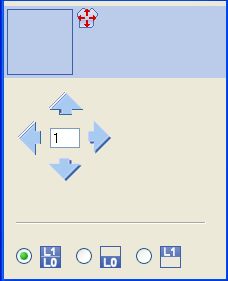
- 2
- Select the desired setting in the Tool Properties toolbar for the drawing tool:
|
Symbol |
Function |
|---|---|
|
|
Move front layer (L0) and back layer (L1) |
|
|
Move front layer (L0) only |
|
|
Move back layer (L1) only |


- 3
- Select the desired setting in the Pattern Presentation k&w toolbar:
|
Symbol |
Function |
|---|---|
|
|
Display Pattern Cut-out |
|
|
Display Pattern Folded out |
|
|
Display Pattern Collapsed |


- 4
- Position the shape elements Sleeve and Body on the motif with the symbol activated and the left mouse button pressed.
- or -
Select the desired shape element left clicking. Position the selected shape element with the arrow keys of the keybord or of the Properties of Drawing Tools toolbar.