Possibilities with a narrowing edge with the stitches above
|
Different narrowing edges | |
|---|---|
|
Narrowing edge underneath (default) |
Narrowing edge above |
|
|
|
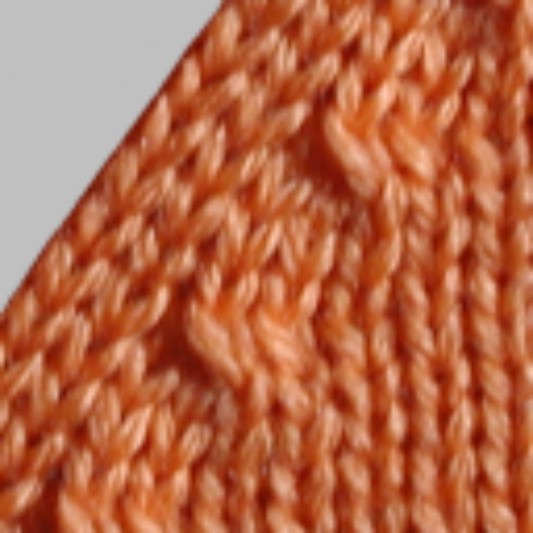
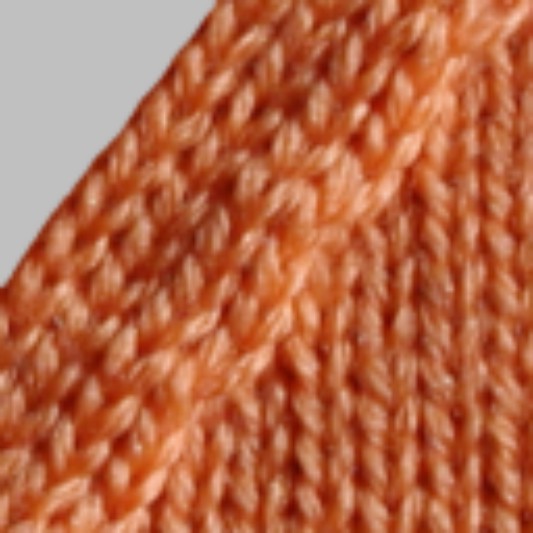
Generate modules of your own for narrowing edges above:
- 1
- Open the Modul Explorer of Database via /
- 2
- Open the Modules / Technique / Narrowing / Structure Single Jersey / SJ separate transfer or SJ combined transfer module group in the Module Explorer.
- 3
- Copy the technical container modules Structure Single Jersey ==> and Structure Single Jersey <==.
- 4
- Rename the copied modules and save them to a module group of your own.
- 5
- Via the / / open the New module dialog box.
- 6
- Make settings in the dialog box and close it with OK.
- The Properties of dialog box appears.
- 7
- Close the dialog box with OK.
- The Module Editor dialog box appears.
- 8
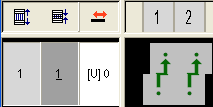
- Draw the transferring with Needle Actions in the Module Editor.
- 9
- Close the dialog box with
 .
. - 10
- Reply the prompt with YES.
- The module is saved in the Module Explorer of Database under New Modules.
- 11
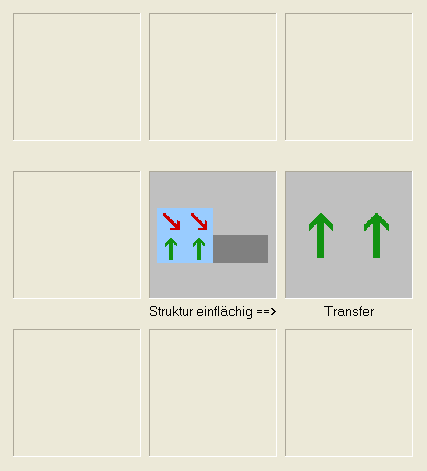
- Allocate the new module to both of the technical container modules.
|
left edge container module |
right edge container module |
|---|---|
|
|
|
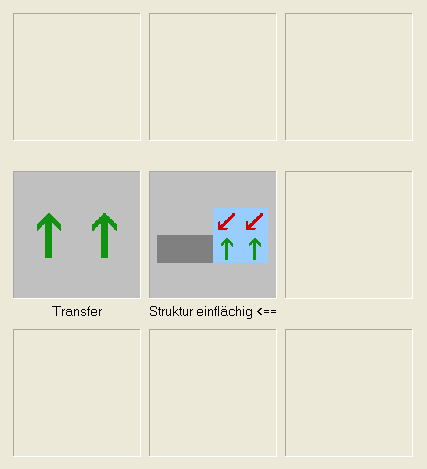
- 12
- Save container module.
Create your own module group under Modules / Technical / Narrowing / Structure single jersey. - 13
- Select the module group via the selection list in the Shape Editor.
- or -
Allocate the module group with drag&drop directly to the corresponding narrowing edges of the shape under Narrowing.
Use a STOLL module for the narrowing edge above:
Modules in the Module Explorer of Database:
- Stitch v separate transfer above (Structure single jersey)
- Stitch ^ separate transfer above (Structure single jersey)
- 1
- Select the modules in the Shape Editor under Function in the tab.
- or -
Allocate the modules to the shape via the shape attributes in the Symbol View.