Views Before Technical Processing
Expanded Symbol View
- The desired pattern is selected.
- 1
- Click the
 Preview button in the ribbon under Symbol.
 - An additional document window appears with the expanded view of the design pattern.
|
|
Expanded Symbol View |
|---|---|
|
|
|

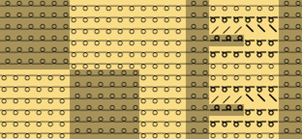
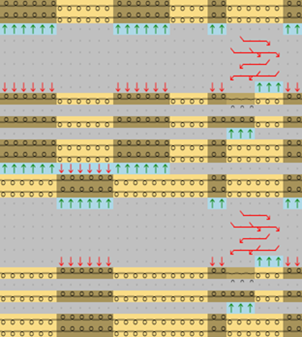
The expanded symbol view opened via Symbol button is write protected.
- 1
- Close the document window by
 in the tab.
Expanded Fabric View
- The desired pattern is selected.
- 1
- Click the
 Fabric button in the ribbon under Preview.
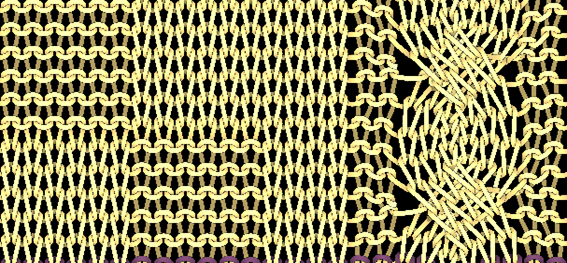
 - An additional document window appears with the fabric view of the design pattern.
|
Fabric View | ||
|---|---|---|
|
| ||
|
Options in the status bar | ||
|
Expanded |
Shows the opened view with technical rows. | |
|
Collapsed |
Shows the compact view only in pattern rows. | |
|
Distortion View |
Calculate the stitch distortion in order to get a realistic fabric view. | |
|
Display in Relation of Stitch Density |
Shows the design in the specified stitch density. | |
|
Do Not Dissolve Drop Stitches |
|
Drop stitches are displayed. |
|
Show Protection Rows |
Protection rows can be displayed and hidden. | |
|
Draw the Draw Thread |
Display without draw thread and residual yarn | |
|
Yarn Texture |
When activating the yarn texture the yarn structures that are set in the yarn properties become visible. If the yarn texture is not activated, the stitches are displayed in a technical representation. | |
|
Background
|
Click on the
You have 3 different ways to establish the color:
| |

 button to define the background color of the fabric view.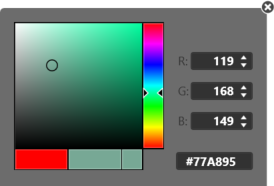
The fabric view opened via Fabric button is write protected.
- 1
- Close the document window by in the tab.