Color Parameters
You can make the desired presettings for the colors used in the pattern (color areas) within the color parameter table.
I. Open the color parameters tool window:
- The document window is enabled.
- The
 Yarn Carriers ribbon is enabled.
- 1
- Open the Yarn Carriers tool window via
 Show Yarn Carriers.
 - The tool window appears.

For each color in the pattern color tables used in the design pattern, a color area is created in the color parameter table. This means that you can make presettings only once for this color area.
For pattern related, different changes of a color area sub-colors must be created. You have to draw them manually in the design pattern at the point to be changed. Then, other specifications can be set in the color parameter table.
- 2
- Make the desired presettings for the corresponding color:
- Knitting-in and out
- Change the starting direction of a color (yarn carrier)
- Knot or binding at start or end of a color
- Border Processing
- etc.
- 3
- Apply the changes of the Yarn Carriers tool window to the pattern.
Edit group -> Apply
Apply
- or -
Edit group -> Apply and Close
|
|
Synchronize |
Applies the changes from the Design Pattern to the open Yarn Carrier View and synchronizes both views to the current state of the pattern. |
|
|
Apply |
Applies changes for yarn carriers to the Design Pattern. Other changes (e.g. of color parameters) will be applied at once. |
|
|
Apply and Close |
Applies changes for yarn carriers to the Design Pattern and closes the view. Other changes (e.g. of color parameters) will be applied at once. |
|
|
Cancel and Close |
Rejects modifications and closes the Yarn Carrier View. Close with Cancel and Close if you only opened the Yarn Carrier view for control. |


II. Change the display of the columns in the color parameter table:
- 1
- Move the cursor to the first row of the table header.
- 2
- Open the context menu with RMB.
- The context menu appears.
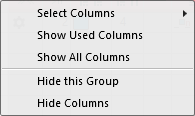
|
| |
|
Select Columns |
Adding or closing the desired columns in the selection list. |
|
Show Used Columns |
Display of the columns used in the pattern |
|
Show All Columns |
Display all of the columns |
|
| |
|
Hide this Group |
Hide all columns allocated to a group (color coded) |
|
Hide this Column |
Hide the individual column at cursor position |
III. Structure and column headers of the color parameter table:
Table header:
-
1st row:
All the symbols identifying the table columns -
2nd Row 'D'
Default settings for the respective column
Settings from the STOLL file - cannot be modified at the moment
Default settings are applied from a STOLL file and cannot be modified at the moment.
These default settings are automatically applied to all colors without specifications.
|
| ||
|
Group 1: General | ||
|
| ||
|
1. Column |
Entry D for the definition of the 2nd row of the table | |
|
2. Column |
Display for available sub-colors | |
|
|
Color |
Display of all the colors used in a project
|
|
|
Yarn carrier knits a multiple system color |
Specifications with multi-system knitting |
|
|
Yarn carrier knits a plating color |
Specifications with plating |
|
|
Swivel |
Settings for the swivelling of intarsia yarn carriers or of autarkic yarn carriers |
|
|
Quantity of pattern rows for knitting-out, SEN edge and clamping
|
Specify the maximum distance between the color fields of the yarn carrier.
Clamp Yarn Carrier |

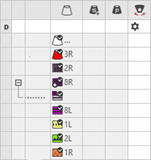

 : Visible and used within the design pattern.
 : The symbols are depending on the pattern color table they are origin.


|
Group 2: Knitting-in | ||
|
| ||
|
|
Starting Direction |
Specification of the knitting direction for the first row of a color (color area) |
|
|
Quantity of columns without knitting-in |
Quantity of columns (wales) without knitting-in module |
|
|
Module for Knitting-in |
Specification of the knitting mode for knitting-in
|
|
|
Width of repetition for knitting-in |
Presetting of the module width in total for the knitting mode of feeding-in the yarn carrier
|
|
|
Moving Rows for Cast-off |
Column appears automatically if a module for knitting-in with casting-off is used |
|
|
Reihen-Offset für Einstricken / Knoten |
Knitting-in of the yarn carrier by x rows before the beginning of the color area
|
|
|
Knot or Binding at Start |
Presetting a module for knot / binding at start of a color area without knitting-in.
|
|
|
Column-offset for Knitting-in with a Knot |
Move the position of a knot (module) by x columns to the left or right.
|
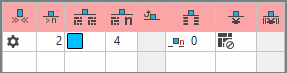


 :
:


The direction of knitting-in of a yarn carrier is always carried out from last position.
|
Group 3: Knitting-out | ||
|
| ||
|
|
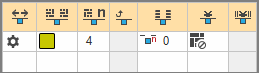
Direction of the Knitting-out |
Preset of the direction for knitting-out of the yarn carrier at the end of a color area |
|
|
Module for Knitting-out |
Preset of the knitting mode (module) for knitting-out
|
|
|
Width of repetition for knitting-out |
Presetting of the module width in total for the knitting mode of feeding-in the yarn carrier
|
|
|
Moving Rows for Cast-off |
Column appears automatically if a module for knitting-out with casting-off is used |
|
|
Row-offset for Knitting-out |
Knitting-out of the yarn carrier by x rows after the end of the color area
|
|
|
Knot or Binding at End |
Presetting a module for knot / binding at end of a color area without knitting-out.
|
|
|
Column-offset for Knitting-out with a Knot |
Move the position of a knot (module) by x columns to the left or right.
|


|
Group 4 : Intarsia Binding | ||
|
| ||
|
|
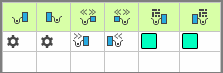
Intarsia Binding at the Left |
Presetting of a binding or no binding at the left border of the color area |
|
|
Intarsia Binding at the Right |
Presetting of a binding or no binding at the right border of the color area |
|
|
Direction of the Intarsia Binding at the Left |
Specification for inserting the Binding module at the left border of the color area depending on the carriage direction
|
|
|
Direction of the Intarsia Binding at the Right |
Specification for inserting the module Binding at the right border of the color are depending on the carriage direction
|
|
|
Module for Intarsia Binding at the Left |
Presetting of the knitting mode for binding at the left border of the color area |
|
|
Module for Intarsia Binding at the Right |
Presetting of the knitting mode for binding at the right border of the color area |


|
Group 5: Border Processing | ||
|
| ||
|
|
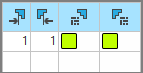
Allowed stepping without border processing at the left |
Maximum number of needles when widening at the left border of the color area without automatic border processing.
|
|
|
Allowed stepping without border processing at the right |
Maximum number of needles when widening at the right border of the color area without automatic border processing.
|
|
|
Module for Border Processing at the Left |
Presetting of the knitting mode for the border processing (feeding) in case of large widenings (stepping) of the color area
|
|
|
Module for Border Processing at the Right |
Presetting of the knitting mode for the border processing (feeding) in case of large widenings (stepping) of the color area
|


|
Group 6: multi gauge | ||
|
| ||
|
|
Allowed Stepping of coarse multi gauge rows |
Allowed number of needles when widening at the left and right border of the color area without automatic border processing.
|
|
|
Module for border processing, transition mg coarse to mg fine |
Presetting of the knitting mode for the border processing (feeding) in case of large widenings (stepping) of the color area and as transition
|


|
Group 7: Miscellaneous | ||
|
| ||
|
|
Clamping |
Presetting for the yarn carrier, when it is to be clamped after knitting its color area. |
|
|
Delayed Clamping |
|
|
|
Open Clamp |
|
|
|
SEN Edge |
Specifications for positioning the yarn carrier during the knitting
|
|
|
System (independent of direction) |
Selection of a knitting system for the selected color area
|
|
Group 8 | ||
|
Description |
Note on the use of the entry.
You can enter a text here. | |