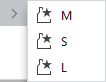
Context menu on the empty area
Shapes tool window is empty
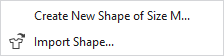
If no shapes are available in the project and the Shapes tool window is empty, the following context menu appears in it:
|
Create New Shape of Size M... |
The New Lined Shape dialog box appears. Make in it the settings for the new lined shape. |
|
|
Import a shape from an existing lined shape or dimensioned shape project. Select the path and the lined shape or dimensioned shape project. |

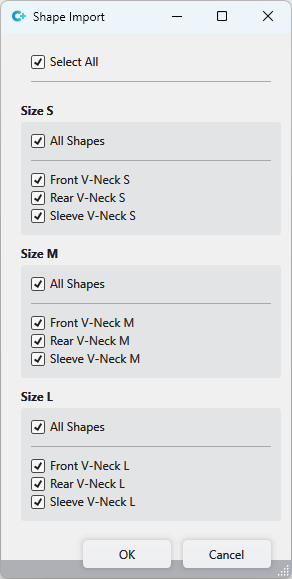
Shapes tool window contains at least one size.
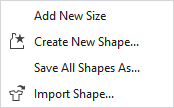
If there are already created sizes in the shapes tool window, then the following context menu appears in the empty area of the tool window:
|
Add New Size |
In the shapes tool window create a new size. |
|
Create New Shape... |
First select the size you want to use to save the new shape. The already created sizes are offered for selection. The New Lined Shape dialog box appears. Make in it the settings for the new lined shape. |
|
Save All Shapes As... |
The lined shapes available in the shapes tool window are saved together as a lined shape project. |
|
|
Import a shape from an existing lined shape or dimensioned shape project. Select the path and the lined shape or dimensioned shape project. |