Working with Border Fixation - Enclose Threads at Fabric Selvedge
 :
:
A border fixation is used to enclose the threads at the fabric selvedge. This way long upright threads are prevented.
Apply Border Fixation:
- A pattern with e.g. color stripes is created.
- 1
- Open the Yarn Carrier View with
 Yarn Carriers.
 - The xx document window is displayed in yarn color and multiple system color.
- 2
- If desired, switch the view via the status bar with
 to display in yarn carrier colors.
 - 3
- Open the
 Yarn Carriers dialog box with the Show Yarn Carriers button.
 - 4
- If desired, manually allocate the yarn carriers to the yarn carrier rails.
- 5
- Select desired yarn carrier for border fixation.
- 6
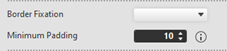
- In the dialog box to the right, display the input panel Border Fixation.
- 7
- Select the desired module under Border Fixation.
- 8
- With Minimum Padding, indicate the desired quantity of rows (distance) for the placement of the border fixation.
- 9
- If necessary, carry out these steps for other yarn carriers.
- 10
- Start the technical processing with
 Processing.
: The settings apply to the entire pattern.
Result:
|
|
Border Fixation |
Border Fixation, 1-4 yarns | |
|
Minimum Padding |
Enter value |
Example: 5 | |

If many yarn carriers or threads are to be fixed in one row, then this has to be activated in the Configuration dialog box.
Activate border fixation for several yarn carriers:
- The corresponding pattern is created.
- The attributes of the border fixation are assigned to the desired yarn carriers in the Yarn Carriers dialog box.
- 1
- In the ribbon under Configuration ->
 Configuration open the tool window.
 - 2
- Select the More Settings tab.
- 3
- Activate
 Allow fixation of several yarn carrier within one row .: Default setting:
  disabled.
Block the border fixation using the control column:
- Pattern with activated border fixation is created.
- 1
- Display the
 control column.
 - 2
- Place the cursor in the control column.
- 3
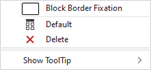
- Open the context menu.
- 4
- Select Block Border Fixation.
- 5
- Enter the selection from the control column in the desired pattern rows.
- The preset knitting element for border fixation is not entered into the pattern in these areas.
: The entry can be deleted with  Delete or
  Default.