CA tool window
Tool Window  CA (Color Arrangements)
Home tab -> Tool Windows -> Color Arrangements
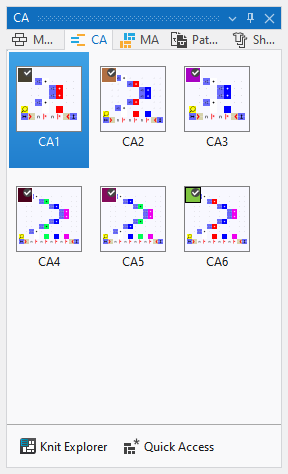
Color Arrangements are knitting elements that can assign different knitting cycles to different color areas in the pattern.
These knitting cycles are inserted in the color areas in the pattern using the technical processing.
 Using By drag-and-drop you can also drag a CA from any desired folder from any desired project into the tool window.
The presentation of the CAs has the following meaning:
Make the following settings in the CA tool window:
In the context menu on the Color Arrangements:
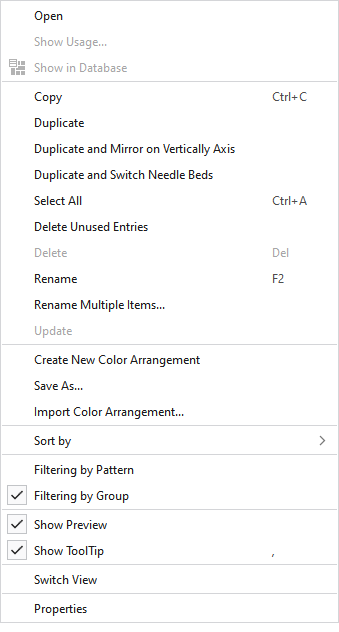
|
Open |
Opens the CA. |
|
Show Usage... |
Displays the files of the pattern project where the CA is used. |
|
|
Displays the CA in the Knit Explorer. |
|
Copy |
Copies the CA. |
|
Paste |
Pastes the copied CA. |
|
Duplicate |
Duplicates the CA.
|
|
Duplicate and Mirror on Vertically Axis |
Duplicates the CA mirrored on the vertical axis.
|
|
Duplicate and Switch Needle Beds |
Duplicates the CA with switched needle beds.
|
|
Select All |
Selects all CAs. |
|
Delete Unused Entries |
Deletes all CAs that are not used. |
|
Delete |
Deletes this CA. |
|
Rename |
Rename this CA. |
|
Rename Multiple Items... |
Opens the Rename Multiple Items dialog box |
|
Update |
Update CA. |
|
Create New Color Arrangement |
Creates a new CA for this pattern project. |
|
Save As... |
Saves the CA in any folder. |
|
Import Color Arrangement... |
Imports a CA from any folder. |
|
Sort by |
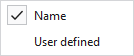
Sorts the CAs by Name or User Defined.
|
|
|
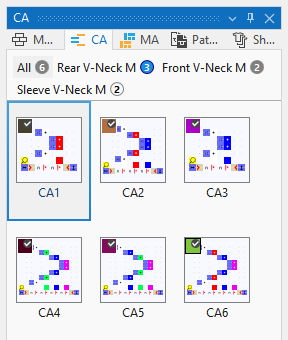
With an active filter, the pattern names of the project appear above the CAs.
Beside each name appears the quantity of CAs that are contained in the pattern. By clicking on the pattern name only the CAs applied in the pattern are displayed. By clicking on All all CAs of the project are displayed.
|
|
|
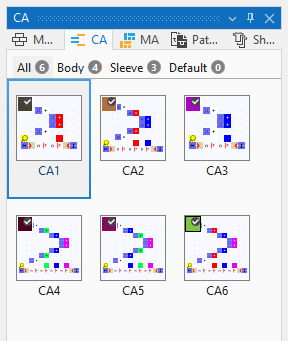
With an active filter, the groups that are defined in the Patterns tool window appear above the CAs. Beside each group appears the quantity of CAs that are contained in the group. By clicking on the group only the CAs applied in the group are displayed. By clicking on All all CAs of the project are displayed.
|
|
|
In the tooltip on the CA appears the preview of the CA. |
|
|
In the tooltip on the CA appears the Quickinfo of the CA. |
|
Switch View |
Switches the view of the CAs between tiles and list. |
|
Properties |
Opens the Properties tool window of the CA. |

 Only possible in the context menu on an empty area beside the CAs.