Step by Step to Pattern-6
- 1
- A pattern project with one pattern and the desired settings is created.
- 2
- Select an existing pattern element in the
 Knit Explorer -> Dépôt d'élément de tricotage -> Éléments du dessin -> Éléments du dessin, toutes les aiguilles -> Éléments du dessin, jacquard to draw.
- or -
Draw a private motif in the basic pattern with Couleurs de fil and save as pattern element. - 3
- Draw the desired 2 and 3 color Jacquard areas with the corresponding pattern element over the entire working width (Block Jacquard) into the basic pattern.
- 4
- Generate a row selection over the desired area e.g. area (1) for Jacquard, flottage.
- 5
- Positioning the cursor in the pattern area.
- 6
- Call-up the Sélection / Créer un MC jacquard... context menu.
- The Élaborer un jacquard [Nouveau dessin] dialog box appears.
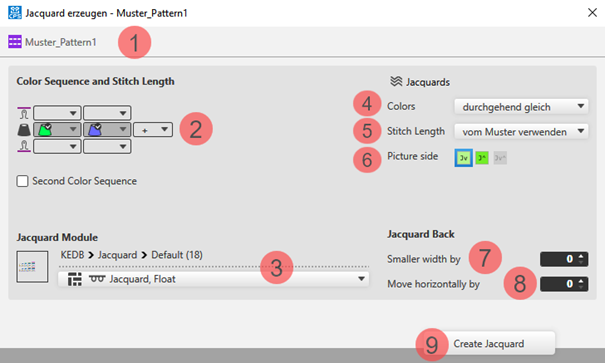
Description to the dialog box
|
| |||
|
1 |
Display of the active document window | ||
|
2 |
Séquence de couleurs et longueur de maille | ||
|
|
Display or edit box for the stitch length per color / rear system
| ||
|
|
Display of the used colors in the selection in the color sequence from the left | ||
|
|
Display or edit box for the stitch length per color / front system
| ||
|
Deuxième ordre des couleurs | |||
|
|
|
Default Setting | |
|
|
Definition of the color sequence for the second pattern row is possible
| ||
|
3 |
Module jacquard | ||
|
|
Displays the selected Jacquard module.
| ||
|
Display of the path of the selected directory in the Knit Explorer | |||
|
Selection list | |||
|
| |||
|
4 |
Couleurs |
Selection list for the knitting sequence of the colors
| |
|
5 |
Longueur de la maille |
Selection list for the stitch length
| |
|
6 |
Endroit |
Selecting the desired face of picture of Jacquard
| |
|
Envers du jacquard | |||
|
7 |
plus étroit de |
Specification in case of Jacquard with yarn bridges, by how many needles the back side is to be narrower then the face of picture | |
|
8 |
décaler horizontalement de |
Specification by needles for shifting the Jacquard horizontally | |
|
9 |
Élaborer un jacquard |
The presets made in the dialog box will be applied to the pattern. | |


 for selecting the desired Jacquard module in the specified directory
Changing the default settings for Block Jacquard:
 : A module for net pick-up and net ending are assigned by default to each area with Block Jacquard in the Projet de dessin.
Possibilities for changing the module allocation:
- In Configuration -> Jacquard tab -> Block-Jacquard section: Changes will apply to all patterns of the Projet de dessin .
- Select
 Jacquards in the ribbon.: Individual changes regarding the desired Jacquard area
 - Select the context menu -> Ouvrir les jacquards...
: Individual changes regarding the desired Jacquard area
- 7
- Make the desired presets in the Élaborer un jacquard [Nouveau dessin] dialog box.
- 8
- Apply the presets to the pattern with the Élaborer un jacquard button.
- 9
- Continue:
Create the next row selection for a new Jacquard area.
- or -
Exit working in the dialog box by Fermer.
- The different Jacquards are displayed with different symbols in the pattern and are listed in the Jacquards tool window for another edit.
Direct selection of a Jacquard module in the pattern:
- In the pattern there are Jacquard modules in use.
- 1
- Position the cursor in a Jacquard area with an inserted Jacquard module.
- 2
- Apply the Jacquard module with the F5 key.
- 3
- Enter the selected Jacquard module via the control columns in the entire pattern width or only in an area within the pattern.
- The selected Jacquard module is inserted in the pattern and in the Jacquards table.
: Pay attention whether the exact same colors are in use in the area to be entered or not!
- Used exactly the same colors -> The Jacquard areas will be grouped in the table.
- Used different colors -> A new entry is added in the table.
Selection of a Jacquard module in the Jacquard table:
- In the pattern there are Jacquard modules in use.
- All the Jacquard modules in use are contained in the table.
- 1
- In the Accueil ribbon under Paramètre, open the Jacquards tool window with .
- 2
- Select the desired Jacquard in the Jacquards tool window in the
 column.: Pay attention to the Jacquard colors in use!
 - 3
- Enter the selected Jacquard module via the control columns in the entire pattern width or only in an area within the pattern.
- The following message appears:
Dans la zone où vous avez dessiné se trouve au moins une couleur qui n'est pas contenue dans le jacquard du tableau. La zone est reliée avec un jacquard correspondant. S'il n'y en a pas, un nouveau jacquard sera élaboré. - 4
- Confirm message with:
-
OK
-> A new Jacquard with the missing color is created in the table. -
Annuler
-> No Jacquard module will be inserted.
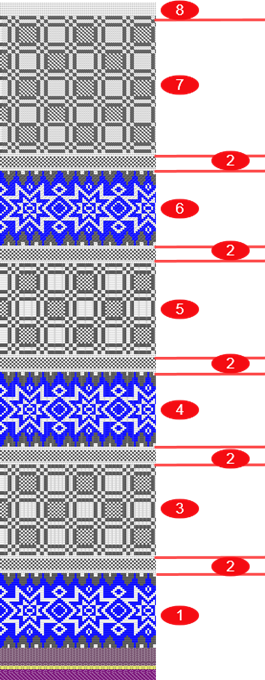
Used Jacquards in Pattern-6
|
|
1 |
Jacquard, flottage |
|
|
1 row single jersey 1 row double jersey (for shaft) | |
|
2 |
Jacquard, flottage sans report
| |
|
|
2 rows single jersey | |
|
3 |
Jacquard, réseau 1x1 | |
|
|
1 row single jersey 1 row double jersey | |
|
2 |
Jacquard, flottage sans report
| |
|
|
2 rows single jersey | |
|
4 |
Jacquard, réseau 1x2 | |
|
|
1 row single jersey 1 row double jersey | |
|
2 |
Jacquard, flottage sans report
| |
|
|
2 rows single jersey | |
|
5 |
Jacquard, réseau 1x3 | |
|
|
1 row single jersey 1 row double jersey | |
|
2 |
Jacquard, flottage sans report
| |
|
|
2 rows single jersey | |
|
6 |
Piqué jacquard | |
|
|
1 row single jersey 1 row double jersey | |
|
2 |
Jacquard, flottage sans report | |
|
|
2 rows single jersey | |
|
7 |
Jacquard rayure | |
|
8 |
Any number of rows single jersey | |
|
| ||
- 10
- To process inserted Jacquards, open the selection list in the Accueil ribbon at
 Fenêtre Outils and select Jacquards.
- or -
Open the context menu in the Jacquard area in the pattern and click Ouvrir les jacquards...
. - The Jacquards tool window is opened.
- 11
- Make the desired changes in the table.
Edit inserted Jacquards:
- In the pattern there are areas with inserted Jacquard modules.
- 1
- In the Accueil ribbon under Paramètre, open the Jacquards tool window with .
- or -
Open the context menu in the Jacquard area in the pattern and click Ouvrir les jacquards...
. - The Jacquards tool window is opened.
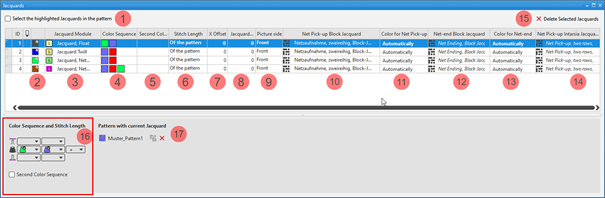
|
| |||
|
1 |
Sélectionner les entrées de tableau sélectionnées dans le dessin | ||
|
|
The Jacquards selected in the table are not displayed as selection in the pattern. | ||
|
|
The Jacquards selected in the table are displayed as selection in the pattern. | ||
|
ID |
Consecutive numbering of the Jacquard areas | ||
|
2 |
|
For drawing a Jacquard module in the pattern
| |
|
|
Index Color: Use in the search area of a Color Arrangement with the marking 'Jq'
| ||
|
3 |
Module jacquard
| ||
|
4 |
Ordre des couleurs Display for the color sequence for the first and second pattern row if | ||
|
5 |
Deuxième ordre des couleurs Display for the color sequence for the second pattern row if | ||
|
6 |
Longueur de la maille Specification for the stitch length which is to be used in the pattern:
| ||
|
7 |
Décalage X Value in needles for the horizontal offset of a Jacquard module | ||
|
8 |
Envers plus étroit Input value in needles, regarding how many needles the Jacquard back side is to be narrower in relation to the picture side when inserted. | ||
|
9 |
Endroit
| ||
|
10 |
Prise de réseau jacquard en blocs Display of the knitting elements in use for the net pick-up with continuous Jacquards (Block Jacquard). | ||
|
11 |
Prise de réseau couleur Specification of the color (yarn carrier) which is used for the net pick-up knitting element. | ||
|
12 |
Fin de réseau jacquard en blocs Display of the knitting elements in use for the net ending with continuous Jacquards (Block Jacquard). | ||
|
13 |
Fin de réseau couleur Specification of the color (yarn carrier) which is used for the knitting element | ||
|
14 |
Prise de réseau jacquard intarsia Display of the knitting elements in use for the net pick-up with Intarsia with Jacquard back (placed Jacquard back). | ||
|
15 |
Supprimer les jacquards sélectionnés |
The selected Jacquard is deleted in all the pattern where it is in use.
| |
|
16 |
Séquence de couleurs et longueur de maille | ||
|
|
Display or edit box for the stitch length per color / system for rear needle bed
| ||
|
|
Display of the color sequence from the left for the Jacquard area selected in the table | ||
|
|
Display or edit box for the stitch length per color / system for front needle bed
| ||
|
|
Ajouter une nouvelle couleur... | ||
|
Deuxième ordre des couleurs | |||
|
|
|
Default Setting | |
|
|
Definition of the color sequence for the second pattern row is possible.
| ||
|
17 |
Dessin avec jacquard actuel List of the patterns, where the Jacquard selected in the table is in use.
| ||
|
|
Ungroup the grouped Jacquard areas.
| ||
|
|
The inserted Jacquard module will be removed from the area in the pattern or pattern element.
Result:
| ||

 (
(


- 2
- Select the Jacquard to be changed in the table.
- 3
- Activate
 Sélectionner les entrées de tableau sélectionnées dans le dessin if necessary.
 - The Jacquard selected in the table will be displayed as a row selection in the design pattern.
- 4
- Make the desired changes in the tool window.
- 5
- Close the tool window with X.
- The changes will be applied to the pattern.
Normally, in a Jacquard area, the number of colors found in the design pattern are knitted on the Jacquard back. In special cases it is necessary to knit in an additional thread (color = yarn carrier) on the Jacquard back.
An additional color is added to the Jacquard area for this purpose.
Addition of an additional color:
: The colors identified with  knit only on the Jacquard back.
- In the pattern there are Jacquard modules in use.
- All the Jacquard modules in use are contained in the table.
- The Jacquards tool window is open.
- 1
- Select a Jacquard in the first column of the Jacquards tool window.
- The color sequence is displayed in the tool window under Séquence de couleurs et longueur de maille.
- 2
- Select an additional color in the
 edit box at the end of the displayed color sequence using the selection list from the Couleurs de dessin tool window.
- The additional color is added to the color sequence and identified with .
Deleting an additional color marked with :
: The colors identified with knit only on the Jacquard back.
- In the pattern there are Jacquard modules in use.
- All the Jacquard modules in use are contained in the table.
- The Jacquards tool window is open.
- 3
- Select a Jacquard with additional colors in the first column of the Jacquards tool window.
- The color sequence is displayed in the tool window under Séquence de couleurs et longueur de maille.
- 4
- Position the cursor on the additional color -> click the Supprimer la couleur context menu.
- The additional color is removed from the color sequence.
- 12
- To create a project-related lined shape, select the
 Coupes tab in the tool window.
 - 13
- Open the context menu with RMB and select Créer une nouvelle coupe dans la taille M... .
- The Nouvelle coupe de ligne tool window appears.
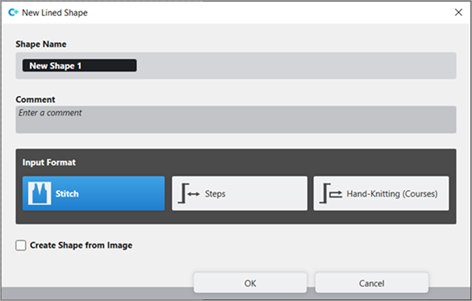
- 14
- Make the desired entries:
- Nom de la coupe : Any
- Format d'entrée : Stitch
- 15
- Confirm with the OK key.
- The new lined shape (basic shape) is graphically displayed in the Coupes tab and in a new document window
 as rectangle.
: Default attributes are used for the shape edges of the lined shape.
Menu Fichier -> Options -> Coupe de ligne -> Options pour nouvelle coupe de ligne
- 16
- To create a lined shape based on the displayed rectangle in the ribbon Élaboration de la coupe under Caractéristiques, click the Yableau des lignes button.
- or -
Use the graphic displayed in the document window.
: The method (table or graphic) to create a project-related lined shape is freely eligible, since the views are always updated simultaneously.
- 17
- Open Yableau des lignes in the ribbon.
- The table Coupe de ligne with the values of the rectangular shape is displayed.
- 18
- Insert new shape lines in the table and enter the desired values for the basic shape.
- Standard attributes from configuration are assigned to those shape lines.
Example: Lined shape for 'Pattern-6'
|
Basic Shape: Front |
|
|
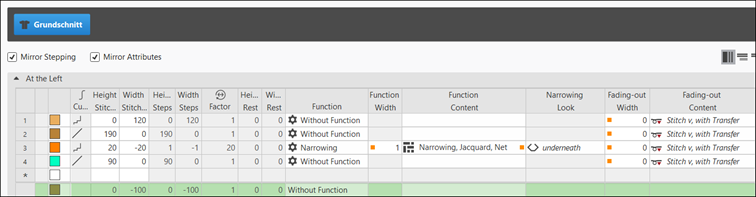
Rules for creating a shape for the jacquard knitting mode with different backs:
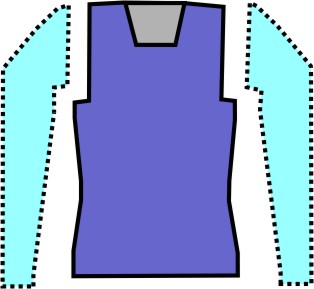
Example Front:
|
Shape Attributes |
Rules / possible settings |
|---|---|
|
Knitting Mode: |
Different color jacquards |
|
Step width of widening |
1 Stitch |
|
Step height of widening |
As desired |
|
Quantity of rows without shape modification |
As desired |
|
Step width when narrowing |
Single-jersey Jacquards (float): 1-3 stitches Double Jersey Jacquards (Stripe, Twill, Net): 1 Stitch |
|
Step height when narrowing |
As desired |
|
Fading-out Width |
As desired Standard: 2 needles
|
|
Knitting mode for fading-out |
Module Masquer, jacquard, flottage, réseau |
|
Binding-off width: |
Single-jersey Jacquards: from 4 stitches Double Jersey Jacquards:from 2 stitches |
|
Binding-off methods |
Single-jersey Jacquards:
Double Jersey Jacquards:
|
- 19
- Allocate the desired attributes to the shape lines:
- Fade-out width: Set value to 0, since the different Jacquard areas are not to be hidden with Maille v, avec report.
- Function width: Set value to 1
- Function content: Module Diminution, jacquard, réseau
: To fade-out with patterns with Jacquards, a corresponding Masquer, jacquard, flottage, réseau module is used.
- 20
- Check shape lines, attributes and if desired make corrections.
- 21
- In the document window, select the desired shape line with the graphic shape presentation.
- 22
- Position cursor on the selected shape line.
- 23
- Select LMB ->
 Propriétés des lignes context menu.
 - The Propriétés des lignes tool window is opened for the selected shape line.
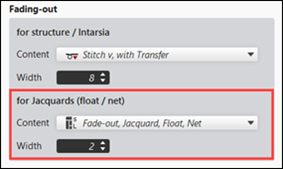
- 24
- Make the following entries under the Pour Jacquards (flottage / réseau) section:
- Content: Select Masquer, jacquard, flottage, réseau Fade-out Module.
- Width: specify the desired fade-out width.
- Default setting: 2 Needles wide
Attention: The fade-out width is also executed in the rows of the net pick-up and the net ending.
- 25
- In the Coupes tool window select the created shape with LMB.
- 26
- Open the context menu -> Positionner la coupe -> select Pattern name.
- The shape is floating in the selected basic pattern.
- 27
- Position the shape in the document window with the
 button.
 - 28
-
 Start Technical Processing:
-
 Show symbol view after technical processing.
- 29
- Generate
 Sintral.
 - 30
- Start the
 Contrôle du Sintral.
 - 31
-
 Extraire the knitting program.
 - A program for the knitting machine will be created: CMS530.Pattern-6.zip.
- Load knitting program into the machine.
 : The extracted file "CMS530.Pattern-6.zip" can be loaded onto the machine with an USB stick or via Ethernet.