Step by Step to 'Pattern-7'
- A pattern project with one pattern and the desired settings is created.
- 1
- To draw select any desired drawing tool under the Dessiner group.
- 2
- In the Couleurs de dessin tool window, select the desired pattern colors from the Couleurs de fil color palette to draw the motif:
- Couleurs de fil:
-
 : The yarn carriers are not automatically placed on the yarn carrier rails.
The yarn carrier home position is determined in the Élaboration technique.
- 3
- In
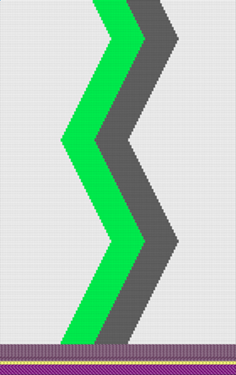
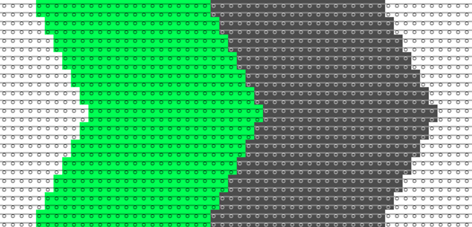
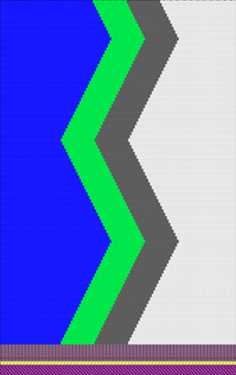
 Dessin de conception draw the desired motif.
|
Example with 3 yarn colors without shape | |
|
|
Pattern neckline
|
|
| |
|
|
Notice:
|
- 4
- In the Dessin de conception adjust the motif accordingly, if desired.
- 5
- To create a project-related lined shape, select the
 Coupes tab in the tool window.
 - 6
- Open the context menu with RMB and select Créer une nouvelle coupe dans la taille M....
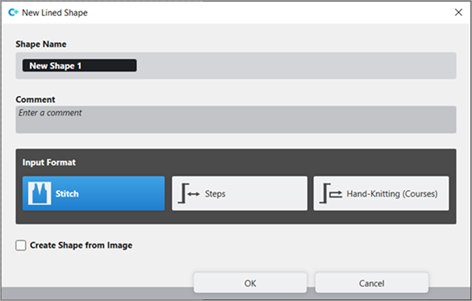
- The Nouvelle coupe de ligne tool window is opened.
- 7
- Make the desired entries:
- Nom de la coupe: Any
- Format d'entrée: Stitch
- 8
- Confirm with the OK key.
- The new lined shape (basic shape) is graphically displayed in the Coupes tab and in a new document window
 as rectangle.
: The default attributes will be used for the shape edges of the lined shape.
Menu Fichier -> Options -> Coupe de ligne -> Options pour nouvelle coupe de ligne
- 9
- To create a lined shape based on the displayed rectangle in the ribbon Élaboration de la coupe under Caractéristiques, click the Yableau des lignes button.
- or -
Use the graphic displayed in the document window.
: The method (table or graphic) to create a project-related lined shape is freely eligible, since the views are always updated simultaneously.
- 10
- Insert new shape lines in the table and enter the desired values for the basic shape.
- Standard attributes from configuration are assigned to those shape lines.
Example: Lined shape for Pattern-7
|
Basic Shape: Front without neckline |
|
|
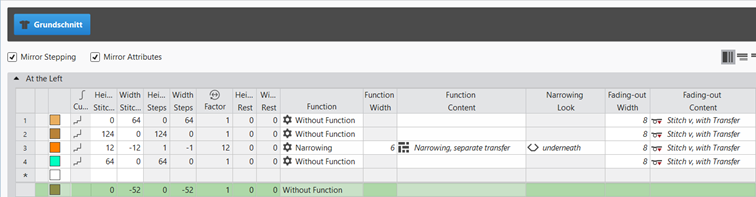
Rules for creating a shape for the knitting mode SJ:
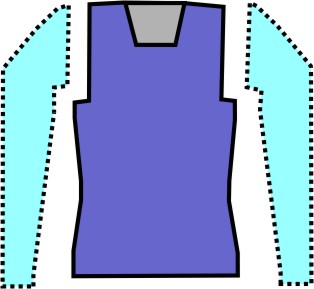
Example Front:
|
Shape Attributes |
Rules / possible settings |
|---|---|
|
Knitting Mode: |
Single Jersey |
|
Step width of widening |
1 needle (stitch) per knitting row |
|
Step height of widening |
As desired |
|
Quantity of rows without shape modification |
As desired |
|
Step width when narrowing |
1 - 3 needles (stitches) |
|
Step height when narrowing |
As desired |
|
Fading-out Width |
As desired |
|
Knitting mode for fading-out |
Front Stitch with Transfer |
|
Binding-off width: |
Stepping > 3 stitches |
|
Binding-off methods |
Binding-off, Structure, Single Jersey
|
- 11
- Allocate the desired attributes to the shape lines.
- 12
- In the Coupes tool window select the created shape with LMB.
- 13
- Open the context menu -> Positionner la coupe -> select Pattern name.
- The shape is floating in the selected basic pattern.
- 14
- To position the shape, enable the
 button of the document window.
 - 15
- Carry out
 Élaboration
technique if necessary.: After carrying out the Élaboration
technique you are able to view and weigh up the result of the automatic processing, if corrections / optimizations are necessary.
Élaboration
technique if necessary.: After carrying out the Élaboration
technique you are able to view and weigh up the result of the automatic processing, if corrections / optimizations are necessary. - 16
- Back to the Dessin de conception to make pattern-related changes.
- 17
- Open the Guide-fil tool window for this purpose.
- 18
- In the Paramètres de couleurs table make the desired changes in the following groups, if necessary:
- Début / fin du tricotage
- Entrelacement intarsia
- Traitement du bord
- 19
- If desired, make the desired presets in the following control columns:
- Stitch Length (NP)
- Tirage principal (WMF)
- Vitesse (MSEC)
- 20
- If necessary, make the desired presets for combining yarn carriers in the Réglages supplémentaires tab of the Configuration dialog box.
Several yarn carriers are combined in one system by the technical processing (knitting sequence) to optimize the production time.
:
The yarn carriers will be combined only if this is possible based on the color field distances.
The result is visible in the  Vue des icônes after the technical processing.
Options in the Configuration dialog box
- 1
- In the ribbon select the
 Configuration button.
 - The dialog box appears.
- 2
- Select the Réglages supplémentaires tab.
- 3
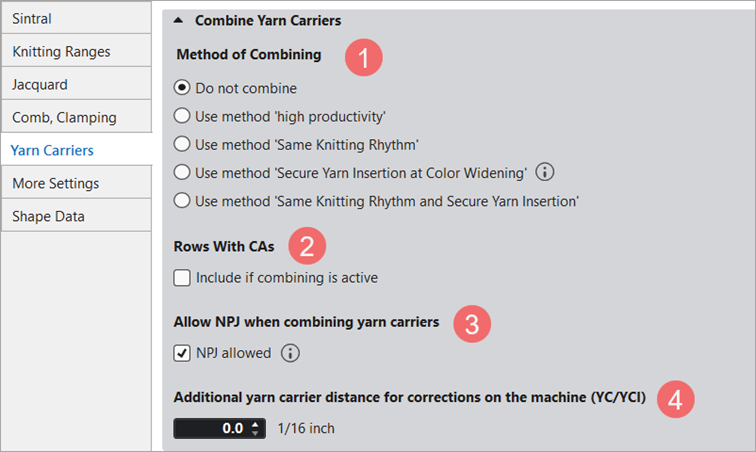
- Make the desired presettings for the Regrouper les guide-fils.
-
Yarn Insertion:
 Insertion du fil sûre en cas d'augmentation de la couleur is active (standard)
|
| ||||
|
1 |
Yarn Insertion | |||
|
|
Do not combine (Default setting) | |||
|
No automatic combining of the yarn carriers.
| ||||
|
|
Par défaut | |||
|
Automatic combining of the yarn carriers, where the result cannot be influenced.
| ||||
|
|
Insertion du fil sûre en cas d'augmentation de la couleur | |||
|
Automatic, uniform combining of the yarn carriers with an optimized knitting process for secure yarn insertion with the tuck binding.
| ||||
|
2 |
NPJ autoriser lors du groupement des guide-fils | |||
|
|
NPJ autorisé (default setting)
Result:
| |||
|
|
NPJ autorisé is disabled
Result:
| |||
|
3 |
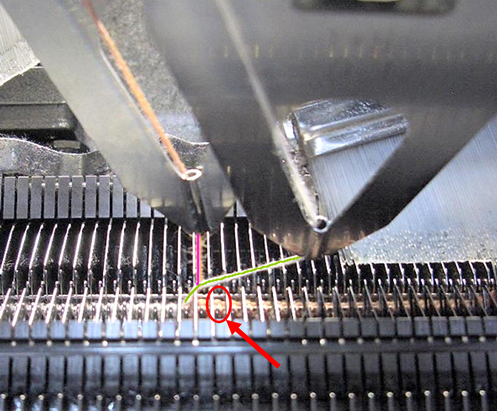
Distance supplémentaire entre guide-fils pour corrections sur la CMS | |||
|
|
Adjust the safety distance in order to make corrections on the machine (YC/YCI in the setup).
| |||



- 21
- Start the Élaboration
technique.
With the button, show Symbol view after technical processing. - The yarn carriers are automatically combined after the set specifications and the Intarsia rules (constructive facts of the Intarsia yarn carriers on the machine).
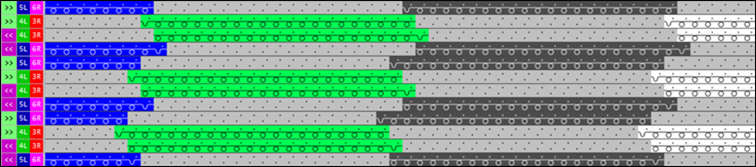
Setting in the Configuration dialog box
- 4
- In the ribbon select the Configuration button.
- The dialog box appears.
- 5
- Select the Réglages supplémentaires tab.
- 6
- Make the desired presettings for the Regrouper les guide-fils:
-
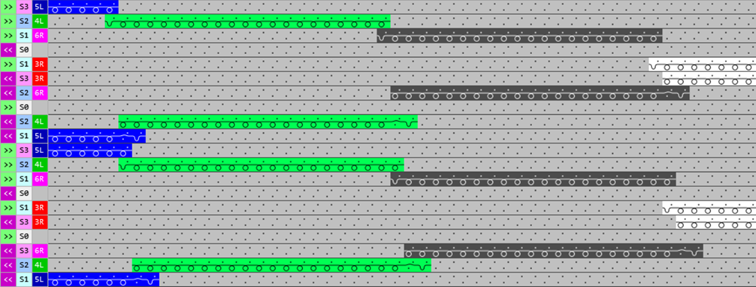
Yarn Insertion: Do not combine is enabled
- 7
- Start the Élaboration
technique.
- The yarn carriers will not be combined automatically. This corresponds to a nice, uniform Intarsia knitting process with a high machine run time.
- 22
- Generate
 Sintral.
 - 23
- Start the
 Contrôle du Sintral.
 - 24
-
 Extraire the knitting program.
 - A program for the knitting machine will be created: CMS530.Pattern-7.zip.
- 25
- Load knitting program into the machine.
 : The extracted file CMS530.Pattern-7.zip can be loaded onto the machine with an USB stick or via Ethernet.