Example 4: Color Arrangement for the border processing of a color field with structure
The border of a color field shall be processed with this Color Arrangement CA4 if the color field also contains a structure.
Create the Color Arrangement CA4:
- The pattern project of pattern Pattern-7 is open.
- Pattern in
 Dessin de conception is active.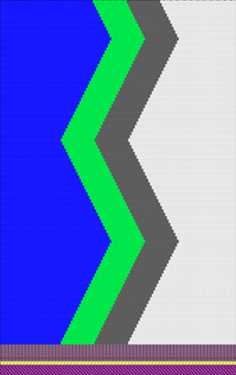
 : Colors from the Couleurs de fil table were used to draw the basic pattern.
- 1
- If necessary, save the pattern project under a new name.
- 2
- In the Rangée du dessin control column, select the first 2 pattern rows.
- 3
- Position the cursor in the pattern area.
- 4
- Call up the Sélection
/
 Créer un Color Arrangement...
context menu.
Créer un Color Arrangement...
context menu.
- or -
Click directly the button in the ribbon. - The Color Arrangement Editor with the original 'Default knitting process' of the 2 selected pattern rows is opened.
|
|
|
|
|
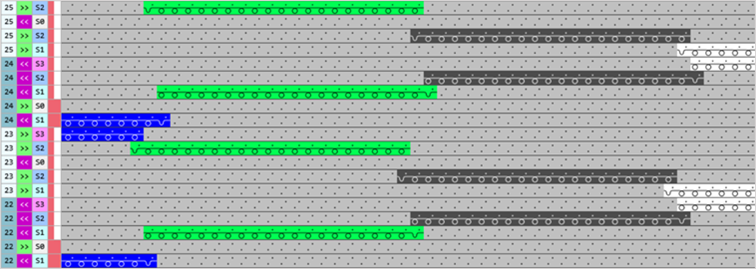
Result after technical processing
|
|
|
|
The colors (= yarn carrier) from the 'processing area' of the CA are processed according to the number of knitting systems of the selected machine.
|
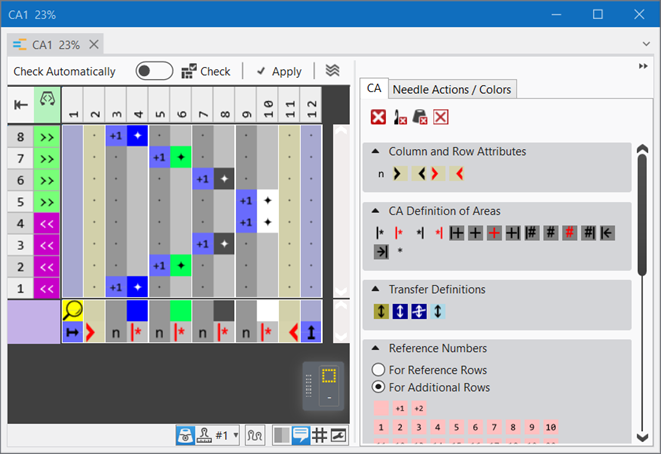
 symbol (default entry) repeats the needle action from the source row in the entire color area from the left to the right
 symbol, the corresponding needle action from the source row of the design pattern is read out and knitted according to the search color.
- 5
- Draw the desired structure e.g. in the color segment of the yarn color #5 (green).
- 6
- In the tool window of the CA editor change to the Actions d'aiguilles / couleurs tab.
- 7
- Select the desired needle actions to draw.
- For example:
- Maille avant avec report
- Maille arrière avec report
- 8
- Draw the links-links structure in the color column of the yarn color #5.
- 9
- Position the cursor on the column selection bar.
- 10
- Select the color column in the color segment of the yarn color #5 (green) with LMB.
- 11
- Position the cursor at the position ((1)).
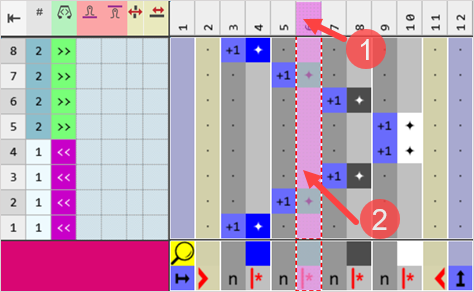
: At the cursor position (2), the RMB opens the context menu only to work with color segments.
- 12
- Open the context menu with RMB.
- The context menu appears.
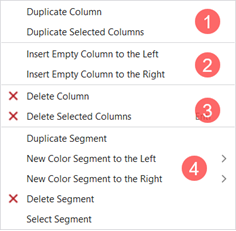
|
1 |
Dupliquer la colonne |
Copy content of the selected column | |
|
Dupliquer les colonnes sélectionnées |
Copy content of the selected column(s)
| ||
|
2 |
Insérer colonne vide à gauche |
Insertion of columns to the left of the selected column | |
|
Insérer colonne vide à droite |
Insertion of columns to the right of the selected column | ||
|
3 |
|
Delete Column |
Without selection delete a column |
|
|
Delete Selected Column |
With selection delete a column
| |
|
4 |
Options to work with color segments | ||

|
4 |
Options to work with color segments | |||
|
Dupliquer le segment |
| |||
|
Nouveau segment de couleur à gauche |
> |
Menu for the selection of the quantity of color segments to be inserted (1-10) to the left in relation to the selection | ||
|
Nouveau segment de couleur à droite |
> |
Menu for the selection of the quantity of color segments to be inserted (1-10) to the right in relation to the selection | ||
|
|
Supprimer le segment |
| ||
|
Sélectionner un segment |
The color segment at the cursor position is selected | |||
- 13
- Insert / duplicate the desired number of columns to the left and right in relation to the selected color column of the yarn color #5.
: The number of columns depends on the desired selvedge width.
- 14
- Add in the 'search area':
- Yarn Color #5
- 15
- Draw the desired structure with knitting needle action into the 'processing area'.
|
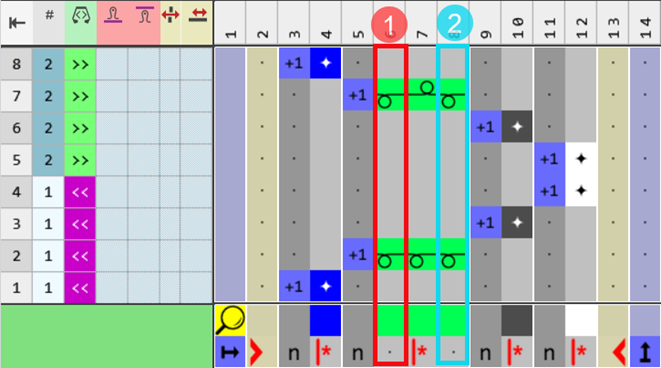
Example: LL structure and 1 color column each at the right and left in the color segment of the yarn color #5 (green) for border processing | |
|
| |
|
1 |
Border processing at the left side of the color field of the yarn color #5 in the width of a needle.
|
|
2 |
Border processing at the right side of the color field of the yarn color #5 in the width of a needle.
|
|
| |
- 16
- Check the generated Color Arrangement on correct entries with the
 Vérifier button.: The knitting procedure cannot be checked!
 - 17
- If necessary, in case of a Color Arrangement already used in the design pattern, apply the changes to the basic pattern with the
 Accepter button.
- or -
Close the tool window with .
. - 18
- Close the prompt with the desired button:
-
Save: Color Arrangement is saved locally in the
 CA tool window.
 - Reject: The changes will not be saved.
-
Copy: The changed Color Arrangement is saved as copy in the CA tool window.
- 19
- Enter the generated Color Arrangement via the
 control column into the desired rows of the design pattern.
Options to enter the Color Arrangement in the 'Color Arrangement' control column:
- Select the desired CA in the tool window in the CA tab
-
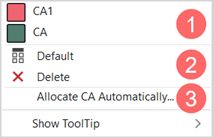
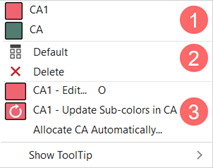
Color Arrangement control column: Open the context menu with RMB.
|
| ||
|
1 |
List of all generated Color Arrangements in the pattern project
| |
|
2 |
|
CA entry is replaced with the default setting |
|
|
CA entry is deleted | |
|
3 |
Assign Color Arrangements Automatically
| |

|
| ||
|
1 |
List of all generated Color Arrangements in the pattern project
| |
|
2 |
|
CA entry is replaced with the default setting |
|
|
CA entry is deleted | |
|
3 |
CA1 - Edit...
| |
|
CA1 - Update sub-colors in CA
| ||
|
Attribuer automatiquement les Color Arrangements
| ||
- 20
-
 Start Technical Processing
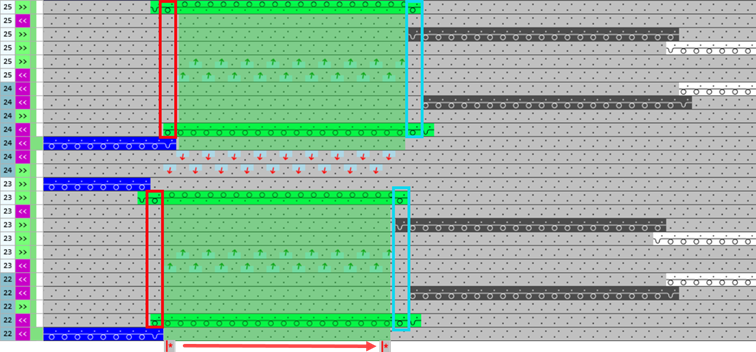
 - The Color Arrangement is expanded by the technical processing.
|
Result after technical processing |
|
|
|
|
|
- 21
- Generate
 Sintral.
 - 22
- Start the
 Contrôle du Sintral.
 - 23
-
 Extraire the knitting program.
 - 24
- Load knitting program into the machine.