Step by Step to 'Pattern-12'
- A pattern project with one pattern and the desired settings is created.
- 1
- To create a project-related lined shape, select the
 Coupes tab in the tool window.
 - 2
- Open the context menu with RMB and select Créer une nouvelle coupe dans la taille M... .
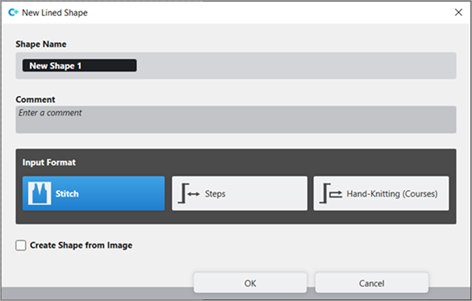
- The Nouvelle coupe de ligne tool window is opened.
|
| |||
|
Nom de la coupe |
Name for the shape element | ||
|
Comment |
Information about the shape | ||
|
| |||
|
Input Format | |||
|
Maille |
Entry in the table of the lined shape
| ||
|
Escaliers |
Entry in the table of the lined shape
| ||
|
Tricot main (tours) |
Entry in the table of the lined shape
| ||
|
Rules for widening with hand knitting | |||
|
|
Knitting before widening following the start | ||
|
|
Widening before knitting following the start (default setting) | ||
|
Créer une coupe à partir d'une image |
|
No images will be used | |
|
|
Use image as template | ||


- 3
- Make the desired entries:
- Nom de la coupe : Any
- Format d'entrée : Stitch
- 4
- Confirm with the OK key.
- The new lined shape (basic shape) is graphically displayed in the Coupes tab and in a new document window
 as rectangle.
 : Default attributes are used for the shape edges of the lined shape.
Menu Fichier -> Options -> Coupe de ligne -> Options pour nouvelle coupe de ligne
- 5
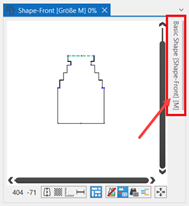
- Open the docked line table by LMB in the document window.
- or -
Use the graphic displayed in the document window. - The table Coupe de ligne with the values of the rectangular shape appears.
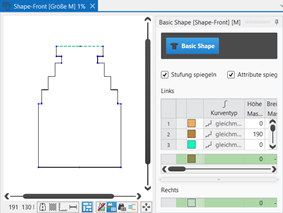
: The method (table or graphic) to create a project-related lined shape is freely eligible, since the views are always updated simultaneously.
- 6
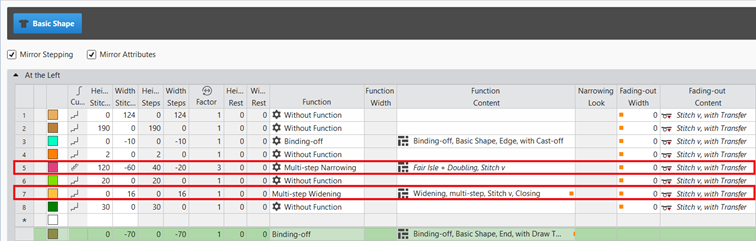
- Insert new shape lines in the table and enter the desired values for the basic shape.
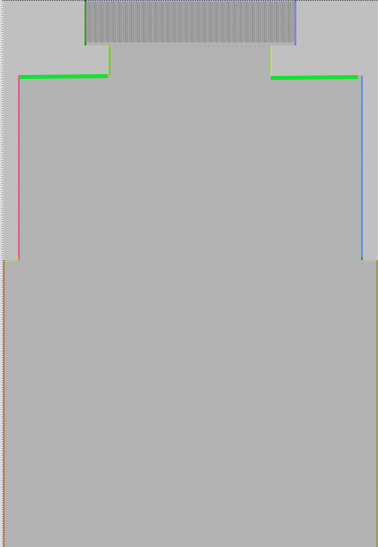
Example: Lined shape for Pattern-12
|
Basic Shape: Front | |
|
| |
|
Row 5 |
Steps for 'Multi-step Narrowing' (Fair Isle)
|
|
Row 7 |
Stepping for Multi-step Widening
|
|
End line |
End line of the basic shape (green)
|
Rules for creating a shape for the knitting mode SJ:
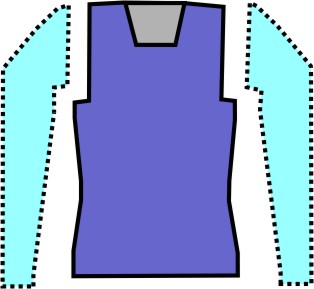
Example Front:
|
Shape Attributes |
Rules / possible settings |
|---|---|
|
Knitting Mode: |
Single Jersey |
|
Step width of widening |
1 needle (stitch) per knitting row |
|
Step height of widening |
As desired |
|
Quantity of rows without shape modification |
As desired |
|
Step width when narrowing |
1 - 3 needles (stitches) |
|
Step height when narrowing |
As desired |
|
Fading-out Width |
As desired |
|
Knitting mode for fading-out |
Maille avant avec report |
|
Binding-off width: |
Stepping > 3 stitches |
|
Binding-off methods |
Binding-off, Structure, Single Jersey Chaînette, structure, une fonture
|
|
| ||||
|
1 |
| |||
|
2 |
|
Inverser les escaliers en miroir |
Creating a symmetric shape of shape element
| |
|
|
Faire une inversion miroir des attributs |
Attribute changes carried out in the line table at the left and right. | ||
|
|
Do not mirror attributes |
Attribute changes are carried out in the line table at the left or at the right. | ||
|
|
Do not mirror stepping |
Creating an asymmetric shape / shape element
| ||
|
3 |
|
Afficher toutes les propriétés | ||
|
|
Afficher les sous-lignes | |||
|
|
Masquer les sous-lignes | |||
|
4 |
Display color for main lines and sublines of a selected line in the | |||
|
5 |
|
Courbe |
| |
|
6 |
Columns for entering the values for the lines of the lined shape in the input format
| |||
|
7 |
Columns for the input of line attributes
| |||
|
8 |
Specification for working with PTS (NPJ) for one line (shape edge)
| |||
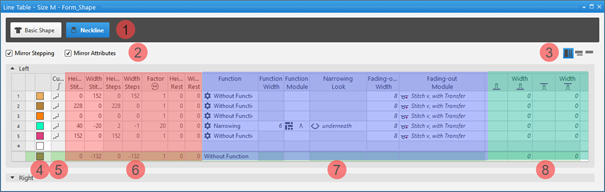


 factor, height of rest and width of rest is calculated.
Insert shape line in a shape element:
: The shape lines are inserted symmetrically with both methods by default.
- In the Line Table:
- Entry of a positive value: Widening and upwards
- Entry of a negative value: Narrowing and down
- Enter the desired values in the last table line with the * symbol. When confirming the input with the Enter key a new table line is inserted.
- Select a row -> open the context menu with RMB -> select Ajouter une ligne principale.
- Select a row -> open the context menu with RMB -> select Ajouter une ligne avant.
- or -
Select Ajouter une ligne après.
: Only in the line table it is possible to create an asymmetrical line shape by deactivating  Inverser les escaliers en miroir.
- In the document window
- Position the cursor on a line of the displayed graphic -> open the context menu with RMB and select -> Insérer la ligne de coupe .
Changing line properties of a shape line
- Global project-related setting of the line properties via
 Configuration / Toutes les coupes tab
 - In the shape regarding a shape line
- In the Line Table
- In the document window
Changing Line Properties:
- In the Line Table
- Direct change of a line property in the corresponding column of the table
- Select a line in the table, open the tool window with the
 Propriétés des lignes button and make the desired entries.
 - In the document window
- Position the cursor on a line of the displayed graphic, select the context menu Propriétés des lignes and make the desired entries in the tool window.
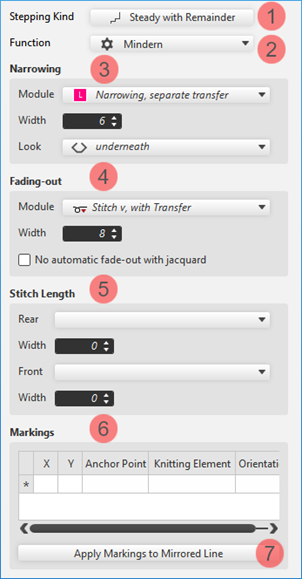
|
|
1 |
Modification of the curve type | |
|
2 |
Modification of the function of a shape line
| ||
|
3 |
Modifications for the shape line with the Diminuer function | ||
|
4 |
Modifications of the Masquer attribute for a shape line | ||
|
5 |
Specification for a shape line for working with PTS in the shape edge | ||
|
6 |
Display of the markings that are assigned to a shape line. | ||
|
Reprendre les marquages pour la ligne inversée |
Applies the line-bound markings of the selected line to the line on the opposite.
| ||
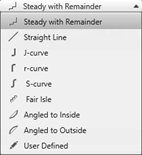
Changing curve type:
- In the Line Table
- In the
 Courbe column open the context menu with the RMB and select the desired curve type.
 - Select the line, open the Propriétés des lignes with the Propriétés des lignes button and select the desired curve type at Évolution des escaliers.
- In the document window
- Position the cursor on a line of the displayed graphic -> open the context menu with RMB and select -> Adapter l'évolution des escaliers....

- Select the desired Évolution des escaliers in the selection menu.
- When selecting the curve type
 homogène par rapport au reste via·Adapter les escaliers, specify the desired values for and of the steps.
 -
: The window for entering specifications is displayed according to the selected curve type.
- Transfer the entry to the shape line with the Recalculer button.
-
: The shape line is displayed in the graphic and in the line table as well.
- 7
- Allocate the desired attributes to the new shape lines:
- Function: Function content + Function width
- Fade-out: Fade-out content + Fade-out width
- Line 3:
- Function: Binding-off (at the external edge of the shape)
- Function content: desired bind-off method
|
Binding-off of the external edges of the shape |
|
The shape lines for binding-off at the external edge of the shape are at the same height in the line table.
|
- Line 5:
- In column Curve: Select
 Fair Isle stepping kind.
 - Function: 'Multi-step Narrowing'
-
Function content: Fair Isle + Doublage, maille v: The narrowing markings are calculated automatically and displayed in the pending shape of the
 Dessin de conception.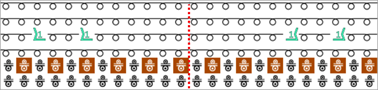
|
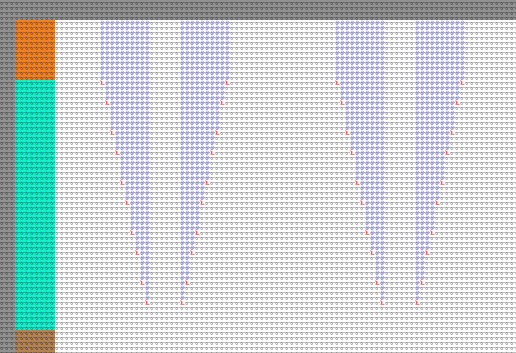
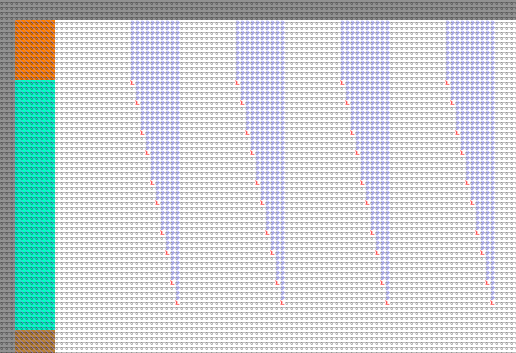
Options with the Fair Isle curve type Fair Isle | |||||
|
| |||||
|
| |||||
|
1 |
Évolution des escaliers |
Selecting the desired curve type
| |||
|
2 |
Variante |
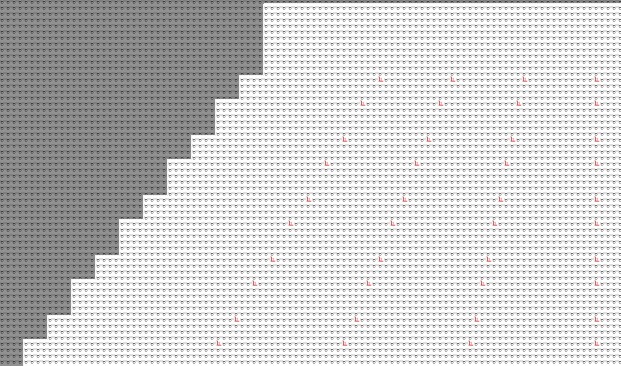
Options of processing Fair Isle (multi-step narrowing) | |||
|
Par défaut |
Display of the lined shape in the rasterized view | ||||
|
Trapèze |
Display of the pending lined shape in the basic pattern | ||||
|
Display of the lined shape in the rasterized view | |||||
|
En dent de scie |
Display of the pending lined shape in the basic pattern | ||||
|
Display of the lined shape in the rasterized view | |||||
|
Pli |
Display of the pending lined shape in the basic pattern | ||||
|
Modify Stepping | |||||
|
| |||||
|
3 |
Escaliers sur la hauteur |
Specification of the row in which the narrowing should be carried out. | |||
|
4 |
Hauteur min. en fin de ligne |
Quantity of rows at the end of the line (remaining height)
| |||
|
5 |
Specification to calculate the shape line with Fair Isle stepping kind | ||||
|
|
Escaliers |
Quantity of steps to calculate the narrowing | |||
|
|
Marquages |
Quantity of markings per step (narrowing)
| |||
|
6 |
Fonction |
Specifies the directory of the Knit Explorer to be used for the function (type) of shape lines | |||
|
Multi-step Narrowing | |||||
|
7 |
Contenu |
Selection of the desired module for Diminution, à plusieurs escaliers from Knit Explorer | |||
|
8 |
Mode |
Selection of the calculation mode for the steps of Fair Isle | |||
|
|
Calcul automatique des gradations based on the settings. | ||||
|
|
Définie par l'utilisateur -> Open the table by the Distances and Look... button in order to change the narrowings manually. | ||||
|
9 |
Aspect |
Selecting the desired look of narrowing Default Setting:
| |||
|
10 |
Largeur de rapprochement : |
Specification of how many stitches should cover each other Default Setting:
| |||
|
11 |
Move the position of the narrowing marking in relation to the pattern | ||||
|
|
Ne pas déplacer |
Position of the narrowing marking is calculated and freely placed. | |||
|
|
Décaler à la maille droite |
Position of the narrowing marking is calculated and placed on Maille avant only. | |||
|
|
Décaler à la maille gauche |
Position of the narrowing marking is calculated and placed on Maille arrière only. | |||
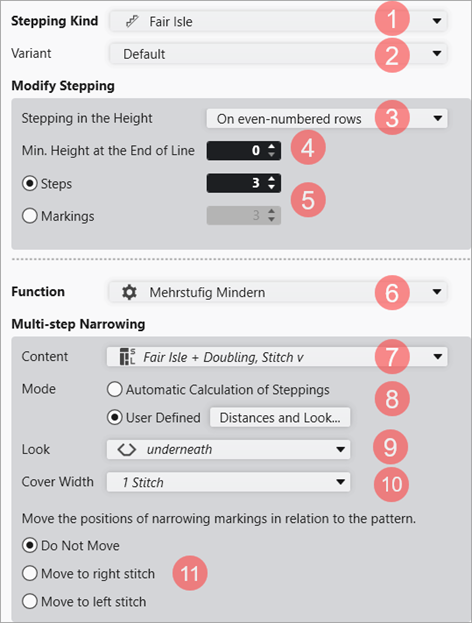
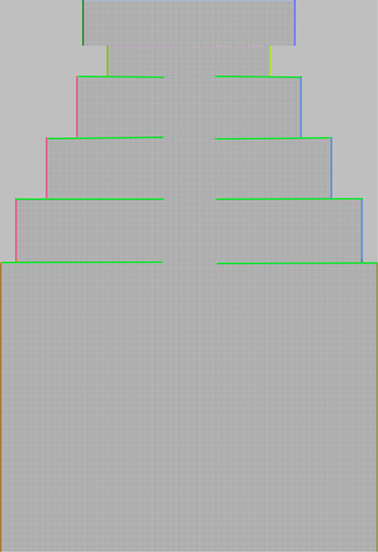
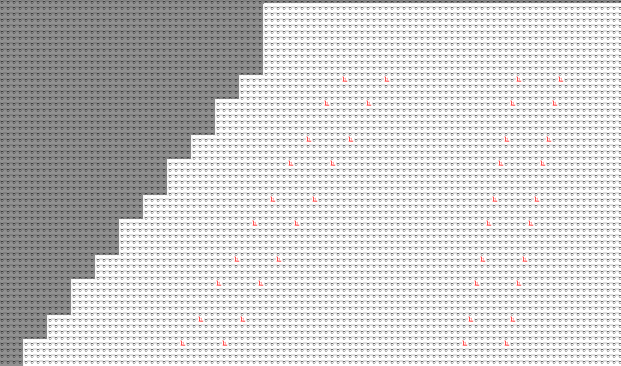
- Line 7:
- Function: Multi-step Widening
-
Function content: Widening, multi-step, Stitch v, Closing
: The widening markings are calculated automatically and displayed in the pending shape of the Dessin de conception.
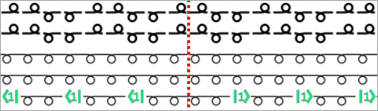
- End line of basic shape:
- Function: Binding-off
- Function content: Chaînette, coupe de base, fin, avec fil de séparation
- 8
- Open the graphic of the basic shape in the xx document window.
- 9
- Click the
 Élaboration de la coupe button under Paramètre in the Zones de tricotage ribbon.
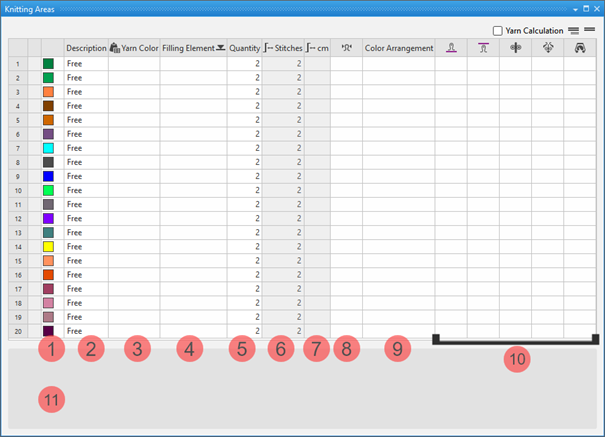
 - The Zones de tricotage tool window appears.
|
| ||
|
1 |
Colors |
Display color of the knitting range in the lined shape |
|
2 |
Description |
Definition of a knitting range |
|
3 |
|
Allocation of: |
|
4 |
Élément de remplissage |
Selection of a knitting element / needle action / structure / pattern element to fill the knitting range |
|
5 |
Nombre |
Height of the knitting range by stitch rows |
|
6 |
|
Display of the total height by stitches |
|
7 |
|
Display of the total height by cm
|
|
8 |
|
Assignment of a stitch density from the stitch density tool window |
|
9 |
Color Arrangement |
Assignment of Color Arrangements |
|
10 |
|
Assignment of a stitch length for the front needle bed |
|
|
Assignation of a stitch length for the rear needle bed | |
|
|
Assignment of a take-down value | |
|
|
Assignment of a auxiliary take-down value | |
|
|
Assignment of a machine speed | |
|
11 |
List of the shapes (fabric pieces), where the selected knitting range is in use.
| |


 button.
- 10
- Create the desired knitting range in the Zones de tricotage tool window.
- Example:
- Description: Collar
- Filling Element: 2x2 Rib
- Number: 28 (rows high)
-
 +
+  columns: Allocate new stitch lengths
- 11
- Select the desired shape point by the LMB to which you want to assign the knitting range.
- 12
- Call up the Attribuer la zone de tricotage context menu.
- List of the knitting ranges appears to select one.
- 13
- Select the desired knitting range.
- The knitting range appears in the assigned color at the the shape line point of the lined shape.
- 14
- Move the inserted knitting range by 2 pattern rows to the top.: The position of the widening markings should be in a SJ pattern row.
Enter the created knitting ranges into the shape and position it:
- Shape is created as lined shape.
- The knitting ranges are available in the Zones de tricotage tool window.
- Lined shape is opened in the xx document window.
- 1
- Select the desired shape point by the LMB to which you want to assign the knitting range.
- 2
- Open the context menu and select Attribuer la zone de tricotage.
- List of the knitting ranges appears to select one.
Multiple selection is possible. - 3
- Select the desired knitting range.
- The knitting range appears in the assigned color at the the shape line point of the lined shape.
|
|
Enable the view of the knitting ranges in the |
|
|
Disable the view of the knitting ranges in the |
|
|
Display of the knitting ranges in the |

- 4
- Position the inserted knitting range.
|
| ||
|
1 |
Selecting knitting ranges to replace the inserted knitting range. | |
|
2 |
Specify the Distance in Mailles in relation to the shape line point | |
|
3 |
Insérer la zone de tricotage vers le bas | |
|
|
Knitting range will be inserted above the shape line point | |
|
|
Knitting range will be inserted below the shape line point | |

- 15
- In the Coupes tool window select the created shape with LMB.
- 16
- Open the context menu -> Positionner la coupe -> select Pattern name.
- The shape is floating in the selected basic pattern.: Very helpful here to position the Jacquard pattern element correctly in relation to the base pattern and shape.
- 17
- Open Knit Explorer.
- 18
- Open the Parties de dessin -> Éléments du dessin, toutes les aiguilles -> Éléments du dessin, jacquard directory in the Dépôt d'élément de tricotage.
- 19
- Open the Parties de dessin tool window.
- 20
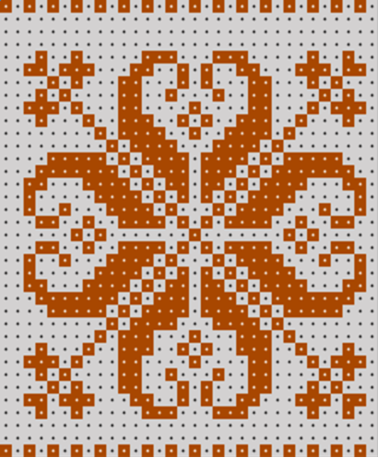
- Copy the Jacquard ED 19 pattern element from the Knit Explorer into the pattern project.
Example: H 39 x W 32
- 21
- Modify the height of the pattern element in order to draw the pattern element into the the stepping of Fair Isle (height).
|
Original Pattern Element |
Modified Pattern Element |
|
|
|
|
H 39 x W 32 |
H 36 x W 32 |
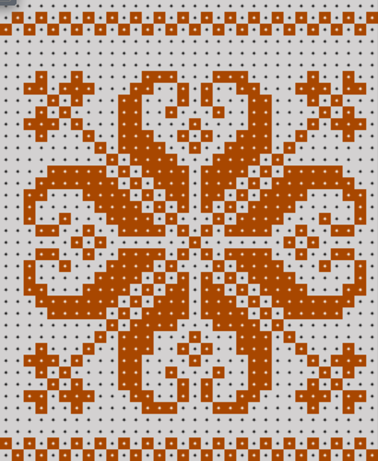
- 22
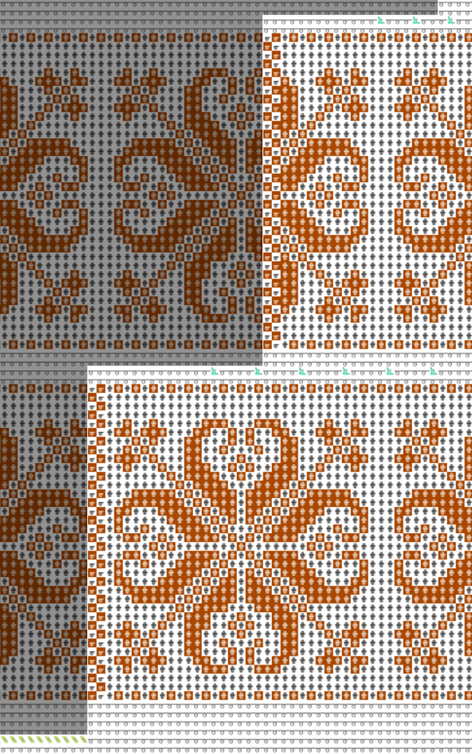
- Draw the pattern element using any 2 yarn colors from the center of the basic pattern to the left and right in relation to the Fair Isle shape lines in the basic pattern.
|
Pro Step:
|
|
- 23
- Select the rows of the Jacquard areas additively via the Rangée du dessin control column by the CTRL key.
- 24
- Positioning the cursor in the pattern area.
- 25
- Call-up the Sélection / Créer un MC jacquard... context menu.
- The Élaborer un jacquard [Nouveau dessin] dialog box appears.
Description to the dialog box
|
| |||
|
1 |
Display of the active document window | ||
|
2 |
Séquence de couleurs et longueur de maille | ||
|
|
Display or edit box for the stitch length per color / rear system
| ||
|
|
Display of the used colors in the selection in the color sequence from the left | ||
|
|
Display or edit box for the stitch length per color / front system
| ||
|
Deuxième ordre des couleurs | |||
|
|
|
Default setting | |
|
|
Definition of the color sequence for the second pattern row is possible.
| ||
|
3 |
Module jacquard | ||
|
|
Displays the selected Jacquard module.
| ||
|
Display of the path of the selected directory in the Knit Explorer | |||
|
Selection list | |||
|
| |||
|
4 |
Couleurs |
Selection list for the knitting sequence of the colors
| |
|
5 |
Longueur de la maille |
Selection list for the stitch length
| |
|
6 |
Endroit |
Selecting the desired face of picture of Jacquard
| |
|
Envers du jacquard | |||
|
7 |
plus étroit de |
Specification in case of Jacquard with yarn bridges, by how many needles the back side is to be narrower then the face of picture | |
|
8 |
décaler horizontalement de |
Specification in needles for shifting the Jacquard horizontally | |
|
9 |
Élaborer un jacquard |
The changes made in the dialog box will be applied to the pattern. | |
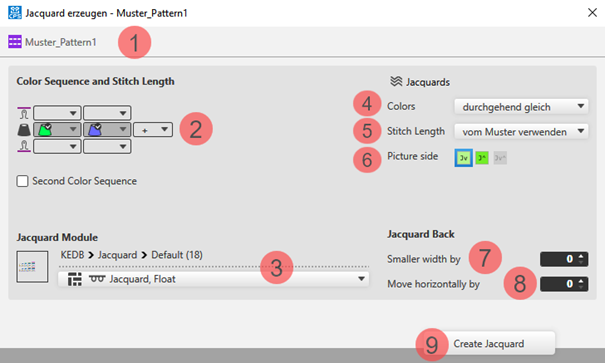


 for selecting the desired Jacquard module in the specified directory
Changing the default settings for Block Jacquard:
: A module for net pick-up and net ending are assigned by default to each area with Block Jacquard in the Projet de dessin.
Possibilities for changing the module allocation:
- In Configuration -> Jacquard tab -> Block-Jacquard section: Changes will apply to all patterns of the Projet de dessin .
- Select
 Jacquards in the ribbon.: Individual changes regarding the desired Jacquard area
 - Select the context menu -> Ouvrir les jacquards...
: Individual changes regarding the desired Jacquard area
- 26
- Make the desired presets in the Élaborer un jacquard [Nouveau dessin] dialog box.
- Colors: Continuously
- Stitch length: Used by the module
- Jacquard Module: Jacquard, tubulaire croisé, endroit Jv, J^, Jv^
- 27
- Apply the settings to the pattern with the Élaborer un jacquard button.
- 28
- Continue:
Create the next row selection for a new Jacquard area.
- or –
Exit working in the dialog box by Fermer. - Jacquard is displayed with the correspondent symbol in the pattern and is listed in the Jacquards tool window for another editing.
- 29
- Allocate the following attributes to the shape line 5 of the Fair Isle curve type in the line table:
- Fade-out width: Set value to 0, since the different Jacquard areas are not to be hidden with Maille v, avec report.
- Fade-out content: Stitch v, with transfer (will not be used)
: To fade-out with patterns with Jacquards, a corresponding Masquer, jacquard, flottage, réseau module is used.
- 30
- In the document window, select the desired shape line 5 with the graphic shape presentation.
- 31
- Position cursor on the selected shape line.
- 32
- Select LMB -> Propriétés des lignes context menu.
- 33
- The Propriétés des lignes tool window is opened for the selected shape line.
- 34
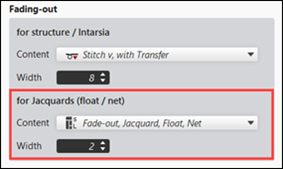
- Make the following entries under the Pour Jacquards (flottage / réseau) section:
-
Content: Select Masquer, jacquard, flottage, réseau Fade-out Module.: The fade-out module knits only at the front.
- Width: specify the desired fade-out width.
-
Default Setting: 2 Needles wide
Attention : The fade-out width is also executed in the rows of the net pick-up and the net ending.
- 35
- Close the tool window.
- The fade-out module appears in the Dessin de conception document window.
- 36
- If necessary, position the shape in the document window with the
 button.
 - 37
- Check , attributes of the shape lines and, if desired, make corrections.
- 38
- Changing markings of shape lines with the functions:
- Function Diminution à plusieurs niveaux‘ (Fair-Isle): Modify the position of the narrowing marking
- Function Augmentation à escaliers: Modify the position of the widening marking
The following function was allocated to a shape line when creating the shape:
- Diminution à plusieurs niveaux
- Augmentation à escaliers
The markings are automatically calculated based on the settings (values) in the line table, displayed in the Distances de la ligne table and entered into the shape as shape markings.
Options to modify the narrowing and widening markings:
- In the table: Change the values and apply them to the shape
- In the pending shape: Re-position the markings manually
Modify the Markings for Narrowing in the Table:
- A shape with shape lines of the Diminution à plusieurs niveaux (Fair-Isle) function is created.
- The shape leis pending in the Dessin de conception
- The document window with graphic of the shape is open.
- 1
- Position cursor on the shape line e.g. no. 5 (multi-step narrowing).
- 2
- Open the context menu with RMB and select Propriétés des lignes.
- The Propriétés des lignes tool window is opened.
|
Options with the Fair Isle curve type Fair Isle | |||||
|
| |||||
|
| |||||
|
1 |
Évolution des escaliers |
Selecting the desired curve type
| |||
|
2 |
Variante |
Options of processing Fair Isle (multi-step narrowing) | |||
|
Par défaut |
Display of the lined shape in the rasterized view | ||||
|
Trapèze |
Display of the pending lined shape in the basic pattern | ||||
|
Display of the lined shape in the rasterized view | |||||
|
En dent de scie |
Display of the pending lined shape in the basic pattern | ||||
|
Display of the lined shape in the rasterized view | |||||
|
Pli |
Display of the pending lined shape in the basic pattern | ||||
|
Modify Stepping | |||||
|
| |||||
|
3 |
Escaliers sur la hauteur |
Specification of the row in which the narrowing should be carried out. | |||
|
4 |
Hauteur min. en fin de ligne |
Quantity of rows at the end of the line (remaining height)
| |||
|
5 |
Specification to calculate the shape line with Fair Isle stepping kind | ||||
|
|
Escaliers |
Quantity of steps to calculate the narrowing | |||
|
|
Marquages |
Quantity of markings per step (narrowing)
| |||
|
6 |
Fonction |
Specifies the directory of the Knit Explorer to be used for the function (type) of shape lines | |||
|
Multi-step Narrowing | |||||
|
7 |
Contenu |
Selection of the desired module for Diminution, à plusieurs escaliers from Knit Explorer | |||
|
8 |
Mode |
Selection of the calculation mode for the steps of Fair Isle | |||
|
|
Calcul automatique des gradations based on the settings. | ||||
|
|
Définie par l'utilisateur -> Distances and Look... Button to change the narrowings manually in the Distances de la ligne dialog box. | ||||
|
9 |
Aspect |
Selecting the desired look of narrowing Default Setting:
| |||
|
10 |
Largeur de rapprochement : |
Specification of how many stitches should cover each other Default Setting:
| |||
|
11 |
Move the position of the narrowing marking in relation to the pattern | ||||
|
|
Ne pas déplacer |
Position of the narrowing marking is calculated and freely placed. | |||
|
|
Décaler à la maille droite |
Position of the narrowing marking is calculated and placed on Maille avant only. | |||
|
|
Décaler à la maille gauche |
Position of the narrowing marking is calculated and placed on Maille arrière only. | |||
- 1
- Select the
 Définie par l'utilisateur mode in the tool window under Diminution à plusieurs escaliers.
 - 2
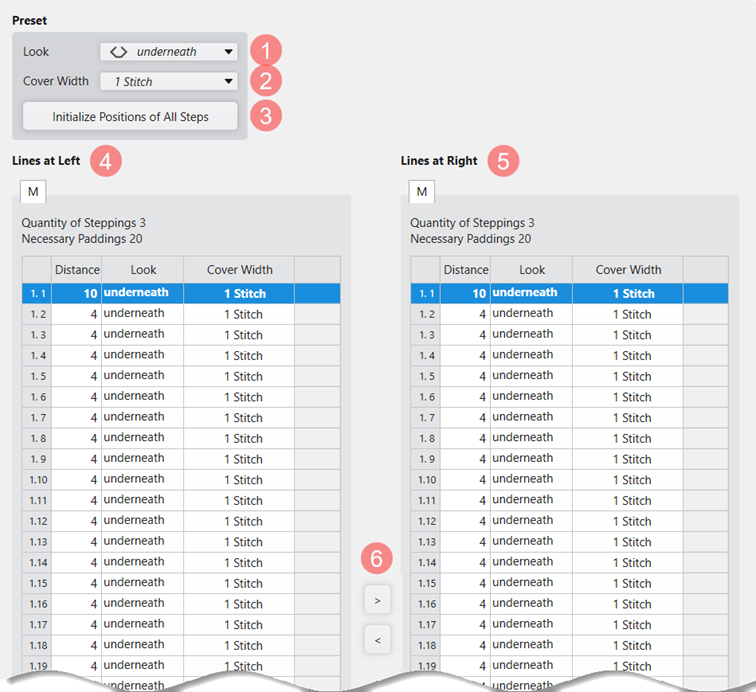
- Open the table with Distances and Look... .
- The Distances of the Line dialog box appears.
|
| ||
|
| ||
|
Preset | ||
|
1 |
Aspect |
List box to select the method of narrowing |
|
2 |
Largeur de rapprochement : |
List box to specify the quantity of stitches to cover each other |
|
3 |
Initialiser les positions de tous les escaliers |
Applies the changes of look and of the cover width |
|
| ||
|
4 |
Lignes gauches |
Table with narrowing markings and their positions |
|
Label indicating the size |
Size of the selected shape | |
|
Nombre d'escaliers |
Total number of steps of the selected shape line | |
|
Distances nécessaires |
Quantity of stitches (step width) that should be narrowed | |
|
| ||
|
5 |
Lignes droites |
Table with narrowing markings and their positions |
|
Label indicating the size |
Size of the selected shape | |
|
Nombre d'escaliers |
Total number of steps of the selected shape line | |
|
Distances nécessaires |
Quantity of stitches (step width) that should be narrowed | |
|
| ||
|
6 |
Arrow keys
|
To copy the manually changed values of the table from Lignes gauches column to the Lignes droites column or vice versa.
|


- 1
- Make a different selection in the dialog box below Spécifications.
- or -
Change the values for both shape lines (left and right) manually in the table. - 2
- Close the dialog box with the OK button.
- The narrowing markings are applied to the shape and displayed.
: Using the same procedure, the widening markings in the Distances... table can also be changed.
Modify Shape Markings of Pending Shape Manually:
: The user himself is responsible for the correct result!
- A shape with shape lines of the Diminution à plusieurs niveaux (Fair-Isle) function is created.
- The shape leis pending in the Dessin de conception
- 1
- Select
 Calque de raffinement in the Cursor Attributes + Editing Layers tool windows.
- 2
- Select the
 Transparence de la forme en attente icon to delete the narrowing markings.
 - 3
- Delete the desired markings in the shape.
- 4
- Set the cursor on a narrowing marking and pick this attribute with the F8 key in order to re-position it.
- or -
Select the Fair Isle + Doublage, maille v technical module in the Modules tab. - 5
- Insert markings manually at the new positions.: Watch out:
The quantity of narrowing markings must correspond to the narrowing steps (width)! Otherwise the stitches cannot be transferred.
: The changes within the Calque de raffinement cannot be saved.
Meaning, the pending shape must not be removed from the design pattern.
- 6
- In order to save the changes, set the cursor in the pending shape and call-up Convertir la coupe en forme de quadrillage of the context menu.
- The shape appears as Raster Shape.: Modification within the Calque de raffinement will be discarded when converting.
- 7
- Then call-up Créer une nouvelle coupe à partir de la forme de quadrillage... context menu again.
- The created lined shape is displayed in the Coupes tab.
: Using the same procedure, the widening markings of the pending shape can be changed manually as well.
- 39
- Click the
 Accueil button under Prévisualisation in the Guide-fil ribbon.
 - The document window is opened as view and the Guide-fil ribbon appears.
- 40
- Open the dialog box via
 Afficher le guide-fil.
 - 41
- If necessary, make the desired settings for allocating yarn carriers.
- 42
- Start the
 Élaboration
technique:
Élaboration
technique: Show symbol view after technical processing.
 - 43
- Generate
 Sintral.
 - 44
- Start the
 Contrôle du Sintral.
 - 45
-
 Extraire the knitting program.
 - A program for the knitting machine will be created: CMS530.Pattern-12.zip.
- Load knitting program into the machine.
 : The extracted file CMS530.Pattern-12.zip can be loaded onto the machine with an USB stick or via Ethernet.