What was new in CREATE PLUS V2.8
Release V2.8 09/2024
Versione file: 16 (V2.8)
Compatible with:
- EKC 3.1
- CKC 2.1
- OKC 6.6
Cimose della forma and Marcature della forma Docked to the Pattern
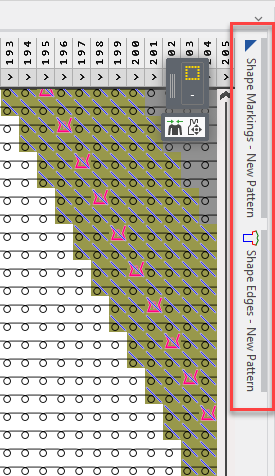
The Cimose della forma and Marcature della forma tool windows are always docked to document window of the pattern.
View options of the tool windows:
- Fold or unfold at the edge
- Pull to an edge
- Unpin from edge and position it as desired
- Open it with the O key at the desired cursor position at the corresponding shape edge or shape marking entry within the pattern
You call-up both the tool windows as well in the context menu of the pattern and in the Avvio ribbon / Finestre degli strumenti ribbon group.
Replace Exceeding Modules
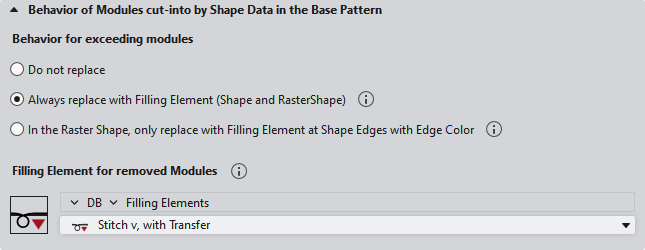
Settings in Configurazione dialog box / Dati di taglio tab
You make the following settings on the Dati di taglio tab:
Comportamento per moduli tagliati
| The exceeding modules will not be replaced. |
| The exceeding modules will always be replaced by the selected filling element.
|
| The exceeding modules will be replaced in the raster-shape only at shape edges with edge color.
|

 The result is visible in the raster-shape only after expanding the pattern.
Elemento di riempimento per moduli eliminati
- Select the path of the desired module.
- Select the module of this path.
Only select modules of size 1x1
With bigger modules you will get a warning.
Only the first stitch of the first row of the module will be inserted repeatedly.
 The Nascondi moduli tagliati function is no longer available in the context menu of the pattern layer.
Stepping Kind Scalatura preassegnata
Up to now only available for Taglio di dimensionamento.
Now, in the Taglio lineare as well.
 :
:
- With a preset stepping, it is not always possible to reach any desired target point!
Example:
- If only even-numbered steps have been specified, no target point can be reached at an odd-numbered position.
Therefore, the line table contains the following information for a preset stepping:
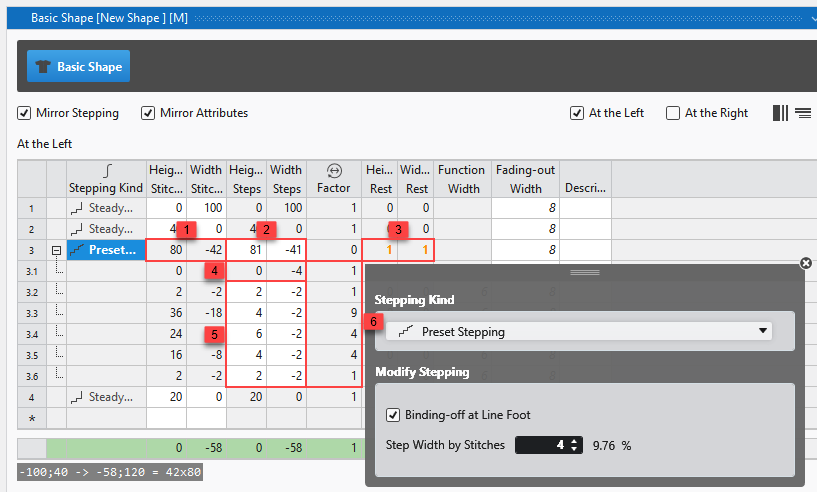
1 | Actual height and width of the line
|
2 | Desired height and width of the line in total
|
3 | Deviation of the calculated target point in height and width The deviation of the actually reached target point from the desired target point is displayed in red. |
4 | Bind-off Step The width of the bind-off step is specified via the line properties. The total bind-off width is calculated and determined by the factor. |
5 | Preset Stepping The preset stepping is specified by the user. |
6 | Factor of the stepping The factor for each step is calculated so that the desired overall height and width of the line is achieved as precisely as possible. |
Deviating target point of a line
If the desired target point of a line is not reached in the lined shape, both points are displayed separately.
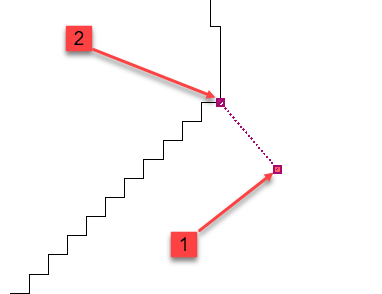
1 | Desired Target Point |
2 | Actually Achieved Target Point |
Line View
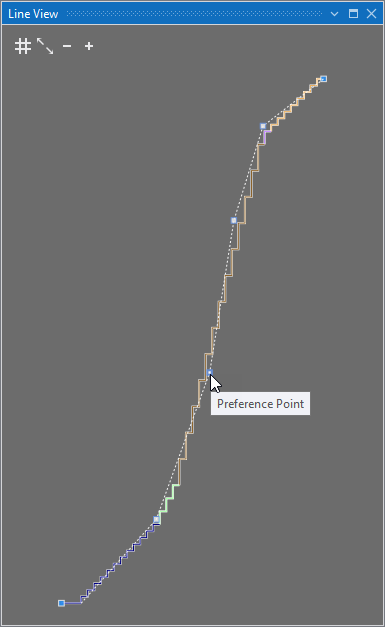
In addition to the stepping line, a dashed line appears.
- You can set preference points on the line and remove them via the context menu.
- Aggiungi punto di preferenza
- Elimina punto di preferenza
- The stepping line adapts to this curve as closely as possible, according to the preset stepping.
- You can move the preference points as desired.
This means, you can form the line as desired according to the preset stepping.
Display of Line Dimensions
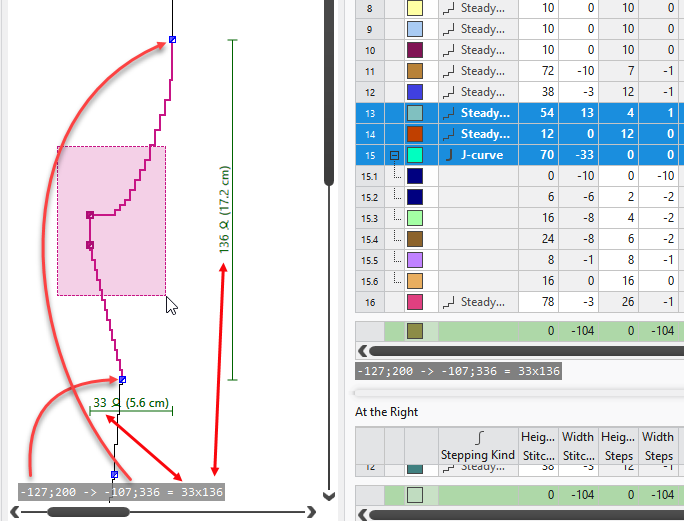
If one or more lines are selected in a lined shape, the following information about this selection is displayed.
- Coordinates of the start point
- Coordinates of the endpoint
- Absolute width and height
 The start and endpoints correspond to the first and last points of the selected lines of the shape.
This information appears at the lower left of the views.
- Line Table
- Lined Shape Editor
- Lined Shape Layer
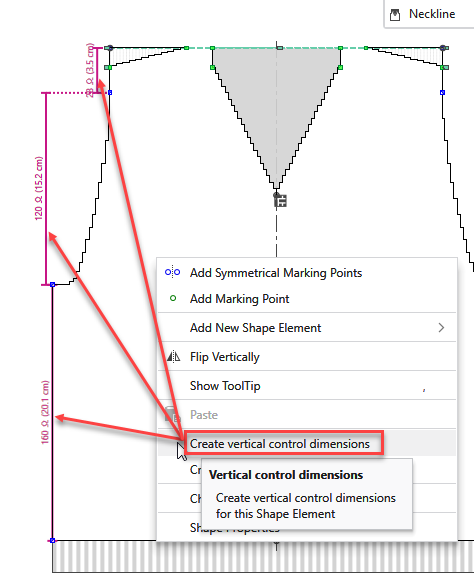
Function to Create Control Dimensions in Lined Shapes
Functions in the context menu of Taglio base or Elemento di taglio of a lined shape:
- Creare dimensionamenti di controllo verticali
- Genera dimensionamenti di controllo verticali per questo elemento di taglio.
- Creare dimensionamenti di controllo orizzontali
- Genera dimensionamenti di controllo orizzontali per questo elemento di taglio.
- Elimina dimensionamenti di controllo
- Elimina tutte le dimensionamenti di controllo per questo elemento di taglio.
Open Knitting Elements in a document window with different tabs
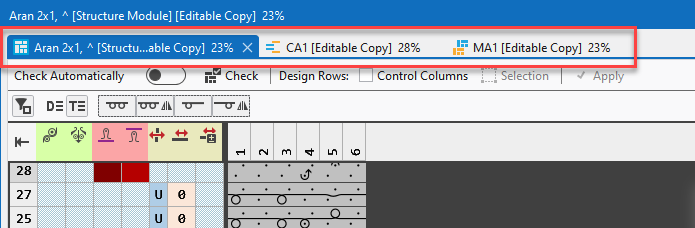
With the O key, you can open all knitting elements which are positioned at the current cursor position.
- All the Knitting Elements will appear in one single document window with different tabs.
- All the following Knitting Elements you will open with O key will appear in a different tab of the same document window.
Extensions of Pattern Element Editor
The external pattern element editor is extended with the following functions:
- Appunti ribbon group is added to the Avvio ribbon.
- Crea Color Arrangement... context menu is available on row selections of pattern elements.
- Crea parte di disegno... context menu is available on selections within pattern elements.
- Parti di disegnotool window is available.
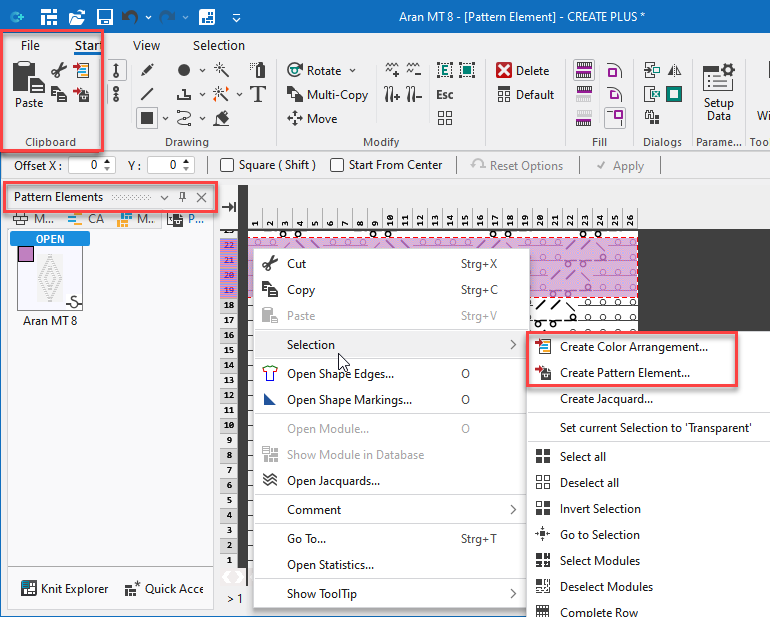
Pattern Elements are only allowed in the Design View
Up to now:
- You could copy a selection of the Vista dei simboli dopo tecnica and add it to the Parti di disegno tool window.
New:
- As the copy of a selection of the Vista dei simboli dopo tecnica is not a pattern element, this selection cannot be pasted into the Parti di disegno tool window.
Reworked Nuovo elemento di lavoro Dialog Box
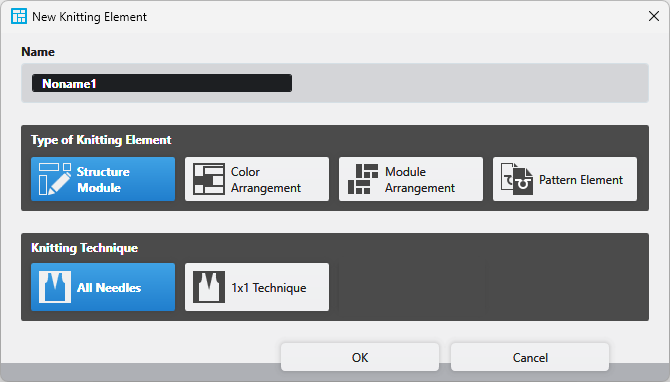
The selection at Tipo di elemento di lavoro of the Nuovo elemento di lavoro dialog box is restricted to following options:
- Modulo struttura
- Color Arrangement
- Module Arrangement
- Parte di disegno
The Nuovo elemento di lavoro function is removed from the context menu of the Windows taskbar.
Team Depot in Knit Explorer
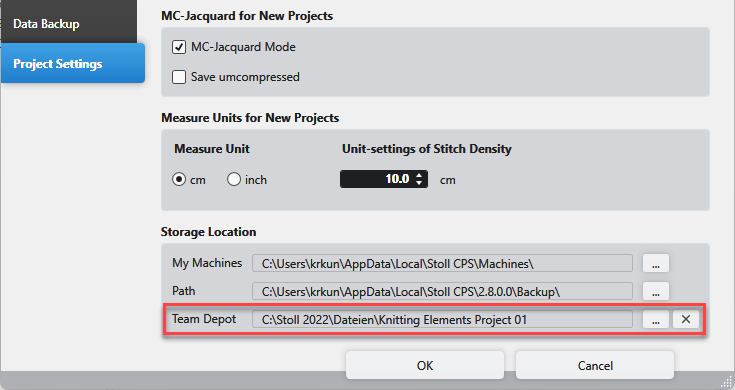
In the Knit Explorer, you can set up a shared folder on the local network or in the cloud to manage the knitting elements.
Different users can access this folder and thus use common knitting elements.
- Select a common folder in the Opzioni / Impostazioni progetto / Locazione di memoria dialog box:
- The Team Depot entry appears in the Knit Explorer.
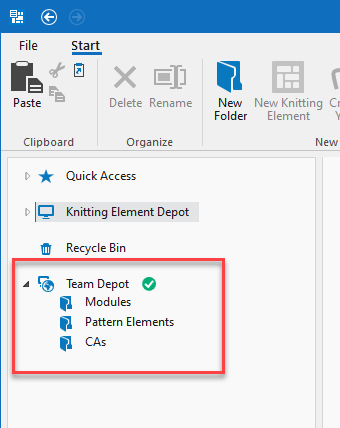
- Save and Manage Knitting Elements Centrally Under this Path
- Add Subfolders
- Green checkmark: Folder is synchronized
 - NON SINCRONO - :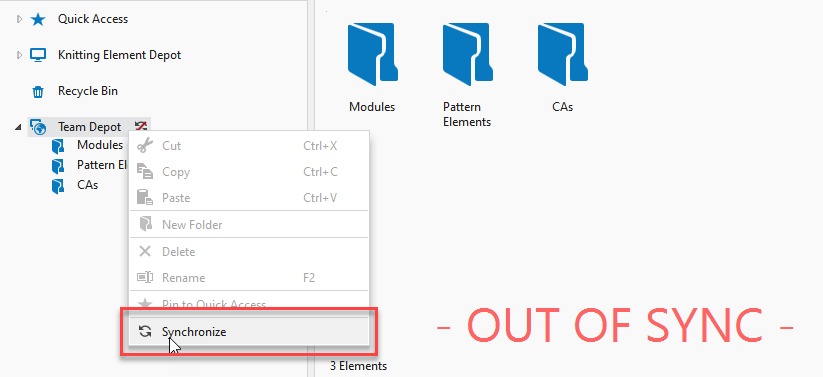
- You can synchronize the Team Depot via the context menu of the folder.
 Sincronizza
Optimized Options for Compensa spostamento nella corsa per lavorazione monofrontura
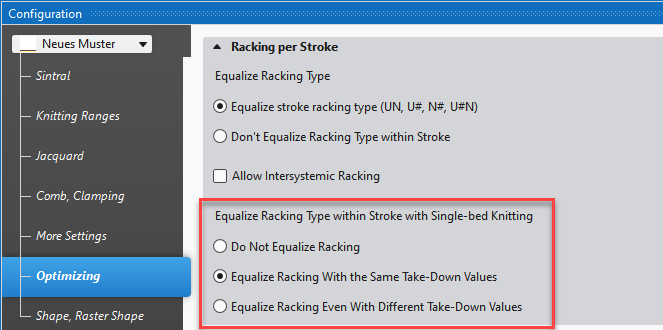
In the Configurazione dialog box / Ottimizzazione tab, the Compensa spostamento nella corsa per lavorazione monofrontura option could previously only be activated or disabled.
New Options:
- Non compensati spostamento
The racking of single-bed knitting rows will not be changed. - Compensa spostamento se i valori di tirapezza sono gli stessi
In case of identical take-down values, the racking of transfer rows will be applied to a neighboring single-bed knitting row if this results in a shorter running time. - Compensa spostamento anche se i valori di tirapezza non sono gli stessi
Even in case of different take-down values of both rows, the racking of transfer rows will be applied to the neighboring single-bed knitting row.
The take-down value of the knitting row will be applied to the transfer row.
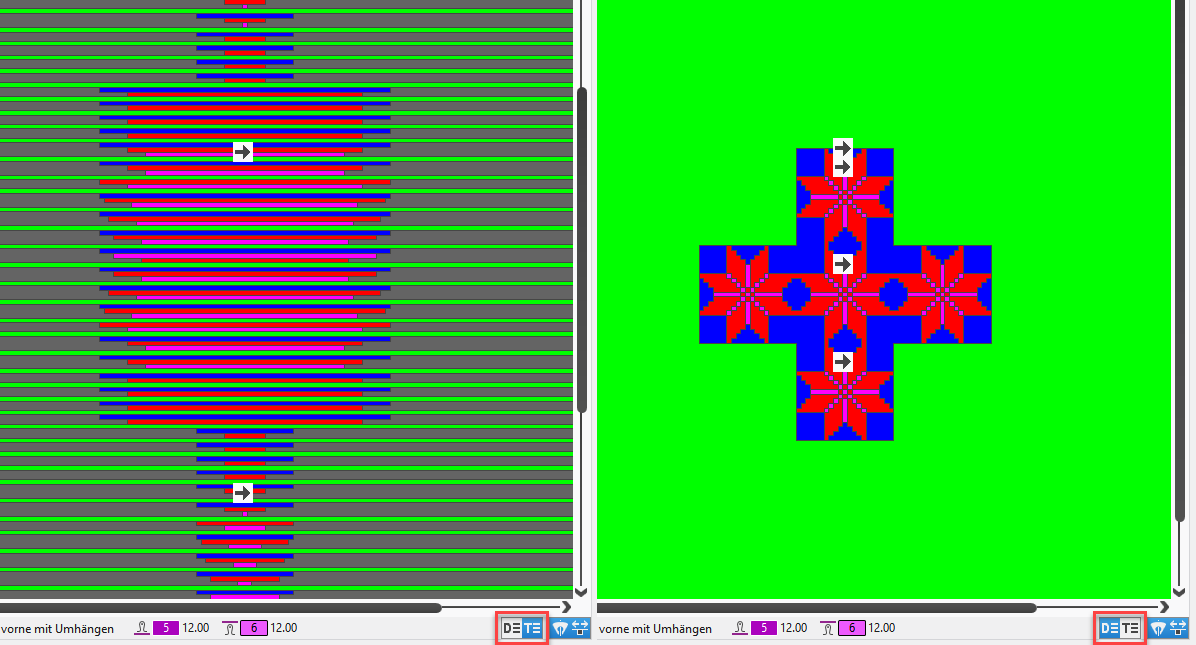
Presentation of Pattern Rows in the Yarn Carrier View
You can switch the yarn carrier view to the technical row presentation or pattern row presentation.
- With it, you can recognize the motive in the pattern row presentation of the yarn carrier view.
- You can switch the display in the status bar at the bottom right.
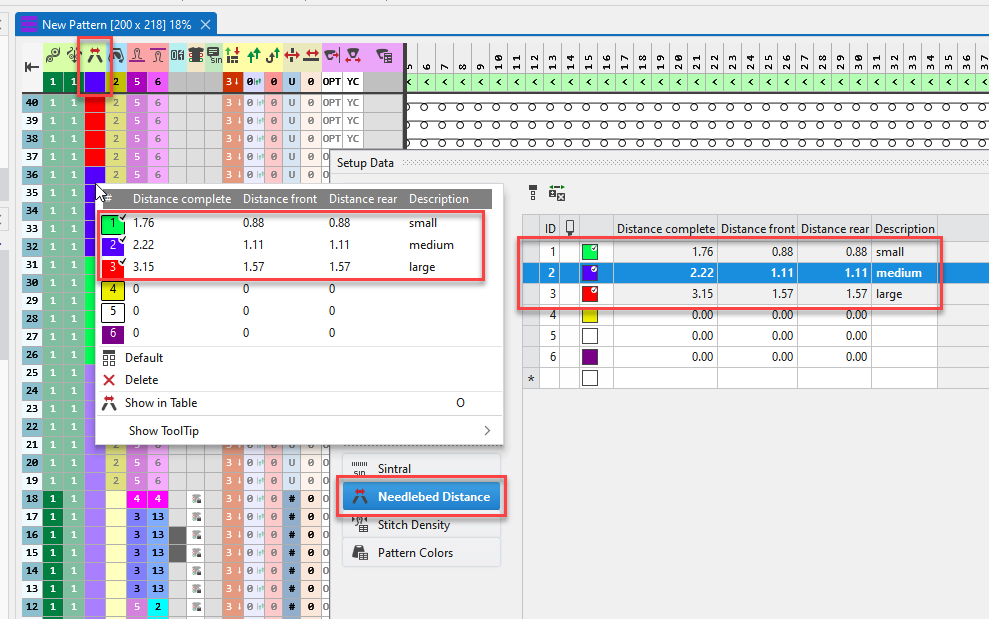
Adjust the Distanza fra le fronture of ADF Flex
Row by row, you can adjust the Distanza fra le fronture as required by different knitting situation.
- New Distanza fra le fronture tab of the Parametri del disegno dialog box
- Apply the entries of this tab via the Distanza fra le fronture control column into the pattern.
- The adjustment values is carried out in the carriage return.
The first three entries are part of Distanza fra le fronture tab by default. These cannot be deleted or edited.
- Small
Approximately the same distance as the standard machine. - Medium
Approximately the same distance as the multi gauge machine. - Large
Approximately the same distance as the k&w machine.
New Pattern Report
You can open the Pattern Report dialog box in the Vista ribbon.
In this dialog box, you make all the settings to create the Pattern Report.
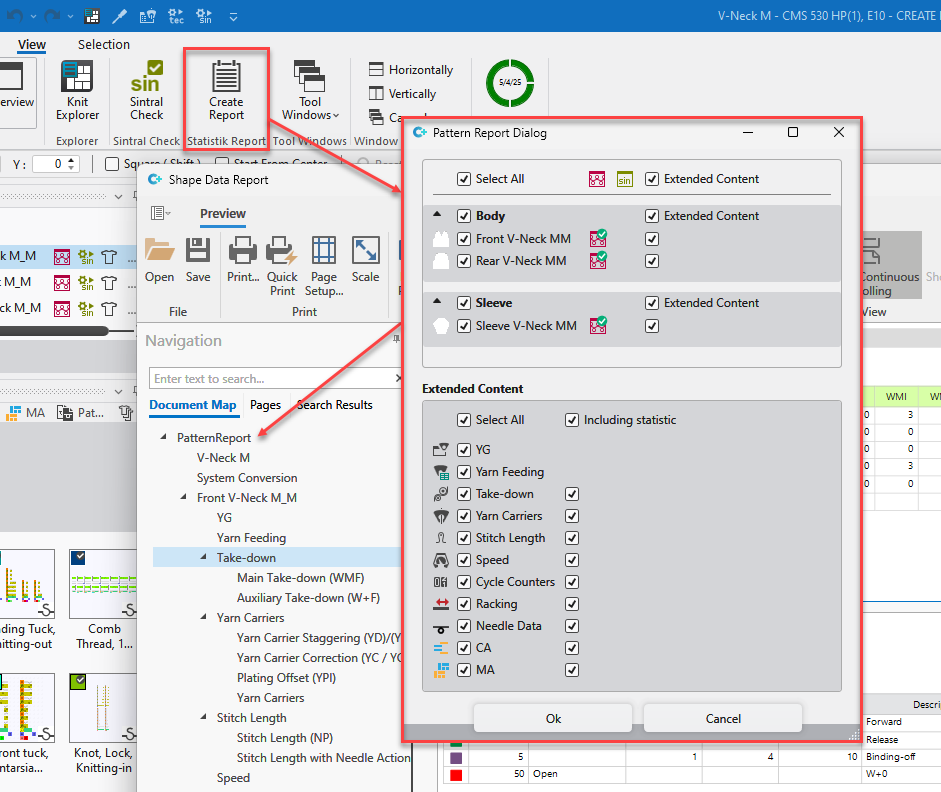
Select the patterns in the upper part of the dialog box.
- The report can be created after Elaborazione tecnica only.
You cannot select patterns which are not yet technically processed in this dialog box. - The patterns will be displayed the same way as in the Disegno tool window.
Select the desired data for the Pattern Report in the lower part of the dialog box.
- Select the Parametri del disegno .
- Specify for the selected Parametri del disegno to display the Statistica data as well.
Automatic Saving
 Opzioni dialog box / Backup dei dati section
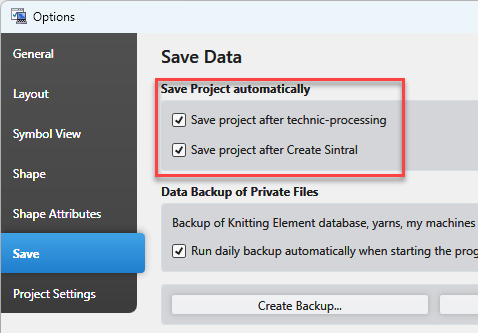
Make the following settings in the Salva progetto automaticamente section:
-
 Salva progetto dopo l'elaborazione tecnica
The total project will be saved after Technical Processing. -
Salva progetto dopo aver creato Sintral
The total project will be saved after Create Sintral.
Automatic Saving with Multiple Processing
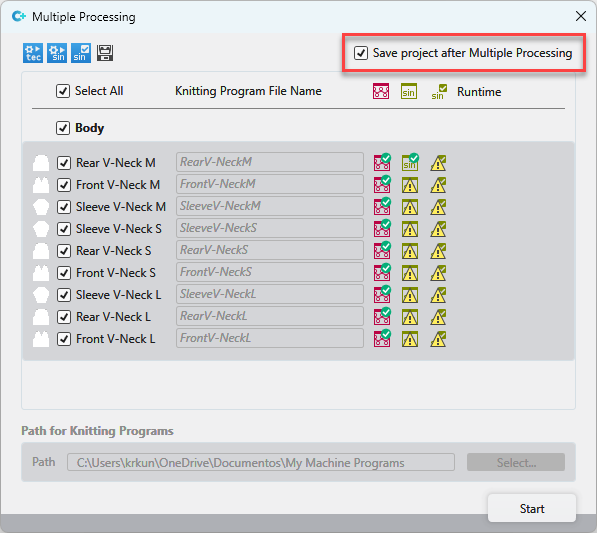
Function of the Lavorazione multipla dialog box:
-
Salva progetto dopo l'elaborazione multipla
The total project will be saved after each Multiple Processing despite the settings in the dialog box.
Canceling the Multiple Processing will prevent saving the project.
Working with Jacquard Symbols
Now, you can use Jacquard symbols within new pattern projects.
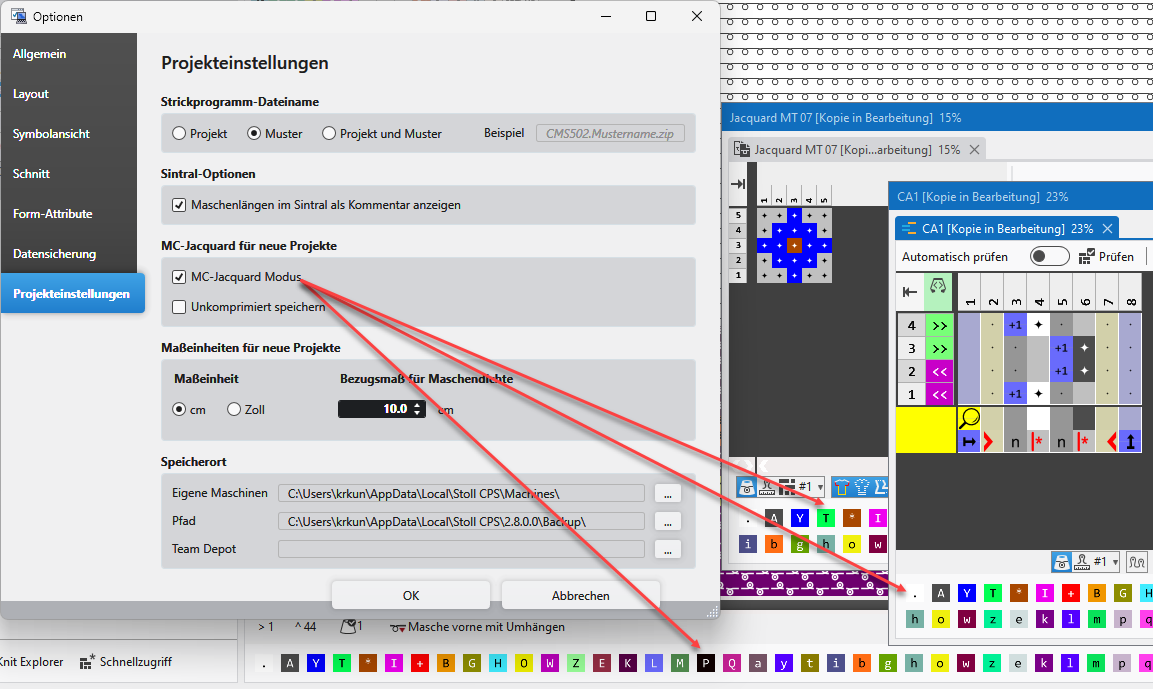
Settings for new projects in Opzioni / Impostazioni progetto / MC jacquard
You can draw with Jacquard symbols into the following areas:
- Design View of the Pattern
- Pattern Element
- CA
Only in the searching row
Watch out following:
- The Jacquard symbols will appear below the status bar of the document windows.
- Jacquard symbols have to be converted to needle actions in the pattern by a CA.
If not, an error message appears with Espandi or Elaborazione tecnica - Export a pattern as MC Jacquard.
Function of the context menu on the pattern in the Pattern tool window.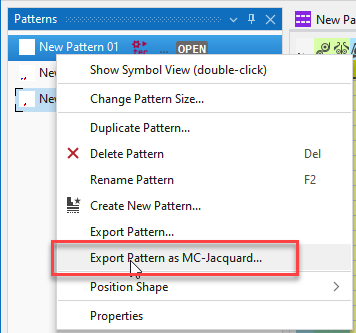
- Import a MC Jacquard into a pattern project.
The function is available via File / Importa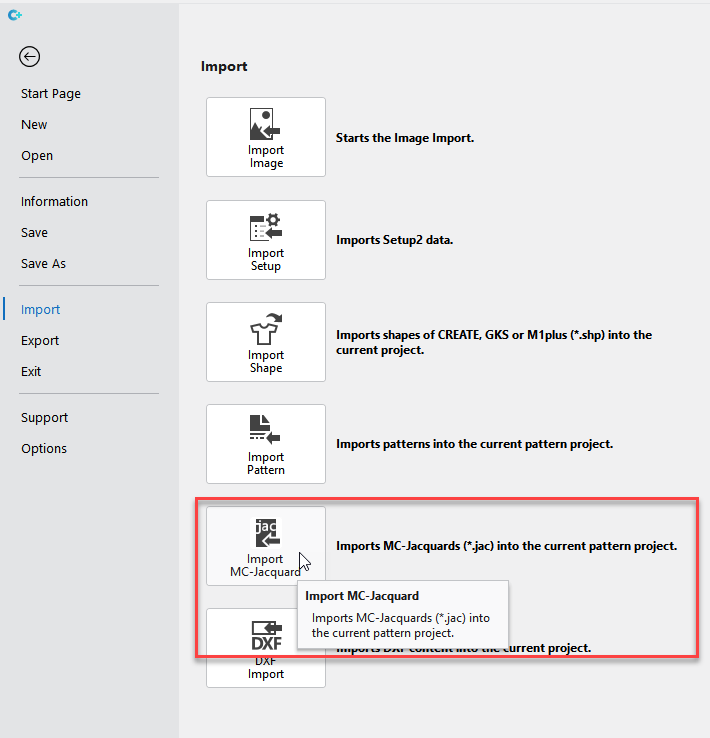
- Crea MC Jacquard...
from selection.
The function is available in the context menu on the selection within the pattern.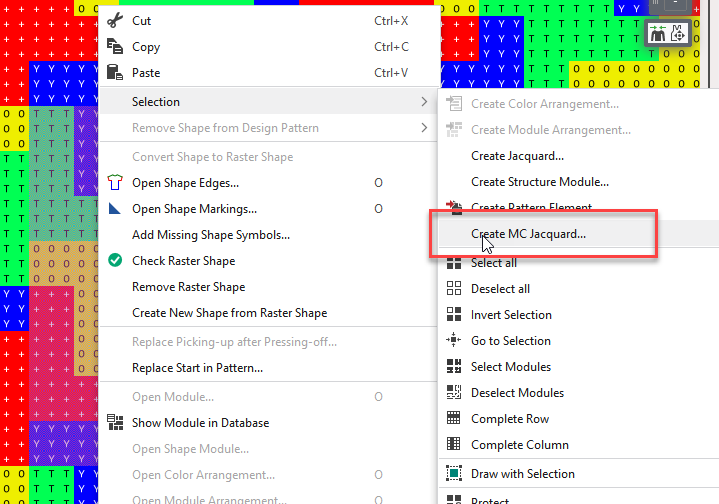
New functions of the Knit Explorer
Following new functions available in the Avvio ribbon:
| Importa MC-Jacquard (*.jac) como parte di disegno. |
| Imports any desired folder tree.
|

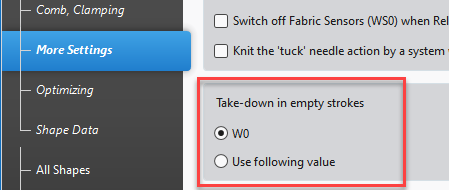
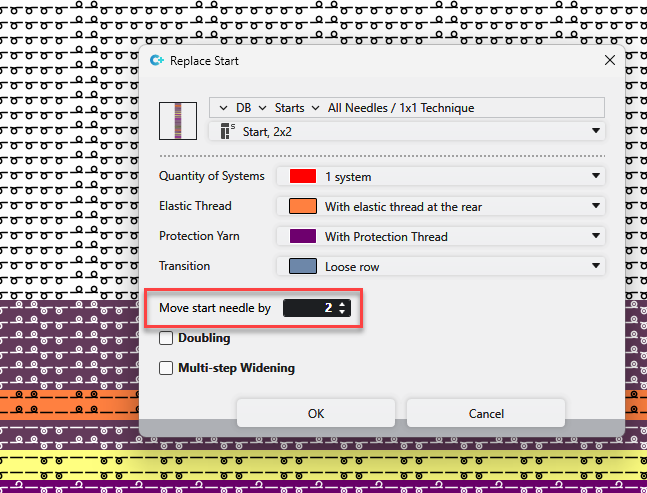
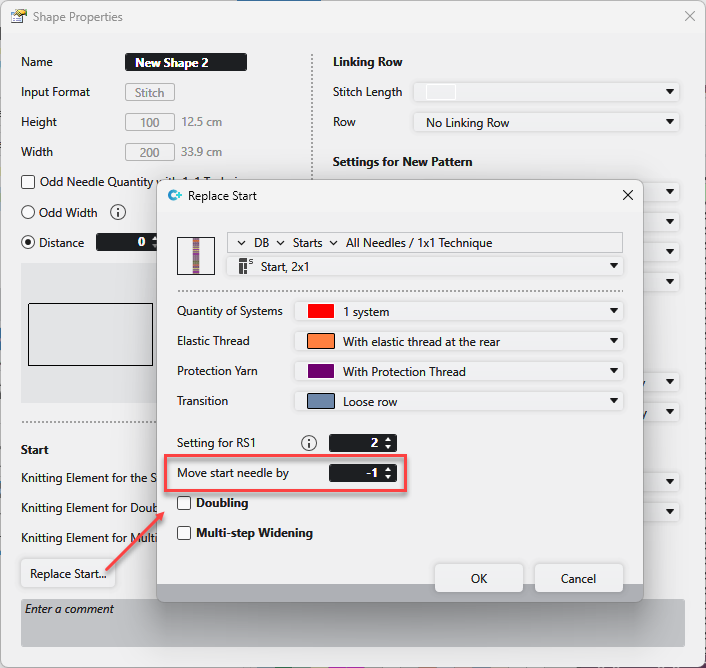
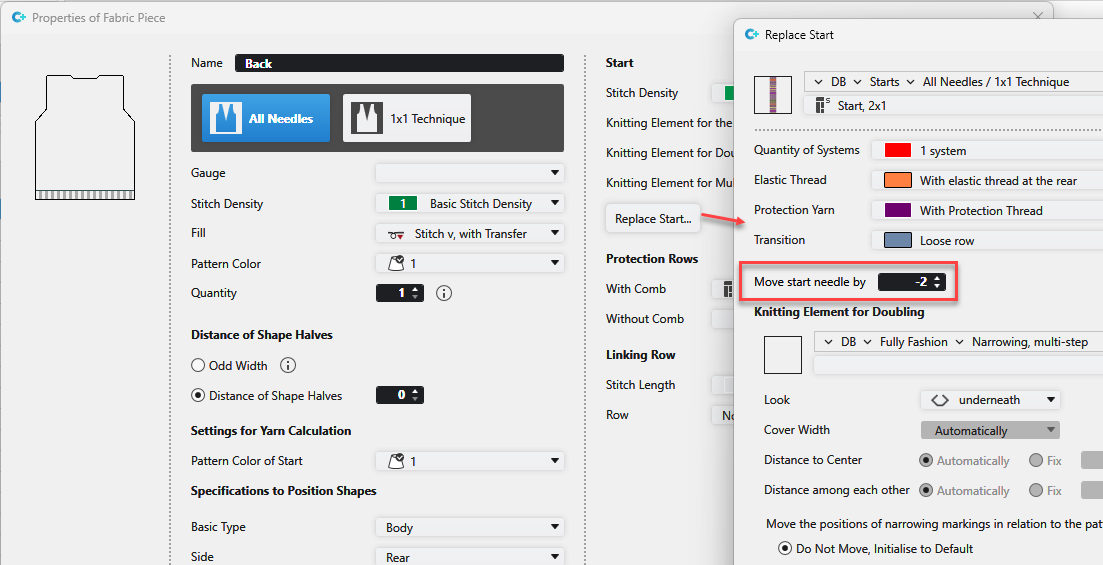
Move Starts Horizontally
- Via the Sostituisci inizi dialog box
- In the Pattern
- In the Lined Shape
- In the Dimensioned Shape
- Positive value of the edit box moves the start to the right.
Negative values to the left.
In the Pattern
Sostituisci inizio nel disegno… context menu / Sostituisci inizi dialog box
In the Lined Shape
Proprietà del taglio / Sostituisci inizi dialog box
In the Dimensioned Shape
Proprietà telo / Sostituisci inizi dialog box
New functions of the Text drawing tool
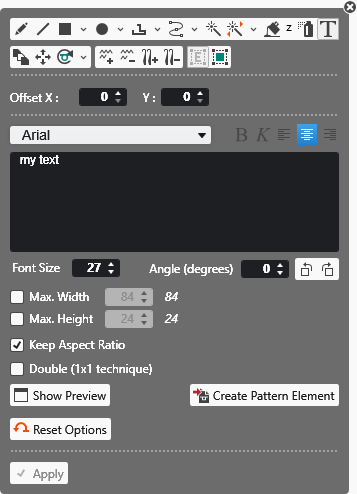
Font Size | Enter the font size. |
Angolo (gradi) | Rotate the text by the specified angle. |
Max. Width | Enter the maximum width of the text. |
Max. Height | Enter the maximum height of the text. |
Preview | Shows a thumbnail of the text according to specified settings. |
Create Pattern Element | Creates a pattern element with the text and saves it to the Pattern Element tool window.
|
 Cursor attributes selected together with the text are applied to the pattern element.
Enhanced Options for Protection Rows
Configurazione dialog box / Zone di lavoro tab
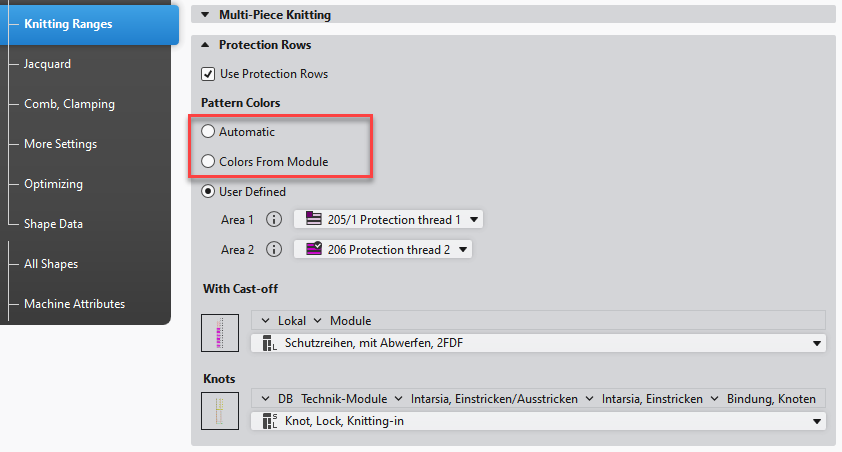
New Options
New options for protection rows in Configurazione / Zone di lavoro:
- Automatico
Utilizzare il colore del disegno del ultimo rango lavorato. - Utilizza colore del disegno da modulo
The pattern color of the module is used in the protection rows.
New Modules
4 new modules for protection rows in the module database
- Safety rows with cast off, 1 YC, knitting ranges in sequence, YC from the left
- Both sides will be knit one after the other by the same yarn carrier.
- The protection rows starts on the left side.
- Safety rows with cast off, 1 YC, knitting ranges in sequence, YC from the right
- Both sides will be knit one after the other by the same yarn carrier.
- The protection rows starts on the right side.
- Protection rows with Cast-off, 1 YC, Pass over neckline
- Both sides will be knit by 1 yarn carrier.
- The neckline will be passed-over by 1x1.
- Safety rows with cast off, 2 YC
- The protection rows are knit by 2 yarn carrier.
- Notice:
For this, Utilizza colore del disegno da modulo must be active.
Enhanced functions of Technical Processing and Create Sintral
Expanders are added to the Technical Processing and Create Sintral functions of the Start ribbon.
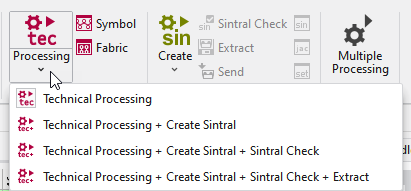
Select the desired function in the expander of technical processing:
- Technical Processing
- Technical Processing and Create Sintral
- Technical Processing, Create Sintral and Sintral Check
- Technical Processing, Create Sintral, Sintral Check and Extract
Select the desired function in the expander of Create Sintral:
- Generate Sintral
- Create Sintral and Sintral Check
- Create Sintral, Sintral Check and Extract
The selection of functions is displayed and retained under the icon. If you click the icon again, the last selection will be executed.

Vedi anche
- All Videos About V2.8
- All Videos About V2.8
- All Videos About V2.8
- All Videos About V2.8
- All Videos About V2.8
- All Videos About V2.8
- All Videos About V2.8
- All Videos About V2.8
- All Videos About V2.8
- All Videos About V2.8
- All Videos About V2.8
- All Videos About V2.8
- All Videos About V2.8
- All Videos About V2.8
- Type of Knitting Element
- All Videos About V2.8