Step by Step to 'Pattern-11'
- A pattern project with one pattern and the desired settings is created.
- 1
- To create a project-related lined shape, select the
 Cortes tab in the tool window.
- or -
Load an existing shape. - 2
- Open the context menu with RMB and select Criar novo corte em tamanho M... .
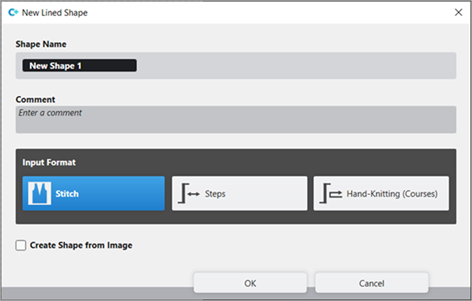
- The Novo corte de linhas tool window is opened.
- 3
- Make the desired entries:
- Nome de corte: Any
- Formato de entrada: Stitch
- 4
- Confirm with the OK key.
- The new lined shape (basic shape) is graphically displayed in the Cortes tab and in a new document window
 as rectangle.
 : Default attributes are used for the shape edges of the lined shape.
Menu Arquivo -> Opções -> Corte de linhas -> Opções para o novo corte de linhas
- 5
- Open the docked line table by LMB in the document window.
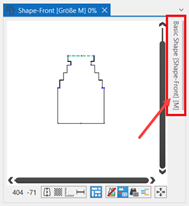
- or -
Use the graphic displayed in the document window. - The table Corte de linhas with the values of the rectangular shape appears.
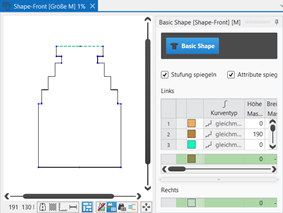
: The method (table or graphic) to create a project-related lined shape is freely eligible, since the views are always updated simultaneously.
- 6
- Insert new shape lines in the table and enter the desired values for the basic shape.
- Standard attributes from configuration are assigned to those shape lines.
- 7
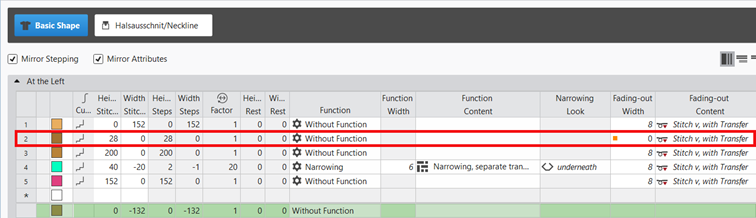
- Insert new shape lines in the table and enter the desired values for the Neckline shape element.
- Standard attributes from configuration are assigned to those shape lines.
Example: Lined shape for Pattern-11
|
Basic Shape: Front |
|
|
|
|
|
Neckline Shape Element (V-neck) |
|
|
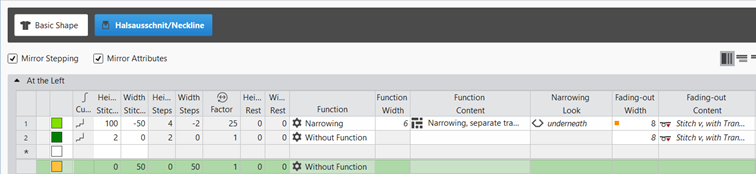
Rules for creating a shape for the knitting mode SJ:
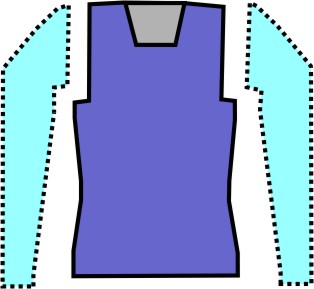
Example Front:
|
Shape Attributes |
Rules / possible settings |
|---|---|
|
Knitting Mode: |
Single Jersey |
|
Step width of widening |
1 needle (stitch) per knitting row |
|
Step height of widening |
As desired |
|
Quantity of rows without shape modification |
As desired |
|
Step width when narrowing |
1 - 3 needles (stitches) |
|
Step height when narrowing |
As desired |
|
Fading-out Width |
As desired |
|
Knitting mode for fading-out |
Front Stitch with Transfer |
|
Binding-off width: |
Stepping > 3 stitches |
|
Binding-off methods |
Binding-off, Structure, Single Jersey
|
- 8
- Allocate the desired attributes to the shape lines of the basic shape and of the neckline shape element.
- 9
- Open the graphic of the basic shape in the xx document window.
- 10
- Click the
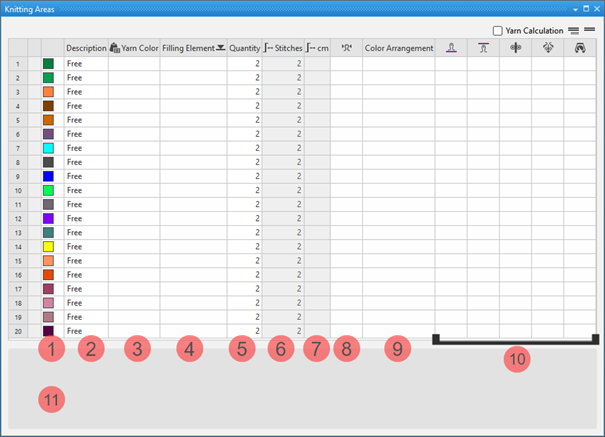
 Áreas de tricotagem button under Parâmetros in the Edição de corte ribbon.
 - The Áreas de tricotagem tool window appears.
|
| ||
|
1 |
Colors |
Display color of the knitting range in the lined shape |
|
2 |
Descrição |
Definition of a knitting range |
|
3 |
|
Allocation of: |
|
4 |
Elemento de preenchimento |
Selection of a knitting element / needle action / structure / pattern element to fill the knitting range |
|
5 |
Número |
Height of the knitting range by stitch rows |
|
6 |
|
Display of the total height by stitches |
|
7 |
|
Display of the total height by cm
|
|
8 |
|
Assignment of a stitch density from the stitch density tool window |
|
9 |
Color Arrangement |
Assignment of Color Arrangements |
|
10 |
|
Assignment of a stitch length for the front needle bed |
|
|
Assignation of a stitch length for the rear needle bed | |
|
|
Assignment of a take-down value | |
|
|
Assignment of a auxiliary take-down value | |
|
|
Assignment of a machine speed | |
|
11 |
List of the shapes (fabric pieces), where the selected knitting range is in use.
| |


 button.
- 11
- Create the desired knitting ranges in the Áreas de tricotagem tool window.
- Example 1:
- Knitting Range DJ
- By another yarn color, structure, stitch density and stitch lengths
- Example 2:
- Knitting range of color stripes
- Color stripes of two yarn colors: You have to create several sub-rows per main row corresponding to the knitting ranges with different specifications.
Creating Knitting Ranges:
- Lined shape is created.
- Lined shape appears in the xx document window.
- The Áreas de tricotagem tool window is open.
- 1
- Make the desired definitions in the desired, undefined (free) table row:
- Example 1:
- Knitting Range DJ
- By another yarn color, structure, stitch density and stitch lengths
- Example 2:
- Knitting range of color stripes
- For color stripes of two yarn colors: You have to create several sub-rows per main row corresponding to the knitting ranges with different specifications.
|
|
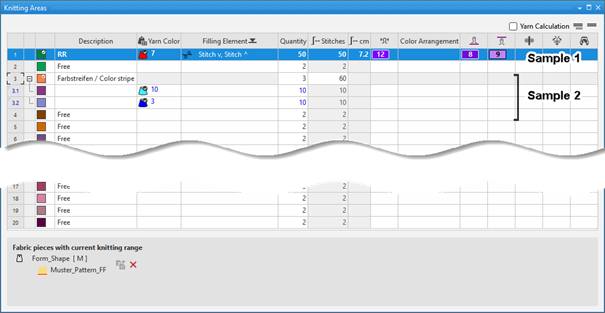
Creating sub-rows for an existing main row:
- 2
- Select the desired main row.
- 3
- Open the context menu with RMB and select Adicionar linha secundária.
- 4
- Make the desired specifications in the sub-row.
- 5
- Create more sub-rows if necessary.
- 12
- Add the created knitting ranges to a shape point of the basic shape.
Enter the created knitting ranges into the shape and position it:
- Shape is created as lined shape.
- The knitting ranges are available in the Áreas de tricotagem tool window.
- Lined shape is opened in the xx document window.
- 1
- Select the desired shape point by the LMB to which you want to assign the knitting range.
- 2
- Open the context menu and select Atribuir área de tricotagem.
- List of the knitting ranges appears to select one.
Multiple selection is possible. - 3
- Select the desired knitting range.
- The knitting range appears in the assigned color at the the shape line point of the lined shape.
|
|
Enable the view of the knitting ranges in the |
|
|
Disable the view of the knitting ranges in the |
|
|
Display of the knitting ranges in the |

- 4
- Position the inserted knitting range.
|
| ||
|
1 |
Selecting knitting ranges to replace the inserted knitting range. | |
|
2 |
Specify the Distância in Malhas in relation to the shape line point | |
|
3 |
Inserir área de tricotagem para baixo | |
|
|
Knitting range will be inserted above the shape line point | |
|
|
Knitting range will be inserted below the shape line point | |



If you insert several knitting ranges, they may overlap each other.
You can specify the order of overlapping of the knitting ranges and with it, the motif in the pattern.
- Several knitting ranges are inserted into the shape.
- These knitting ranges are overlapping.
- 1
- Select the desired knitting range.
- 2
- Select the desired function under Ordenar objectos in the Edição de corteShape Editing ribbon
- or -
In thexx document window, in the selected knitting area, select the Reordenarcontext menu with desired function.
|
|
Para o primeiro plano |
The selected knitting area / shape element is positioned in the foreground (covering) in relation to all other knitting areas / shape elements. |
|
|
Para o fundo |
The selected knitting area / shape element is positioned in the background (overlapped) in relation to all other knitting areas / shape elements. |
|
|
Nível para frente |
The selected knitting area / shape element is positioned one layer to the front. |
|
|
Nível para trás |
The selected knitting area / shape element is positioned one layer to the back. |


- 13
- In the Cortes tool window select the created shape with LMB.
- 14
- Open the context menu -> Posicionar corte -> select Pattern name.
- The shape is floating in the selected basic pattern.
- 15
- To position the shape, enable the
 button of the document window.
 - 16
- Start the
 Processamento
técnico.
Processamento
técnico.
With the button, show Symbol view after technical processing.
 - 17
- Generate
 Sintral.
 - 18
- Start the
 Controle Sintral.
 - 19
-
 Extrair the knitting program.
 - A program for the knitting machine will be created: CMS530.Pattern11.zip.
- 20
- Load knitting program into the machine.
 : The extracted file CMS530.Pattern-11.zip can be loaded onto the machine with an USB stick or via Ethernet.