Step by Step to 'Pattern-16'
- A pattern project with one pattern and the desired settings is created.
- 1
- To draw select any desired drawing tool under the Desenhar group.
- 2
- In the Cores da amostra tool window, select the desired pattern colors from the Cores de fio color palette to draw-in the border.
- 3
- Draw-in the border with the desired width and yarn color (# 6 e.g.) into the
 Amostra de desenho.
|
| ||
|
2 |
CA#1 |
DJ structure with weft yarn
|
|
3 |
CA#2: |
Moss stitch structure with weft yarn
|
|
4 |
CA#3: |
2x2 structure with weft yarn
|
|
| ||
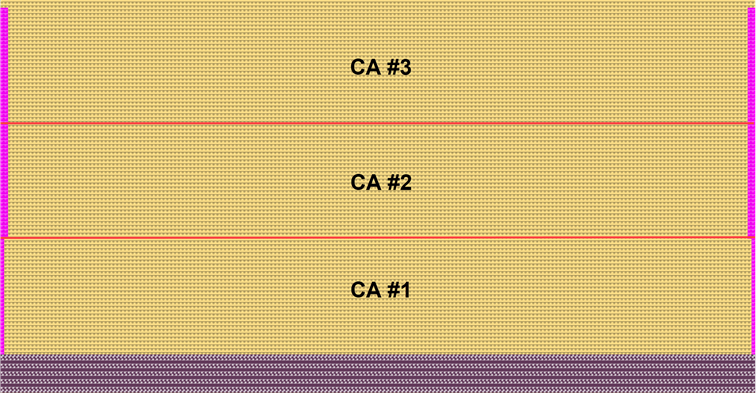
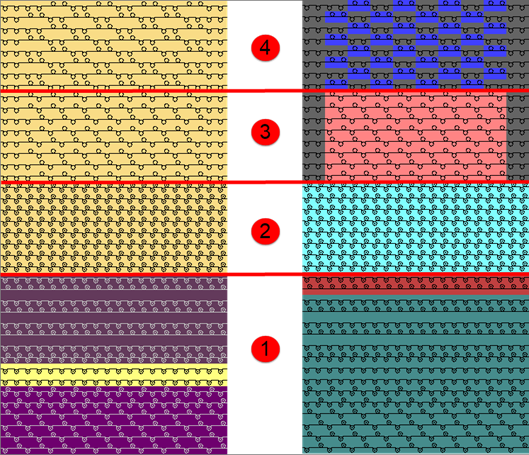
- 4
- Select the total height of pattern rows for CA#1 in the Fileira de amostra control column.
- 5
- Position the cursor in the pattern area.
- 6
- Call up the context menu and select Seleção
/
 Criar um Color Arrangement...
.
Criar um Color Arrangement...
.
- or -
Click directly the button in the ribbon. - The Color Arrangement Editor with the original standard knitting process of the 2 pattern rows is opened.
|
Original for all 3 Color Arrangements |
|
|
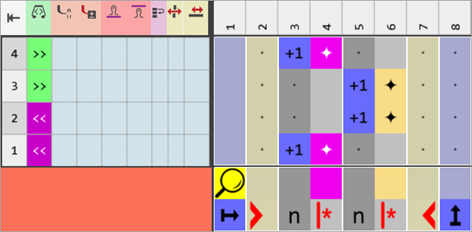
- 7
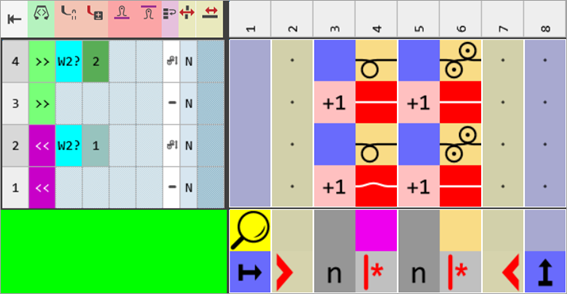
- Add the necessary quantity of columns to the color segment of yarn color #31 in the original CA#1.
- 8
- Insert the necessary quantity of rows into the executing area.
- 9
- Draw-in the needle actions for the structure into the color segments of the yarn colors #6 (pink) and #31 (yellow).
- 10
- Correct the entries in the Números de referência column.
- 11
- Make entries to the following control columns:
-
 Prensador W :
 - Activate weft yarn presser foot in the technical row 'enclose the weft yarn by knitting'
- Define the type of weft yarn presser foot
 : The
: The  Selecionar máquina dialog box graphically displays the position and the set type of weft yarn presser foot.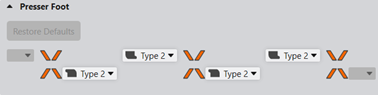
The following link opens the corresponding chapter of the online help:
: Use the Back button of the browser to go back chapter by chapter.
-
 Correção de prensador :
 - Set a different ESCI index for each of both the carriage directions in those technical rows in which the weft yarn presser foot is active.
The following link opens the corresponding chapter of the online help:
: Use the Back button of the browser to go back chapter by chapter.
-
 Ordenar fileiras técnicas :
 - Into the technical row with the weft yarn:
 Fileira de introdução do fio de trama
 - Into the technical row to enclose the weft yarn by knitting
 Fileira de encerramento do fio de trama
The following link opens the corresponding chapter of the online help:
: Use the Back button of the browser to go back chapter by chapter.
|
Color Arrangement CA #1 |
|
|
- 12
- Check the generated Color Arrangement on correct entries with the
 Verificar button.: The knitting procedure cannot be checked!
 - 13
- If necessary, in case of a Color Arrangement already used in the design pattern, apply the changes to the basic pattern with the
 Aceitar button.
- or -
Close the tool window with button.
 - 14
- Close the prompt with the desired button:
-
Save: Color Arrangement is saved locally in the
 CA tool window.
 - Reject: The changes will not be saved.
-
Copy: The changed Color Arrangement is saved as copy in the CA tool window.
- 15
- Enter the Color Arrangement via the
 control column into the desired rows of the design pattern.
 - 16
- Select the total height of pattern rows for CA#2 in the Fileira de amostra control column.
- 17
- Position the cursor in the pattern area.
- 18
- Call up the context menu and select Seleção
/ Criar um Color Arrangement...
.
- or -
Click directly the button in the ribbon. - The Color Arrangement Editor with the original 'default knitting process' for the 2 selected pattern rows is opened.
- 19
- Rename the Color Arrangement if necessary.
- 20
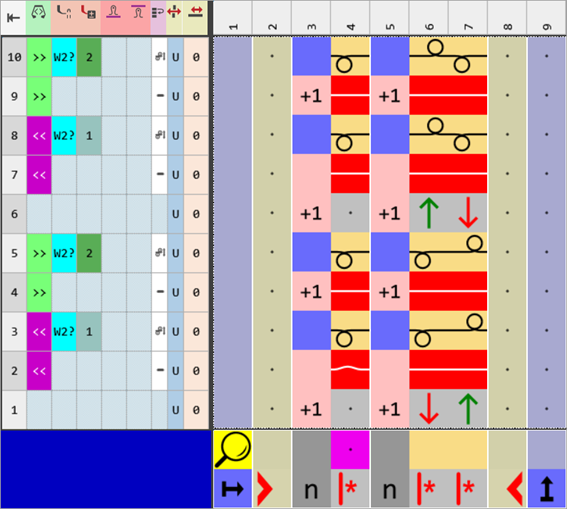
- Modify the original Color Arrangement CA#2 as follows:
|
Color Arrangement CA #2 |
|
|
- 21
- Check the generated Color Arrangement on correct entries with the Verificar button.: The knitting procedure cannot be checked!
- 22
- If necessary, in case of a Color Arrangement already used in the design pattern, apply the changes to the basic pattern with the Aceitar button.
- or -
Close the tool window with button. - 23
- Close the prompt with the desired button:
-
Save: Color Arrangement is saved locally in the CA tool window.
- Reject: The changes will not be saved.
-
Copy: The changed Color Arrangement is saved as copy in the CA tool window.
- 24
- Enter the Color Arrangement CA#2 via the control column into the desired rows of the design pattern.
- 25
- Select the total height of pattern rows for CA#3 in the Fileira de amostra control column.
- 26
- Position the cursor in the pattern area.
- 27
- Call up the context menu and select Seleção
/ Criar um Color Arrangement...
.
- or -
Click directly the button in the ribbon. - The Color Arrangement Editor with the original standard knitting process of the 2 pattern rows is opened.
- 28
- Rename the Color Arrangement if necessary.
- 29
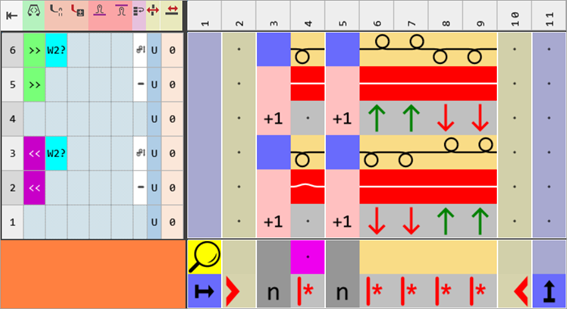
- Modify the original CA#3 as follows:
|
Color Arrangement CA #3 |
|
|
- 30
- Check the generated Color Arrangement on correct entries with the Verificar button.: The knitting procedure cannot be checked!
- 31
- If necessary, in case of a Color Arrangement already used in the design pattern, apply the changes to the basic pattern with the Aceitar button.
- or -
Close the tool window with button. - 32
- Close the prompt with the desired button:
-
Save: Color Arrangement is saved locally in the CA tool window.
- Reject: The changes will not be saved.
-
Copy: The changed Color Arrangement is saved as copy in the CA tool window.
- 33
- Enter the Color Arrangement CA#3 via the control column into the desired rows of the design pattern.
- 34
- If necessary, define a cycle in order to extend the structures of the 3 pattern areas via the
 Ciclo (RS) control column.: Pay attention to the repeat height of the structure!
 - 35
- Click the
 Início button under Pré-visualização in the Guia-fios ribbon.
 - The document window is opened as view and the Guia-fios ribbon appears.
- 36
- Open the dialog box via
 Exibir guia-fios.
 - 37
- If necessary, make the desired settings for allocating yarn carriers.
- 38
- Start the
 Processamento
técnico:
Processamento
técnico: Show symbol view after technical processing.
|
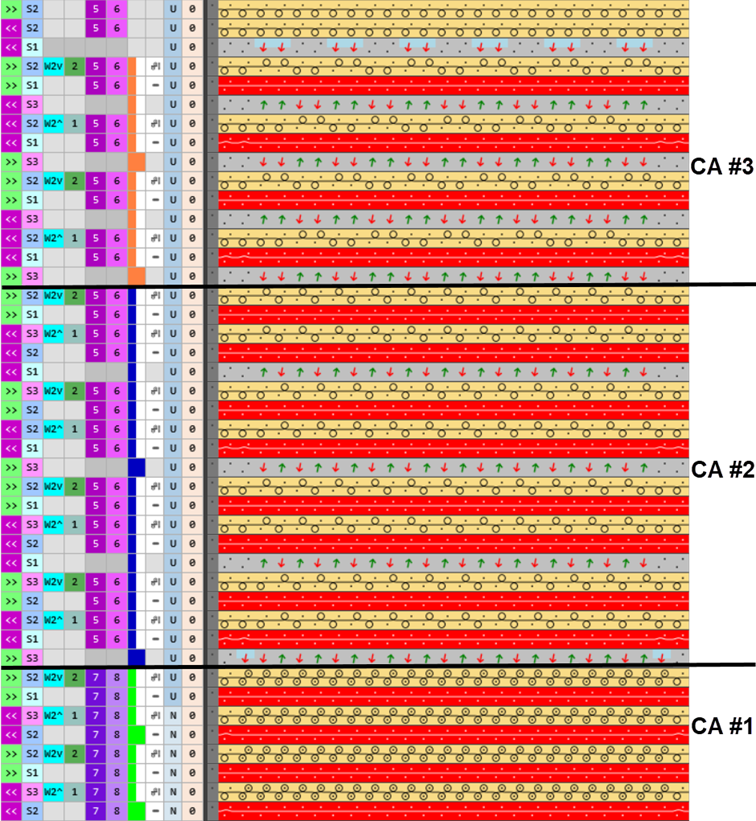
Result after technical processing |
|
|
- 39
- Generate
 Sintral.
 - 40
- Start the
 Controle Sintral.
 - 41
-
 Extrair the knitting program.
 - A program for the knitting machine will be created: CMS530W.Pattern-16.zip.
- Load knitting program into the machine.
 : The extracted file CMS530W.Pattern-16.zip can be loaded onto the machine with an USB stick or via Ethernet.