Step by Step to 'Pattern-11'
- A pattern project with one pattern and the desired settings is created.
- 1
- To draw select any desired drawing tool under the Desenhar group.
- 2
- In the Cores da amostra tool window, select the desired pattern colors from the Cores de fio color palette to draw the motif:
- 3
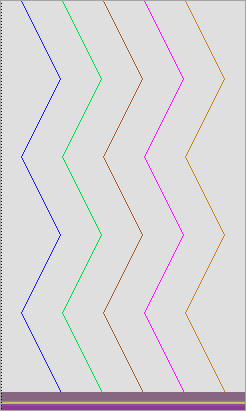
- Draw the desired motif in the
 Amostra de desenho.
|
|
|
|

- 4
- In the Fileira de amostra control column, select the first 2 pattern rows.
- 5
- Call up the context menu and select Seleção
/
 Criar um Color Arrangement...
.
Criar um Color Arrangement...
. - The Color Arrangement editor appears with the default CA.
- 6
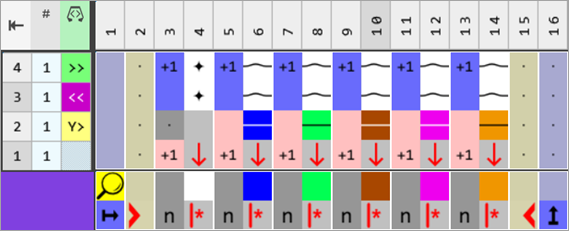
- Make the desired changes in the Color Arrangement:
- In the processing area:
- Insert additional rows for the pattern related transferring and draw-in Transfer to front or Transferring optionally to the front.
- Insert rows for the additional yarn carriers that knit the ornamental seam on the left and on the right.
- Modifications in Control Columns
-
 Direção do carro control column:
 - Carriage Directions
- Enter
 /
/  to move the yarn carriers independently
|
Color Arrangement CA1: Start |
|
|
|
|
- 7
- Check the generated Color Arrangement on correct entries with the
 Verificar button.
 : The knitting procedure cannot be checked!
 - 8
- Enter the generated Color Arrangement via the
 control column into the first two rows of the design pattern.
 - 9
- In the Fileira de amostra control column, select the following 2 pattern rows (diagonal to the left).
- 10
- Call up the context menu and select Seleção
/ Criar um Color Arrangement...
.
- 11
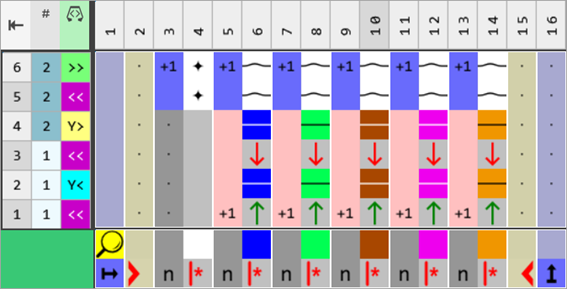
- Make the desired changes as in the previous Color Arrangement.
|
Color Arrangement CA2: Diagonal to the left |
|
|
- 12
- Check the generated Color Arrangement on correct entries with the Verificar button.: The knitting procedure cannot be checked!
- 13
- Enter the generated Color Arrangement via the control column into the following rows of the design pattern with the diagonals to the left.
- 14
- In the Fileira de amostra control column, select the following 2 pattern rows (diagonal to the right).
- 15
- Call up the context menu and select Seleção
/ Criar um Color Arrangement...
.
- 16
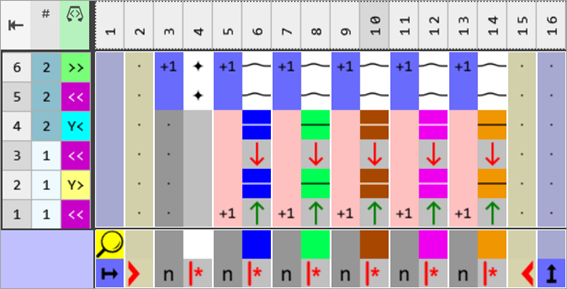
- Make the desired changes as in the previous Color Arrangement.
|
Color Arrangement CA2: Diagonal to the right |
|
|
- 17
- Check the generated Color Arrangement on correct entries with the Verificar button.: The knitting procedure cannot be checked!
- 18
- Enter the generated Color Arrangement via the control column into the following rows of the design pattern with the diagonals to the right.
- 19
- Open the Guia-fios tool window.
- 20
- Make the required settings in the Parâmetros de cor table:
- Entrar tecendo :
-
 Módulo para entrar tecendo
 -
 Nó / Conexão, Entrar tecendo
 - Sair tecendo
-
 Módulo para sair tecendo
 -
 Nó / Conexão, Sair tecendo
- 21
- If desired, make the desired presets in the following control columns:
- Stitch Length (NP)
- Estirador principal (WMF)
- Velocidade (MSEC)
- 22
- Carry out all the steps of processing.
 : The extracted file "ADF530-32W.Pattern-11.zip" can be loaded onto the machine with an USB stick or via Ethernet.