Cursor Attributes with Raster-Shape
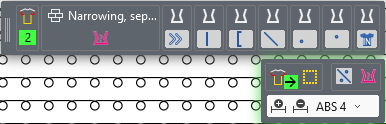
When drawing in the raster shape, the cursor attributes are displayed in the upper part of the user control.
 By pressing the F7 key, the shape symbols and modules at the cursor position are applied and displayed in the user control.
From repeated pressing of the F7 key, the different possible combinations of the available attributes are offered one after another.
|
|
Display of the selected edge color If you move the mouse over the attribute the following signs appear at the upper margin: |
|
|
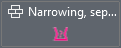
Display of the selected narrowing module If you move the mouse over the attribute the following signs appear at the upper margin: |
|
|
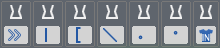
Display of the selected shape symbols You can select and draw several shape symbols simultaneously. If you move the mouse over the attribute the following signs appear at the upper margin: |


In the lower part of the user control appear the tools to work in the raster-shape.
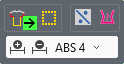
|
|
Display of the shape symbols on which the tools have an effect on |
|
|
Edge color green in the selected area If you move the mouse over the attribute the following signs appear at the upper margin: |
|
|
Edge color green in the entire pattern If you move the mouse over the attribute the following signs appear at the upper margin: |
|
|
Fading-out, stitch length at shape edge at the front and rear, narrowing |
|
|
Widen the shape attributes by one needle |
|
|
Narrow the shape attributes by one needle |
|
|
Set the shape attributes to the selected width |


 When you have selected Cursor Attributes and want to create a selection without having to select the Cursor Attributes again, click the ^ and keep the button pressed.
The Cursor Attributes disappear as long as you keep the button pressed.
This way you can create a selection and as soon as you release the ^ button, the Cursor Attributes are displayed again.
When you press the ESC button, the Cursor Attributes disappear and they can be displayed again with the ^ button.
Once a selection is created, the tools can be applied even without edge color. The changes then have an effect on all edge colors of the selection.
You can modify both sides of the shape in common by a row selection.
You can make the row selection quickly by the magic wand and the pressed SHIFT key.
You can create each new selection without deselecting the shape attributes.
For this hold the ^-key pressed.