Border Processing for Block Jacquard without Shape
|
Block Jacquard without border processing |
Block Jacquard with border processing |
|
|
|
|
|
The border processing for Block Jacquard with Jacquards with Float or Net rear sides is worked with the Kenar düzeltme, Jakar, Altama, Torba fade-out module.
|
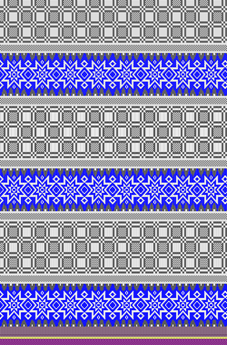
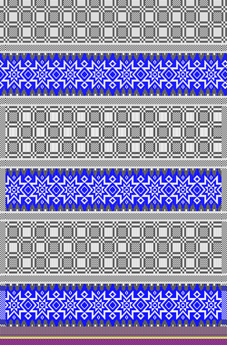
Stoll technical module with border processing for Block Jacquard
- In the
 Knit Explorer under Örme elemanı deposu -> Fully Fashion-> Soluklaştırma -> Jakar-> Kenar düzeltme, Jakar, Altama, Torba
 - Properties of the technical module
- Technical module is 2 needles wide
 : the module is used repeatedly with fade-out widths bigger than 2 needles.
 - Useable for up to 6 colors in one Jacquard
- Fading-out with single jersey structure: the border curls up with a fade-out width bigger than 2 needles.
Border processing for Block Jacquard in pattern without shape:
: Attention:
If the pattern is saved, then the border processing cannot be undone.
Because of this, save the pattern project under a different name before the border processing or duplicate the design pattern in the pattern project.
- Pattern project with a design pattern is created.
- Jacquard areas are drawn into the basic pattern.
- Jacquard backs are inserted.
- 1
- Open the selection list in the Başlat ribbon under İletişim kutuları with the
 button and select Blok jakar kenar işlemesi....
- or -
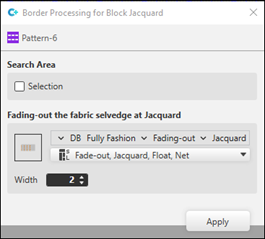
In the design pattern, select with LMB -> context menu -> Kenar işlemesi -> Blok jakar kenar işlemesi.... - The Blok jakar kenar işlemesi dialog box appears.
|
| |
|
Arama alanı | |
|
|
The border processing will be entered in the whole pattern |
|
|
Border processing only in the selected rows |
|
Jakarda kumaş kenarını soluklaştır | |
|
Display of the knitting element |
Selection of the Kenar düzeltme, Jakar, Altama, Torba technical module for the border processing
|
|
Genişlik |
Desired fade-out width for the border processing in needles
|


- 2
- Make the desired presets in the dialog box.
- 3
- Tap the Uygula key.
- The desired border processing will be entered and displayed in the design pattern.
- 4
- After entering all necessary border processings in the design pattern, close the dialog box with
 .
. - 5
- If necessary, to view open the
 .
. - 6
- Start the
 Teknik
işlem:
Teknik
işlem: Show symbol view after Technique.
 - 7
- Generate
 Sintral.
 - 8
- Start the
 Sintral Kontrolü.
 - 9
-
 Genişlet the knitting program.
 - A program for the knitting machine will be created.
- Load knitting program into the machine.
 : The extracted file can be loaded onto the machine with an USB stick or via Ethernet.
Procedure with the pattern creation:
: With this possibility, the border processing can be changed or deleted with easy steps. A square shape in the size of the design pattern is created for this purpose.
- Pattern project with a design pattern is created.
- Jacquard areas are drawn into the basic pattern.
- Jacquard backs are inserted.
- 1
- To create a project-related lined shape, select the
 Kesimler tab in the tool window.
 - 2
- Open the context menu with RMB and select M boyutunda yeni kesim oluştur....
- The Yeni çizgi kesimi tool window appears.
- 3
- Make the desired entries:
- Kesim adı : Any
- Giriş formatı : Stitch
- 4
- Confirm with the OK key.
- The new lined shape (basic shape) is graphically displayed in the Kesimler tab and in a new document window
 as rectangle.
 - 5
- To adjust the displayed rectangle to the size of the basic pattern, in the ribbon Kesim düzenleme under Özellikler, click the Çizgi tablosu button.
- or -
Use the graphic displayed in the document window. - 6
- Open Çizgi tablosu in the ribbon.
- The table Çizgi kesimi with the values of the rectangular shape is displayed.
- 7
- Adapt the values in the table to the size of the basic pattern.
- 8
- Allocate the desired attributes to the shape lines:
- Fade-out width: Set value to 0, since the different Jacquard areas are not to be hidden with Aktarmalı ön ilmek.
- 9
- In the document window, select the desired shape line with the graphic shape presentation.
- 10
- Position cursor on the selected shape line.
- 11
- Select LMB ->
 Çizgi özellikleri context menu.
 - The Çizgi özellikleri tool window is opened for the selected shape line.
- 12
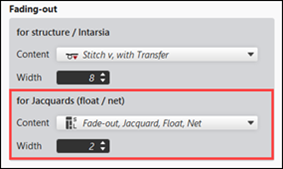
- Make the following entries under the jakarlar için (atlama / file) section:
- Content: Select Kenar düzeltme, Jakar, Altama, Torba Fade-out Module.
- Width: specify the desired fade-out width.
- Default setting: 2 Needles wide
Attention: The fade-out width is also executed in the rows of the net pick-up and the net ending.
- 13
- In the Kesimler tool window select the created shape with LMB.
- 14
- Open the context menu -> Kesimi konumlandır -> select Pattern name.
- The shape is floating in the selected basic pattern.
- 15
- Enable the
 button of the document window.
 - 16
- Start the Teknik
işlem: Show symbol view after Technique.
- 17
- Generate Sintral.
- 18
- Start the Sintral Kontrolü.
- 19
-
Genişlet the knitting program.
- A program for the knitting machine will be created.
- Load knitting program into the machine.