Step by Step to Training Pattern
- 1
- Creating a pattern project with one pattern and the desired settings.
- 2
- To draw select any desired drawing tool under the Çizim aracı group.
- 3
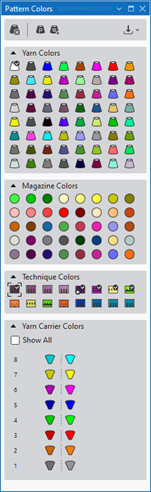
- In the Desen renkleri tool window select the desired pattern color from the İplik renkleri color palette:
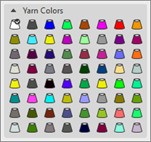
- İplik renkleri:
-
 : The yarn carriers are not automatically placed on the yarn carrier rails.
The yarn carrier home position is determined in the Teknik işlem.
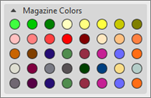
- Depo renkleri
-
: The yarn carriers are not automatically placed on the yarn carrier rails.
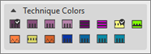
The yarn carrier home position is determined in the Teknik işlem. - Teknik renkleri (do not use to create a design pattern)
-
: Yarn carriers are automatically placed on the yarn carrier rails due to STOLL default settings and are taken into account during the determination of the yarn carrier home position during the Teknik işlem.
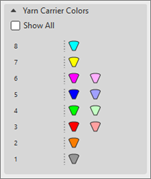
- Mekik renkleri
-
: Yarn carriers are automatically assigned to a yarn carrier rail and remain unchanged during the determination of the yarn carrier home position during the Teknik işlem.
|
|
|
|
For drawing the design pattern, with it several yarn carriers may be necessary for each yarn color.
| |
|
For drawing the design pattern, with it one yarn carrier is used for each magazine color.
| |
|
Draw the design pattern by yarn colors or magazine colors in order to get common yarn carrier home positions (order related data) for all the pattern within the order. | |
|
|
For drawing the design pattern, with a yarn carrier already positioned on the corresponding rail for each yarn carrier color in use.
Result:
|
|
Teknik renkleri for creating or changing technical modules.
| |



- 4
- Draw the motif with the desired yarn color.
: When drawing the motif pay attention if necessary to even numbered heights of the color areas!
- 5
- Click the
 Başlat button under Önizleme in the Mekikler ribbon.
 - The document window is opened as view and the Mekikler ribbon appears.
- 6
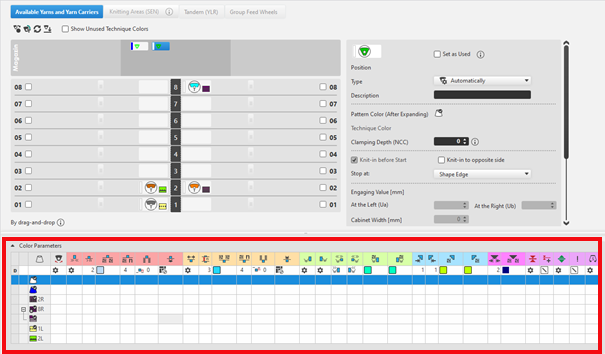
- Open the Mekikler tool window.
In Mekikler group -> Mekikleri göster
 - The Mekikler tool window appears with the Mevcut iplikler ve mekikler tab active.
:
For each color in the pattern color tables used in the design pattern, a color area is created in the color parameter table. This means that you can make only one preset for this color area.
For pattern related, different changes of a color area sub-colors must be created. You have to draw them manually in the design pattern at the point to be changed. Then, other specifications can be set in the color parameter table.
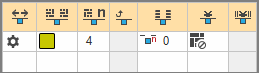
Structure and column headers of the Renk parametreleri table:
Group 1: General / Table header:
-
1st row:
All the symbols identifying the table columns -
2nd Row 'D'
Default settings for the respective column
Settings from the STOLL file - cannot be modified at the moment
: Default settings are applied from a STOLL file and cannot be modified at the moment.
These are automatically applied to all colors without specifications.
|
| ||
|
Group 1: General | ||
|
| ||
|
1. Column |
Entry D for the definition of the 2nd row of the table | |
|
2. Column |
Display for available sub-colors | |
|
|
Renk |
Display of all the colors used in a project
|
|
|
Mekik çok sistem rengi örüyor. |
Specifications with multi-system knitting |
|
|
Mekik vanize rengi örüyor |
Specifications with plating |
|
|
Salınım |
Settings for the swivelling of intarsia yarn carriers or of autarkic yarn carriers |
|
|
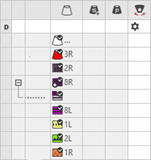
Quantity of pattern rows for knitting-out, SEN edge and clamping
|
Specify the maximum distance between the color fields of the yarn carrier.
|



|
Group 2: Knitting-in | ||
|
| ||
|
|
Başlangıç yönü |
Specification of the knitting direction for the first row of a color (color area) |
|
|
Örgüye giriş olmadan sütun sayısı |
Quantity of columns (needles) without Knitting-In module |
|
|
Örgüye giriş için modül |
Specification of the knitting mode for knitting-in
|
|
|
Örgüye giriş için tekrar genişliği |
Presetting of the module width in total for the knitting mode of feeding-in the yarn carrier
|
|
|
İlmek kapama için sıra kaydırma |
Column appears automatically if a module for knitting-in with casting-off is used |
|
|
Örgüye giriş için Sıra-Ofseti |
Knitting-in of the yarn carrier by x rows before the beginning of the color area
|
|
|
Başlangıçta düğüm / bağlama |
Presetting a module for knot / binding at start of a color area without / with knitting-in. |
|
|
Örgüye düğümlü giriş için Sütun-Ofseti |
Move the position of a knot (module) by x columns to the left or right.
|
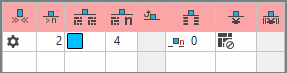

: The direction of knitting-in of a yarn carrier is always carried out from last position.
|
Group 3: Knitting-out | ||
|
| ||
|
|
Örgüden çıkış yönü |
Preset of the direction for knitting-out of the yarn carrier at the end of a color area |
|
|
Örgüden çıkış için modül |
Preset of the knitting mode (module) for knitting-out
|
|
|
Örgüden çıkış için tekrar genişliği |
Presetting of the module width in total for the knitting mode of feeding-in the yarn carrier
|
|
|
İlmek kapama için sıra kaydırma |
Column appears automatically if a module for knitting-out with casting-off is used |
|
|
Örgüden çıkış için Sıra Ofseti |
Knitting-out of the yarn carrier by x rows after the end of the color area
|
|
|
Sonda düğüm / bağlama |
Presetting a module for knot / binding at end of a color area without or with knitting-out. |
|
|
Düğümlü örgüden çıkış için Sütun-Ofseti |
Move the position of a knot (module) by x columns to the left or right.
|
|
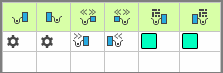
Group 4 : Intarsia Binding | ||
|
| ||
|
|
Sol İntersiya Bağlantısı |
Presetting of a binding or no binding at the left border of the color area |
|
|
Sağ İntersiya Bağlantısı |
Presetting of a binding or no binding at the right border of the color area |
|
|
Sol intersiya bağlantısının yönü |
Specification for inserting the Binding module at the left border of the color area depending on the carriage direction
|
|
|
Sağ intersiya bağlantısının yönü |
Specification for inserting the module Binding at the right border of the color are depending on the carriage direction
|
|
|
Sol intersiya bağlantısı için modül |
Presetting of the knitting mode for binding at the left border of the color area |
|
|
Sağ intersiya bağlantısı için modül |
Presetting of the knitting mode for binding at the right border of the color area |


|
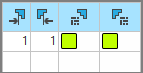
Group 5: Border Processing | ||
|
| ||
|
|
Kenar düzenlemesi olmadan izin verilen basamaklama, sol taraf |
Maximum number of needles when widening at the left border of the color area without automatic border processing.
|
|
|
Kenar düzenlemesi olmadan izin verilen basamaklama, sağ taraf |
Maximum number of needles when widening at the right border of the color area without automatic border processing.
|
|
|
Sol kenar düzenlemesi için modül |
Presetting of the knitting mode for the border processing (feeding) in case of large widenings (stepping) of the color area
|
|
|
Sağ kenar düzenlemesi için modül |
Presetting of the knitting mode for the border processing (feeding) in case of large widenings (stepping) of the color area
|
- 7
- Carry out
 Teknik
işlem if necessary.
Teknik
işlem if necessary.
: After carrying out the Teknik
işlem you are able to view and weigh up the automatic processing, if corrections / optimizations are necessary.
- 8
- Back to the
 Tasarım deseni to make pattern-related changes.
 - 9
- Open the Mekikler tool window again for this purpose.
- 10
- Make the desired changes in the following groups:
- Group Örgü girişi
- Control of a yarn carrier at the start of a color area
Explanation 'Knitting-in':
The yarn carrier is at the fabric selvedge and must be brought into the fabric to knit at the beginning of its color field.
- Default setting: Using Intarsia yarn carriers (swivelling)
- To knit-in the yarn carriers there are different technical modules available in the
 Knit Explorer.
 - For knitting-in the yarn carriers from the fabric selvedge, the shortest distance (way) to the color field is always used by default.: Regarding the knitting technique, many options are available.
- If there are various color areas of the same color available in the design pattern, then the yarn carrier is knitted-out at the end of the color area and then knitted-in again from its last position.
|
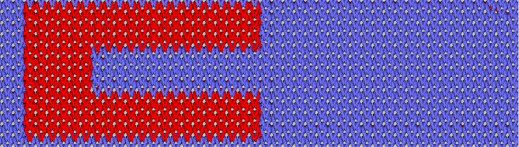
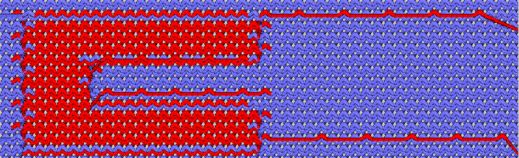
Example with the Örgü girişinde atlama atkısı, atkı bağlama technical module | |
|
Front Side of Fabric |
Back Side of Fabric |
|
|
|
|
Result: Knitting-in and knitting-out with tuck and float is only visible on the fabric back.
| |
|
Knitting-in | ||
|
| ||
|
|
Başlangıç yönü |
Specification of the knitting direction for the first row of a color (color area) |
|
|
Örgüye giriş olmadan sütun sayısı |
Quantity of columns (needles) without Knitting-In module |
|
|
Örgüye giriş için modül |
Specification of the knitting mode for knitting-in
|
|
|
Örgüye giriş için tekrar genişliği |
Presetting of the module width in total for the knitting mode of feeding-in the yarn carrier
|
|
|
İlmek kapama için sıra kaydırma |
Column appears automatically if a module for knitting-in with casting-off is used |
|
|
Örgüye giriş için Sıra-Ofseti |
Knitting-in of the yarn carrier by x rows before the beginning of the color area
|
|
|
Başlangıçta düğüm / bağlama |
Presetting a module for knot / binding at start of a color area without knitting-in.
|
|
|
Örgüye düğümlü giriş için Sütun-Ofseti |
Move the position of a knot (module) by x columns to the left or right.
|
: The direction of knitting-in of a yarn carrier is always carried out from last position.
Direction of knitting-in yarn carriers:
The knitting-in direction of a yarn carrier is specified by the home position of the yarn carriers.
- Yarn carrier is on the left side in the clamping and cutting device -> the yarn carrier is knitted from the left to the fabric selvedge.
- Yarn carrier is on the right side in the clamping and cutting device -> the yarn carrier is knitted from the right to the fabric selvedge.
: The direction of knitting-in of a yarn carrier is always carried out from last position.
Two possibilities in the Mekikler tool window:
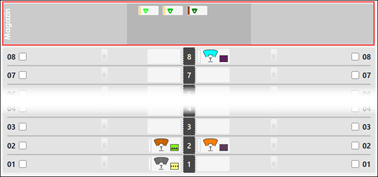
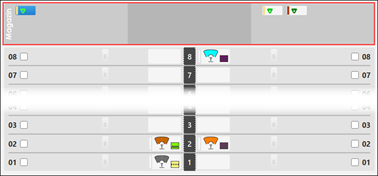
- In the magazine move the yarn carrier manually from 'undefined' to the desired side (left / right) of the magazine.
|
|
|
|
Automatic |
Manually |
|
Yarn carriers are positioned by default in the 'undefined' area in the magazine.
Result:
Rule:
|
Place the yarn carrier manually with LMB to the left or right in the magazine.
Result:
|
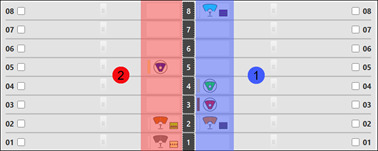
- Move the yarn carriers allocated to the yarn carrier rails to the desired rail side.
|
Example 1 |
Example 2 | |
|
|
| |
|
1 |
Yarn carrier on the right side of the yarn carrier rails |
Yarn carrier 3A right was manually moved to the left side.
|
|
2 |
Yarn carrier on the left side of the yarn carrier rails | |
|
| ||
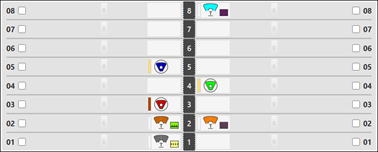
: The direction of knitting-in of a yarn carrier is always carried out from last position.
Preset in Başlangıç yönü column:
The following Intarsia process is used by default for the processing with the Teknik işlem.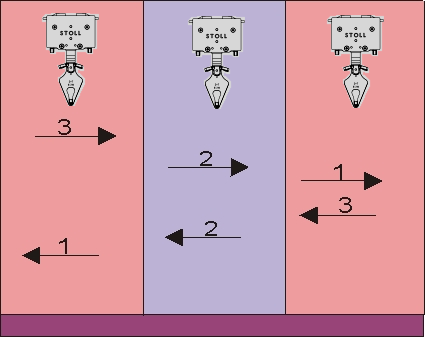
: This even processing results in a beautiful, even fabric image with the highest machine run time, which is why the yarn carriers are also grouped. This way the run time is reduced.
 Başlangıç yönü column:
- To change the knitting direction of the first stitch row of a color field: The change influences the 'even' Intarsia processing.
Preset with Örgüye giriş olmadan sütun sayısı:
 Örgüye giriş olmadan sütun sayısı column:
|
|
A |
Distance of the color field from the fabric selvedge in needles (columns), where no module is entered to be knit-in.
|
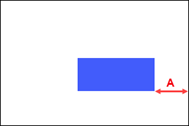
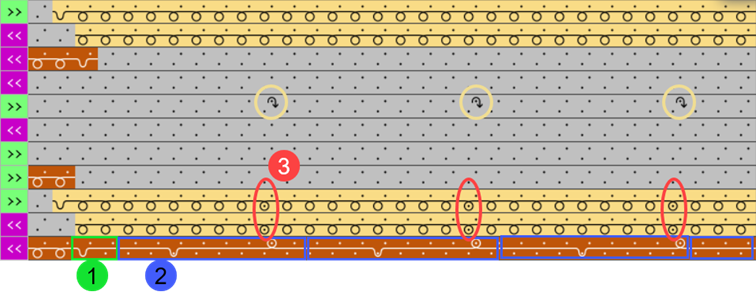
Preset in Örgüye giriş için modül and Örgüye giriş için tekrar genişliği column:
- These two columns work together.
If a corresponding module is selected in the Örgüye giriş için modül column, then the
  Örgüye giriş için tekrar genişliği column is active or displayed.
 - The technical module for knitting-in consists of 2 pieces of information:
- Binding
- Repetition
|
Example | |
|
| |
|
1 |
Binding |
|
2 |
Repetition |
|
|
Selection of the desired technical module for the knitting-in Example: Örgü girişinde atlama atkısı, atkı bağlama
Technical module consists of two parts:
|
|
|
Specification of the module width for the repetition, which as such is repeated up to the fabric selvedge. Example: 4 |

Preset in İlmek kapama için sıra kaydırma column:
- The Örgüye giriş için tekrar genişliği column and the
 İlmek kapama için sıra kaydırma column are active, if in the Örgüye giriş için modül column a corresponding knitting-in module with casting-off is selected.
 - The technical module for knitting-in with casting-off consists of 3 pieces of information:
- Binding
- Repetition
- Casting-off after x pattern rows
|
Example | |
|
| |
|
1 |
Binding |
|
2 |
Repetition |
|
3 |
Number of pattern rows for the cast-off |
|
|
Selection of the desired technical module for the knitting-in Example: Askı ve kapama ilmeği, Örgü girişinde
Technical module consists of three parts:
|
|
|
Specification of the module width for the repetition, which as such is repeated up to the fabric selvedge. Example: 8 |
|
|
Specification after how many pattern rows the tuck is to be cast-off. Default setting: 1 (pattern row) Example: 2
|
Preset in Örgüye giriş için Sıra-Ofseti column:
 Örgüye giriş için Sıra-Ofseti column to move the knit-in row.
|
Standard behavior when knitting-in a yarn carrier to their color field |
Use of the column
|
|
|
|
|
Yarn carriers are knit-in by default in the first knitting row of a color field. |
Example: 2 pattern rows The yarn carrier is knit-in 2 pattern rows before the start of the color field.
|
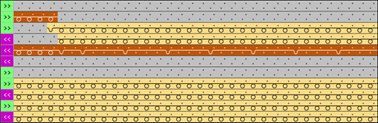
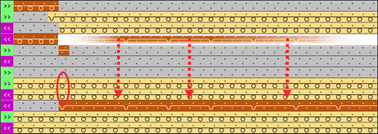
Preset in Başlangıçta düğüm / bağlama and Örgüye düğümlü giriş için Sütun-Ofseti column:
These two columns work together, which means that if a corresponding module is selected in the  Başlangıçta düğüm / bağlama
column, then the
Başlangıçta düğüm / bağlama
column, then the  Örgüye düğümlü giriş için Sütun-Ofseti column is active or displayed.
|
Example without column offset (default) | ||
|
| ||
|
1 |
|
Module for the knitting-in |
|
2 |
|
Selection e.g. of the Düğün, Nopen, Başlama, Örgü girişinde module |
|
|
No entry in this Örgüye düğümlü giriş için Sütun-Ofseti column | |
|
| ||
|
Example with column offset | ||
|
| ||
|
1 |
|
Module for the knitting-in |
|
2 |
|
Selection of the Düğün, Nopen, Başlama, Örgü girişinde module |
|
|
Entry of a value in this Örgüye düğümlü giriş için Sütun-Ofseti column Example: -2 | |
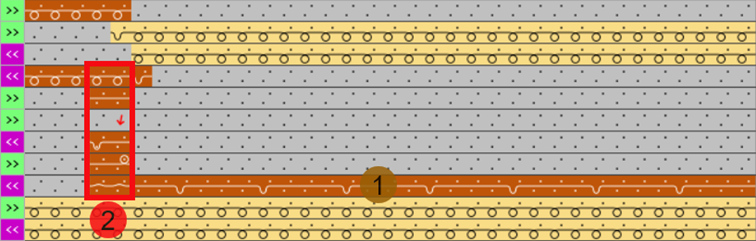
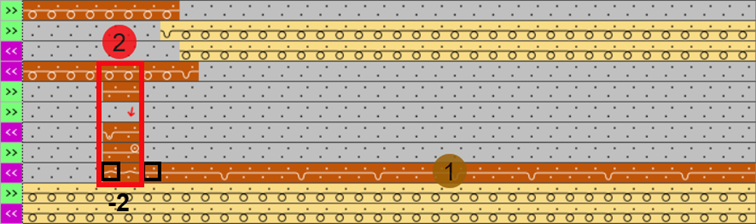
- Group Örgü çıkışı
- Control of a yarn carrier at the end of a color area
Explanation 'Knitting-out':
At the end of a color area, the yarn carrier is brought from the fabric to the fabric selvedge (knitted-out).
- To knit-out the yarn carriers there are different technical modules available in the Knit Explorer.
- The knitting-out (direction) of the yarn carriers is entered into the pattern according to the following points:
- Pattern structure
- Even Intarsia procedure
- Yarn carrier positions
|
Example with the Örgü çıkışında atlama atkısı, atkı bağlama technical module | |
|
Front Side of Fabric |
Back Side of Fabric |
|
|
|
|
Result: Knitting-in and knitting-out with tuck and float is only visible on the fabric back.
| |
|
Knitting-out | ||
|
| ||
|
|
Örgüden çıkış yönü |
Preset of the direction for knitting-out of the yarn carrier at the end of a color area |
|
|
Örgüden çıkış için sıra sayısı |
Preset of the distance of color areas from which on knitting-out starts. |
|
|
Örgüden çıkış için modül |
Preset of the knitting mode (module) for knitting-out
|
|
|
Örgüden çıkış için tekrar genişliği |
Presetting of the module width in total for the knitting mode of feeding-in the yarn carrier
|
|
|
İlmek kapama için sıra kaydırma |
Column appears automatically if a module for knitting-out with casting-off is used |
|
|
Örgüden çıkış için Sıra Ofseti |
Knitting-out of the yarn carrier by x rows after the end of the color area
|
|
|
Sonda düğüm / bağlama |
Presetting a module for knot / binding at end of a color area.
|
|
|
Düğümlü örgüden çıkış için Sütun-Ofseti |
Move the position of a knot (module) by x columns to the left or right.
|
Preset in Örgüden çıkış yönü column:
: With the Teknik
işlem, the yarn carriers are calculated and knitted-out automatically according to the pattern.
-
 Örgüden çıkış yönü column, to manually influence the automatic calculation of the knitting-out.
: The manual change of the direction of the knitting-out of a color field influences the processing of the following pattern rows in the basic pattern.
Preset with Örgüden çıkış için sıra sayısı:
 Quantity of pattern rows for knitting-out, SEN edge and clamping
column in group 1 - General
Quantity of pattern rows for knitting-out, SEN edge and clamping
column in group 1 - General
|
|
A |
Preset of a distance between two color fields of a yarn carrier in pattern rows Default setting (A) 3 (pattern rows) Result:
|
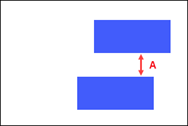
Preset in Örgüden çıkış için modül and Örgüden çıkış için tekrar genişliği column:
- These two columns work together.
If a corresponding module is selected in the Örgüden çıkış için modül column, then the
  Örgüden çıkış için tekrar genişliği column is active or displayed.
 - The technical module for knitting-out consists of 2 pieces of information:
- Binding
- Repetition
|
| |
|
|
Selection of the desired technical module for the knitting-out
Technical module consists of two parts:
|
|
|
Specification of the module width for the repetition, which as such is repeated up to the fabric selvedge. |
Preset in İlmek kapama için sıra kaydırma column when knitting-out:
- The Örgüden çıkış için tekrar genişliği column and the
 İlmek kapama için sıra kaydırma column are active, if in the Örgüden çıkış için modül column a corresponding knitting-out module with casting-off is selected.
 - The technical module for knitting-out with casting-off consists of 3 pieces of information:
- Binding
- Repetition
- Casting-off after x pattern rows
|
| |
|
|
Selection of the desired technical module for the knitting-out Example: Askı ve kapama ilmeği, Çıkış örgüsü
Technical module consists of three parts:
|
|
|
Specification of the module width for the repetition, which as such is repeated up to the fabric selvedge. Example: 8 |
|
|
Specification after how many pattern rows is to be cast-off. Default setting: 1 (pattern row) Example: 2
|
Preset in Örgüden çıkış için Sıra Ofseti column:
 Örgüden çıkış için Sıra Ofseti column to move the knit-out row.
|
Standard behavior when knitting-out a yarn carrier from their color field |
Use of the column
|
|
|
|
|
Yarn carriers are knit-out by default in the last knitting row of a color field. |
Example: 2 pattern rows The yarn carrier is knit-out 2 pattern rows after the end of the color field.
|
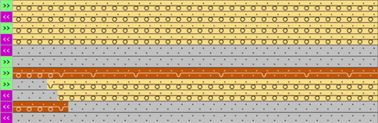
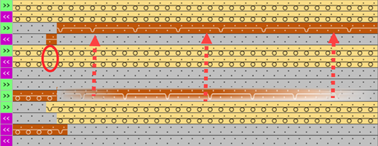
Preset in Sonda düğüm / bağlama and Düğümlü örgüden çıkış için Sütun-Ofseti column:
These two columns work together, which means that if a corresponding module is selected in the  Sonda düğüm / bağlama
column, then the
Sonda düğüm / bağlama
column, then the  Düğümlü örgüden çıkış için Sütun-Ofseti column is active or displayed.
|
Example without column offset (default) | ||
|
| ||
|
12 |
|
Module for Knitting-out |
|
2 |
|
Selection of the Düğüm, nopen, bitiş module |
|
|
No entry in the Düğümlü örgüden çıkış için Sütun-Ofseti | |
|
| ||
|
Example with column offset | ||
|
| ||
|
13 |
|
Module for Knitting-out |
|
2 |
|
Selection of the Düğüm, nopen, bitiş module |
|
|
Entry of a value in the Düğümlü örgüden çıkış için Sütun-Ofseti column Example: -2 | |
- Group İntersiya bağlantısı
- Connection between two neighboring color areas
Explanation 'Intarsia Binding':
Two neighboring knitting areas (color areas) are connected with each other, with the help of the 'Intarsia Binding'.
- For the Intarsia binding there are different technical modules available in the Knit Explorer.
- Each color area has a left border and a right border, that can be edited independently from one another.
- The Intarsia binding is entered corresponding to the carriage direction.
|
Intarsia Binding | ||
|
| ||
|
|
Sol İntersiya Bağlantısı |
Presetting of a binding or no binding at the left border of the color area |
|
|
Sağ İntersiya Bağlantısı |
Presetting of a binding or no binding at the right border of the color area |
|
|
Sol intersiya bağlantısının yönü |
Specification for inserting the Binding module at the left border of the color area depending on the carriage direction
|
|
|
Sağ intersiya bağlantısının yönü |
Specification for inserting the module Binding at the right border of the color are depending on the carriage direction
|
|
|
Sol intersiya bağlantısı için modül |
Presetting of the knitting mode for binding at the left border of the color area |
|
|
Sağ intersiya bağlantısı için modül |
Presetting of the knitting mode for binding at the right border of the color area |
'Intarsia Binding at the Left' for the left selvedge of a color field:
Connection at the left selvedge of a color field to their neighboring left color field. Each color field is connected with the neighboring color field. This results in a closed selvedge between the two color fields.
: By default, all color fields are automatically ( ) connected with the Önde nopen, intersiya bağlantısı module.
Use of the  Sol İntersiya Bağlantısı column to make the following settings:
-
 Bağlama AÇIK : a Intarsia binding at the left of the color field edge will be entered
 -
 Bağlama KAPALI : no Intarsia binding at the left of the color field edge will be entered
 -
Otomatik : Default Setting
-
 Varsayılan : Resetting to default (see preset in the 2nd row 'D' of the color parameters table)
|
|
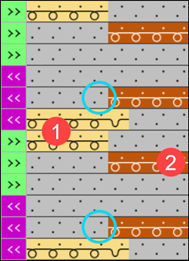
At the left selvedge of the color field ((2)) a Intarsia binding is entered. |
|
|
NO Intarsia binding is entered at the left selvedge of the color field ((2)). |
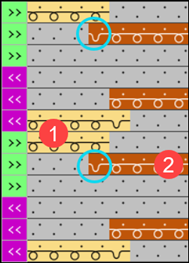
'Intarsia Binding at the Right' for the right selvedge of a color field:
Connection at the right selvedge of a color field to their neighboring right color field. Each color field is connected with the neighboring color field. This results in a closed selvedge between the two color fields.
: By default, all color fields are automatically () connected with the Önde nopen, intersiya bağlantısı module.
Use of the  Sağ İntersiya Bağlantısı column to make the following settings:
-
 Bağlama AÇIK : a Intarsia binding at the right will be entered
 -
 Bağlama KAPALI : no Intarsia binding at the right will be entered
 -
Otomatik : Default Setting
-
Varsayılan : Resetting to default (see preset in the 2nd row 'D' of the color parameters table)
|
|
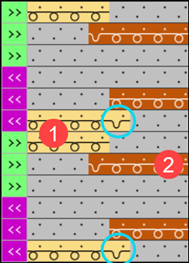
At the right selvedge of the color field ((1)) a Intarsia binding is entered. | |
|
|
At the right selvedge of the color field ((1)) NO Intarsia binding is entered. | |
|
| ||
|
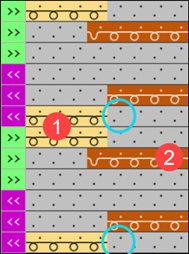
Example: NO Intarsia binding between two color fields | ||
|
|
| |
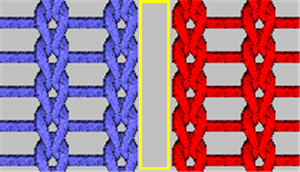
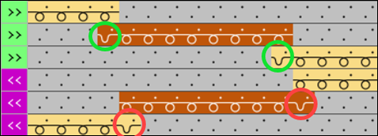
Sol intersiya bağlantısının yönü for the left selvedge of a color field:
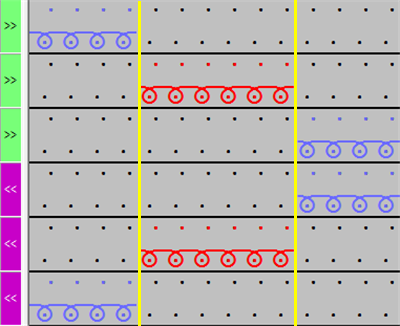
The module for the Intarsia binding is entered depending on the carriage stroke.
- Enter module according to the carriage direction at the start of a knitting row
- - or -
- Enter module according to the carriage stroke direction at the end of a knitting row
|
| ||
|
|
Örgüye girişte bağla |
Default Setting |
| ||
|
|
Örgüden çıkışta bağla |
|
| ||
|
|
Varsayılan |
Resetting to default (see preset in the 2nd row 'D' of the color parameters table) |
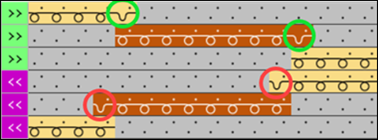
'Direction of the Intarsia Binding at the Right' for the right selvedge of a color field:
The module for the Intarsia binding is entered depending on the carriage stroke.
- Enter module according to the carriage direction at the start of a knitting row
- - or -
- Enter module according to the carriage stroke direction at the end of a knitting row
|
| ||
|
|
Örgüden çıkışta bağla |
|
| ||
|
|
Örgüye girişte bağla |
Default Setting |
| ||
|
|
Varsayılan |
Resetting to default (see preset in the 2nd row 'D' of the color parameters table) |
Preset in 'Module for Intarsia Binding at the Left' and 'Module for Intarsia Binding at the Right' column:
- For the Intarsia binding there are different technical modules available in the Knit Explorer.
- Binding with tuck
- Binding with stitch
- No binding (= vertical opening)
- Column
 Sol intersiya bağlantısı için modül:
Selection of the module to be used at the left border of the color field -
 Sağ intersiya bağlantısı için modül column.
Selection of the module to be used at the right border of the color field - Variable module allocation at the left and right color field border
: Combination possibilities of the different bindings:
There are many options how the types of bindings at the color field selvedges
can be combined, where the right and left color field selvedge may also
differ from one another.
|
Example: Module Önde nopen, intersiya bağlantısı (Standard) | |
|
|
|
|
| |
|
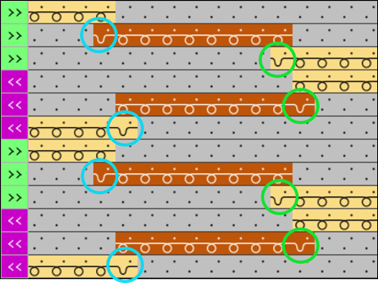
Example: Module Önde örgü, intersiya bağlantısı | |
|
|
|
|
|
Front Side of Fabric |
- Group Kenar düzenlemesi
- Control (positioning) of the yarn carrier at the border of a color area
Explanation 'Border Processing':
The concept 'Border processing' describes the processing of the steps at the left / right border of a color area (edge) depending on the carriage stroke direction. The yarn carrier is positioned according to the shape for the following knitting row, with the help of the border processing.
- For the Kenar düzenlemesi there are different technical modules available in the Knit Explorer.
-
Feed:
The concept 'Feed' describes the positioning of a yarn carrier regarding the following knitting row of its own color field. For this, there are different options regarding the knitting technique. - Each color area can be edited differently at the left / at the right.
- The modules are entered according to the carriage direction.
|
Group: Border Processing | ||
|
| ||
|
|
Kenar düzenlemesi olmadan izin verilen basamaklama, sol taraf |
Maximum number of needles when widening at the left border of the color area without automatic border processing.
|
|
|
Kenar düzenlemesi olmadan izin verilen basamaklama, sağ taraf |
Maximum number of needles when widening at the right border of the color area without automatic border processing.
|
|
|
Sol kenar düzenlemesi için modül |
Presetting of the knitting mode for the border processing (feeding) in case of large widenings (stepping) of the color area
|
|
|
Sağ kenar düzenlemesi için modül |
Presetting of the knitting mode for the border processing (feeding) in case of large widenings (stepping) of the color area
|
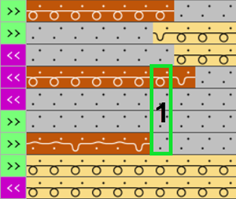
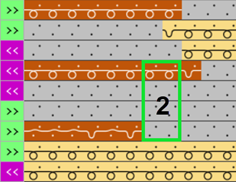
Kenar düzenlemesi olmadan izin verilen basamaklama, sol taraf and Kenar düzenlemesi olmadan izin verilen basamaklama, sağ taraf for the borders of a color field:
'Allowed stepping' describes the number of needles, where the module for the border processing is not entered.
: Default value with 'allowed stepping' at the left and right is 1 needle.
-
 Kenar düzenlemesi olmadan izin verilen basamaklama, sol taraf
 -
 Kenar düzenlemesi olmadan izin verilen basamaklama, sağ taraf
|
Examples
| |
|
|
Allowed stepping: 1 needle (standard) |
|
|
Allowed stepping: 2 needles |
|
|
Allowed stepping: ≥ 3 needles
The yarn carrier is kicked and then with the module for knitting-in is fed to the following knitting row. |
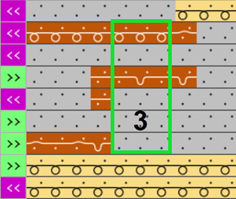
Selection Sol kenar düzenlemesi için modül and Sağ kenar düzenlemesi için modül for the borders of a color field:
For the border processing of a color area there are different knitting techniques available as technical modules.
: The Nopen, --v--, Kenar işlemesi technical module is used by default.
-
 Sol kenar düzenlemesi için modül
 -
 Sağ kenar düzenlemesi için modül
|
Examples for Sağ kenar düzenlemesi için modül | |
|
| |
|
14 |
Border processing in the carriage stroke from right to left
|
|
2 |
Border processing in the carriage stroke from left to right
|
|
|
Black marking = Intarsia binding |

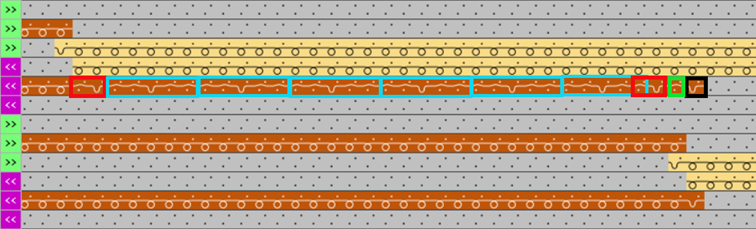
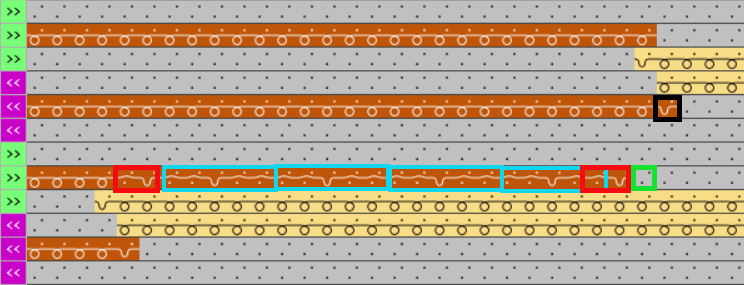
|
About the procedure based on the technical module for border processing at the right Nopen, --v--, Kenar işlemesi | |
|
| |
|
A |
The information is entered 1 time each at the start and end of the knitting row |
|
B |
The information is entered x times according to the step width.
|
|
C |
The information is entered x times according to the preset under Kenar düzenlemesi olmadan izin verilen basamaklama, sağ taraf. |
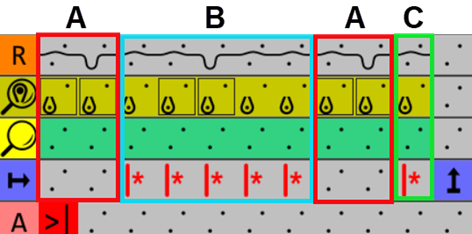
- 11
-
Start Technical Processing:
-
 Show symbol view after technical processing, to check the changes.
- 12
- Generate
 Sintral.
 - 13
- Start the
 Sintral Kontrolü.
 - 14
-
 Genişlet the knitting program.
 - A program for the knitting machine will be created: CMS530. Exercise_Pattern.zip.
- Load knitting program into the machine.
 : The extracted file "CMS530.Exercise_Pattern.zip" can be loaded onto the machine with an USB stick or via Ethernet.