Step by Step to Pattern-8
- A pattern project with one pattern and the desired settings is created.
- The image was reduced to 3 colors in the Resim al dialog box and was saved on the clipboard as a pattern element.
- 1
- Select the
 tab in the Desen parçası tool window.
 - 2
- Position the cursor in the tool window.
- 3
- Open the context menu with RMB.
- 4
- Using Insert (Ctrl+V) save the image from the clipboard in the tool window.
- Image with name and image size is displayed.
- 5
- Select image.
 : Modify the pattern element (image), if desired, to avoid unnecessary knit-in and knit-out rows!
- 6
- Position image in the
 Tasarım deseni.
: If necessary for the better positioning of the image, save the shape in advance in Tasarım deseni (floating).
- 7
- To create a project-related lined shape, in the tool window change to the
 Kesimler tab.
 - 8
- Open the context menu with RMB and select M boyutunda yeni kesim oluştur....
- The Yeni çizgi kesimi tool window is opened.
- 9
- Make the desired entries:
- Kesim adı: Any
- Giriş formatı: Stitch
- 10
- Confirm with the OK key.
- The new lined shape (basic shape) is graphically displayed in the Kesimler tab and in a new document window
 as rectangle.
: Default attributes are used for the shape edges of the lined shape.
Menu Dosya -> Seçenekler -> Çizgi kesimi -> Yeni çizgi kesimi seçenekleri
- 11
- To create a lined shape based on the displayed rectangle in the ribbon Kesim düzenleme under Özellikler, click the Çizgi tablosu button.
- or -
Use the graphic displayed in the document window.
: The method (table or graphic) to create a project-related lined shape is freely eligible, since the views are always updated simultaneously.
- 12
- Insert new shape lines in the table and enter the desired values for the basic shape.
- Standard attributes from configuration are assigned to those shape lines.
Example: Lined shape for Pattern-8
|
Basic Shape: Front without neckline |
|
|
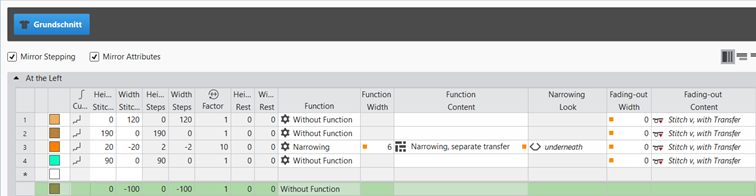
Rules for creating a shape for the knitting mode SJ:
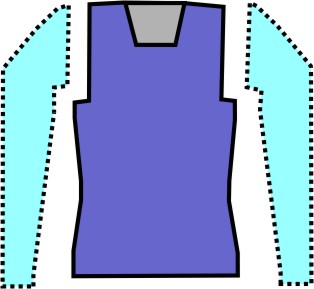
Example Front:
|
Shape Attributes |
Rules / possible settings |
|---|---|
|
Knitting Mode: |
Single Jersey |
|
Step width of widening |
1 needle (stitch) per knitting row |
|
Step height of widening |
As desired |
|
Quantity of rows without shape modification |
As desired |
|
Step width when narrowing |
1 - 3 needles (stitches) |
|
Step height when narrowing |
As desired |
|
Fading-out Width |
As desired |
|
Knitting mode for fading-out |
Front Stitch with Transfer |
|
Binding-off width: |
Stepping > 3 stitches |
|
Binding-off methods |
Binding-off, Structure, Single Jersey
|
- 13
- Allocate the desired attributes to the shape lines of the shape.
- 14
- In the Kesimler tool window select the created shape with LMB.
- 15
- Open the context menu -> Kesimi konumlandır -> select Pattern name.
- The shape is floating in the Tasarım deseni.
- 16
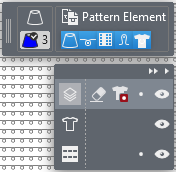
- To position the shape in the Editing Layers user control, change from the
 Desen düzeyini düzenle
to the
Desen düzeyini düzenle
to the  Çizgi kesimi düzeyini düzenle (Y)
.
Çizgi kesimi düzeyini düzenle (Y)
.
- 17
- If necessary, use
 to position the floating shape in the Tasarım deseni.
 - 18
- Using the Editing Layers user control, change back from the Çizgi kesimi düzeyini düzenle (Y)
to the Desen düzeyini düzenle
.
- 19
- In the
 control column, create a row selection over the whole height of the image.
 - 20
- Position cursor in the image area.
- 21
- Open the context menu with RMB.
- 22
- Under Seçim -> select Jakar oluştur....
- The Jakar oluştur dialog box appears.

- 23
- Make the desired settings:
- Jakar modülü
- Desired Jacquard module for the fabric back
-
 Jakarlar
 -
Renkler: sıra ve sütun başına minimum (iplik köprüleri) : Jacquard module will only be inserted in the area of the motif.
- Jakar arka tarafı:
-
şu oranda daralt : Number of needles by which the rear side is inserted narrower on each side compared to the image front.
- İlmek uzunluğu:
-
modülden kullan : Presets for stitch lengths are entered from the module of the Jacquard module in the design pattern.
- 24
- Apply the presets with the Jakar oluştur button into the design pattern.
- The selected Jacquard module is displayed in the Tasarım deseni.
- 25
- For further presets, open the dialog box in the ribbon under Yapılandırma ->
 Yapılandırma.
 - 26
- In the Yapılandırma dialog box, select the Jakar tab.
- 27
- Under the Jakar geçişi -> İntarsiya-Jakar section, make the desired settings.
|
| ||
|
1 |
Sadece bir iğnenin ilmek almasını engelle | |
|
|
Default Setting
| |
|
|
With Jacquard rows where the rear side starts with only one needle, the selected technical module for the net pick-up is entered. | |
|
2 |
Selection of the desired technical module for net pick-up. | |


- 28
- Open the Mekikler tool window to edit the presets for the yarn carriers.
- 29
- In the Renk parametreleri table make the desired changes in the following groups:
- Örgü girişi/çıkışı
- İntersiya bağlantısı
- 30
- Make the desired changes in the following control columns:
- İlmek uzunluğu (NP)
- Ana merdane (WMF)
- Hız (MSEC)
- 31
- Start the
 Teknik
işlem.
Teknik
işlem. - 32
- Generate
 Sintral.
 - 33
- Execute
 Sintral Kontrolü.
 - 34
-
 Genişlet the knitting program.
 - A program for the knitting machine will be created: CMS530.Pattern-8.zip
- 35
- Load knitting program into the machine.
 : The extracted file CMS530.Pattern-8.zip can be loaded onto the machine with an USB stick or via Ethernet.