Step by Step to 'Pattern-12'
- A pattern project with one pattern and the desired settings is created.
- 1
- To draw select any desired drawing tool under the Çiz group.
- 2
- In the Desen renkleri tool window, select the desired pattern colors from the İplik renkleri color palette to draw the motif:
- 3
- Draw the desired motif in the
 Tasarım deseni.
 : The motif in the example begins in the third pattern row.
|
| |
|
Pattern Elements | |
|
MT_PE_1 |
MT_PE_4 |
|
|
|
|
MT_PE_2 | |
|
| |
|
MT_PE_3 | |
|
| |
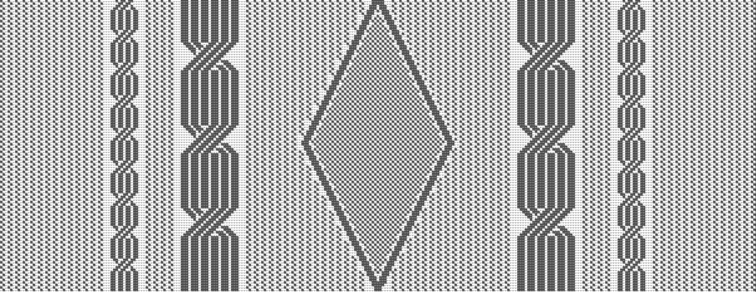

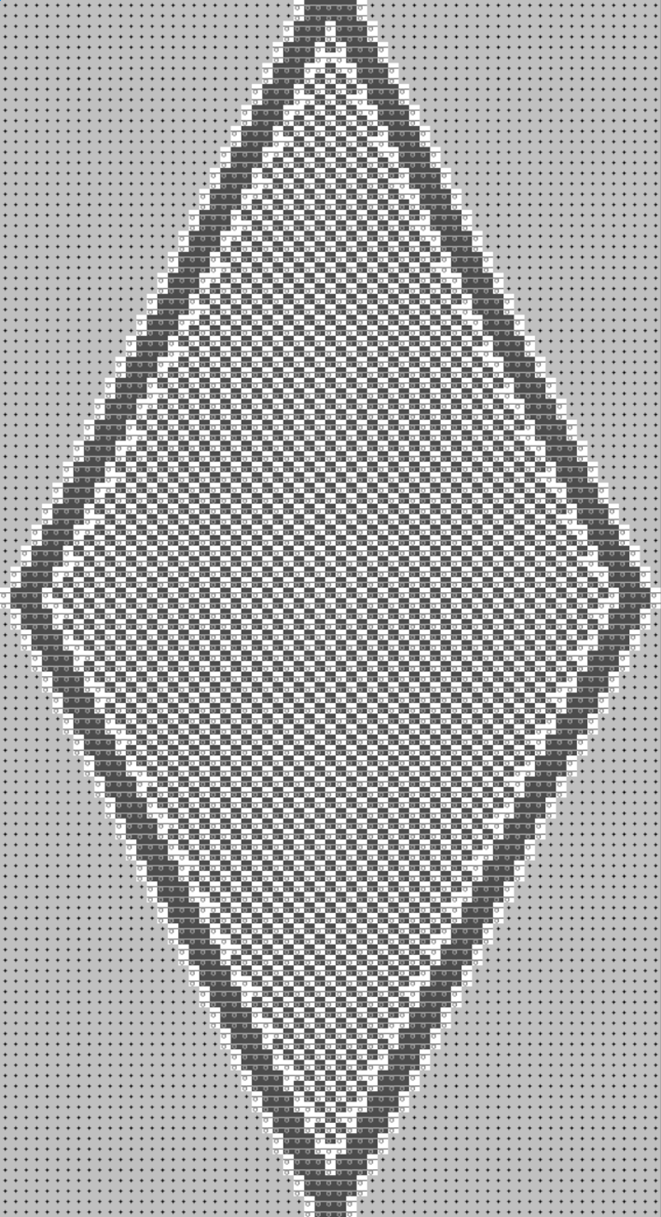
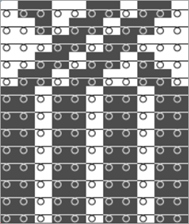
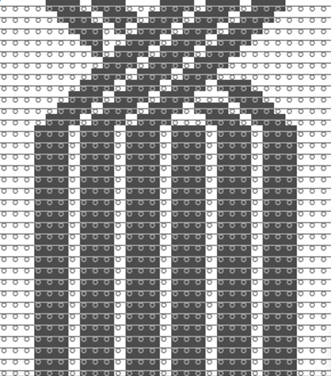
- 4
- In the Desen sırası control column, select the pattern rows 3 and 4.
- 5
- Call up the context menu and select Seçimden oluştur /
 Color Arrangement.
 - The Color Arrangement editor appears with the default CA.
- 6
- Make the desired changes in the Color Arrangement:
- In the processing area:
- Insert additional rows for the pattern related transferring and draw-in Transfer to front or Transferring optionally to the front.
- Insert the rows for the additional yarn carrier 'weft yarn'.
- Modifications in Control Columns
- Control column Semer yönü

- Control column Sistem

- Control column W bastırıcı ayak

- Control column Bastırıcı ayak düzeltmesi

- Control column Vanize ofseti (YPI)

|
Color Arrangement CA1 |
|
|
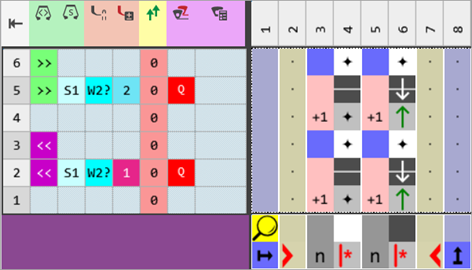
Control Columns:
-
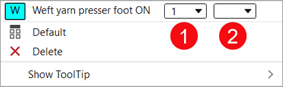
 W bastırıcı ayak (weft yarn presser foot)
 -
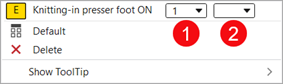
 E bastırıcı ayak (knitting-in presser foot)
: These control columns can be used in the design pattern and in the Color Arrangement editor as well.
|
Control Column | |
|
| |
|
1 |
Selection of the presser foot type mounted to the machine Example:
|
|
2 |
Switch W presser foot on
|
|
| |
|
Control Column | |
|
| |
|
1 |
Selection of the presser foot type mounted to the machine |
|
2 |
Activate the E presser foot
|

|
|
System 1 |
The E presser foot is activated |
Result: The presser feet collide. |
|
System 2 |
The W presser foot is activated | ||
|
|
System 2 |
The E presser foot is activated | |
|
System 3 |
The W presser foot is activated | ||
|
|
System 1 |
The E presser foot is activated |
Result: Presser foot collides with weft yarn carrier |
|
System 2 |
W yarn carrier active | ||
|
|
System 2 |
The E presser foot is activated | |
|
System 3 |
Weft yarn carrier active |
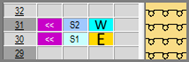
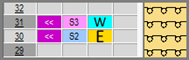
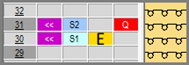
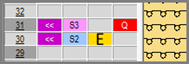
Activating the Presser Feet
Attention!
Presser feet at front and rear must not be activated at the same time, otherwise they will collide.
These unallowed combinations will be detected by the technical processing and the processing will be canceled.
Needle actions for the weft yarn:
|
Needle Action |
Meaning |
|---|---|
|
|
The yarn carrier (weft yarn) runs before the knitting system with which transferring to the back over the weft yarn is performed. |
|
|
The yarn carrier (weft yarn) runs before the knitting system with which transferring to the front over the weft yarn is performed. |
|
|
The system that precedes the weft yarn transfers the stitches to the front. The yarn carrier (weft yarn) runs before the knitting system with which transferring to the back over the weft yarn is performed. |
|
|
The system that precedes the weft yarn transfers the stitches to the rear. The yarn carrier (weft yarn) runs before the knitting system with which transferring to the front over the weft yarn is performed. |
|
|
The yarn carrier (weft yarn) runs before the knitting system which raises needles of the front needle bed without a yarn carrier over the weft yarn. The front stitch is cast-off. In contrast to transferring, the opposite needle is not driven out for receiving. |
|
|
The yarn carrier (weft yarn) runs before the knitting system which raises needles of the rear needle bed without a yarn carrier over the weft yarn. The rear stitch is cast-off. In contrast to transferring, the opposite needle is not driven out for receiving. |
|
| |


Apply the symbols for the weft yarn in the Color Arrangement:
- Insert a
 for the weft yarn carrier into the
  Vanize ofseti (YPI) control column.
|
Symbol |
Meaning |
|---|---|
|
|
Possible definition for a yarn carrier as weft yarn carrier
|
 dialog box
- 7
- Check the generated Color Arrangement on correct entries with the
 Kontrol et button.: The knitting procedure cannot be checked!
 - 8
- Enter the generated Color Arrangement via the
 control column into the total pattern height of the design pattern.
 - 9
- Select the
 Kesimler tab of the tool window and create a new shape.
 - 10
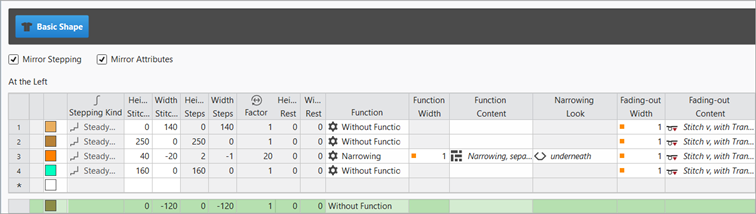
- Insert new shape lines in the table and enter the desired values for the basic shape.
Example: Lined shape for Pattern-12
|
Basic Shape: Front |
|
|
|
|
- 11
- Allocate the desired attributes to the shape edges.
- 12
- Position the shape on the Tasarım deseni.
- 13
- If necessary, make the desired settings in the
 Mekikler tool window.
 - 14
- If desired, make the desired presets in the following control columns:
- İlmek uzunluğu (NP)
- Ana merdane (WMF)
- Hız (MSEC)
- 15
- Carry out all the steps of processing.
 : The extracted file "ADF530-32W.Pattern-12.zip" can be loaded onto the machine with an USB stick or via Ethernet.