Create New Knitting Element of the 'Structure Module' Type
The options to save a knitting element:
- In the
 编织资源管理器
 : Knitting element available for all pattern projects
 - In the
 花型项目: Local knitting element related to the project
 - The knitting element can be saved in a directory.
-
文件 -> 另存为 : The knitting element is saved in any directory on the PC as xx.smf file.
Create a new knitting element for structure in the Knit Explorer:
- 1
- Click on the
 新编织元素 icon at the start of CREATE PLUS.
- or -
With the CREATE PLUS running, open the 编织资源管理器 and click the 新编织元素 icon. - The 新编织元素 dialog box appears.
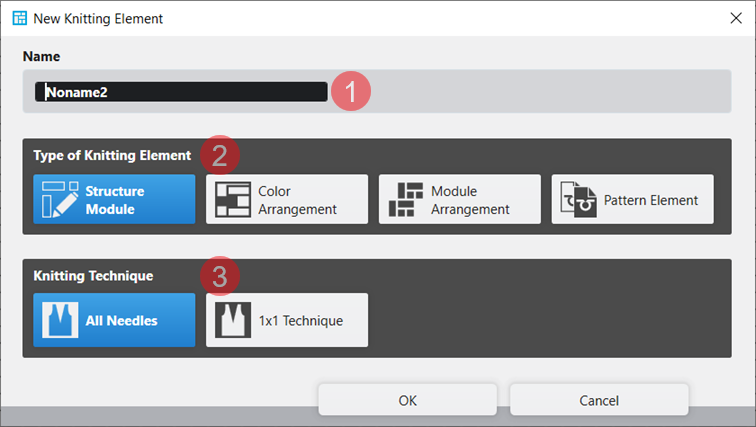
|
1 |
名称 |
Enter the name of the new knitting element. |
|
2 |
编织元素类型 |
Selection of the template for the new knitting element
|
|
3 |
编织工艺 |
Selection of the basic knitting mode for the new knitting element
|
- 2
- Make the desired settings.
- 3
- Close the dialog box with the 确定 button.
- The tool window appears with the corresponding template.
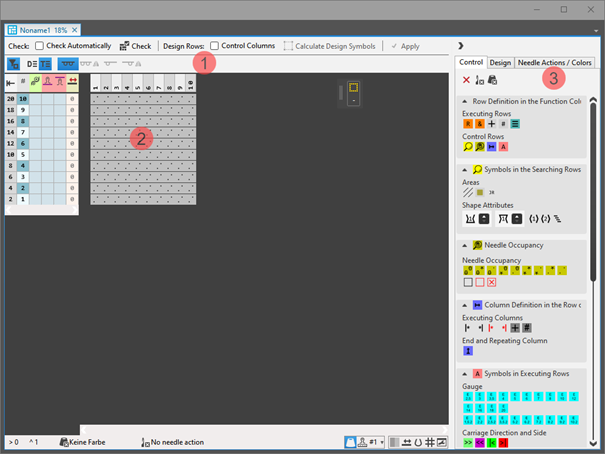
|
1 |
检验 |
|
自动 |
The created knitting element are not automatically checked regarding the correct structure. |
|
|
自动 |
An automatic check is executed regarding the correct structure of the created knitting element. | ||
|
|
检验 |
Checking of the created knitting element regarding the correct structure. | ||
|
设计行 |
|
控制列 |
Not applying the control column data from the technical rows to the design rows | |
|
|
控制列 |
Applying the control column data from the technical rows to the design rows | ||
|
| ||||
|
|
选择 |
Get the design symbols for the technical rows in the selected area created. | ||
|
|
| |||
|
|
| |||
|
|
| |||
|
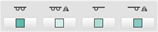
Display of the symbols |
| |||
|
|
|
Display of the drawing canvas for knitting with all needles. | ||
|
|
Display of the drawing canvas for knitting with all needles mirrored.
| |||
|
|
Display of the drawing canvas for knitting in 1x1 technique.
| |||
|
|
Display of the drawing canvas for knitting in 1x1 technique mirrored.
| |||
|
2 |
Display of the template corresponding to the selected type of knitting elements with control columns and drawing canvas | |||
|
3 |
控制 |
Tab with all attributes for creating the different knitting element types | ||
|
设计 |
Tab with icons for changing / creating design rows | |||
|
织针动作 / 颜色 |
Tab with needle actions and the pattern colors | |||


- 4
- Select the 织针动作 / 颜色 tab.
- 5
- Select the display of
 工艺行.
工艺行. - 6
- Draw the structure of the new knitting element with needle actions and the desired pattern color into the technical rows.
- The design rows are generated automatically.
- 7
- Define the control column data in the technical rows.
- 8
- If desired, apply the control column data to the design rows with the
 控制列 button activated.
 - 9
- Check the knitting element regarding the correct structure with the
 检验 button.
 - 10
- Save the knitting element.
Create a new, local knitting element:
- A pattern project is created and opened.
- 1
- Select the
 编织元素 tab in the 编织元素 tool window.
 - 2
- Call-up the 创建新模块... context menu of the tool window.
- The 新编织元素 dialog box appears.
|
1 |
名称 |
Enter the name of the new knitting element. |
|
2 |
编织元素类型 |
Selection of the template for the new knitting element
|
|
3 |
编织工艺 |
Selection of the basic knitting mode for the new knitting element
|
- 3
- Close the dialog box with the 确定 button.
- The tool window appears with the corresponding template.
|
1 |
检验 |
|
自动 |
The created knitting element are not automatically checked regarding the correct structure. |
|
|
自动 |
An automatic check is executed regarding the correct structure of the created knitting element. | ||
|
|
检验 |
Checking of the created knitting element regarding the correct structure. | ||
|
设计行 |
|
控制列 |
Not applying the control column data from the technical rows to the design rows | |
|
|
控制列 |
Applying the control column data from the technical rows to the design rows | ||
|
| ||||
|
|
选择 |
Get the design symbols for the technical rows in the selected area created. | ||
|
|
| |||
|
|
| |||
|
|
| |||
|
Display of the symbols |
| |||
|
|
|
Display of the drawing canvas for knitting with all needles. | ||
|
|
Display of the drawing canvas for knitting with all needles mirrored.
| |||
|
|
Display of the drawing canvas for knitting in 1x1 technique.
| |||
|
|
Display of the drawing canvas for knitting in 1x1 technique mirrored.
| |||
|
2 |
Display of the template corresponding to the selected type of knitting elements with control columns and drawing canvas | |||
|
3 |
控制 |
Tab with all attributes for creating the different knitting element types | ||
|
设计 |
Tab with icons for changing / creating design rows | |||
|
织针动作 / 颜色 |
Tab with needle actions and the pattern colors | |||
- 4
- Select the 织针动作 / 颜色 tab.
- 5
- Select the display of 工艺行.
- 6
- Draw the structure of the new knitting element with needle actions and the desired pattern color into the technical rows.
- The design rows are generated automatically.
- 7
- Define the control column data in the technical rows.
- 8
- If desired, apply the control column data to the design rows with the 控制列 button activated.
- 9
- Check the knitting element regarding the correct structure with the 检验 button.
- 10
- Close the tool window with X.
- A new local knitting element is saved in the 编织元素 tab.
Properties of Knitting Elements
The properties define the behavior, the appearance and the size of a knitting element for the use within the pattern project.
属性 Dialog Box:
- 1
- Select module.
- 2
- Open the context menu.
- 3
- Select 属性.
- The 属性 dialog box appears.
- 4
- Set the desired properties.
- 5
- Close the dialog box with
 .
.
- The properties are applied when using it in the pattern.
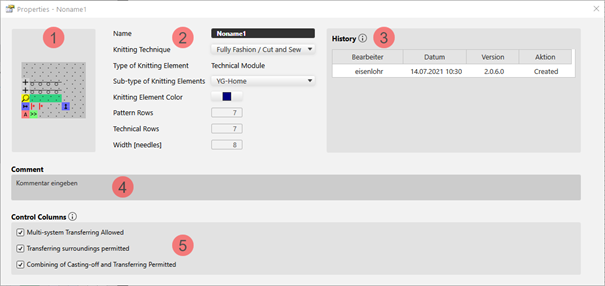
Explaining the 属性 dialog box by the 工艺模块 type of knitting element
|
| ||||
|
1 |
Graphic presentation of the selected type of knitting element | |||
|
2 |
名称 |
Name of the knitting element | ||
|
编织工艺 |
Definition of the knitting technique for the use within the pattern | |||
|
编织元素类型 |
Display of the selected type of knitting element
| |||
|
编织元素的次类型 |
Selection of sub-types according to the selected knitting element type
| |||
|
编织元素颜色 |
Definition of a color for the display of the knitting element in the | |||
|
|
Display color for the different knitting elements or modules | |||
|
|
Display color for structure modules with the different knitting techniques | |||
|
花型行 |
Quantity of pattern rows in the knitting element | |||
|
工艺行 |
Quantity of technical rows in the knitting element | |||
|
宽度 [针] |
Quantity of needles within one row of the knitting element | |||
|
3 |
历史记录 |
Display of state of editing from creation until the last modification: 制单员 日期 版本 操作 | ||
|
4 |
注释 |
Entry of a comment or a description | ||
|
5 |
控制列 |
Control Column Options
| ||
|
|
不被允许的选项将会抑制该编织元素区域范围内的控制列的相应功能。 | |||
|
|
Selected options enable the corresponding function in the control columns within the area of the knitting element. | |||
 document window with the


Examples for 'Structure Module' Type of Knitting Element
- Example 1: Knitting process with knitting rows only
- Example 2: Knitting process with knitting and not knitting rows
- Knitting Rows: A yarn carrier is used by the knitting system
- Not knitting rows: No yarn carrier is used by the knitting system
(transferring, post loop sinking, casting-off)
Example 1: Create a Structure knitting element with knitting rows only:
- 1
- Open the 新编织元素 dialog box with 新编织元素.
- or -
Select tool window 模块 -> tab 模块 -> context menu 创建新模块.... - 2
- Enter the name of the new knitting element.
- 3
- Make the following settings:
- 编织工艺
- 满针
- 编织元素类型 :
- 结构模块
- 填充元素
- No yarn color / magazine color or yarn carrier color
- No Needle Action
- 尺寸 [线圈]
- 宽度
- 高度
- 4
- Close the dialog box with 确定.
- The Knitting Element Editor is opened.
- 5
- Select the 织针动作 / 颜色 tab.
- 6
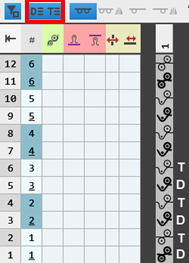
- Draw the desired structure with needle actions in the drawing canvas, in the displayed technical rows indicated by .
- The design rows are generated automatically.
|
|
|
 :
:
- 7
- Select for drawing the knitting element:
- Without pattern color
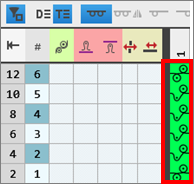
- With pattern color
|
Without pattern colors |
With pattern colors |
|---|---|
|
|
|
|
The needle action has no |
The needle action has an assigned color, i.e. the structure module will be drawn in the design pattern with this color. |
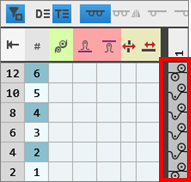
 color, i.e. the structure module can be drawn in the design pattern into every color area.
- 8
- Enter the desired control column data in the corresponding control column of the corresponding technical rows.
- 线圈长度 (NP)
- 主牵拉(WMF / WBF)
- 速度 (MSEC)
- etc.
|
Entry |
Meaning |
|---|---|
|
Color entry |
Assignment of a parameter value from the corresponding table |
|
No color entry |
Standard entry from the design pattern is kept |
- 9
-
设计行
:
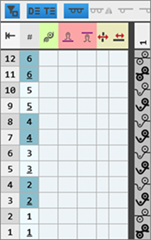
Enable the 控制列 button to apply the control column data from the technical rows to the design rows.
Behavior of control column data
|
No control column data |
Control column data in technical rows only |
Control column data in technical rows and design rows |
|---|---|---|
|
|
|
|
|
With drawing in the design pattern and with the technical processing, no entry is made in the control columns. |
These data from the technical rows will be inserted by the technical processing if in advance the standard entry is manually removed from the desired control columns of the design pattern. |
When drawing in the design pattern it can be decided whether the control column data are to be entered in the design rows with the help of the cursor attributes.
|
- 1
- Check the formal correctness of the entries in the knitting element with the 检验: button.: The knitting procedure cannot be checked!
- 2
- If necessary, in case of a knitting element already used in the design pattern, apply the changes to the basic pattern with the
 应用 button.
 - 3
- Close the 新编织元素 tool window with .
- The knitting element is saved.
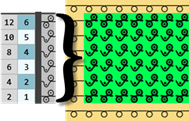
Group the pattern rows in the knitting element:
Group the technical rows which you want to form a common pattern row.
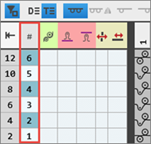
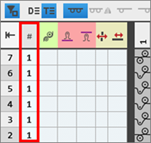
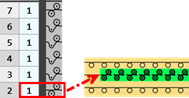
- A knitting element with multiple technical rows is created.: Each technical row corresponds to one design row.
- 1
- Select the desired technical rows.
- 2
- Position the cursor on the first control column, open the context menu and select 合并行.
- or -
Group the selected technical rows with Ctrl + G.
Behavior when drawing in the design pattern
|
|
|
|
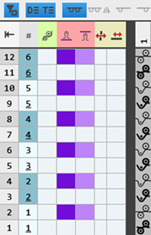
All pattern rows are drawn-in one-to-one in the design pattern. This means that the corresponding number of pattern rows will be overwritten in the design pattern. |
|
|
|
|
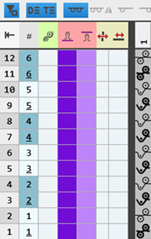
When drawing, only the first technical row is drawn in the design pattern. This means that the remaining technical rows of the group will be additionally inserted in the pattern by the technical processing. |


Ungroup the rows:
- In the knitting element the technical rows are grouped.
- 3
- Select the desired technical rows.
- 4
- Position the cursor on the first control column, open the context menu, select 取消行组合.
- or -
Cancel the selection of the technical rows by Ctrl + Shift + G.
: If necessary, repeat the process multiple times.
Not knitting rows are:
- Transferring rows.
- Casting-off rows
- Rows for post loop sinking
Creating structure module with knitting and not knitting rows:
- 1
- Open the 新编织元素 dialog box with 新编织元素.
- or -
Select tool window 模块 -> tab 模块 -> context menu 创建新模块.... - 2
- Enter the name of the new knitting element.
- 3
- Make the following settings:
- 编织工艺
- 满针
- 编织元素类型 :
- 结构模块
- 填充元素
- No yarn color / magazine color or yarn carrier color
- No Needle Action
- 尺寸 [线圈]
- 宽度
- 高度
- 4
- Close the dialog box with 确定.
- The Knitting Element Editor is opened.
- 5
- Select the 织针动作 / 颜色 tab.
- 6
- In the drawing canvas, in the technical rows, draw the desired structure with knitting and e.g. transfer needle actions.
- The design rows are generated automatically.
- 7
- If necessary, select a color for drawing.
- 8
- Enter the desired control column data in the corresponding control column of the corresponding technical rows with needle actions.
- 线圈长度 (NP)
- 主牵拉(WMF / WBF)
- 速度 (MSEC)
- etc.
- 9
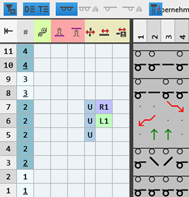
- Also enter the desired control column data in the transfer rows:
-
横移 VN,VU,V#

-
横移值

- 横移修正(VCI)
- 主牵拉(WMF)
- etc.
- 10
- Select transfer rows with the previous knitting row or with following knitting row.
- 11
- Group the selected rows with the CTRL + G keys.
|
|
|

- 12
-
设计行:
Enable the 控制列 button to apply the control column data from the technical rows to the design rows. - 13
- Check the correctness of the entries in the knitting element with the 检验: button.: The knitting procedure cannot be checked!
- 14
- If necessary, in case of a knitting element already used in the design pattern, apply the changes to the basic pattern with the 应用 button.
- 15
- Close the 新编织元素 tool window with .
- The knitting element is saved.
- 16
- If desired, create more variants within the module.
Variants:
- All needles knit

- All needles knit mirrored

- 1x1 Technique

-
 1x1 Technique, Mirrored
Procedure:
- A variant is created.
- 1
- Position the cursor in the drawing canvas.
- 2
- Open the context menu with RMB.
- 3
- Select 创建变体.
- 4
- Select the variant to be created in the submenu.
- The created variant is displayed in the drawing canvas.
- 5
- If desired, make changes in the technical rows and in the control column data of the new variant.
Change / reset design rows
When creating a knitting element, the design rows are generated automatically. It is possible to change the design rows manually.
Changing design rows manually:
- The knitting element is created.
- Design rows were generated automatically.
- 1
- Open knitting element with double-click.
- 2
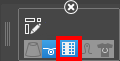
- Activate the display of the design rows with the
 button.
 - 3
- Select the Design tab in the tool window.
- All symbols that may be used in the design rows are shown in this tab.
- 4
- Select the desired symbol.
- 5
- Draw the symbol in the corresponding design row.
- 6
- If necessary, continue with more design rows.
- 7
- Knitting Element with .
- The change is saved and marked with the M symbol (modified).
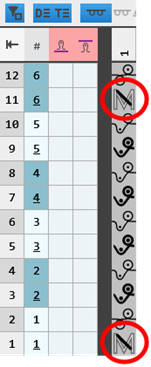
Reset: Delete the M symbol in the modified design row:
- In the knitting element, there are design rows marked with the M symbol.
- 8
- Select one or more design rows.
- 9
- Click the
 计算设计符号 button in the tool window.
- The M symbol is deleted and the symbol of the corresponding technical row is applied automatically.