Example 1: Color Arrangement for 'Modify color sequence'
The color sequence is to be influenced with this Color Arrangement CA1, which determines the order of the knitting colors (yarn carrier).
Create the Color Arrangement CA1:
- The pattern project of pattern Pattern-7 is open.
- Pattern in
 设计花型 is active.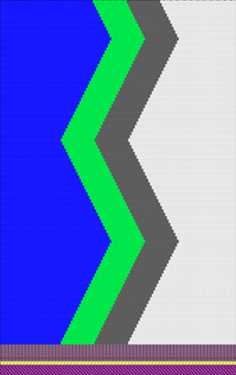
 : Colors from the 纱线颜色 table were used to draw the basic pattern.
- 1
- If necessary, save the pattern project under a new name.
- 2
- In the 花型行 control column, select the first 2 pattern rows.
- 3
- Position the cursor in the pattern area.
- 4
- Open the context menu and select 选择 /
 颜色排列.
颜色排列.
- or -
Click directly the button in the ribbon. - The Color Arrangement Editor with the original 'Default knitting process' of the 2 selected pattern rows is opened.
|
|
|
|
|
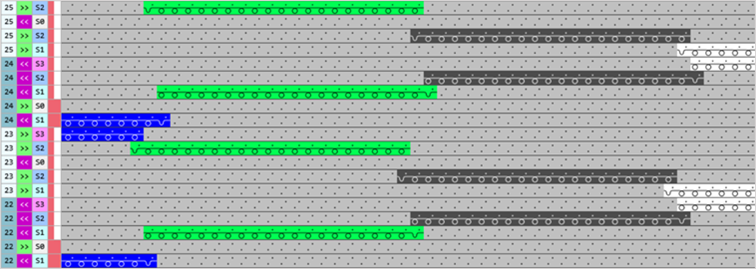
Result after technical processing
|
|
|
|
The colors (= yarn carrier) from the 'processing area' of the CA are processed according to the number of knitting systems of the selected machine.
|
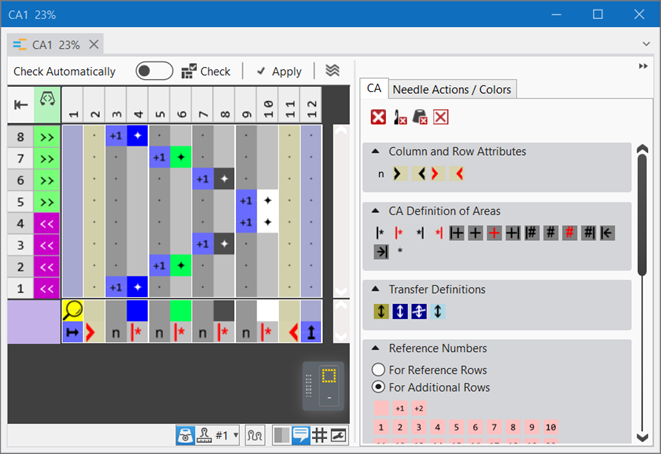
 symbol (default entry) repeats the needle action from the source row in the entire color area from the left to the right
 symbol, the corresponding needle action from the source row of the design pattern is read out and knitted according to the search color.
- 5
- Select
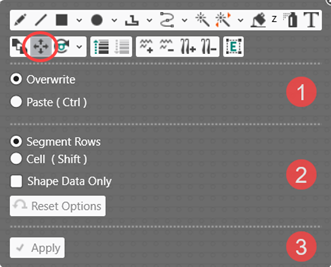
 移动 drawing tool.
 - 6
- Define the desired function in the ribbon
- or -
Open the pop-up window with the Ctrl + Space bar button. - Pop-up window appears.
|
1 |
Select modes for the 移动 drawing tool
| ||
|
|
改写 mode active
| ||
|
or | |||
|
|
插入 mode (Ctrl) active
| ||
|
2 |
Selection for the selected Overwrite / Insert mode
| ||
|
|
分段行 |
| |
|
|
单元 (SHIFT) |
Overwriting or Inserting a cell (pixel) | |
|
|
仅模型数据 |
All data at the cursor position is overwritten or inserted. | |
|
|
Only the shape data at the cursor position is overwritten or inserted.
| ||
|
3 |
The | ||


- 7
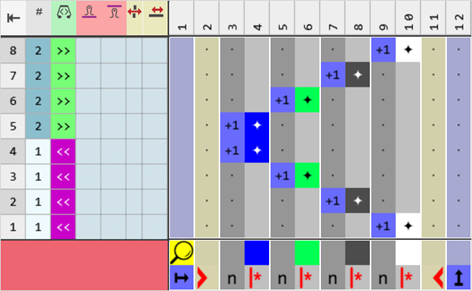
- With the 分段行 selection in the 改写 mode, move the entries in the processing area into the desired position.
|
Example to the explanation 'Change color sequence' |
|
|
- 8
- Check the generated Color Arrangement on correct entries with the
 检验 button.: The knitting procedure cannot be checked!
 - 9
- If necessary, in case of a Color Arrangement already used in the design pattern, apply the changes to the basic pattern with the
 应用 button.
- or -
Close the tool window with button.
 - 10
- Close the prompt with the desired button:
-
Save: Color Arrangement is saved locally in the
 颜色排列 tool window.
 - Reject: The changes will not be saved.
-
Copy: The changed Color Arrangement is saved as copy in the 颜色排列 tool window.
- 11
- Enter the generated Color Arrangement via the
 control column into the desired rows of the design pattern.
Options to enter the Color Arrangement in the 'Color Arrangement' control column:
- Select the desired CA in the tool window in the 颜色排列 tab
-
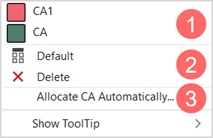
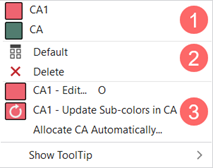
Color Arrangement control column: Open the context menu with RMB.
|
| ||
|
1 |
List of all generated Color Arrangements in the pattern project
| |
|
2 |
|
CA entry is replaced with the default setting |
|
|
CA entry is deleted | |
|
3 |
Assign Color Arrangements Automatically
| |


|
| ||
|
1 |
List of all generated Color Arrangements in the pattern project
| |
|
2 |
|
CA entry is replaced with the default setting |
|
|
CA entry is deleted | |
|
3 |
CA1 - Edit...
| |
|
CA1 - Update sub-colors in CA
| ||
|
自动分配颜色排列
| ||
- 12
- Start the
 Technical Processing.
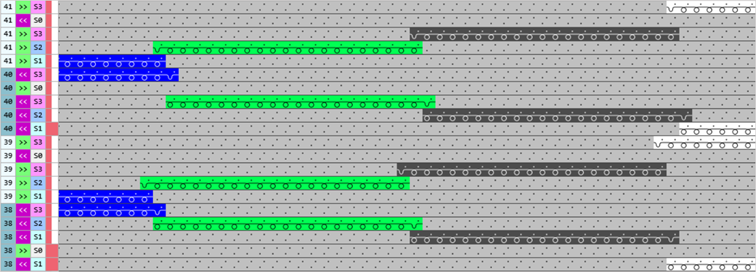
 - The Color Arrangement is expanded by the technical processing.
|
Result after technical processing |
|
|
|
- 13
- Generate
 Sintral.
 - 14
- Start the
 Sintral 检验.
 - 15
-
 提取 the knitting program.
 - 16
- Load knitting program into the machine.