Draw the structure
Draw a single jersey structure and a cable:
- 1
- To draw, select the desired setting in the status bar
 .
. Pattern Color
- or - Module Color
 - 2
- Draw the motif with the following drawing tools:
-
 Pencil
 -
 Line
Line -
 Rectangle / Square
Draw a rectangle with the rectangle drawing function and the desired options.SHIFT: Square CTRL: Rectangle out of the center CTRL+SHIFT: Square out of the center Can be moved or modified subsequently in the echo mode.
- 3
- Select the desired needle action in the Needle Actions tool window and draw it into the design pattern.
|
Needle actions in use | ||
|---|---|---|
|
Design Pattern |
Front Stitch with Transfer |
Rear Stitch with Transfer |
|
Structured single jersey |
| |


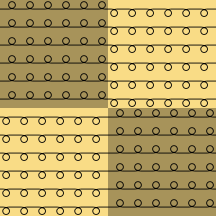
 : The
: The 
- 4
- Open STOLL Knit Explorer.
Knitting Elements tool window -> Quick Access or
Knitting Elements tool window -> Knit Explorer
 - 5
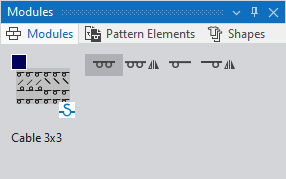
- Open the Structure Modules / Standard / Cables, Single-sided Float directory under Knitting Element Depot and select the Cable 3x3 knitting element.
- The selected knitting element is shown in the Modules tool window and is assigned to the cursor for drawing.
- 6
- Select the desired attribute before drawing into the design pattern:
-
All Needles

-
All Needles, Mirrored

-
1x1-Technique

-
1x1 Technique, Mirrored

Identification at the bottom of the graphic:
-
 Knitting Element from STOLL database
 - Knitting Element Name
|
Used Knitting Element | ||
|---|---|---|
|
Cable 3x3 |
|
|
|
|
| |
|
Result: | ||
|
| ||

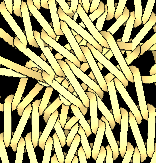
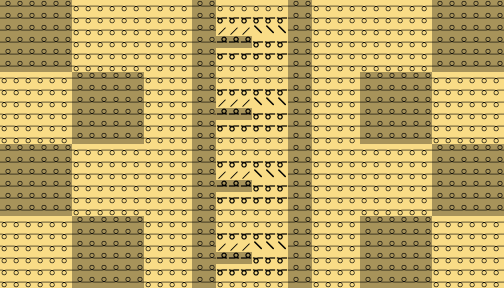
The transfer actions of the knitting elements will not be displayed in the design pattern at first.
You can open the Expanded Symbol View window which shows the transfer actions by  Symbol.