Edit and modify inserted Jacquards
I. Edit the inserted Jacquards:
- In the pattern there are areas with inserted Jacquard modules.
- 1
- In the Start ribbon under
 Tool Windows, open the
  Jacquards tool window.
- or -
Click on the Open Jacquards... in the context menu on the pattern. - The Jacquards tool window is opened.
|
| |||
|
1 |
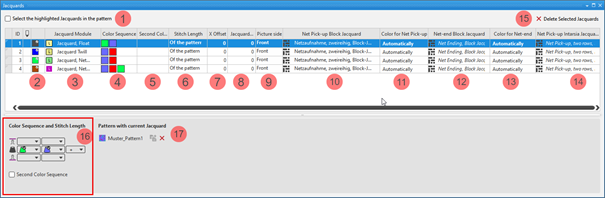
Select the selected table items in the pattern | ||
|
|
The Jacquards selected in the table are not displayed as selection in the pattern. | ||
|
|
The Jacquards selected in the table are displayed as selection in the pattern. | ||
|
ID |
Consecutive numbering of the Jacquard areas | ||
|
2 |
|
For drawing a Jacquard module in the pattern
| |
|
|
Index Color: Application in the search area of a Color Arrangement
| ||
|
3 |
Jacquard Module
| ||
|
4 |
Color Sequence Display for the color sequence for the first and second pattern row if | ||
|
5 |
Second Color Sequence Display for the color sequence for the second pattern row if | ||
|
6 |
Stitch Length Specification for the stitch length which is to be used in the pattern:
| ||
|
7 |
X Offset Shift the startpoint of the Jacquard back horizontally Value in needles for the horizontal offset of a Jacquard module | ||
|
8 |
Jacquard Back Narrower Jacquard back by n needles narrower as the face of the picture Value in needles, regarding how much the Jacquard back side is to be narrower in relation to the picture side.
| ||
|
9 |
Picture side
| ||
|
10 |
Net Pick-up Block Jacquard Display of the knitting elements in use for the net pick-up with continuous Jacquards | ||
|
11 |
Color for Net Pick-up Specification of the color (yarn carrier) which is used for the net pick-up knitting element | ||
|
12 |
Net-end Block Jacquard Display of the knitting elements in use for the net ending with continuous Jacquards | ||
|
13 |
Net-end color Specification of the color (yarn carrier) which is used for the knitting element | ||
|
14 |
Net Pick-up Intarsia Jacquard Display of the knitting elements in use for the net pick-up with Intarsia with Jacquard back | ||
|
15 |
Delete Selected Jacquards |
The selected Jacquard is deleted in all the pattern where it is in use.
| |
|
16 |
Color Sequence and Stitch Length | ||
|
|
Display or edit box for the stitch length per color / system for rear needle bed
| ||
|
|
Display of the color sequence from the left for the Jacquard area selected in the table | ||
|
|
Display or edit box for the stitch length per color / system for front needle bed
| ||
|
|
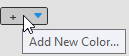
Add New Color... | ||
|
Second Color Sequence | |||
|
|
|
Default setting | |
|
|
Definition of the color sequence for the second pattern row is possible.
| ||
|
17 |
Pattern with current Jacquard List of the patterns, where the Jacquard selected in the table is in use.
| ||
|
|
Ungroup the grouped Jacquard areas.
| ||
|
|
The Jacquard module inserted in the pattern will be removed from the area in the pattern.
Result:
| ||


 (
(
 :
:




- 2
- Select the Jacquard to be changed in the table.
- 3
- Make the desired changes in the tool window.
- 4
- Close the tool window with X.
- The changes will be applied to the pattern.
II. Direct selection of a Jacquard module in the pattern:
- In the pattern there are Jacquard modules in use.
- 1
- Position the cursor in a Jacquard area with an inserted Jacquard module.
- 2
- Apply the Jacquard module with the F5 key.
- 3
- Enter the selected Jacquard module via the control columns in the entire pattern width or only in an area within the pattern.
- The selected Jacquard module is inserted.
Pay attention whether the exact same colors are in use in the area to be entered or not!
- Exactly the same colors
The Jacquard areas will be grouped. - Different Colors
A new entry is added in the table.
III. Selection of a Jacquard module in the Jacquard table:
- In the pattern there are Jacquard modules in use.
- All the Jacquard modules in use are contained in the table.
- 1
- In the Start ribbon under Tool Windows, open the Jacquards tool window.
- 2
- Select the desired Jacquard in the Jacquards tool window in the
 column.
 : Pay attention to the Jacquard colors in use!
 - 3
- Enter the selected Jacquard module via the control columns in the entire pattern width or only in an area within the pattern.
- The following message appears:
There is at least one color in the area in which you drew, which is not included in the jacquard of the table. Area will be connected to a matching Jacquard. A new Jacquard will be generated if no matching Jacquard is available. - 4
- Confirm message with:
-
OK
A new Jacquard with the missing color is created in the table. -
Cancel
No Jacquard module is inserted.
IV. Adding an extra color:
The colors identified with  knit only on the Jacquard back.
- In the pattern there are Jacquard modules in use.
- All the Jacquard modules in use are contained in the table.
- The Jacquards tool window is open.
- 1
- Select a Jacquard in the first column of the Jacquards tool window.
- The color sequence is displayed in the tool window under Color Sequence and Stitch Length.
- 2
- Select an additional color (additional color) in the empty edit box at the end of the displayed color sequence by the icon from the Pattern Colors tool window.
- The additional color is added to the color sequence and identified with .
V. Deleting an additional color marked with :
The colors identified with knit only on the Jacquard back.
- In the pattern there are Jacquard modules in use.
- All the Jacquard modules in use are contained in the table.
- The Jacquards tool window is open.
- 1
- Select a Jacquard with additional colors in the first column of the Jacquards tool window.
- The color sequence is displayed in the tool window under Color Sequence and Stitch Length.
- 2
- Position the cursor on the additional color -> click the Remove Color context menu.
- The additional color is removed from the color sequence.