Find and Replace Drawing Tool
Feature of the Find and Replace / Exchange Dialog Box
- In Entire Pattern
- Control Column Data (without default settings)
- Needle Data (knitting elements, pattern colors, etc.)
- Pattern Elements
- Within a selection
- Control Column Data (without default settings)
- Needle Data (knitting elements, pattern colors, etc.)
- Pattern Elements
- Find and Protect
- In Entire Pattern
- Within a selection
- Working with lists (execute several actions according to a specified order)
- 1
- Open Find and Replace dialog box:
- A training pattern is available.
- 2
- If desired, select the cursor attributes for Find and Replace before opening the dialog box.
 : Without selection, the dialog box will appear without entries.
 - 3
- Open the Find and Replace dialog box with the
 button.
 - The dialog box will appear accordingly with or without entries.
|
| |||
|
1 |
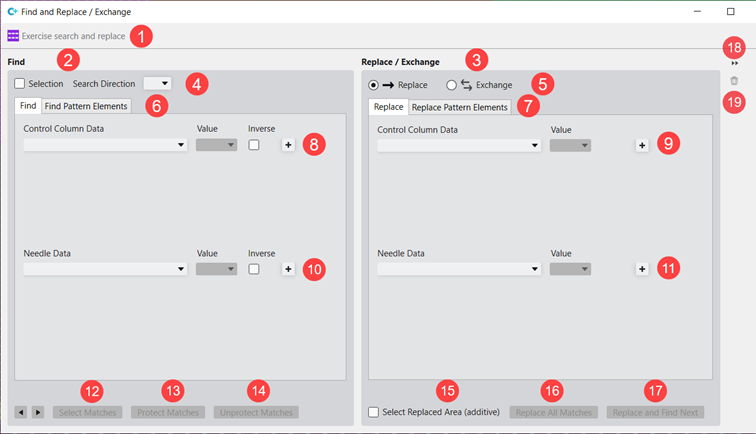
Pattern name, where the Find and Replace dialog box is active. | ||
|
2 |
Specified search criteria
| ||
|
3 |
Specified criteria for insert
| ||
|
4 |
|
Search in the entire design | |
|
|
Search in a selection
| ||
|
Search Direction |
Preset of the search direction
| ||
|
5 |
Selecting the desired action | ||
|
|
|
Replace | |
|
|
|
Exchange | |
|
6 |
Tabs of the Find area | ||
|
Find |
Selection while searching for
| ||
|
Find Pattern Elements |
Selection while searching for pattern elements | ||
|
7 |
Tabs of the Replace / Exchange area | ||
|
Replace |
Selection for replace or exchange
| ||
|
Replace Pattern Elements |
Selection for 'Replacing / Exchanging' pattern elements | ||
|
8 |
Settings of the search criteria in the Find tab for searching in the Control Column Data | ||
|
9 |
Settings of the criteria for insert in the Replace and Exchange tab for replacing in the Control Column Data | ||
|
10 |
Settings of the search criteria in the Find tab for searching in the Needle Data. | ||
|
11 |
Settings of the criteria for insert in the Replace and Exchange tab for replacing in the Needle Data. | ||
|
12 |
| ||
|
13 |
Protect Matches | ||
|
14 |
Unprotect Matches | ||
|
15 |
|
Matches are replaced but not selected | |
|
|
All matches are replaced and selected, to then add this selection to an existing selection (in addition) | ||
|
16 |
Replace all matches in one step | ||
|
17 |
Do not replace or replace matches position for position. | ||
|
18 |
|
Opening of the List Processing view | |
|
|
Closing of the List Processing view | ||
|
19 |
|
Deleting of all criteria | |


 : from one position to the next position, to select individual positions

