Example 5: Color Arrangement for the explanation of the behavior of the symbols for horizontal repetition
Explanation of the behavior of the repetition symbols based on the Color Arrangements CA5-1 and CA5-2:
- Repetition inside of a color area
- Symbol
 : Repetition to the right (Standard entry)
 - Symbol
 : Repetition to the left
 - Repetition of the pattern columns
- Symbol
 : Repeating from the left pattern column
 - Symbol
 : Repeating from the right pattern column
Create the Color Arrangement CA5:
- The pattern project of pattern Pattern-7 is open.
- Pattern in
 Design Pattern is active.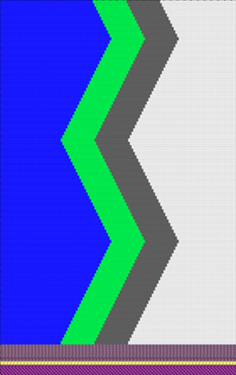
 : Colors from the Yarn Colors table were used to draw the basic pattern.
- 1
- If necessary, save the pattern project under a new name.
- 2
- In the Pattern Row control column, select the first 2 pattern rows.
- 3
- Position the cursor in the pattern area.
- 4
- Open the context menu and select Selection
/
 Create Color Arrangement:
.
Create Color Arrangement:
.
- or -
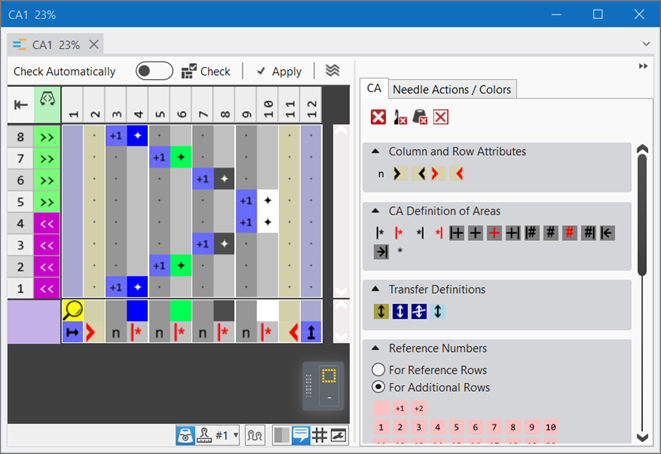
Click directly the button in the ribbon. - The Color Arrangement Editor with the original 'Default knitting process' of the 2 selected pattern rows is opened.
|
|
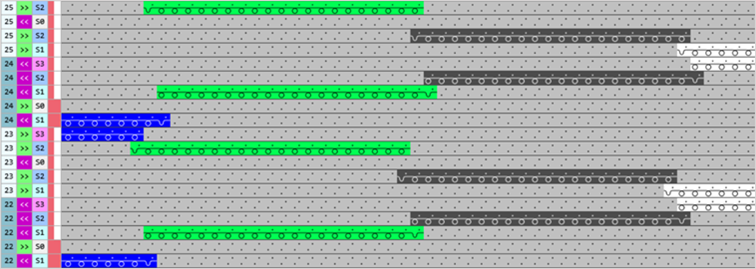
Result after technical processing
|
|
The colors (= yarn carrier) from the 'processing area' of the CA are processed according to the number of knitting systems of the selected machine.
|
 symbol, the corresponding needle action from the source row of the design pattern is read out and knitted according to the search color.
- 5
- Position the cursor on the column selection bar.
- 6
- Select the color column in the color segment of the yarn color #5 (green) with LMB.
- 7
- Position the cursor at the position (1).
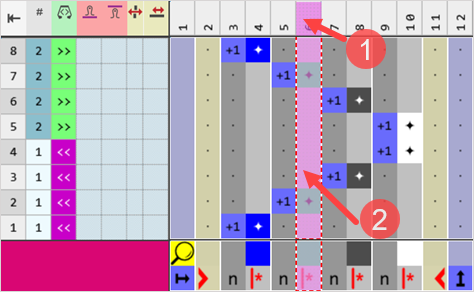
: If you open the context menu at the cursor position (2), only to work with color segments is available - not with columns.
- 8
- Open the context menu with RMB.
- The context menu appears.
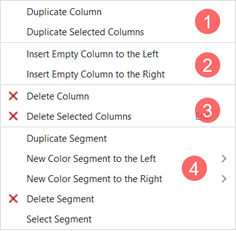
1 | Duplicate Column | Copy content of the selected column | |
Duplicate Selected Columns | Copy content of the selected column(s)
| ||
2 | Insert Empty Column to the Left | Insertion of columns to the left of the selected column | |
Insert Empty Column to the Right | Insertion of columns to the right of the selected column | ||
3 |
| Delete Column | Without selection delete a column |
| Delete Selected Column | With selection delete a column
| |
4 | Options to work with color segments | ||

4 | Options to work with color segments | |||
Duplicate Segment | Duplicates the content of the selected color segment | |||
New Color Segment to the Left | > | Menu for the selection of the quantity of color segments to be inserted (1-10) to the left in relation to the selection | ||
New Color Segment to the Right | > | Menu for the selection of the quantity of color segments to be inserted (1-10) to the right in relation to the selection | ||
| Delete Segment |
| ||
Select Segment | The color segment at the cursor position is selected | |||
- 9
- Insert or duplicate the desired number of columns to the left and right in relation to the selected color column of the yarn color #5.
- For example:
- 3 additional columns for the structure
- A column to the left and right each for the border processing in the color field
- 10
- Draw the desired structure e.g. in the color segment of the yarn color #5 (green) in the 'Processing area'.
- 11
- In the tool window of the CA editor change to the Needle Actions / Colors tab.
- 12
- Select the desired needle actions to draw.
- For example:
- Front Stitch with Transfer
- Rear Stitch with Transfer
- 13
- Draw the structure in the color column of the yarn color #5.
- 14
- Draw-in in the 'search area':
- Add yarn color #5
- Add the Repetition to the right symbol under the yarn color #5
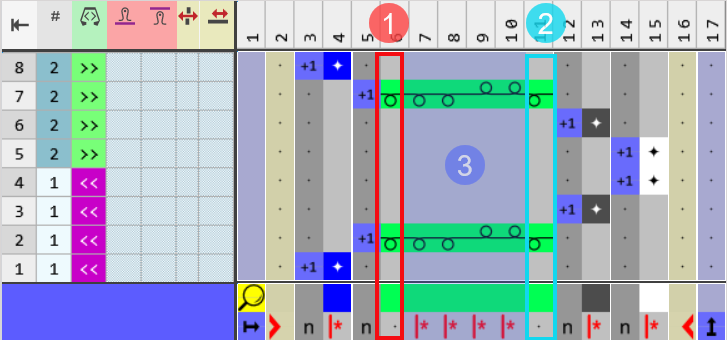
Example CA5-1: Structure and 1 color column each at the right and left in the color segment of the yarn color #5 (green) for border processing | |
| |
1 | Border processing at the left side of the color field of the yarn color #5 in the width of a needle.
|
2 | Border processing at the right side of the color field of the yarn color #5 in the width of a needle.
|
3 | Structure with width cycle (repetition) in the width of 4 needles marked with the |
| |
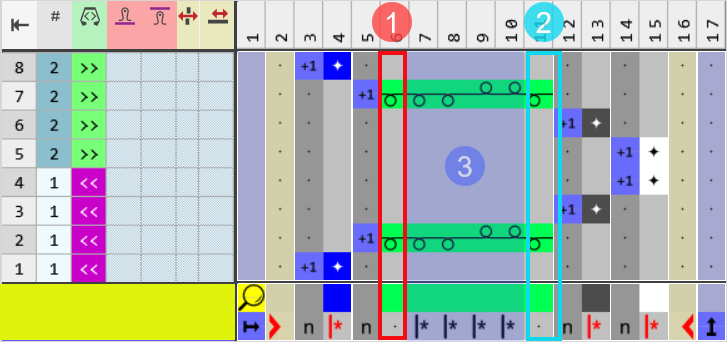
Example CA5-2: Structure and 1 color column each at the right and left in the color segment of the yarn color #5 (green) for border processing | |
| |
1 | Border processing at the left side of the color field of the yarn color #5 in the width of a needle.
|
2 | Border processing at the right side of the color field of the yarn color #5 in the width of a needle.
|
3 | Structure with width cycle (repetition) in the width of 4 needles marked with the |
| |
- 15
- Check the generated Color Arrangement on correct entries with the
 Check button.: The knitting procedure cannot be checked!
 - 16
- If necessary, in case of a Color Arrangement already used in the design pattern, apply the changes to the basic pattern with the
 Apply button.
- or -
Close the tool window with button.
 - 17
- Close the prompt with the desired button:
-
Save: Color Arrangement is saved locally in the
 CA tool window.
 - Reject: The changes will not be saved.
-
Copy: The changed Color Arrangement is saved as copy in the CA tool window.
- 18
- Enter the generated Color Arrangement via the
 control column into the desired rows of the design pattern.
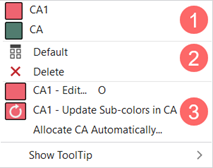
Options to enter the Color Arrangement in the 'Color Arrangement' control column:
- Select the desired CA in the tool window in the CA tab
- Color Arrangement control column: Open the context menu with RMB.
| ||
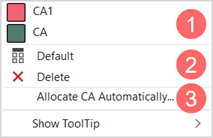
1 | List of all generated Color Arrangements in the pattern project
| |
2 |
| CA entry is replaced with the default setting |
| CA entry is deleted | |
3 | Assign Color Arrangements Automatically
| |

| ||
1 | List of all generated Color Arrangements in the pattern project
| |
2 |
| CA entry is replaced with the default setting |
| CA entry is deleted | |
3 | CA1 - Edit...
| |
CA1 - Update sub-colors in CA
| ||
Assign Color Arrangements Automatically
| ||
- 19
-
 Start Technical Processing
- The Color Arrangement is expanded by the technical processing.
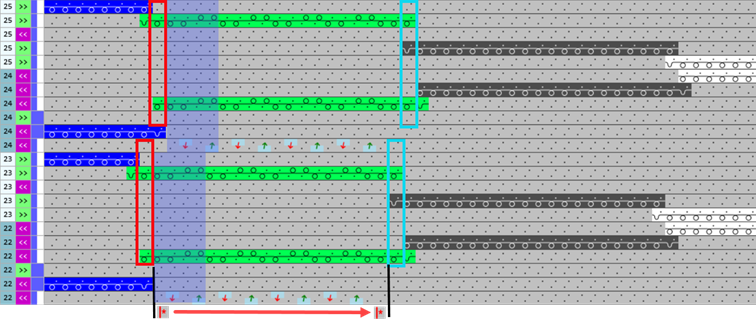
Result after technical processing |
|
Symbol View |
|
|
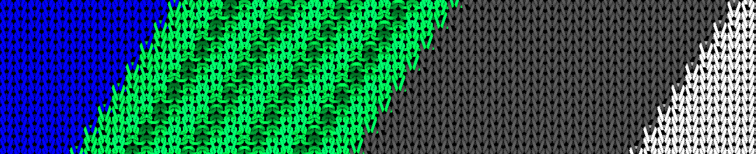
Fabric View |
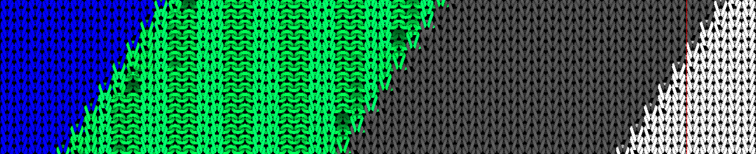
The structure runs diagonally inside of the color field of the yarn color #5, since the repetition always begins on the 1. needle of the color field at the left edge. |


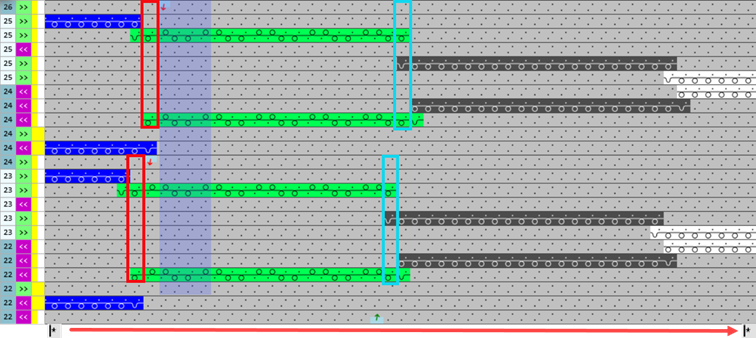
Result after technical processing |
|
Symbol View |
|
|
Fabric View |
The structure (rib) runs straight inside of the color field of the yarn color #5, since the repetition always begins on the 1. needle of the pattern at the left pattern edge.
|
- 20
-
Generate
 Sintral.
 - 21
-
Start the
 Sintral Check.
 - 22
-
 Extract the knitting program.
 - 23
- Load knitting program into the machine.