What was new in CREATE PLUS V2.0 and V2.1
Editing in the Symbol View
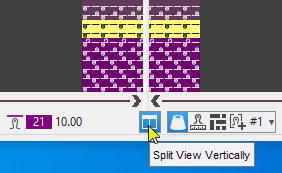
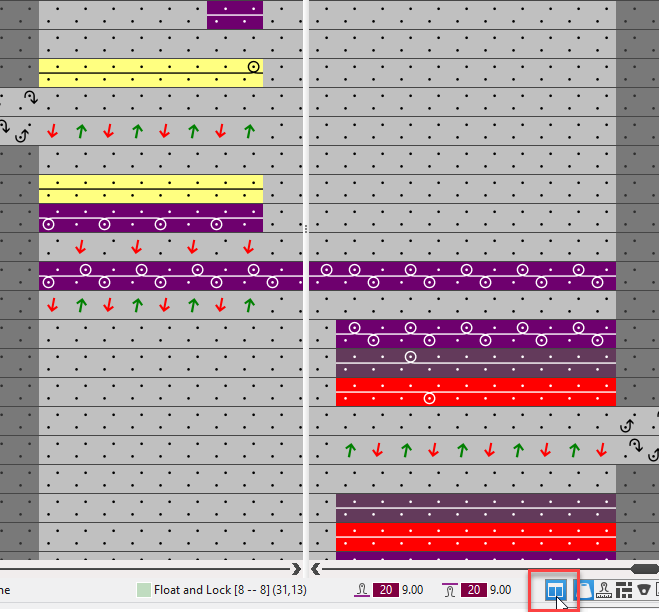
- Vertically Split View
- Tile the symbol view into two side by side views by the Split View Vertically button of the status bar.
- View and edit the left and right edge of big patterns at the same time.
- Even at a large zoom level without additional scrolling.
-
- The drawing tools work across the board.
You can start and end the drawing action in different halves of the view. - Splitting the expanded preview
- Splitting the symbol view after technical processing
-
- Single Click Mode for Drawing
- Up to now within the control columns only
- Now within the needle area of the symbol view as well
- Key combination 1
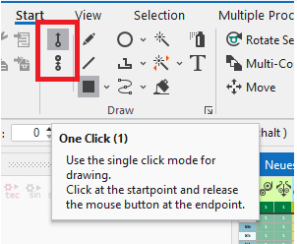
- Key combination 2
 2 clics
 -
 : Drawing by the single click mode is possible even within the double click mode.
→ Start to draw with the mouse button pressed after a first click. - Drawing with a module with repetition
- Drawing in modules with repetition element (pointelle module e.g.) is reduced to two clicks defining the start and the end of the action.
In between, you define the with by drawing up. -
: Hit the CTRL + Alt key combination before the first click and move the mouse in order to draw in the module according to the previous method.
First specify the width which you can then enter several times. - Copy selection (CTRL + C)
- If you copy a selection, the individual parameters of the clipboard appear in the user control to switch them on or off.
- By V2.0, the user control appears in case of each copy action with theAplicar columnas de control setting disabled (screen of V2.0).
-
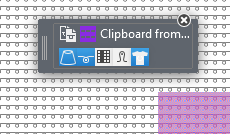
Each time, you had to repeat the individual setting. - In V2.1:
The setting once done is kept for each new action of copy or insert during the current session. - Insert Selection
- In order to insert empty rows, you had to use the Insertar atributos de dibujo option without having selected a drawing attribute.
- Now the Insertar Vacío option is available to insert empty rows.
-
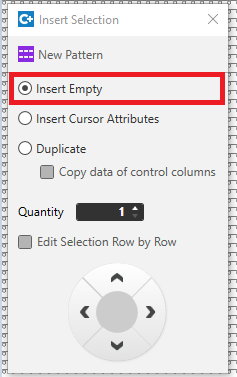
- Extension of Key Combination O (Abrir)
- Up to now, you could only open the module below the cursor in the symbol view by O key.
You could open CA or MA of this row via the control column only. - Now you can open CA and MA by the O key as well if they are assigned to the row below the cursor.
If necessary, this will open the three corresponding editors (Module, CA, MA). - You can open CA or MA by the O key if the cursor is positioned over an assigned CA or MA in the control column.
- You can open the corresponding Setup Data by the O key if the cursor is positioned in a control column with the Mostrar en tabla context menu.
-
 : The same behavior is valid for the expanded symbol view and for the symbol view after technical processing.
- Colors
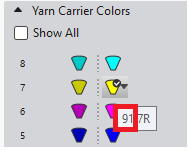
- The index of Colores de los guiahilos is displayed.
-
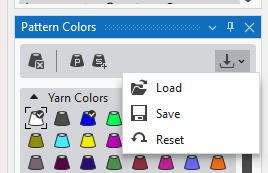
- You can load color palettes of the M1plus and of other programs.
-
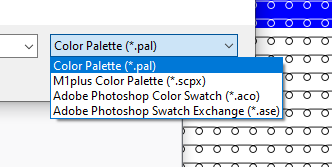
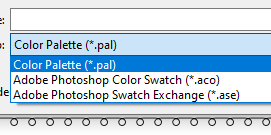
- You can save in file formats of other program.
-
- You will find the import and export functions in the Colores de muestra tool window.
-
- Comments
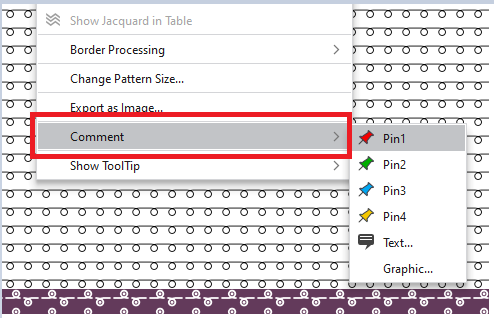
- You can place comments exactly to the needle in symbol view of the pattern. You will find the menu items in the context menu of the view.
-
- You can move the comments by the left mouse button.
Deleting and resetting the move are available in the context menu of the comments. - You can navigate through the comments by the new Comentarios tool window.
-
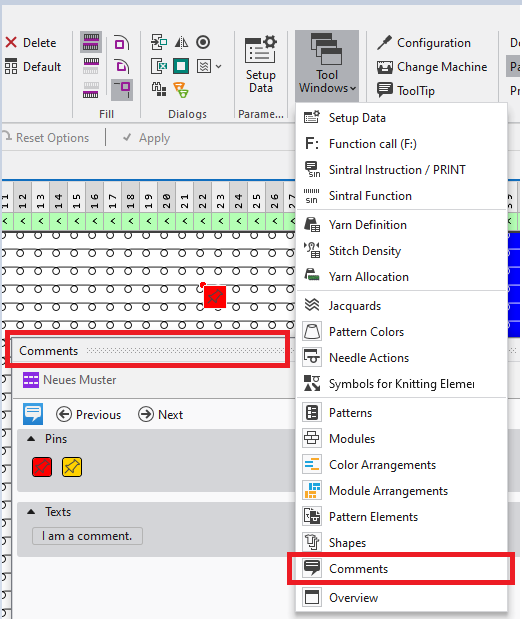
- You can control the display of the comments by the status bar of the view.
-

- Asignar Color Arrangements automáticamente
- You can assign Color Arrangements automatically to the rows of the pattern by this new function. To do this, the colors in the pattern rows are determined and compared to the search colors of the CA.
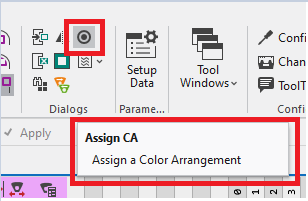
- You call-up the function via the Diálogos ribbon group or via the Color Arrangement control column.
-
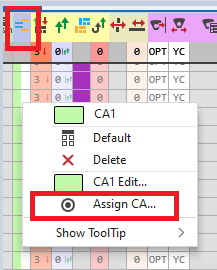
- Select the desired patterns in the Asignar Color Arrangements automáticamente dialog box.

Available are the active pattern or a row selection of it as well as all patterns of the project.
The Grupo and Pedido options are only available if they are enabled in the Muestra tool window.
Fabric View
-
Status Bar
Now, you can save your individual settings of the view.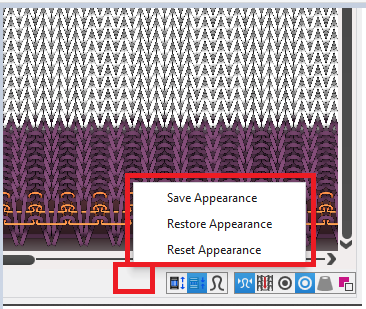
- Guardar representación
- Restaurar representación
- Restablecer representación
Yarn Carrier View
- Parámetros de color
- Color parameters are only available in the Guiahilos tool window.
- The Parámetros de color tool window is omitted.
Fully Fashion
- Importación DXF
- La inteligibilidad de la función Escalar fue mejorada.
- Después de abrir el archivo el control deslizante Escalar en se encuentra en posición media.
- Default 1,00 (= 100 %), anchura de paso 0,01 (= 1 %).
- Nueva función Desplazar piezas de tisaje
-
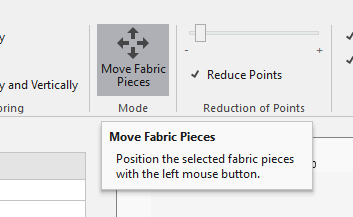
- Con función activa la pieza de tisaje seleccionada en la tabla Piezas de tisaje con su punto inferior izquierdo del rectángulo circunscrito es colocada en la posición que usted seleccionó con el botón primario del mouse en la gráfica.
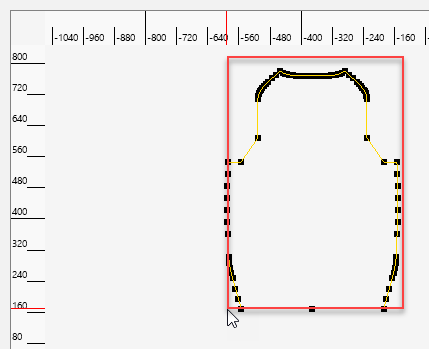
-
: Es posible realizar una selección múltiple.
- En el menú contextual de las piezas de tisaje en la tabla Piezas de tisaje se encuentra la nueva función Alinear con respecto al origen .
- Con ello se coloca el punto 0 del sistema de coordenadas en el punto inferior izquierdo del rectángulo circunscrito.
- Elemento de corte Pinzas
- Plantilla optimizada Pinzas
- Sin ediciones posteriores laboriosas
- El elemento de corte se ajusta correctamente dependiendo si es adecuado para el lado izquierdo o derecho de la pieza de tisaje.
-
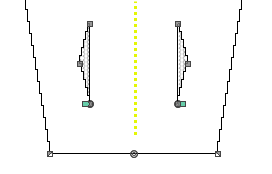
- La variante simétrica del elemento de corte es suprimida.
-
: En el menú contextual del corte bajo Agregar elemento de corte... .
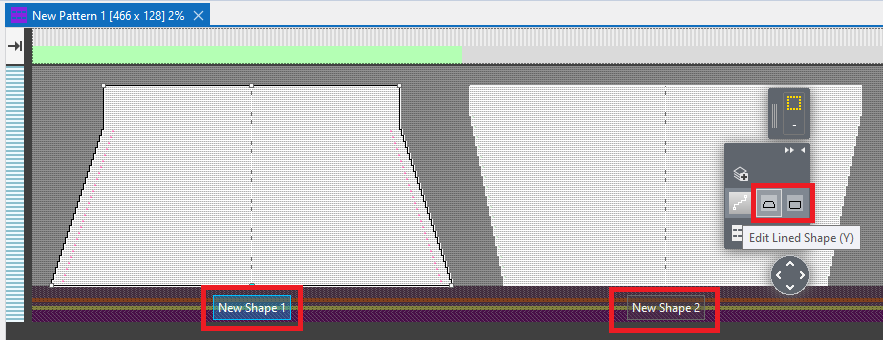
- Posicionar corte en la muestra
- Ahora puede posicionar dos cortes de líneas en la muestra.
Requisito importante para Tisaje con varias piezas - Dos cortes distintos
- Dos veces el mismo corte
- A través del control en el modo Editar capa de corte de líneas (Y) puede seleccionar cortes individuales para editar.
-
-
: Con dos cortes diferentes con comienzo integrado tienen que tener el mismo inicio para un procesamiento técnico sin errores.
Actualmente es necesario el mismo número de pasadas en ambos cortes.
- Capa de refinamiento
- Hasta el momento se pudieron editar los datos de corte de líneas en la muestra, pero siempre solo para una línea de corte por completo.
Ajustes con precisión de aguja no eran posibles. - Para eso Capa de refinamiento ahora se encuentra disponible.
-
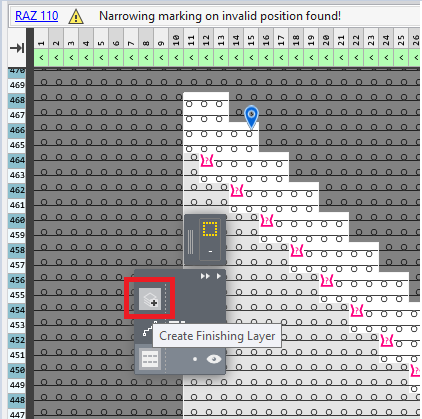
- Un ejemplo en la imagen:
Error de rasterización, porque con la presente anchura de menguado en la línea de corte no es posible realizar el menguado en la pasada 466.
Además, el menguado en la pasada 464 no es correcto, ya que una malla llega a Fuera de la forma. - Sin tener que personalizar el corte de líneas, usted puede corregir ambos errores en Capa de refinamiento.
Con el botón Crear capa de refinamiento se produce la capa.
 -
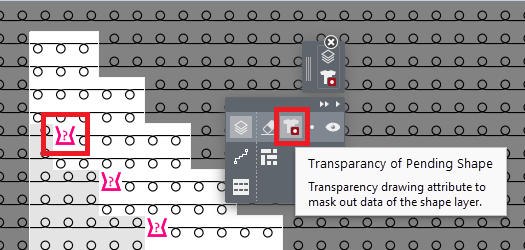
- Con el atributo de dibujo Transparencia del corte flotante usted rechaza el menguado de la posición marcada en la muestra.
-
: La ocultación de la línea de corte también es rechazada.
La acción de la aguja de la muestra aparece. -
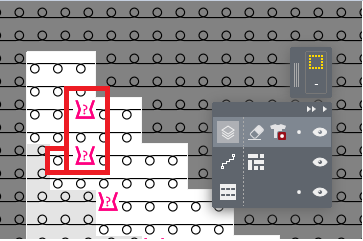
- Marque ambos símbolos de forma de menguado y la acción de la aguja para la ocultación.
- Con el atributo de dibujo
 Borrador de refinamiento puede eliminar los datos de Capa de refinamiento.
 -
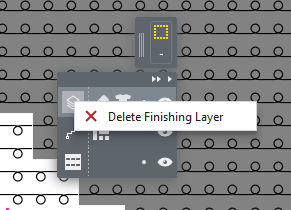
- Con el menú contextual
 Eliminar capa de refinamiento del botón
  elimina toda la capa de refinamiento.
Tisaje con varias piezas
Knitting two fabric pieces side by side is possible if the pattern contains a comb start.
- Two ways of knitting several pieces
- The Sectores de tisaje tab of theConfiguración tool window contains both variants.
- Duplicate Pattern
-
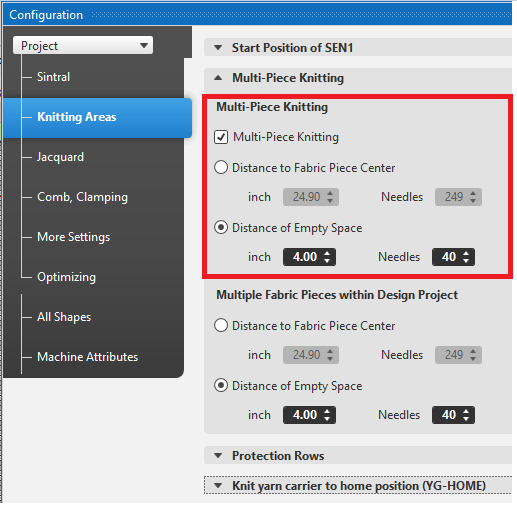
- Two Positioned Shapes
-
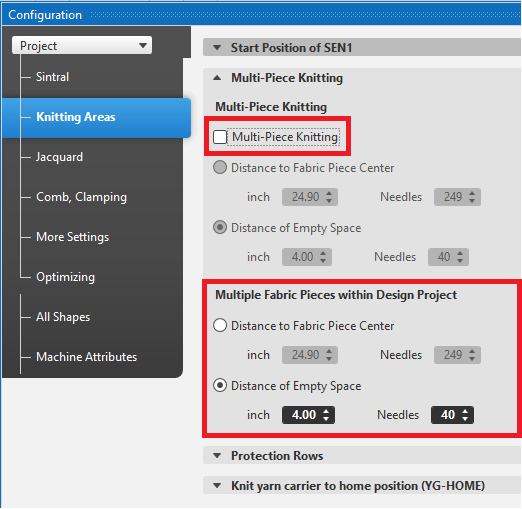
-
: If two shapes are positioned side by side, the Tisaje con varias piezas option must be disabled as otherwise four fabric pieces would be given to the technical processing.
- In contrast to M1plus, no special technical processing is required for multi-piece knitting.
Emisión de advertencias y errores
Durante el procesamiento técnico se emitirán advertencias y errores (=suspensión de la edición) en ciertas circunstancias. La visualización de estos mensajes fue revisada.
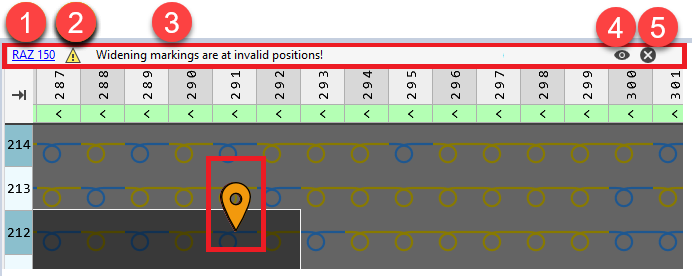
Un mensaje se compone de las siguientes partes:
- El número del mensaje con un enlace que lleva a más ayuda
- El tipo de mensaje (aquí advertencia)
- El texto del mensaje.
Si se puede localizar el mensaje aparece un enlace al pin.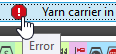
- Mostrar u ocultar la visualización del pin
- Eliminar mensaje
(solo disponible en advertencias)
Más mejoras:
- Varios mensajes para el mismo error se reúnen en un mensaje.
Para eso aparecen varios pin en la muestra hacia las que usted puede navegar. -
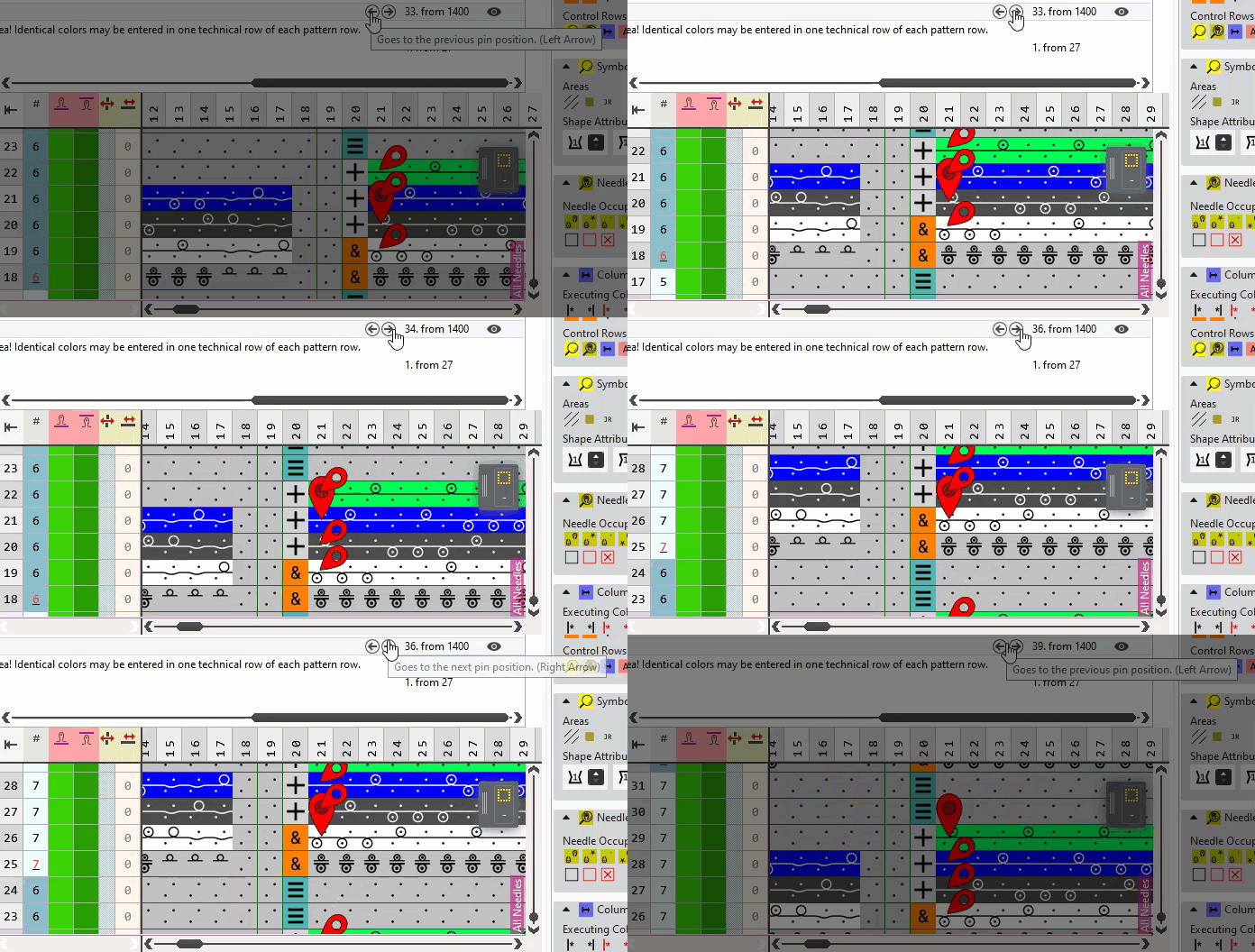
-
 El pin vertical indica el mensaje seleccionado.
 - Si el mensaje se refiere a una columna de control, entonces se coloca e indica el pin en la columna de control.
Alimentadores electrónicos
Controlled feed wheels are supported.
Activate them by Configuración → Atributos de máquina.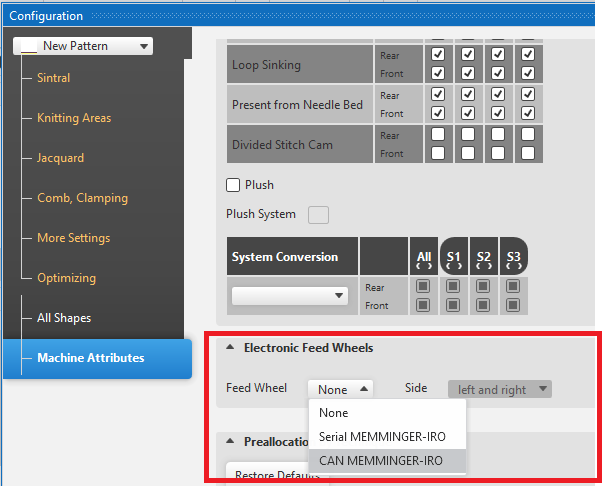
- MEMMINGER-IRO serial
- EFS 820
- EFS 920
- CAN MEMMINGER-IRO
- EFS 820
- EFS 920
- CAN BTSR
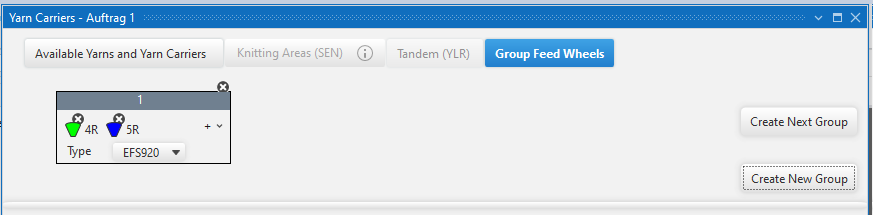
- New tab Agrupar alimentadores
- Here you assign yarn carriers to a group, which shall work with common settings.
- Guiahilos tool window → Vista de guiahilos
-
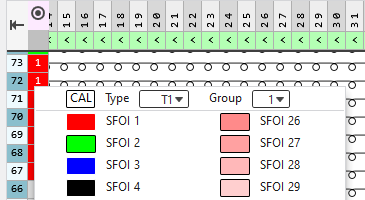
- Control column Alimentador
- Here, you can allocate the desired feed wheel index SFOI to the knitting rows.
-
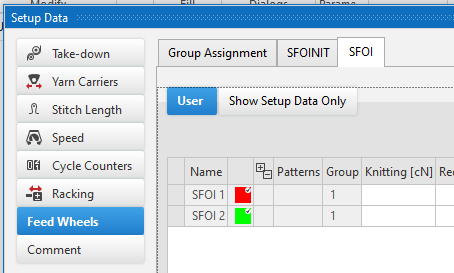
- Alimentadores Setup Data
- Here, you can specify the parameters for the feed wheels.
-
Knitting Machine with Additional Beds
- CMS 730 T machine is a available to select
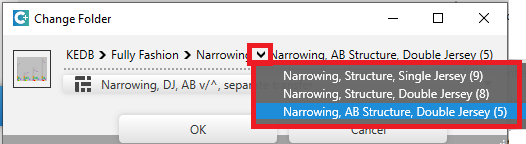
- There are special narrowing, widening and binding-off modules for Fully Fashion which you have assign to the shape lines.
-
- Additional control columns for racking are available among the control columns of the pattern.
-
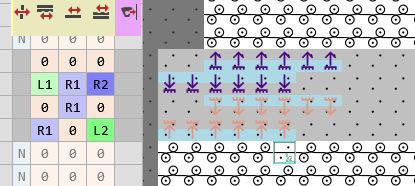
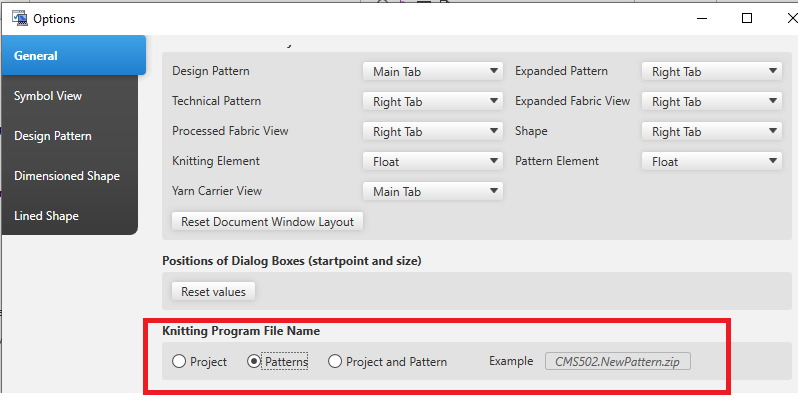
Name of the Knitting Program
- Up to now, the name of the knitting program was build from the name of the pattern.
- Now you can select how the knitting program name will be created:
- Proyecto
- Muestra
- Proyecto y muestra
- The presetting of Opciones, General tab works globally until to its modification.
-
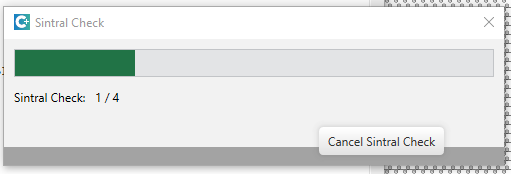
Check of Knitting Program
It was not possible to cancel the common check of several knitting programs by theControl Sintral.
- Now, you can cancel the Múltiples ediciones.
-
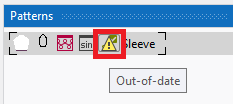
- The Control Sintral icon of the Muestra tool window will be marked if the pattern was edited and the knitting program was re-created after the check.
-
Send the knitting program to the knitting machine
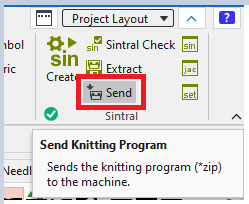
- You can send the knitting program directly to networking knitting machines.
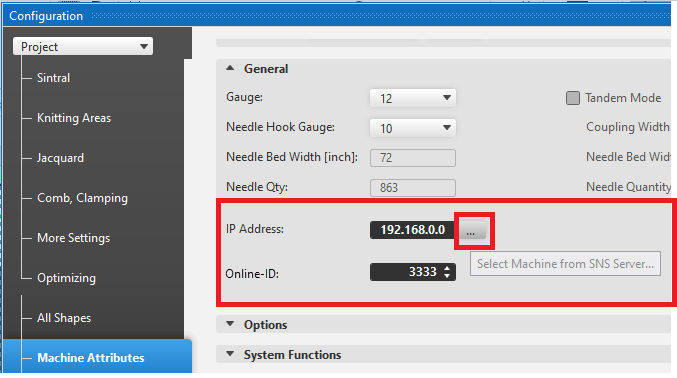
- Set-up the online connection to the machine in Configuración, Registerkarte Atributos de máquina tab.
- Dirección IP:
- Online ID:
-
-
 Enviar function of the ribbon group
 -
- 177
-
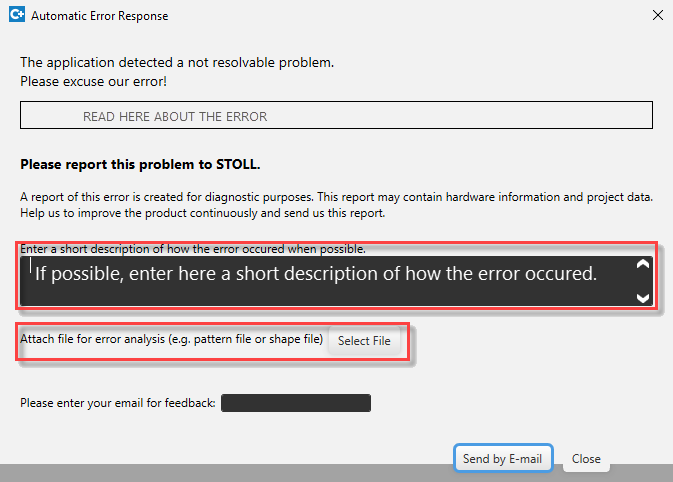
En lo posible, ingrese una corta descripción sobre cómo surgió el error.
¿Pudo repetir el error?
¿Este error también ocurría en otros ordenadores?
¿Qué quiere lograr con la acción que llevó al error? - 178
- Anexar archivo para el análisis de falla (p. ej. muestra o corte)
- 179
- Hacer clic en Enviar por correo electrónico, para enviar Aviso automático de error a CREATE Helpline .

k.innovation CREATE PLUS
Continuity and Innovation
STOLL and KM.ON are two successful brands of the KARL MAYER Group combining their expertise and creativity for highest customer benefit.
- From one side, STOLL is leading in flat knitting technology and is a solution provider with a process know-how.
- In the other side, KM.ON is specialist on software products, digital solutions and services for the textile business.
To clarify the membership in KM.ON, the former STOLL software (CPS) was renamed into k.innovation CREATE PLUS
.
The PLUS in the name stands for the complete integration of all features of k.innovation CREATE DESIGN
.
Starting with version 2.0.6
User Interface
- Parámetro ribbon group
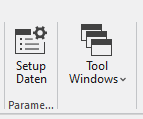
- Only one button in the Parámetro ribbon group in order to open the Setup Data.
The individual buttons for the tables and the corresponding entries of the Ventana de herramientas list box are removed. -
- Diálogos ribbon group
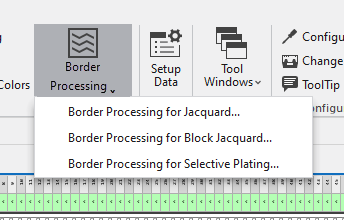
- The border processings are combined to the Procesamiento de bordes button of the Diálogos ribbon group.
The Procesamiento de bordes para vanisado selectivo... entry appears only with a machine (ADF) which supports this. -
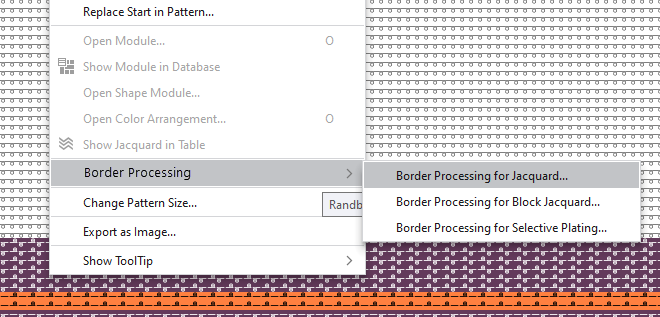
- Correspondingly in the context menu of the view
-
- AutoScroll and User Control within Needle Area
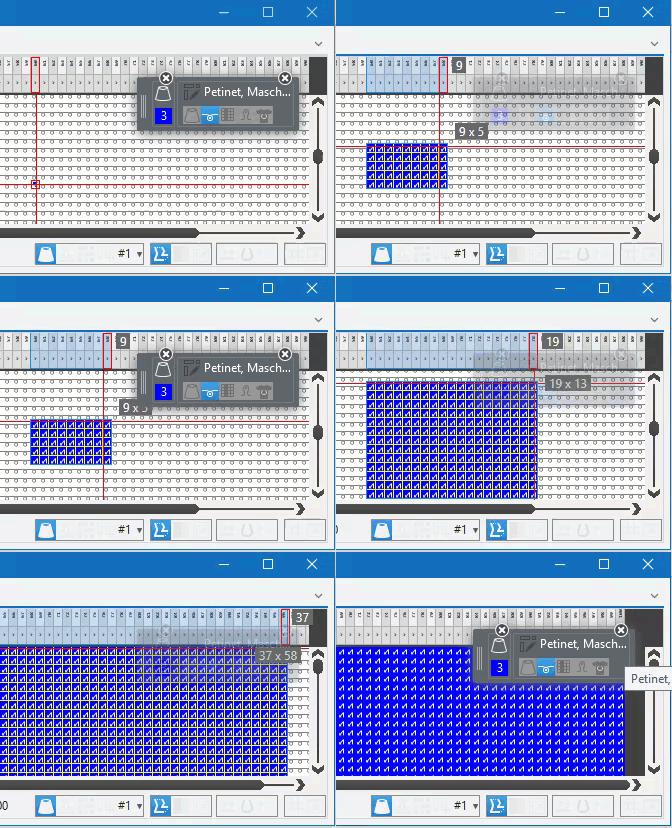
- You had to move the visible area by the scroll bar to draw within great patterns.
- A real autoscroll function considerably improves working in the control columns and the search area of CA and MA.
- With drawing up the drawing echo, the autoscroll function starts automatically as soon as the cursor is at edge of the visible area.
-
Do not move the cursor too fast and do not move it outside the document window. - The user control was often annoying when drawing up the drawing echo.
- Starting the drawing actions toggles the user control.
With it, you can move the cursor freely over the user control - You can enable the user control by the CTRL key e.g. to deselect the color.
-
Color Arrangement
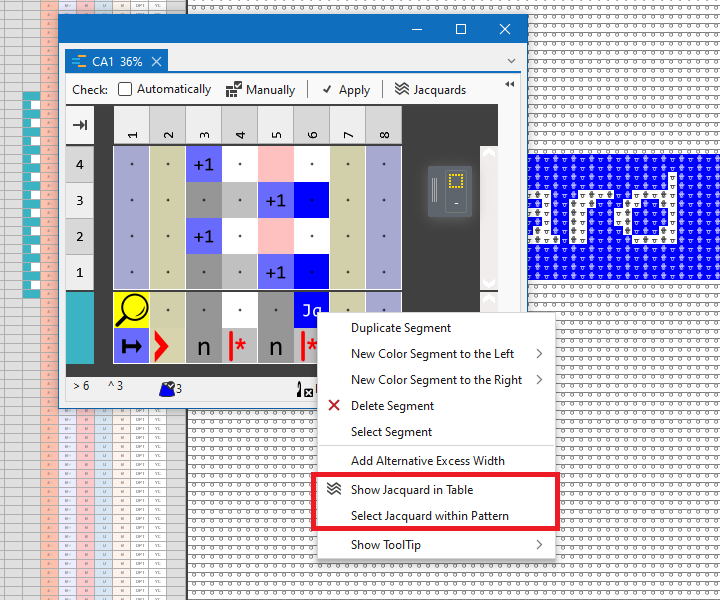
- Two function in order to trace back within the pattern are available for CA with Jacquard area.
-
Help System
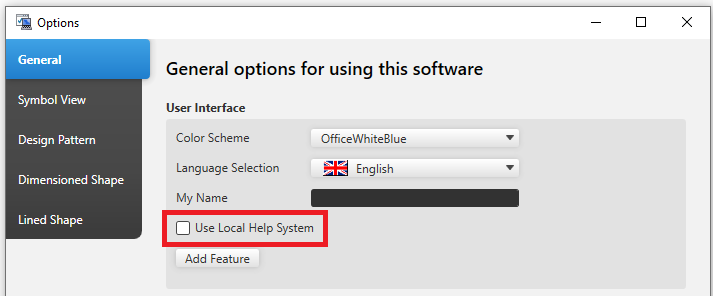
- You can switch between locally installed help and the web-based help in Opciones → Registerkarte General.
-
U3M Export of the Fabric Preview
U3M is a standardized format for 3D visualization.
This includes physical properties data and texture maps, all combined into one ZIP file (U3MA).
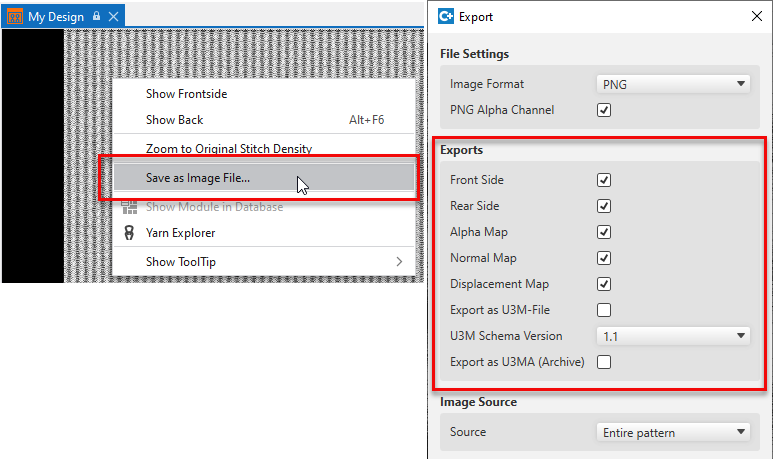
→  Vista del tejido → Exportar como archivo de imagen... context menu → Ajustes de archivo de imagen dialog box
Already with version 2.0.4 :
Start Window
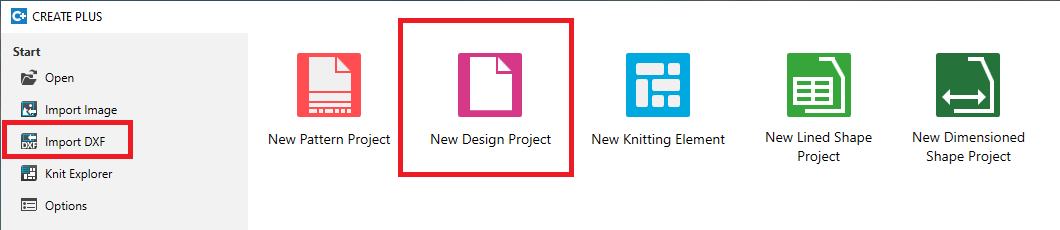
- You can edit shapes in DXF format by the Importación DXF application before importing them.
-
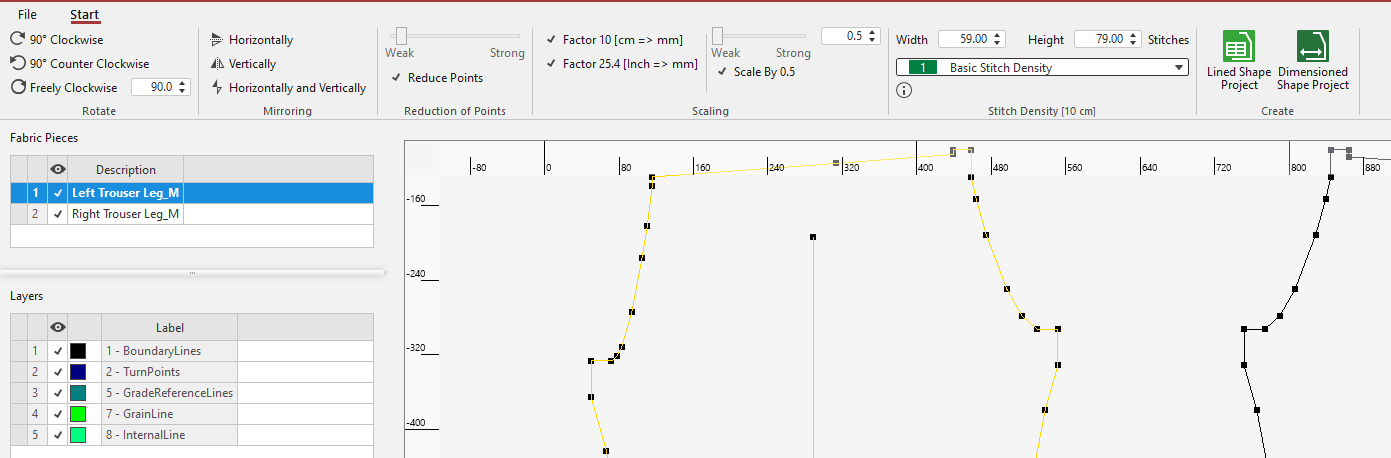
- Following functions are available in the ribbon for selected fabric pieces:
- Hacer orbitar
- Reflejar
- Reducir puntos
- Escalar
- You can manage the fabric pieces by the Piezas de tisaje table:
- Eliminar
- Renombrar (double click on the Descripción column)
- Mostrar u ocultar
- A new lined shape or dimensioned shape project will be created with all the visible fabric pieces.


: As up to now, you can open a *.dxf file within the CREATE PLUS.
However, it will not be imported directly into a dimensioned shape but loaded into the Importación DXF application.
: Within a pattern project, you can start the Importación DXF by Archivo → Importar → Importar DXF.
The imported fabric pieces will appear in the Cortes tool window.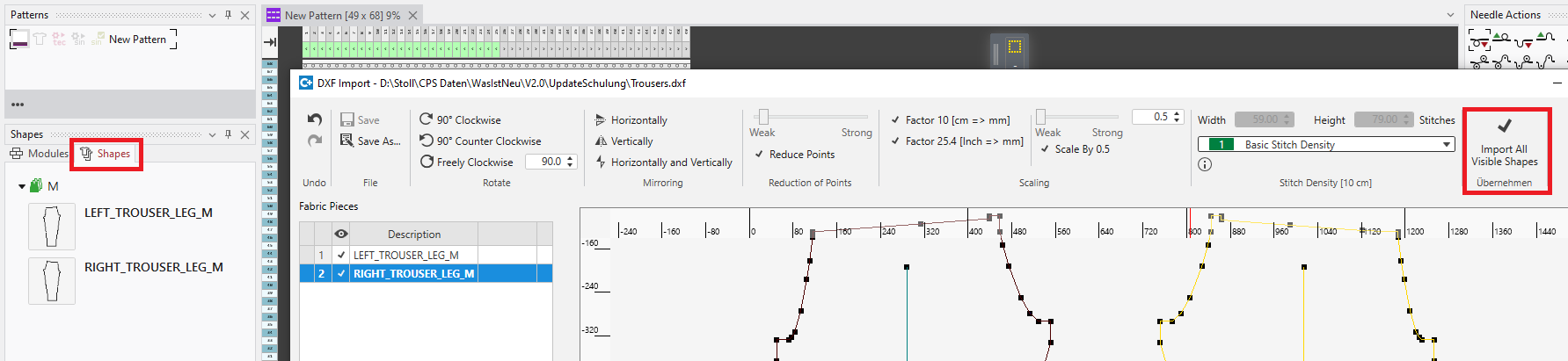
-
 Nuevo proyecto de diseño
 - Within the CREATE PLUS, you can create new design projects or open existing ones.
- With it, the features of the k.innovation CREATE DESIGN application are fully integrated.
-
 Nuevo proyecto de muestra
 -
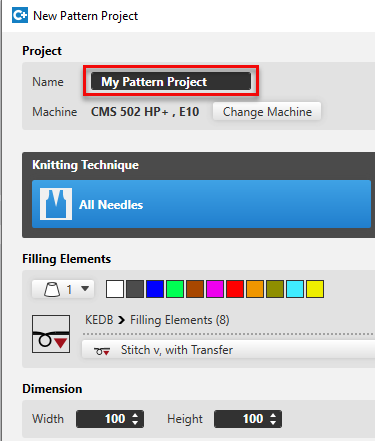
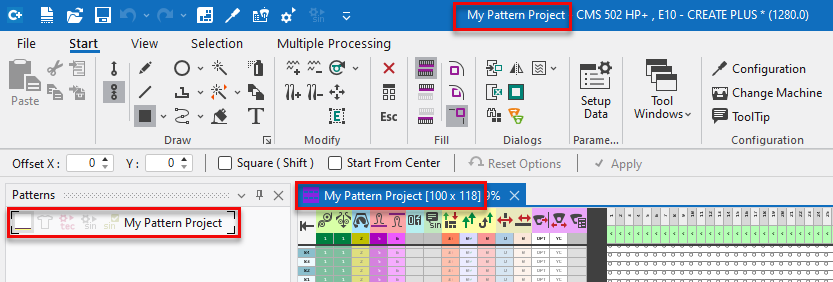
- You can directly name the project.
This name is used for the project file as well as in the Muestra tool window. -
-
 Nuevo elemento de tisaje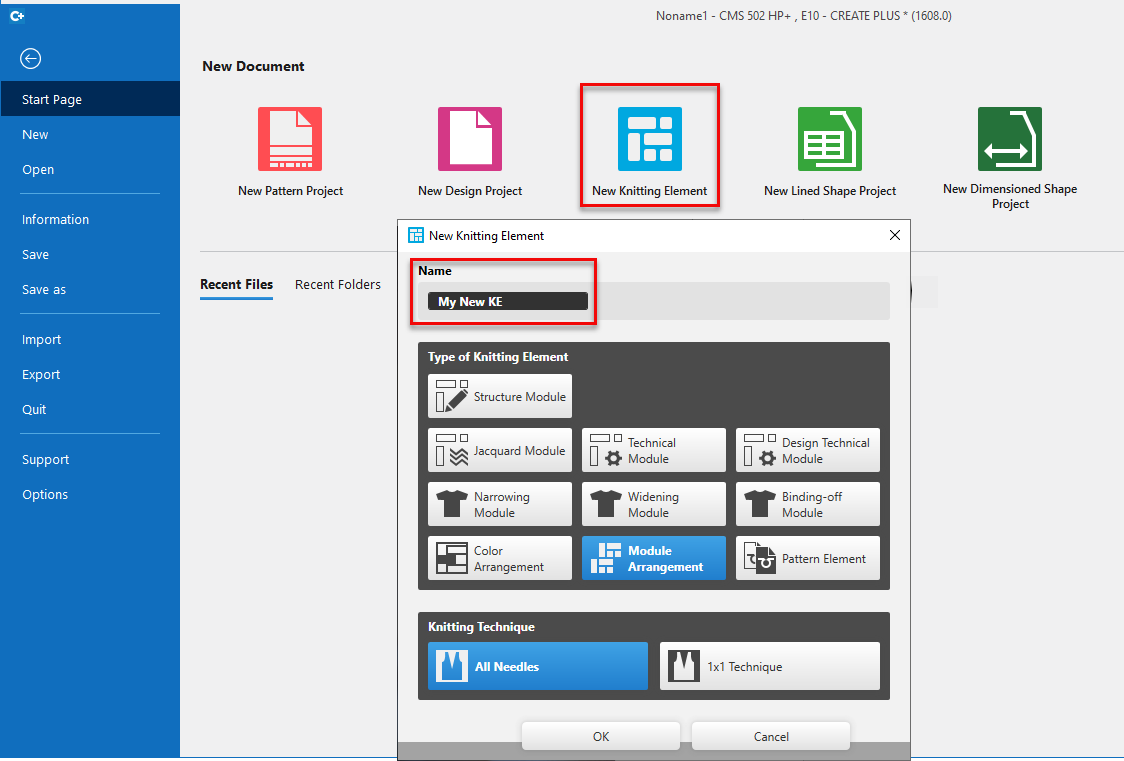
- Up to now, only structure modules could be created.
Now you can create all kinds of knitting elements: - Different types of modules
- Color Arrangement
- Module Arrangement
- Parte de muestra
- You can directly name the new knitting element.
: The assignment of names by the user was introduced in many places:
- For a new project or a new knitting element
- For an new local knitting element, even if it is created from a selection of the pattern.
- For duplicating orders or sizes
User Interface of CREATE PLUS
- The user interface of the complete application is adopted to the Office 2019 Style.
- Ribbon is optimized for the standard size of monitors (1920 Pixel).
-
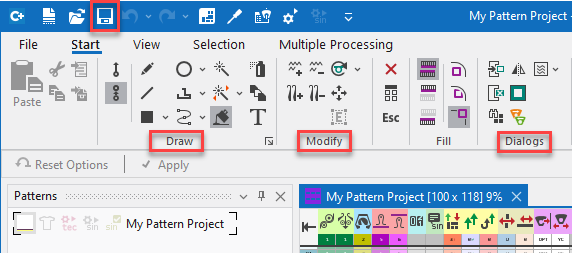
- The drawing tools are separated to the groups Dibujar , Modificar (new) and Diálogos (new).
- You can start the Knit Explorer via the quick access toolbar.
- The Project ribbon group is renamed to Multiple Processing and moved from the Start ribbon to the new Multiple Processing ribbon. New in this group is the possibility to get the Sintral Check for several pattern done.
- Crédito group is now part of the Vista tab.
-
Gestión de diseños dialog box had a function to reset the positions of dialog boxes.
This function moved to Opciones → General group. - The buttons Knit Explorer and Acceso rápido are available in the tool windows of Color Arrangement, Module Arrangement and Partes de muestra.
-
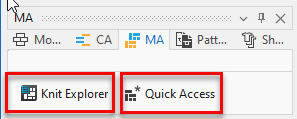
- Pattern elements are available in the Quick Access of the database.
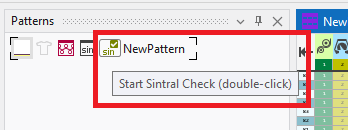
- In the Muestra tool window, the Control Sintral-Check can be started and will be shown as done.
-
- The new fabric view of design projects is used for pattern projects as well now.
Pattern in 1x1 Technique
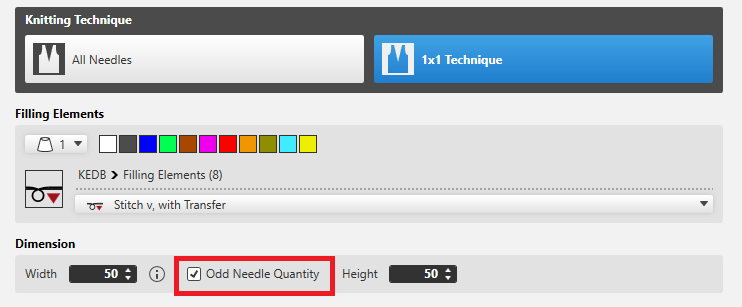
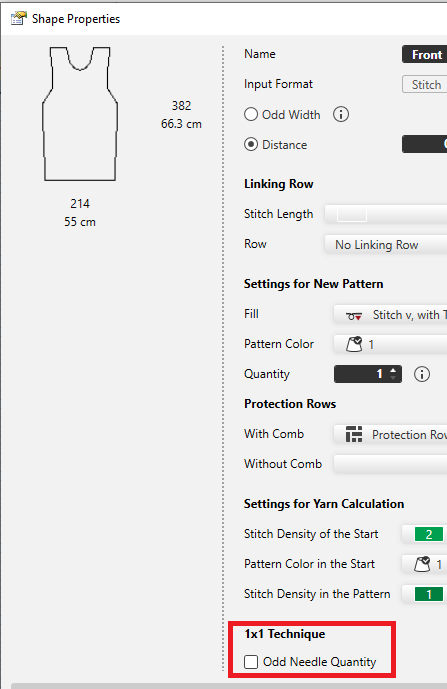
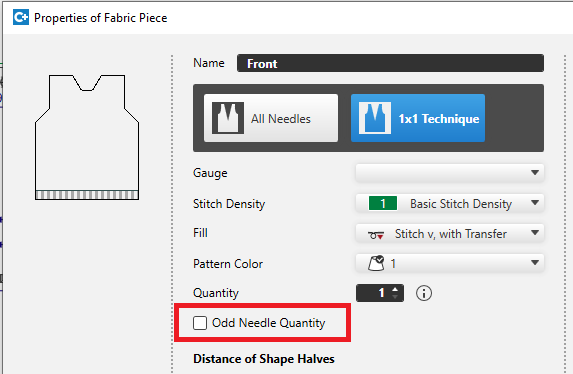
- To get a stitch at the right edge of the pattern with 1x1 technique, the new número de agujas impar option is available here:
- Nuevo proyecto de muestra / Nueva muestra
-
- Corte de líneas / Propiedades de corte
-
- Corte de dimensiones / Propiedades de pieza de tisaje
-
- When converting the knitting technique from Todas las agujas to Técnica 1x1, the odd quantity of needles can be created as well.
- A prompt appears for this case.
-
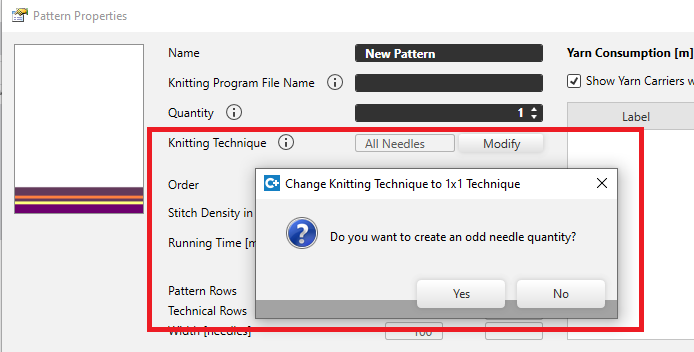
- The prompt about the odd needle quantity does not appear if a shape is already positioned on the pattern.
If you whish to convert with an odd needle quantity, enable the número de agujas impar check box of the shape properties.
Editing the Pattern
- Buscar y reemplazar / Intercambiar
-
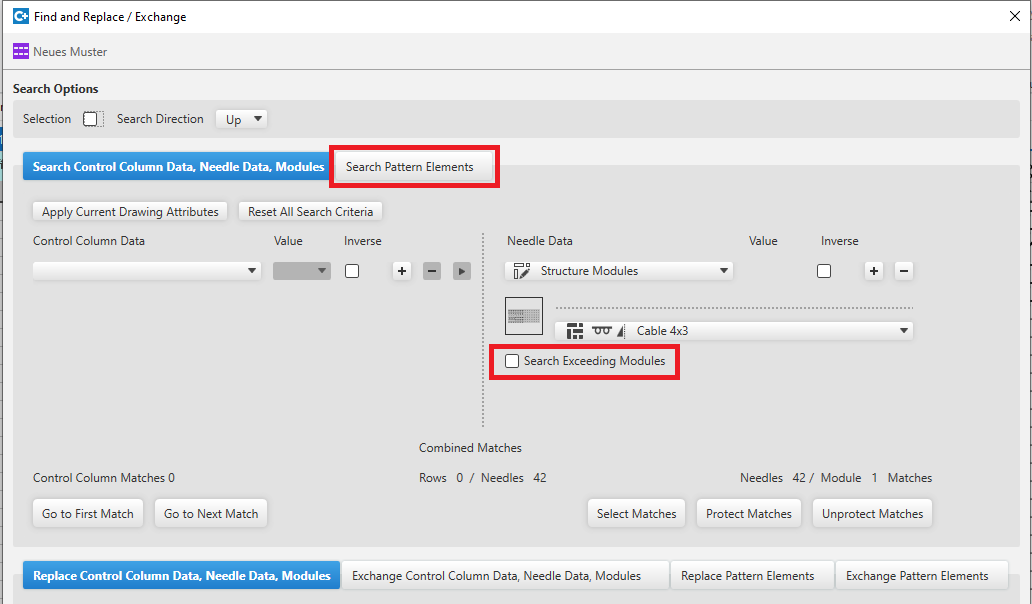
- Working with pattern elements is improved and integrated into the user interface of the dialog box.
With selecting a pattern element and opening the dialog box, the pattern element will be applied at once for editing and the user interface will de switched. - You can search exceeding modules if the check box is enabled.
- Search an object and replace it with another object in order to replace an exceeding module by a needle action.
- Insertar selección (pasadas)
-
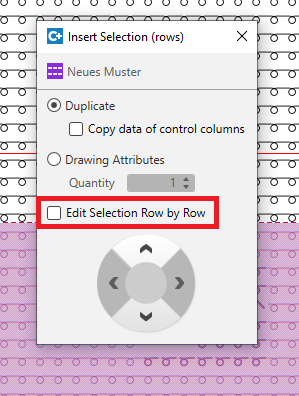
- Extension of the Insertar selección (pasadas) function by Editar la selección columna por columna and Editar selección pasada por pasada
Both variants are possible with inserting: - As contiguous block
- Row by row or column by column
Colors and Yarn Carriers
- Multiple System Color for Multi-system Knitting
-
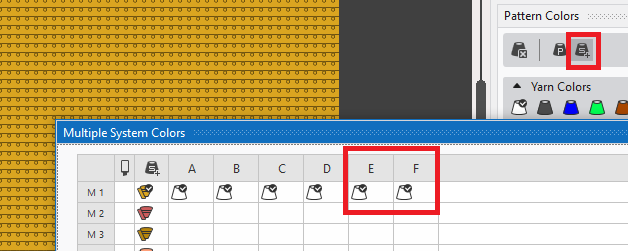
- The quantity of slots for multiple system color is increased from 4 to 6 (A-F).
- Optimized editing in the tool window
Copy and paste of a cell was only possible within the same column.
This restriction is obsolete for the Colores de sistemas múltiples and Colores de vanisado tool window. - Colores de los guiahilos und Colores de depósito within the project
- If a color appears several times within the pattern, Buscar y reemplazar may be a great effort for a pattern project with many single patterns and color arrangements.
In the Diálogos ribbon group the Cambiar colores de guiahilos dialog box is available in order to reduce this effort. -
-
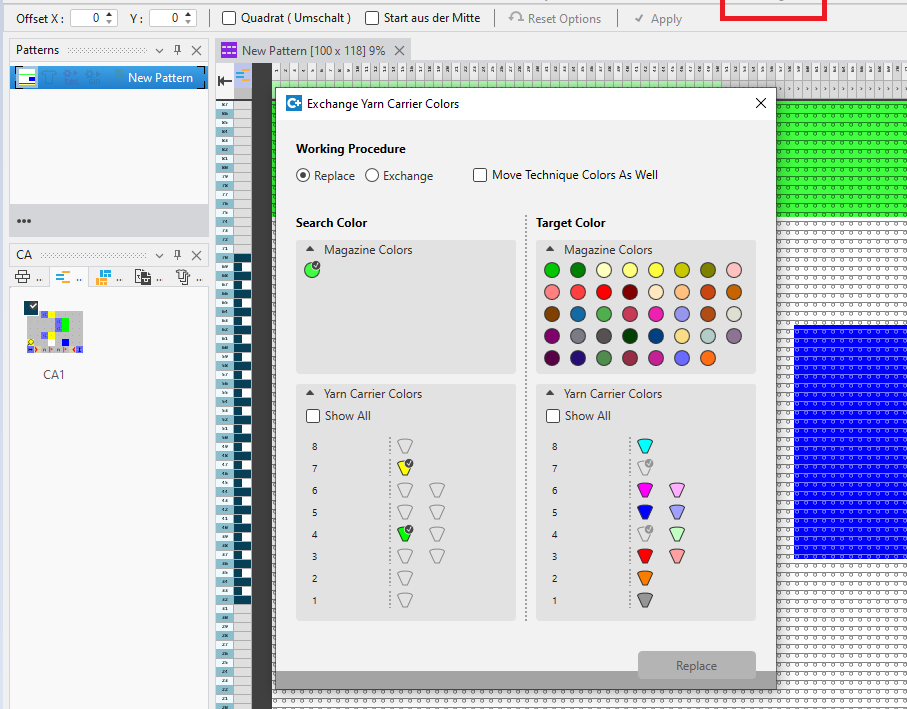
- All Yarn Carrier Colors and Magazine Colors used within the pattern project are available in the dialog box.
This colors can be replaced or exchanged with unused yarn carrier colors or magazine colors. -
The magazine color of the pattern is used within this picture.
Both the yarn carrier colors are contained in the CA. - Yarn Carrier View ( Vista previa group)
- Data of the Parámetros de color tool window are shown additionally in the expandable part of the Guiahilos tool window.
- You can enter the placement plan of the report for the pattern database.
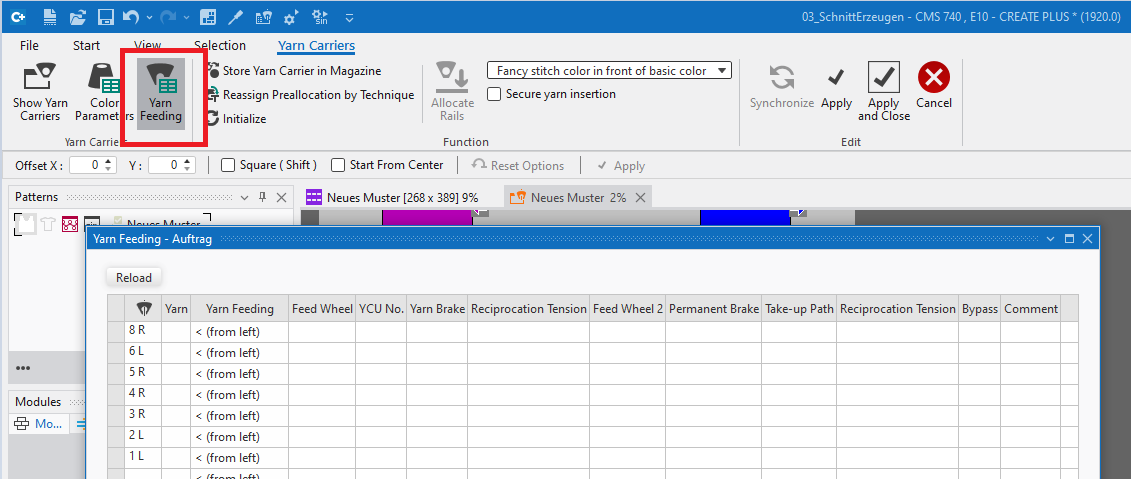
Guiahilos → Guiahilos → Alimentación de hilo -
-
Archivo → Exportar →
 Crear reporte
Color Arrangement
- Extension of the Anchura excesiva definition of areas of CA
- You can create an additional knitting technique (e.g. tie-off) beside the color area by the excess width. This will be created only if no knitting technique of the neighboring color area must be overwritten.
- The following picture shows the result with V.1.3.4.
The tie-off is inserted on the right-hand side only. -

- To get the same result with V2.0, you have to use the new Anchura excesiva symbol (red plus character) in the CA.
Former patterns will be converted with opening. -
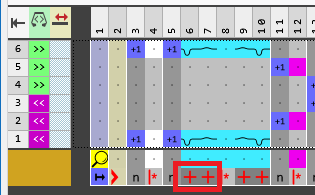
- The previous symbol (black plus character) now means Anchura excesiva, sobrescribiendo .
-
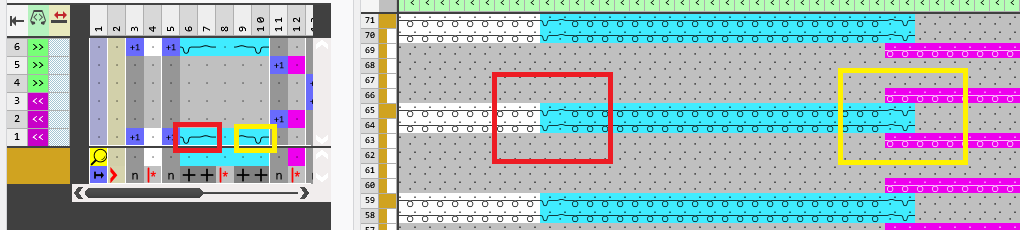
- The tie-off will inserted overwriting on the left-hand side.
Fully Fashion
- Create lined shape for a pattern
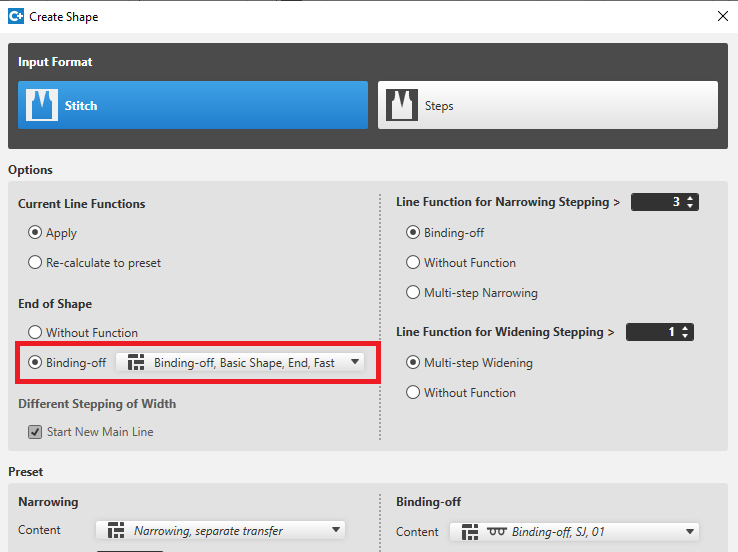
- In the Crear corte dialog box, you can select a module for binding-off at the line end.
-
- Editing the shape on the pattern.
-
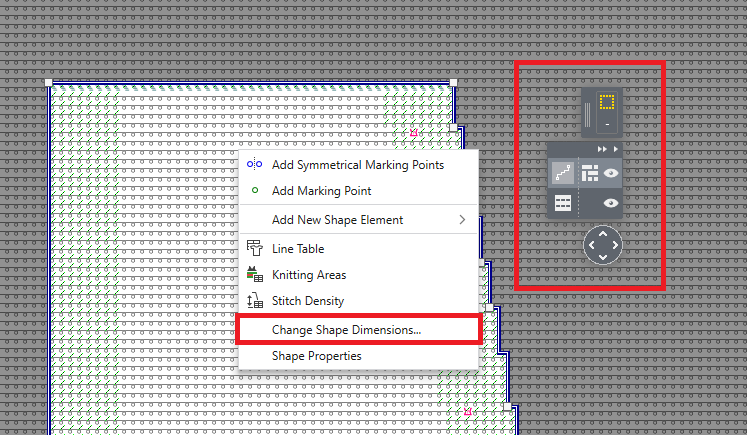
- The Modificar dimensión de corte... function is part of the context menu of the view now.
The pattern is in the shape editing mode. - The user control is prepared for the coming development of fully fashion.
To toggle by two steps.
Machines
- Extract knitting program from the pattern project file
- In the Windows Explorer you find the menu item in the context menu of the (*.spf) file under .
- S-Machines
-
CMS 730 S and CMS 830 S are fully supported now.
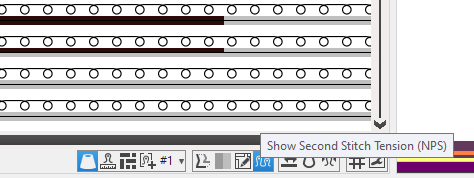
In Setup files, control columns and in the pattern view you will find the corresponding settings for NPS (second stitch tension) und PNP (reclaiming). - The second stitch tension can be toggled via the status bar of the pattern view.
-
- BMS
- Not Sunken Tuck:
You will find the corresponding functions in the Función del sistema control column. - Semi-automatic of clamping and cutting:
Up to now, you could only toggle on or off the automatic of clamping and cutting.
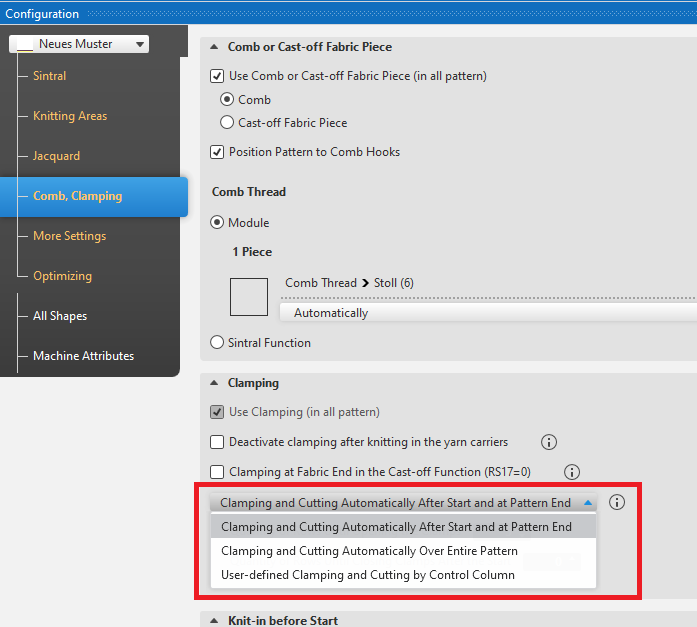
After disabling the corresponding setting of the configuration you had to enter the user defined clamping commands manually. - With the new version, the Pinzar y cortar automáticamente check box is replaced by a list box with different items.
With it, you can get the automatic to work at start and pattern end only. -
You can find the news of the previous releases in the Ayuda para CREATE (F1) help.