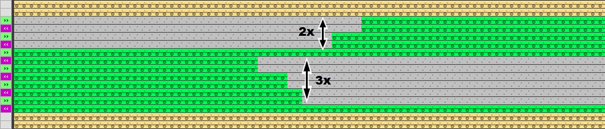
Example 05: Repeating of rows
Use of the reference row numbers:
- With default reference row numbers
 : The repetition of rows is automatically calculated according to the pattern drawn.
 - With reference row numbers
 , etc.: The user must enter the correct reference row numbers manually in the CA for the knitting areas to be processed correctly.
I. Version 1: Processing a gore with variable repeating of rows:
-
 Amostra de desenho with different colors and racked stepping is created.
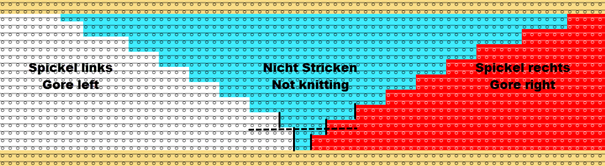
- 1
- Select the desired rows in the Fileira control column.
- 2
- Position the cursor in the pattern area.
- 3
- Open the context menu with RMB.
Select Seleção / Criar um Color Arrangement... - The Color Arrangement Editor will be opened.
- 4
- Make the desired entries with the tools for Color Arrangement from the CA and Ações da agulha / Cores tabs.
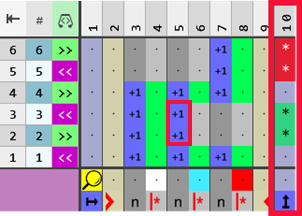
For processing gore areas we recommend to use the reference row number, as the automatic calculation of the Jacquard rows to be processed can take place.
- 5
- Define the desired cycles in the
 Coluna para repetição vertical with any desired defining color and the
  Repetição de fileiras symbol.
 : The Repetição de fileiras symbol enables any desired repeating of rows until the rows drawn in the pattern are processed.
- 6
- Enter the reference row number for the search color #10 (light blue) in the processing area in the height of the cycle, so that these rows will be processed also when repeating the rows.
- 7
- Check the generated Color Arrangement regarding its correctness with the
 Verificar button.
 - 8
- Then apply the changes with the
 Aceitar button.
- or –
Close the editor with .
. - A prompt appears.
- 9
- Make the desired selection, e.g. Salvar button.
- Color Arrangement is saved locally in the
 CA tool window.
 - 10
- Enter the generated Color Arrangement in the desired rows in the design pattern.
- The Color Arrangement is expanded by the technical processing.
Result:
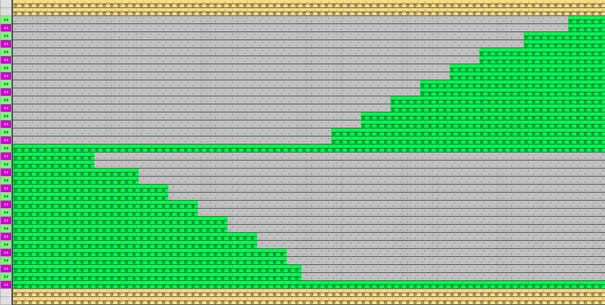
II. Version 2: Processing a gore with defined repeating of rows:
-
Amostra de desenho with different colors and racked stepping is created.
- 1
- Select the desired rows in the Fileira control column.
- 2
- Position the cursor in the pattern area.
- 3
- Open the context menu with RMB.
Select Seleção / Criar um Color Arrangement... - The Color Arrangement Editor will be opened.
- 4
- Make the desired entries with the tools for Color Arrangement from the CA and Ações da agulha / Cores tabs.
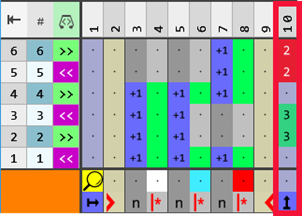
For processing gore areas we recommend to use the reference row number, as the automatic calculation of the Jacquard rows to be processed can take place.
- 5
- Draw-in the desired, fixed repeating of rows in the Coluna para repetição vertical with any desired defining color and a number (repetition factor).
- 6
- Enter the reference row number for the search color #10 (light blue) in the processing area in the height of the cycle, so that these rows will be processed also when repeating the rows.
- 7
- Check the generated Color Arrangement regarding its correctness with the Verificar button.
- 8
- Then apply the changes with the Aceitar button.
- or –
Close the editor with. - A prompt appears.
- 9
- Make the desired selection, e.g. Salvar button.
- Color Arrangement is saved locally in the CA tool window.
- 10
- Enter the generated Color Arrangement in the desired rows in the design pattern.
- The Color Arrangement is expanded by the technical processing.