Step by Step to 'Pattern-10'
- A pattern project with one pattern and the desired settings is created.
- 1
- Draw the desired SJ structure with:
-
 Malha à frente com transferência
 -
 Malha atrás com transferência
|
Presentation in plating color |
Presentation by module color |
|
|
|
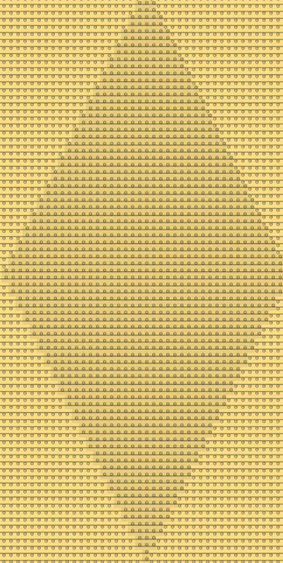
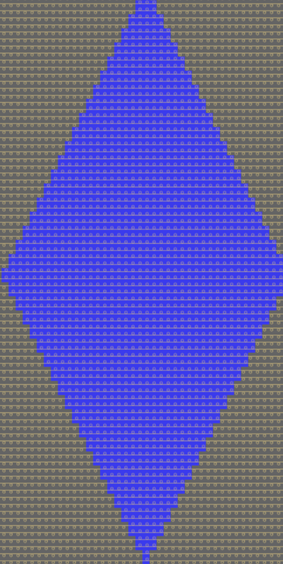
- 2
- Select a structure in the width and height.
- 3
- Create pattern element from selection:
- With CTRL + C create a temporary pattern element to draw.
- Open the context menu -> Seleção
-> select
 Parte de amostra:
Pattern element is saved in the Partes de amostra tab.
- 4
- Draw-in the pattern element, with the help of the center of the pattern field, several times to the left and right into the basic pattern.
- 5
- With the
 button in the Cores da amostra tool window open the Cores de vanizagem dialog box.
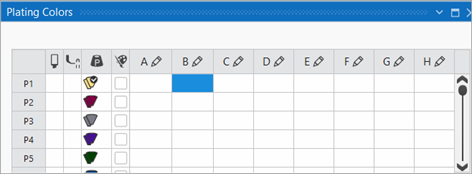
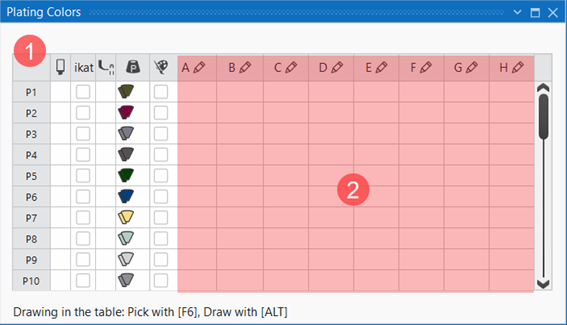
 - The Cores de vanizagem tool window is displayed.
|
| ||||
|
1 |
Column 1 |
Default entries from P1 to P40 to use in the pattern for plating and knitting with weft yarn carriers
| ||
|
Column 2 |
|
Selection of the plating color to draw in the design pattern | ||
|
Column 3 |
ikat |
|
Plating color is not defined as Stoll-ikat plating. | |
|
|
Plating color is defined as Stoll-ikat plating. | |||
|
| ||||
|
Column 4 |
|
Define presser foot type
| ||
|
Column 5 |
|
Color value of the plating color
| ||
|
Column 6 |
|
|
The color value of the plating color is not automatically mixed from the selected colors. | |
|
|
The color value of the plating color is automatically mixed from the selected colors. | |||
|
| ||||
|
2 |
Enter the different colors and settings for plating or knitting with weft yarn carriers in the columns A to H via the | |||


- 6
- Under P1 (plating color 1) in the columns A to H allocate the desired colors for plating.
- In the column under P1 the automatically generated plating color is displayed.
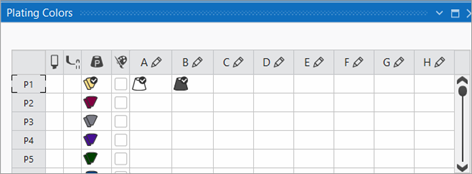
 : You can make upto 8 entries (columns A - H) for plating or for knitting with weft yarn carrier.
- 7
- If necessary change the color value in the column via the

 menu.
menu. - 8
- Select the P1 entry in the
 column.
 - 9
- Draw-in the plating color into the desired pattern rows, for example in the entire pattern height, of the design pattern.
- 10
- For plating the start, draw the plating color in the corresponding rows in the local 'Start' knitting element.
- A desired start is inserted in the design pattern.
- 1
- Position the cursor in the design pattern in the area of the 'Start'.
- 2
- Open the context menu with RMB.
- 3
- Select a Abrir módulo....
- The tool window of the local knitting element with the knitting specifications of the selected start is displayed.
- 4
- Draw-in the P1 plating color in the knitting rows of the start.
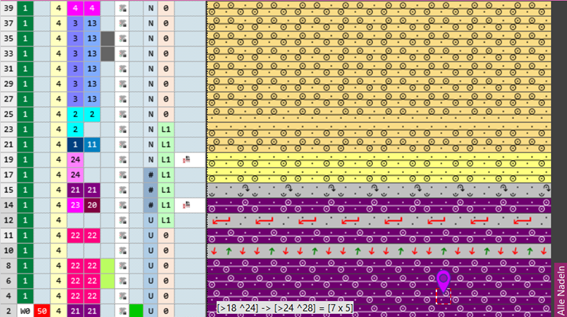
- 5
- Close the tool window of the 'Start' knitting element.
- 6
- Enter changes with Aceitar into the design pattern.
- The start is worked with the plating color P1.
- 11
- Close the tool window.
- 12
- To create a project-related lined shape, select the
 Cortes tab in the tool window.
 - 13
- Open the context menu with RMB and select Criar novo corte em tamanho M....
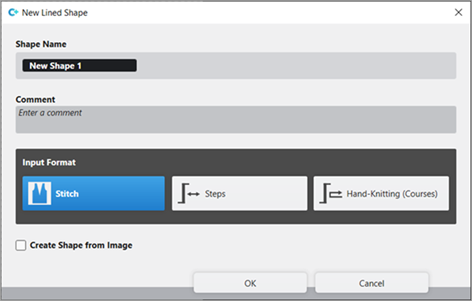
- The Novo corte de linhas tool window is opened.
|
| |||
|
Nome de corte |
Name for the shape element | ||
|
Comment |
Information about the shape | ||
|
| |||
|
Input Format | |||
|
Malha |
Entry in the table of the lined shape
| ||
|
Passos |
Entry in the table of the lined shape
| ||
|
Tricotagem manual (voltas) |
Entry in the table of the lined shape
| ||
|
Rules for widening with hand knitting | |||
|
|
Knitting before widening following the start | ||
|
|
Widening before knitting following the start (default setting) | ||
|
Criar corte da imagem |
|
No images will be used | |
|
|
Use image as template | ||


- 14
- Make the desired entries:
- Nome de corte : Any
- Formato de entrada : Stitch
- 15
- Confirm with the OK key.
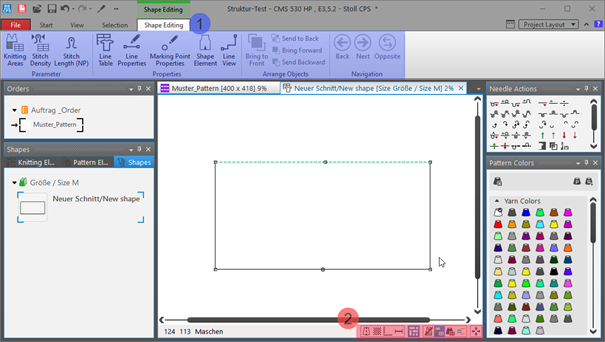
- The new lined shape (basic shape) is graphically displayed in the Cortes tab and in a new document window
 as rectangle.
: Default attributes are used for the shape edges of the lined shape.
Menu Arquivo -> Opções -> Corte de linhas -> Opções para o novo corte de linhas
Document window
|
| |||
|
1 |
Edição de corte ribbon | ||
|
Group Parâmetros | |||
|
|
Áreas de tricotagem |
Create new knitting areas and display existing knitting areas | |
|
|
Densidade das malhas |
Create new stitch density and display existing stitch density | |
|
|
Graduação (NP) |
Display of the | |
|
|
Group Propriedades | ||
|
|
Tabela de linhas |
Display of the line table for entering the shape data | |
|
|
Propriedades de linha |
Display of the line properties (attributes) of a selected shape edge | |
|
|
Propriedades de ponto de marcação |
Display of the marking point properties (attributes) of a selected marking point | |
|
|
Elemento de corte |
Display of the shape element properties of a selected shape element
| |
|
|
Vista de linhas |
Graphical display of a selected shape edge | |
|
2 |
Status bar in the document window for shapes | ||
|
|
Exibir eixo de simetria | ||
|
|
Exibir grelha de malhas | ||
|
|
Exibir eixos de diagrama | ||
|
|
Exibir dimensionamentos de controle | ||
|
|
Exibir os símbolos dos pontos de marcação | ||
|
|
Ocultar áreas de tricotagem | ||
|
|
Exibir áreas de tricotagem | ||
|
|
Exibir áreas de tricotagem (cor de fio) | ||
|
|
Exibir áreas de tricotagem (cor de CA) | ||
|
|
Deslocar o objecto selecionado (ponto de corte, marcação de ponto, área de tricotagem ou elemento de corte) com teclas de seta do teclado (ponto de corte só em formato de entrada Malhas) | ||


- 16
- To create a lined shape based on the displayed rectangle in the ribbon Edição de corte under Propriedades, click the Tabela de linhas button.
- or -
Use the graphic displayed in the document window.
: The method (table or graphic) to create a project-related lined shape is freely eligible, since the views are always updated simultaneously.
- 17
- Open Tabela de linhas in the ribbon.
- The table Corte de linhas with the values of the rectangular shape is displayed.
- 18
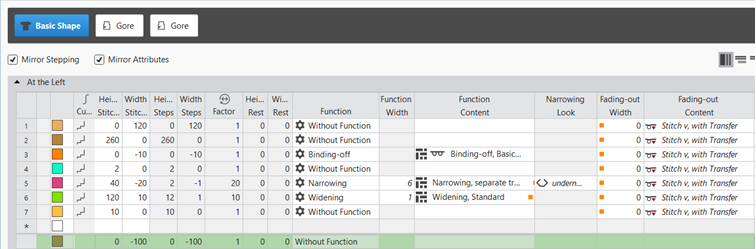
- Insert new shape lines in the table and enter the desired values for the basic shape.
Example: Lined shape for Pattern-10
|
Basic Shape: Front |
|
|
|
| ||||
|
1 |
| |||
|
2 |
|
Inverter escalonamento |
Creating a symmetric shape of shape element
| |
|
|
Inverter atributos |
Attribute changes carried out in the line table at the left and right. | ||
|
|
Do not mirror attributes |
Attribute changes are carried out in the line table at the left or at the right. | ||
|
|
Do not mirror stepping |
Creating an asymmetric shape / shape element
| ||
|
3 |
|
Exibir todas as propriedades | ||
|
|
Exibir linhas secundárias | |||
|
|
Ocultar linhas secundárias | |||
|
4 |
Display color for main lines and sublines of a selected line in the | |||
|
5 |
|
Curva |
| |
|
6 |
Columns for entering the values for the lines of the lined shape in the input format
| |||
|
7 |
Columns for the input of line attributes
| |||
|
8 |
Specification for working with PTS (NPJ) for one line (shape edge)
| |||
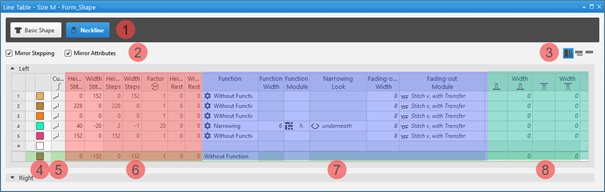


 factor, height of rest and width of rest is calculated.
Insert shape line in a shape element:
: The shape lines are inserted symmetrically with both methods by default.
-
In the Line Table:
Entry of a positive value: Widening and upwards
Entry of a negative value: Narrowing and down - Enter the desired values in the last table line with the * symbol. When confirming the input with the Enter key a new table line is inserted.
- Select a row -> open the context menu with RMB -> select Adicionar linha principal.
- Select a row -> open the context menu with RMB -> select Adicionar linha em frente.
- or -
Select a Adicionar linha depois.
: Only in the line table it is possible to create an asymmetrical line shape by deactivating  Inverter escalonamento.
- In the document window
- Position the cursor on a line of the displayed graphic -> open the context menu with RMB and select -> Inserir linha de corte .
Changing line properties of a shape line
- Global project-related setting of the line properties via
 Configuração / Todos os cortes tab
 - In the shape regarding a shape line
- In the Line Table
- In the document window
Changing Line Properties:
- In the Line Table
- Direct change of a line property in the corresponding column of the table
- Select a line in the table, open the tool window with the
 Propriedades de linha button and make the desired entries.
 - In the document window
- Position the cursor on a line of the displayed graphic, select the context menu Propriedades de linha and make the desired entries in the tool window.
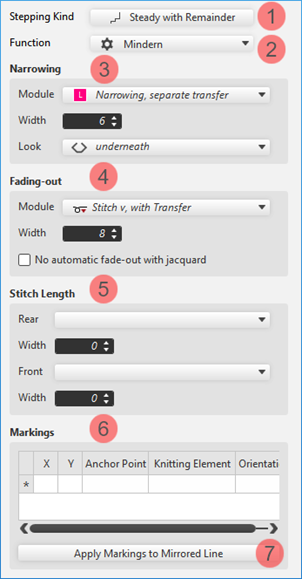
|
|
1 |
Modification of the curve type | |
|
2 |
Modification of the function of a shape line
| ||
|
3 |
Modifications for the shape line with the Minguar function | ||
|
4 |
Modifications of the Ocultar attribute for a shape line | ||
|
5 |
Specification for a shape line for working with PTS in the shape edge | ||
|
6 |
Display of the markings that are assigned to a shape line. | ||
|
Aplicar marcações à linha invertida |
Applies the line-bound markings of the selected line to the line on the opposite.
| ||
Changing curve type:
- In the Line Table
- In the
 Curva column open the context menu with the RMB and select the desired curve type.
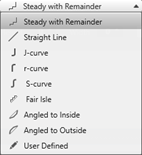
 - Select the line, open the Propriedades de linha with the Propriedades de linha button and select the desired curve type at Seqüência de escalonamentos.
- In the document window
- Position the cursor on a line of the displayed graphic -> open the context menu with RMB and select -> Ajustar seqüência de escalonamentos....

- Select the desired Seqüência de escalonamentos in the selection menu.
- When selecting the curve type
 uniformemente com resto via·Ajustar escalonamento, specify the desired values for and of the steps.
 -
: The window for entering specifications is displayed according to the selected curve type.
- Transfer the entry to the shape line with the Recalcular button.
-
: The shape line is displayed in the graphic and in the line table as well.
- 19
- Allocate the desired attributes to the new shape lines:
- Function: Function content + Function width
- Fade-out: Fade-out content + Fade-out width
- Line 3:
- Function: Binding-off (at the external edge of the shape)
- Function content: desired bind-off method
|
Binding-off of the external edges of the shape |
|
The shape lines for binding-off at the external edge of the shape are at the same height in the line table.
|
: The shape is always even numbered in the total width (width of fabric piece).
- 20
- In this pattern example, an odd numbered fabric piece width is necessary due to the structure:
- Indicate values for the left fabric piece and the right fabric piece in the Tabela de linhas.
- Set the basic shape to an odd width using Propriedades de corte.
- 21
-
Propriedades de corte menu:
Position the cursor in the opened document window xx -> context menu with RMB -> select Propriedades de corte
- or -
select the shape in the Cortes tool window -> context menu with RMB -> select Propriedades de corte - 22
- Click on the
 Largura impar selection.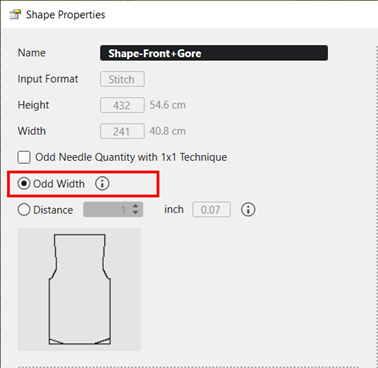
- The fabric piece width is widened by 1 needle.
: This setting also has an effect on the neckline shape element, i.e. the V-neck shape element starts with 1 needle.
- 23
- In the Tabela de linhas tool window, position the cursor in the area beside the
 Corte base button, open the context menu with RMB and call-up Adicionar novo elemento de corte....
- or -
Position the cursor in the document window (graphic), open the context menu with the RMB and select Adicionar novo elemento de corte.... - 24
- Select Assimétrico in the
 Spickel selection menu.
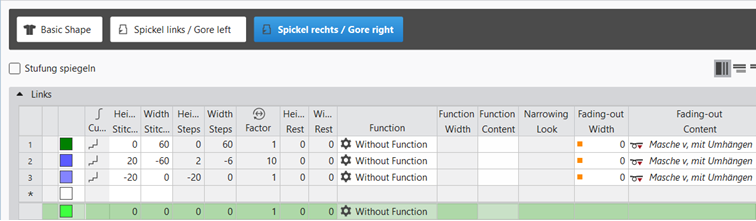
 - 25
- In the line table of the new shape element enter the desired values.
- The newly created shape element is displayed in the graphic and in the line table as well.
|
Shape Element Type: Gore asymmetrical |
|
|
|
|
- 26
- Select Spickel shape element.
- 27
- Open the context menu with RMB and select
 Inverter verticalmente.
 - 28
- Then open the context menu again -> select Duplicar invertido.
- New knitting element is saved and is displayed in the basic shape.
- 29
- To position a Spickel shape element, open the input window by double click and enter the coordinates.
- or –
Place the shape element at the desired position with the LMB pressed. - 30
- Make the positioning for both shape elements.
- 31
- If necessary, change the anchor (shortcut).
|
|
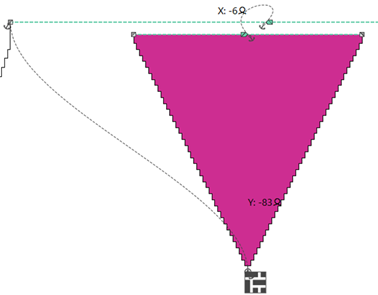
|
|

Positioning of a shape element in the basic shape
:
Every shape element gets a link (anchor) to a shape point in the basic shape during its creation.
Condition:
- A basic shape with a shape element is created.
- Position the cursor in the shape element.
- Reposition the shape element with the LMB pressed.
- or -
Move the shape with the arrow keys of the keyboard.
- or -
Open the coordinate display in the shape element double-clicking LMB and enter values. -
: The anchor point becomes visible with its X and Y coordinates in the Decote shape element.
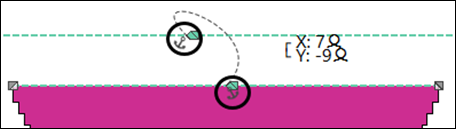
- Change the positioning if necessary.
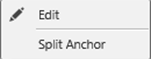
Possibilities for editing an anchor via the context menu
|
| |
|
|
Tool window for manually changing the values of X and Y coordinates. |
|
Distribuir âncora |
Ungroup the grouped anchor in one anchor for X coordinate and one for Y coordinate, to be able to anchor one anchor with another shape element.
|

- 32
- In the Cortes tool window select the created shape with LMB.
- 33
- Open the context menu -> Posicionar corte -> select Pattern name.
- The shape is floating in the selected basic pattern.
- 34
- Position the shape in the document window with the
 button.
 - 35
- Check shape lines, attributes and if desired make corrections.
- 36
- Click the
 Início button under Pré-visualização in the Guia-fios ribbon.
 - The document window is opened as view and the Guia-fios ribbon appears.
- 37
- Open the dialog box via
 Exibir guia-fios.
 - 38
- Position the yarn carrier on the desired yarn carrier rails:
- Yarn carrier for yarn color #1 e.g. on rail 4
- Yarn carrier for yarn color #2 e.g. on rail 5
- 39
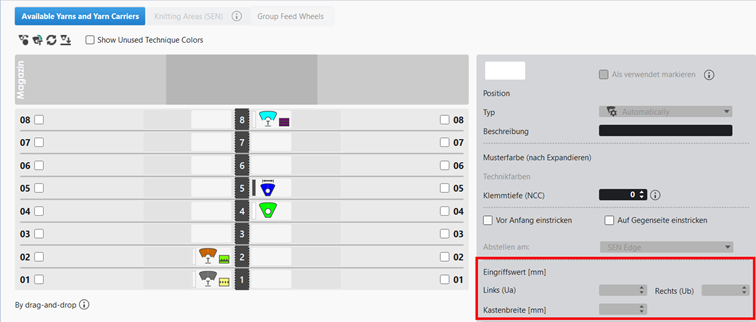
- Select and define yarn carrier:
- Yarn carrier on rail 4 as normal yarn carrier (leading yarn carrier)
- Yarn carrier on rail 5 as yarn carrier with 'Variable engaging width +/- (Ua-b)' (following yarn carrier)
- Á esquerda (Ua) : 21.5
- Á direita (Ub) : 21.5
- 40
- Start the
 Processamento
técnico:
Processamento
técnico: Show symbol view after technical processing.
 - 41
- Generate
 Sintral.
 - 42
- Start the
 Controle Sintral.
 - 43
-
 Extrair the knitting program.
 - A program for the knitting machine will be created: CMS530.Pattern-10.zip.
- Load knitting program into the machine.
 : The extracted file CMS530.Pattern-10.zip can be loaded onto the machine with an USB stick or via Ethernet.